How to Set Up Gmail Filters (Rules) to Sort Email Automatically
Gmail filters are built-in email rules that automatically sort your incoming mail based on criteria like sender, subject, or keywords. This guide covers how to create filters, use search operators for precision, export and import rules, and sync labeled mail in Mailbird.



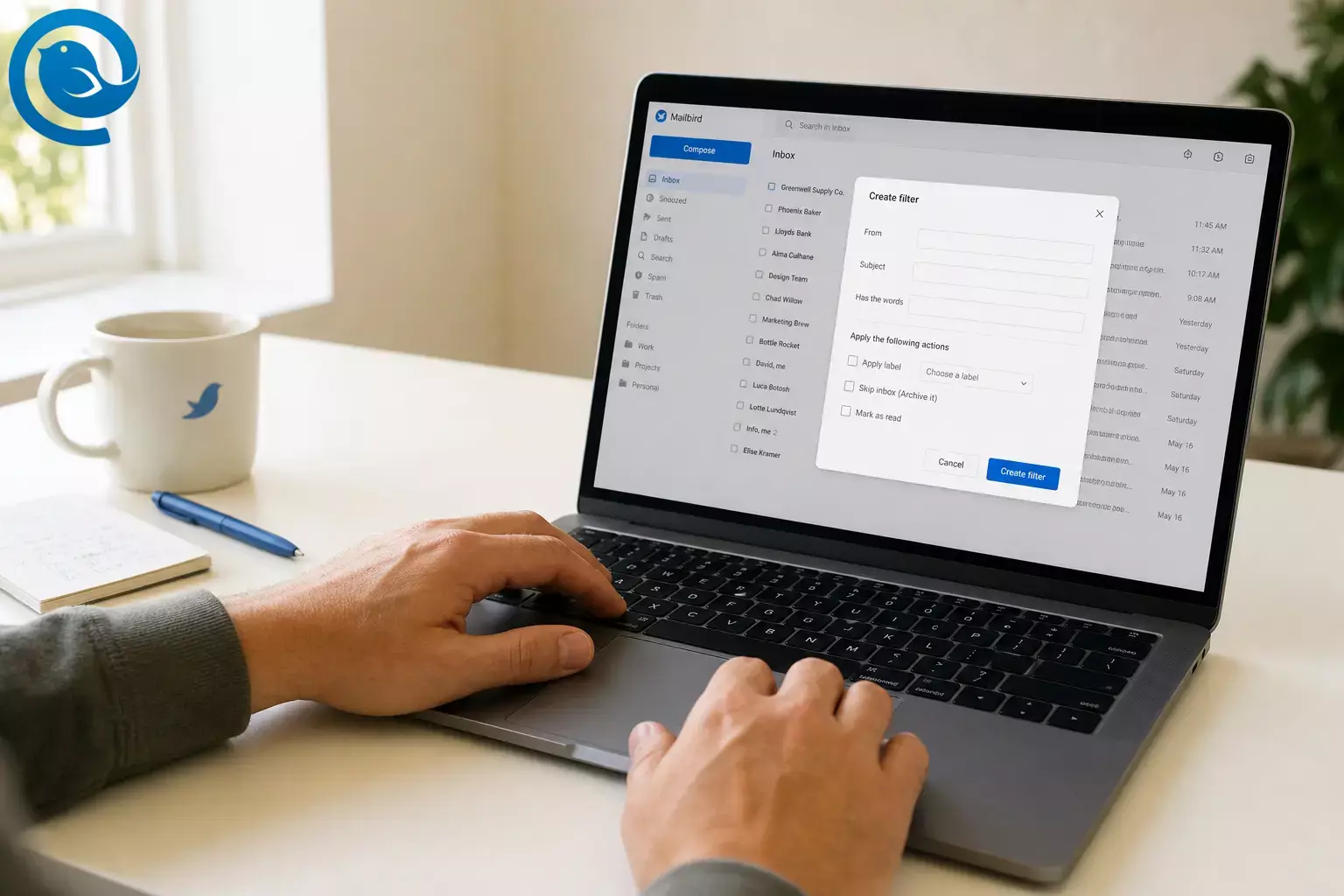
Gmail filters are Gmail’s built-in email rules . You define what to match (a sender, subject line, keyword, mailing list, attachments), then Gmail automatically takes the actions you choose—like labeling, archiving (skipping the Inbox), forwarding, or deleting messages. 2
This guide is about automatic email sorting in Gmail (filters), not manual cleanup. Once your rules are set, your mail arrives already organized—whether you’re in Gmail on the web, the Gmail app, or reading Gmail in Mailbird. 2
In this guide:
- How to set up Gmail filters from the search bar or from an email 2
- Which filter actions to use (label, skip inbox, mark read, forward, delete) 2
- A Gmail filter rules cheat sheet (search operators you can copy and paste) 3
- How to export/import filters and show labels in IMAP email apps (including Mailbird) 2 5
What’s new
On , Google announced a new “Manage subscriptions” view in Gmail to help people unsubscribe and declutter subscription email. 1 It helps, but filters are still the quickest way to route the email you want to keep—before it hits your Inbox.
Key takeaways
- Gmail filters match criteria (sender, subject, keyword, mailing list, attachments) and then automatically apply actions like labeling, archiving, forwarding, or deleting. 2
- Create and manage filters in Gmail on a computer (desktop web), using the search options or “Filter messages like these.” 2
- Preview your matches with Search before saving; start with labeling/archiving before using “Delete it.” 2
-
Search operators like
from:,subject:,has:attachment,filename:pdf,list:,deliveredto:, andORhelp make rules more precise. 3 - To use “Forward it,” you need to add and verify a forwarding address first. 4
-
You can export filters to an
.xmlfile and import them later to back up or copy rules between accounts. 2 - If you read Gmail in IMAP apps (including Mailbird), enable “Show in IMAP” for the labels you want to see in the app. 5
Before you start
- Prerequisites: Access to your Gmail account (personal Gmail or Google Workspace) and permission to change settings.
- Tools: A computer with a web browser (Chrome, Edge, Safari, or Firefox). Optional: Mailbird installed if you read Gmail in a desktop app.
- Time: Set aside a bit of time to create and test your first few filters.
- Cost: Gmail filters are built in.
- Safety note: Start by labeling or archiving first. Avoid “Delete it” until you’ve previewed the matches and you’re sure the rule is tight.
Step-by-step: how to set up Gmail filters (automatic email sorting)
Step-by-step: how to set up Gmail filters (automatic email sorting)
-
Pick one repeatable email stream to automate.
Examples: newsletters, receipts, calendar notifications, a specific client domain, or a noisy tool sending alerts.Check: You can name one sender/domain/keyword that keeps showing up.
-
Decide where those emails should land.
Choose one: keep in Inbox + label (for important), or label + Skip the Inbox (for low-priority but keepable).Check: You wrote down the label name and whether it should stay in Inbox.
-
Create the label you want the filter to apply (optional, but recommended).
In Gmail (web): open the left sidebar, click More , then Create new label (or use Settings → See all settings → Labels → Create new label ).Check: The label is visible in the left sidebar and clickable.
-
Open Gmail on a computer (desktop web) and go to your Inbox.
Gmail’s filter builder is easiest to access from the desktop web interface. 2Check: You see the Gmail search bar at the top.
-
Open the filter builder.
Use either method: 2
- Search method: Click the Show search options icon in the search bar (it looks like sliders).
- From an email: Select an email → click More (three dots) → Filter messages like these .
Check: A search options box opens with fields like From, To, Subject, and “Has the words.” -
Enter your matching criteria, then preview it with Search.
Start simple (for example,
from:billing@service.com), then get more specific as needed. You can use Gmail search operators likefrom:,subject:,has:attachment,filename:pdf, andlist:to build reliable Gmail filter rules. 3Check: Clicking Search shows only the emails you want to catch. -
Click “Create filter,” then choose what Gmail should do.
Common actions include: 2
- Apply the label (pick your label)
- Skip the Inbox (Archive it)
- Mark as read (useful for low-priority mail)
- Star it (useful for VIPs)
- Forward it (routes specific mail elsewhere)
- Delete it (use cautiously)
- Never send it to Spam (for important senders that keep landing in Spam)
Tip: If “Forward it” isn’t available, add and verify a forwarding address in Gmail settings first. 4Check: You selected at least one action and (if labeling) chose the correct label from the dropdown. -
(Optional) Set up forwarding if you want to use “Forward it.”
In Gmail: Settings → See all settings → Forwarding and POP/IMAP → Add a forwarding address , then confirm via the verification link sent to that address. 4Check: Your forwarding address appears as an option when you edit the filter again.
-
(Optional) Apply the rule to existing emails.
Before saving, check “Also apply filter to matching conversations” if you want Gmail to process existing matches (not just new incoming mail). 2Check: The number of matching conversations looks reasonable (not a surprise “huge number”).
-
Save the filter, then confirm it’s listed (and test it).
Click Create filter . Then go to Settings → See all settings → Filters and Blocked Addresses to confirm it’s there (and edit or delete it if needed). 2Check: The filter appears in the list and shows the action(s) you chose.
-
Back up your filters (or copy them to another Gmail account).
In Filters and Blocked Addresses , select the filter(s) and use Export (downloads a
.xmlfile). Use Import filters to restore later. 2Check: You can find the exported.xmlfile in your Downloads folder. -
If you read Gmail in Mailbird's unified inbox: make sure your labels show up via IMAP.
In Gmail web settings → Labels , turn on Show in IMAP for the labels you want visible in IMAP email apps, then sync Mailbird again. 5Check: Your Gmail label shows up in Mailbird after syncing, and new matching emails land where you expect.
Why this works
A Gmail filter is essentially a saved match + a set of actions. If you preview the matches first (by searching), you can see what the rule will catch—then let Gmail apply your routing rules automatically going forward. 2 3
Gmail filter rules: operator cheat sheet (copy and paste)
In Gmail’s filter builder, you can use Gmail search operators to build more precise rules. Here are common ones to copy and paste. 3
| Operator / pattern | Use it to match | Example |
|---|---|---|
from:
|
Messages from a sender |
from:billing@service.com
|
from:
(domain)
|
Messages from a domain |
from:service.com
|
subject:
|
Words in the subject line |
subject:(invoice OR receipt)
|
list:
|
Messages from a mailing list |
list:newsletter.example.com
|
has:attachment
|
Messages with any attachment |
has:attachment
|
filename:
|
Attachments by file name or type |
filename:pdf
|
deliveredto:
|
Mail delivered to a specific address/alias |
deliveredto:me+receipts@gmail.com
|
OR
|
One condition or another |
from:(tool@service.com OR no-reply@service.com)
|
Tip: Treat your filter like a search first. If the search results look right, the filter is much less likely to surprise you.
Troubleshooting
| Symptom | Likely cause | Fix |
|---|---|---|
| “I can’t create filters on my phone.” | You’re in the Gmail mobile app (or a mobile web view), where filter management is limited. | Use Gmail on a computer (desktop web). If you only have a phone, try a mobile browser in “desktop site” mode—then re-check the steps. 2 |
| “The filter doesn’t catch the emails I expected.” | Your criteria is too narrow (wrong address, wrong keyword, missing a better operator). | Edit the filter and use Search to preview results. Adjust one condition at a time until the preview list matches what you want. 2 |
| “My filter grabbed important emails and hid them from Inbox.” | Your rule is too broad (for example: common words that appear in many messages). |
Switch the action to
Apply label only
while you refine the match. Then tighten the rule using a specific sender/domain or a mailing list identifier like
list:
.
3
|
| “Replies to a filtered thread still land in Inbox.” | The new message doesn’t match your original criteria (this is common if you filtered by subject keywords). |
Rebuild the filter using stable fields like sender/domain (
from:
), recipient (
to:
), or mailing list (
list:
) instead of subject text.
3
|
| “Forward it” is missing (or the filter won’t forward). | No forwarding address is set up and verified. | Add and verify a forwarding address in Gmail settings, then edit the filter and select that address. 4 |
| The filter only affects new mail, not older messages. | You didn’t apply it to existing matches. | Edit (or re-create) the filter and choose Also apply filter to matching conversations , or use search + bulk actions for older mail. 2 |
| A label shows in Gmail, but it’s missing in Mailbird. | That label isn’t set to Show in IMAP (or it hasn’t synced yet). | In Gmail settings → Labels , enable Show in IMAP for that label, then sync Mailbird again. 5 |
| “I can’t find the email after setting up the filter.” | You archived it (removed it from Inbox), or filed it under a label you’re not checking. | Click the label, or search in All Mail . If you used Delete, check Trash . |
Easy to miss: If your match is based on something that changes (like subject lines), related messages may not match later. When in doubt, match on stable fields (sender/domain, recipient, or a mailing list).
Variations (copy-and-paste Gmail filter ideas)
1) Newsletter auto-archive
-
Criteria (more precise):
list:newsletter.example.com3 -
Criteria (quick start):
“Has the words” contains
unsubscribe(then tighten later withfrom:domains if needed). - Actions: Apply label Newsletters + Skip the Inbox + Mark as read.
2) Receipts and invoices
-
Criteria:
subject:(receipt OR invoice)3 - Actions: Apply label Receipts + Star it (optional) + Skip the Inbox (optional).
3) VIP senders (never miss these)
-
Criteria:
from:vip@company.com(or, if it’s safe for your situation, match the domain withfrom:company.com). 3 - Actions: Star it + Apply label VIP (keep it in Inbox).
4) Attachments you need to review
-
Criteria:
has:attachmentorfilename:pdf(or combine them). 3 - Actions: Apply label Attachments + Star it (optional).
5) Silence noisy notifications (keep them, don’t see them)
-
Criteria:
Match your tool’s notification senders (for example,
from:(no-reply@service.com OR notifications@service.com)). 3 - Actions: Apply label Notifications + Skip the Inbox.
Tip:
If you can search for it, you can usually filter it. Gmail’s search operators (like
from:
,
subject:
,
has:
,
filename:
,
list:
, and
deliveredto:
) are your best building blocks for filter rules.
3
Maintain and scale your Gmail filters
- Start with a small label set: For example: Newsletters, Receipts, VIP, Notifications. Then build rules around those labels.
-
Back up before a big cleanup:
Export your filters to an
.xmlfile so you can restore them later if needed. 2 -
Use fewer rules with more coverage:
Instead of one filter per sender, match by domain (or combine senders with
OR). 3 -
Target a specific address/alias when needed:
Use
deliveredto:to build rules around specific aliases or addresses used inside the same Gmail account. 3 - Mailbird tip: Build the rules in Gmail, then sync Mailbird's Gmail inbox—your messages will already be labeled/archived based on your Gmail settings. 2
Frequently Asked Questions
What’s the difference between Gmail labels and Gmail filters?
Labels are tags you apply to messages. See our guide to labels vs folders . Filters are rules that apply labels (and other actions) automatically when new mail matches your criteria. 2
Where do I find and manage my Gmail filters later?
In Gmail (web): Settings → See all settings → Filters and Blocked Addresses . From there you can edit, delete, export, or import filters. 2
Can I create Gmail filters on iPhone or Android?
You can benefit from filters on mobile (because your mail arrives already labeled/archived), but creating and managing filters is typically done in Gmail on a computer. 2
Do Gmail filters apply to old emails?
They mainly affect new incoming mail, but you can apply a new filter to existing matching conversations when you create it. 2
Why did my email “disappear” after I created a filter?
Most of the time, it was archived (removed from Inbox) or filed under a label. Check the label you applied, or search in All Mail. If you used “Delete it,” check Trash.
Can I automatically forward only certain emails?
Yes—create a filter that matches the emails you want to forward and add the “Forward it” action. You’ll need to add and verify the forwarding address first. 4
Can I export and import Gmail filters?
Yes. Gmail can export selected filters to an XML file, and you can import that file into another Gmail account later. 2
Why don’t my Gmail labels show up in Mailbird?
In IMAP email apps, Gmail labels typically only show if they’re enabled for IMAP. Turn on “Show in IMAP” for the label in Gmail settings, then sync again. 5
How do I keep an important sender out of Spam?
Create a filter for that sender and select “Never send it to Spam.” Start by matching a specific email address (or domain) so you don’t accidentally allow unwanted mail. 2
Quick checklist
- I picked one email type to automate (newsletters / receipts / notifications / VIP).
- I created (or chose) the label the filter will apply.
- I opened Gmail on a computer and opened the filter builder (search options or “Filter messages like these”).
- I previewed matches with Search before saving the filter.
- I selected the action(s): label, skip inbox, mark read, star, forward, delete (only if safe).
- I optionally applied the filter to existing matching conversations.
- I confirmed the filter appears in Settings → Filters and Blocked Addresses.
- I exported my filters to an XML backup (optional but smart).
- If I use Mailbird: I enabled “Show in IMAP” for key labels and synced again.
Sources
- Google Workspace Updates — “Manage email subscriptions from a single location in Gmail” (July 8, 2025)
- Google Gmail Help — “Create rules to filter your emails”
- Google Gmail Help — “Refine searches in Gmail” (search operators)
- Google Gmail Help — “Automatically forward Gmail messages to another account”
- Microsoft Support — “How to show or hide folders for IMAP in Google Settings” (Show in IMAP)


