Why Outlook Hurts Productivity: Fix Outlook Productivity Issues in 60 Minutes
When Outlook hurts productivity, it's rarely one big issue. It's constant interruptions, a cluttered Inbox, and a workflow that changes depending on whether you're using new Outlook or classic Outlook.


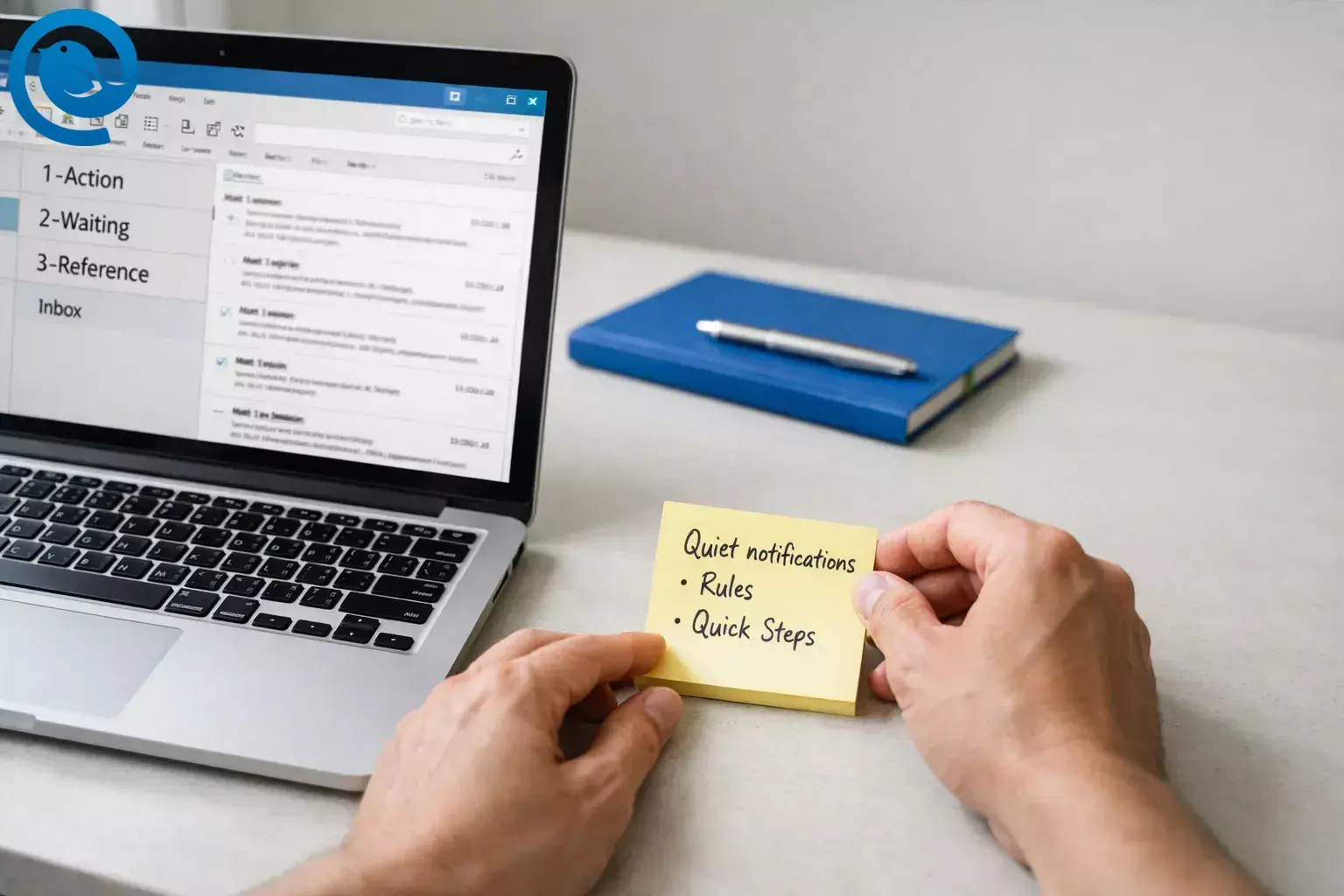
When Outlook hurts productivity, it’s rarely one big issue. It’s constant interruptions, a cluttered Inbox, and a workflow that changes depending on whether you’re using new Outlook or classic Outlook.
Promise: In the next 45–60 minutes , you’ll quiet distractions, automate the most repetitive inbox moves, and set up a simple “triage” flow that keeps urgent mail visible and everything else out of your way. This is beginner-friendly (mostly clicks and settings), and you can do it without admin rights in many setups.
If you’re feeling “busy” but not getting through email, it’s usually not willpower—it’s friction: too many alerts, too much manual sorting, inconsistent features between versions, and a mailbox that doubles as a task list. The steps below turn those pain points into a predictable routine.
Key takeaways
- You can make meaningful improvements in 45–60 minutes by reducing distractions and setting a simple, repeatable inbox flow.
- Confirm whether you’re using new or classic Outlook and write down 3 must-have features before changing anything major. 3
- Turn off most mail notifications; use rules (including a VIP rule) to keep important messages visible.
- Use a tiny filing system: 1-Action , 2-Waiting , 3-Reference , plus rules that move newsletters, CC-only mail, and automated alerts out of your Inbox.
- When available, use Quick Steps to compress common actions into one click or shortcut. 5
- Keep categories minimal: Today , This week , Waiting , and clear Today each afternoon.
- Rely on search scope + filters instead of building a maze of folders. 4
- Protect your time with two calendar blocks: Email Triage and Email Replies , then refine the system after a quick 10-email “stress test.”
How Outlook productivity issues show up day-to-day
- You get pulled into reactive mode: every notification becomes a “quick check” that breaks focus.
- Your Inbox becomes your task list: you re-read the same threads because nothing clearly means “next action.”
- Low-priority mail looks urgent: newsletters, CC-only messages, and automated alerts sit next to real requests.
- Version changes create extra work: features differ between new and classic Outlook, and some add-ins (like COM add-ins) don’t run in the new Outlook for Windows. 3 6
- Multi-account checking becomes a time sink: searching and replying across separate inboxes adds constant context switching.
Before you start
Prerequisites
- A Windows or Mac computer with Outlook (new or classic) and your email account signed in
- Permission to edit your own Outlook settings (some work accounts lock this down)
- A short list of “noise” senders (newsletters, alerts, automated systems)
Tools / ingredients
- 10–15 minutes of uninterrupted focus (twice, ideally)
- Your calendar (to block two recurring email sessions)
- Optional: Mailbird installed (if you want a unified inbox across accounts)
Time
45–60 minutes for setup + 10 minutes/day to keep it working.
Cost
$0 for the Outlook fixes below. Optional email clients may be free or paid.
Safety notes: Don’t create rules or Quick Steps that permanently delete mail until you’ve used the system for a week. If you’re on a managed work account, check with IT before changing add-ins, retention/archiving, or security-related settings.
Step-by-step: fix Outlook productivity issues and workflow inefficiency in one sitting
Fix Outlook productivity issues and workflow inefficiency in one sitting
-
Confirm which Outlook you’re using (new vs classic) and write down 3 “must-have” features
- Open Outlook and look for the Try the new Outlook toggle (classic) or a Go to classic Outlook option (new).
- On a sticky note (or Notes app), write your 3 deal-breakers, such as: PST workflows , offline work , specific add-ins , shared mailbox features , or custom forms .
- Open Microsoft’s feature comparison page and scan the rows for your deal-breakers (you’re checking “supported / not supported / partially available”). 3
Check: You can say, out loud, “I’m using new / classic Outlook and these 3 things must work: ___, ___, ___.” -
Stop surprise switches (if you have the setting)
- Classic Outlook for Windows: go to File → Options → General → find New Outlook options , then uncheck “Automatically switch me to new Outlook.” 2
- If you don’t see the option, your account may not be eligible for the one-time switch—or your organization may be managing it.
Check: Close and reopen Outlook. You’re still in the same version you chose. -
Create three “triage” folders (and stop building a maze of folders)
- Create (or rename) these folders under your mailbox: 1-Action , 2-Waiting , 3-Reference .
- Add them to Favorites so they’re visible without scrolling.
- From today forward, only file messages into those three unless a message truly belongs to a project folder you already use daily.
Check: You can see 1-Action, 2-Waiting, 3-Reference in Favorites. -
Turn off most mail notifications (keep calendar reminders if you rely on them)
- Classic Outlook (Windows): File → Options → Mail → under Message arrival , uncheck Display a Desktop Alert and Play a sound .
- New Outlook (Windows): select the Settings gear → search “notifications” → turn off mail pop-ups/sounds, or set them to only show badges.
- If you need VIP alerts: keep notifications off and instead create a VIP rule in Step 5 that moves urgent senders into 1-Action .
Check: Send yourself a test email. No pop-up steals your focus. -
Create 3 rules that pull “noise” out of your Inbox automatically
- Rule A (Newsletters): If Subject or Body contains “unsubscribe” OR sender is a newsletter address → move to 3-Reference (or a “Newsletters” folder).
- Rule B (CC-only): If you are on the CC line → move to 2-Waiting (you can still skim it later).
- Rule C (Automated alerts): From systems like ticketing/monitoring → move to a “Notifications” folder (or 3-Reference).
- Classic Outlook: Home → Rules → Manage Rules & Alerts . New Outlook: Settings → Mail → Rules .
Check: Pick one existing newsletter email and run the rule (or wait for the next one). It lands outside your Inbox. -
Create 2 Quick Steps (or skip this if you don’t have Quick Steps)
- Create a Quick Step named Done that does: Mark as read → Archive (or move to 3-Reference).
- Create a Quick Step named Action that does: Flag → Category: Today → Move to 1-Action .
- Assign keyboard shortcuts if offered (so you can apply your process without hunting the ribbon). 5
- If you don’t see Quick Steps in your version, keep going—rules + the triage folders + categories still remove most Outlook workflow inefficiency.
Check: Pick two emails. Apply Done to one and Action to the other. Both emails move exactly where you expect. -
Create exactly 3 categories (and stop categorizing everything)
- Create categories named: Today , This week , Waiting .
- Use categories only for messages that represent a real commitment (not “interesting reads”).
- Every afternoon, clear the Today category so tomorrow starts clean.
Check: You have three categories, and you can apply each one from the category menu. -
Make search do the work (instead of filing into 30 folders)
- Click the search box and switch scope to Current Mailbox (or equivalent) so you aren’t searching one folder at a time.
- Use the built-in search filters (From, Subject, Has attachments) before you type long queries.
- When you can’t find something, search from any folder and then expand to the whole mailbox using the search dropdown options. 4
Check: You can find a specific email from last month in under 30 seconds using scope + filters. -
Disable (or remove) the add-ins you don’t use every week
- Classic Outlook: File → Options → Add-ins → at the bottom, Manage COM Add-ins → Go → uncheck anything you don’t actively use.
- New Outlook: use the add-ins management screen (often opens a web page) and remove anything you don’t recognize.
- Important: COM add-ins don’t run in the new Outlook for Windows—so if an add-in is core to your workflow, that alone can explain the productivity hit after switching versions. 6
Check: Restart Outlook once. It opens without freezing or lagging on launch. -
Set two calendar blocks for email (so the inbox stops owning your day)
- Create two recurring calendar events: Email Triage (10–15 minutes) and Email Replies (20–30 minutes).
- During triage, do only these actions: Action , Done , or Defer (move to 2-Waiting).
- During replies time, open 1-Action and reply top-to-bottom until the block ends.
Check: You can see two recurring email sessions on your calendar for the next two weeks. -
Run a 10-email “stress test” and adjust one thing
- Pick 10 recent emails from your Inbox and process them using only your rules + triage folders (and Quick Steps if you set them up).
- If one type of message still clutters the Inbox, add one more rule (not five).
- If you’re clicking the same sequence more than twice, convert that sequence into one Quick Step (when available).
Check: Your Inbox count dropped, and you didn’t create any new folders besides the triage set. -
Optional: If Outlook still feels like friction, test Mailbird for a unified workflow
- Install Mailbird and add at least two email accounts you check daily.
- Turn on Unified Inbox so you can read and search across accounts in one place (no account-hopping). 8
- Create 2–3 Email Templates for the replies you write every week (status update, scheduling, follow-up). 9
- Use Quick Reply for short answers so you don’t pop out new windows for every message. 10
Check: You can open Unified Inbox and see messages from both accounts in one list—and reply from the correct address.
Why this works
This setup attacks the real productivity killers: interruptions (notifications), repeated micro-decisions (where does this go?), and manual repetition (the same clicks hundreds of times). Rules remove noise before you see it; Quick Steps (where available) turn multi-click chores into one move; a tiny folder system keeps your brain from “filing” all day.
Your daily routine (so the system keeps working)
- Email Triage block: do only Action , Done , or Defer . No long replies.
- Email Replies block: open 1-Action and reply top-to-bottom until the block ends.
- End of day: clear the Today category and take a quick look at 2-Waiting .
Troubleshooting
| Symptom | Likely cause | Fix |
|---|---|---|
| Rules “randomly” stop running | A rule is too broad, conflicts with another rule, or hits an account/permission limit | Temporarily disable half your rules , test incoming mail, then re-enable one-by-one until you find the rule that breaks the chain |
| Your VIP emails still get buried | Noise rules run first, or your VIPs aren’t truly VIP | Create a VIP rule that you treat as highest priority and moves VIP mail into 1-Action ; keep the VIP sender list under 15 people |
| Quick Steps are missing or greyed out | You’re in a different Outlook version, or the selected email can’t use that action | Confirm you’re in the same version as when you created them; edit the Quick Step and remove actions that don’t apply (like “Move to folder” for a folder you can’t access) |
| Outlook feels slow when opening or switching folders | Add-ins, a huge mailbox, or too many shared folders syncing | Disable nonessential add-ins (Step 9), then remove rarely used shared folders from Favorites; restart Outlook and compare |
| Search can’t find mail you know exists | Search scope is stuck on a folder, or you’re filtering without noticing | Set scope to Current Mailbox and clear filters; search by a distinctive sender or attachment name first |
| You keep re-reading the same emails all day | No batching; notifications keep pulling you back | Turn off mail alerts (Step 4) and commit to the two calendar blocks (Step 10). If needed, pin the calendar blocks so they’re visible all day |
| An important add-in “disappeared” after switching Outlook versions | The new Outlook for Windows doesn’t support COM add-ins | Switch back to classic Outlook (if available) for that workflow, or ask the vendor for a web add-in version and test it in new Outlook 6 |
Variations
- High-volume inbox Add one more rule: route anything from distribution lists / “no-reply” senders to a “Bulk” folder you check once per day.
- Shared mailbox / delegate work Create separate triage folders inside the shared mailbox (Action/Waiting/Reference) so your personal inbox stays clean.
- You must stay on new Outlook Use rules + the triage folders + search filters as your core system, and keep a written list of any missing features you’re waiting on (so you don’t waste time hunting menus).
- Multiple accounts If the biggest time-waster is switching accounts, use a unified inbox approach (for example, Mailbird’s Unified Inbox) to keep everything in one working view. 8
Make-ahead / backup / scaling (so you don’t lose your setup)
- Back up your rules (classic Outlook): File → Manage Rules & Alerts → Options → Export Rules . Save the .rwz file somewhere you can find later (like a dedicated “Email Setup” folder). 7
- Back up your system with screenshots: take one screenshot each of your rule list and Quick Steps list. If something changes after an update, you can rebuild fast.
- Scaling to a small team: pick one “starter pack” (the triage folders + 3 rules + 2 Quick Steps) and roll it out in a 30-minute session. Everyone should use the same folder names so teammates can say “move it to 1-Action” and mean the same thing.
What can change (and what to verify)
Outlook’s features and rollout schedules can shift, especially during the transition between classic and new Outlook. If you rely on specific workflows (PST files, offline work, add-ins), verify them against Microsoft’s current feature comparison—and re-check after major Outlook updates. 3
Frequently Asked Questions
Why does Outlook feel like it’s slowing me down?
Most Outlook productivity issues come from interruptions (alerts), manual sorting, and using the Inbox as a task list. Fix those three first before you change apps or rebuild folders.
How do I stop Outlook from switching me to the new version?
If you’re using classic Outlook and the option is available, you can turn off the automatic switch in Outlook’s options. In some work setups, IT controls this and you’ll need to ask them. 2
Does the new Outlook support all the same features as classic Outlook?
No. Some features are fully supported, some are partially available, and some aren’t supported yet. If you depend on a specific workflow, check it before you switch. 3
Why did my Outlook add-ins disappear after switching?
Some add-ins are built for classic Outlook and don’t run in the new Outlook for Windows. If an add-in is mission-critical, you may need classic Outlook or a web add-in version from the vendor. 6
What’s the fastest way to tame inbox clutter in Outlook?
Create three triage folders, then add rules that route newsletters, CC-only mail, and automated alerts out of your Inbox. After that, use two Quick Steps for “Done” and “Action” when available.
Should I keep using Outlook or switch to another email client?
If Outlook meets your must-haves (add-ins, offline, PST workflows), the steps above usually remove most daily friction. If your main pain is multi-account switching, a unified inbox approach can be a better fit.
Does Mailbird have a unified inbox?
Yes. Once you add more than one account, you can use Mailbird’s Unified Inbox to read and search across accounts in a single view. 8
Quick checklist (screenshot this)
- [ ] I confirmed whether I’m using new Outlook or classic Outlook
- [ ] I wrote down my 3 must-have features (add-ins, PST, offline, etc.)
- [ ] I turned off surprise switching (if the setting exists)
- [ ] I created and favorited: 1-Action, 2-Waiting, 3-Reference
- [ ] I turned off mail pop-ups/sounds
- [ ] I built 3 rules that move noise out of Inbox
- [ ] I created 2 Quick Steps: Done + Action (if available)
- [ ] I created exactly 3 categories: Today, This week, Waiting
- [ ] I set search scope to Current Mailbox and used filters
- [ ] I disabled/remove add-ins I don’t use weekly
- [ ] I added 2 recurring calendar blocks: Email Triage + Email Replies
- [ ] Optional: I tested Mailbird Unified Inbox with at least 2 accounts
Sources
- TechRadar — Microsoft delays enterprise Outlook switchover to 2027 (published March 2026)
- Microsoft Support — Switch to new Outlook for Windows
- Microsoft Support — Feature comparison between new Outlook and classic Outlook
- Microsoft Support — Best practices for Outlook
- Microsoft Support — Automate common or repetitive tasks with Quick Steps in Outlook
- Microsoft Tech Community (Outlook blog) — Add-ins in the new Outlook for Windows
- Microsoft Support — Import or export a set of rules in classic Outlook
- Mailbird Support — Unified Inbox ( https://support.getmailbird.com/hc/en-us/articles/220108147-Unified-Inbox )
- Mailbird Support — Email Templates ( https://support.getmailbird.com/hc/en-us/articles/18877966333591-Email-Templates )
- Mailbird Support — Quick Reply ( https://support.getmailbird.com/hc/en-us/articles/220106887-Quick-Reply )


