Gmail vs Apple Mail (Mac Mail): Which Is Better for Desktop Email?
Side-by-side desktop comparison for Mac users, with a 2026 note on Gmail as a multi-inbox hub vs native Apple Mail.


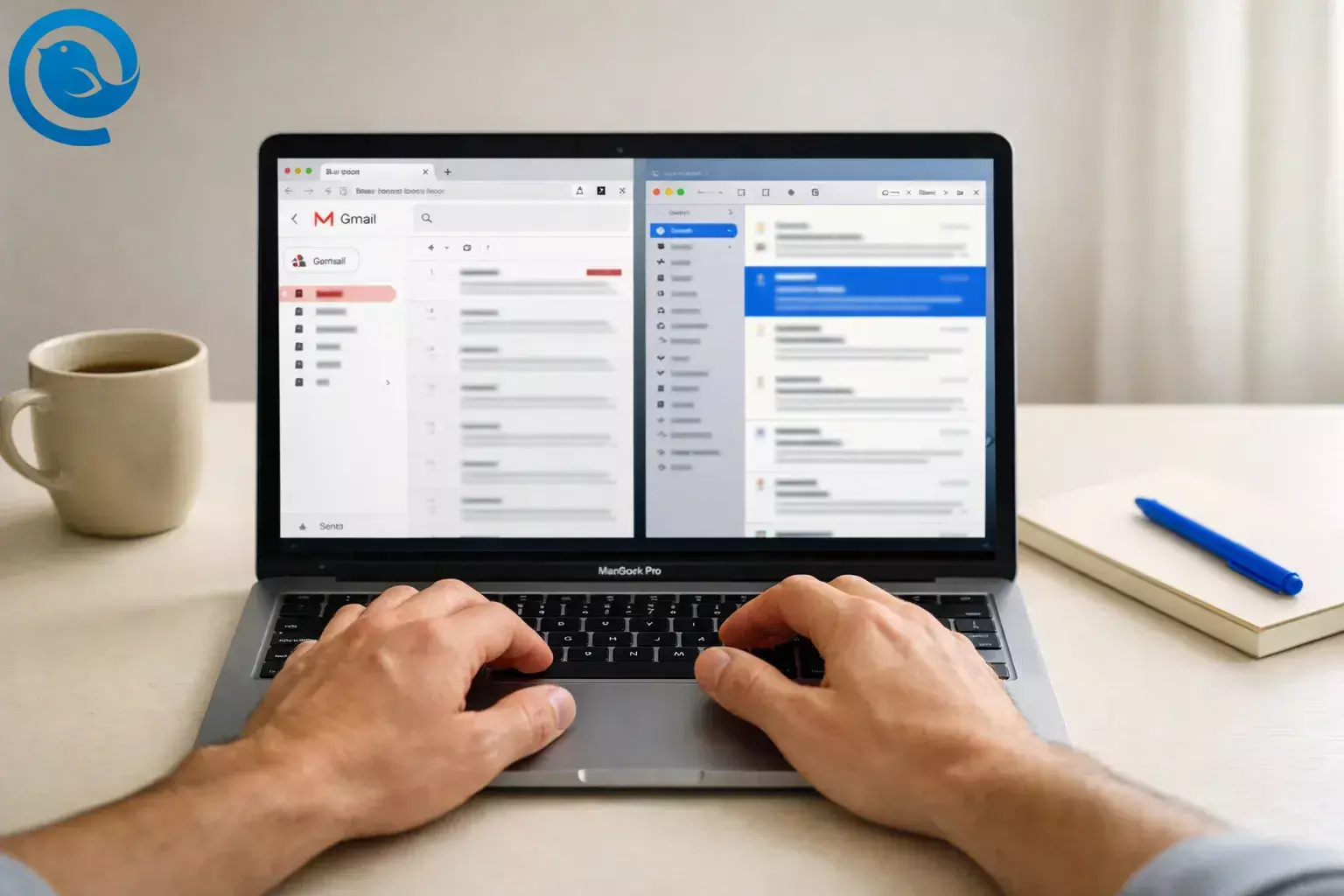
Verdict: For desktop email on a Mac, choose Gmail if you want the full Gmail web inbox everywhere you sign in (and you rely on Gmail-first features and search). Choose Apple Mail (Mac Mail) if you want a native macOS app that handles multiple accounts cleanly, works better offline, and includes built‑in privacy protections.
What’s new (2026)
Key 2026 change: Google says it’s removing support for Gmailify and the POP-based “Check mail from other accounts” feature (new users blocked by the first quarter of 2026, with existing users turned down later in 2026).1 In practical terms, Gmail is becoming less useful as a desktop “mailbox collector” for third‑party inboxes.
Important clarity
Gmail is an email service plus a web inbox interface; Apple Mail (often called “Mac Mail”) is an email client. Many people use a Gmail account inside Apple Mail—so this comparison is really about your desktop experience: browser-first vs native Mac app.
Key takeaways
- Pick Gmail if you want the full Gmail web inbox with the same interface across desktops.
- Pick Apple Mail if you want a native macOS app experience, especially for managing multiple accounts.
- In 2026, Gmail is becoming less useful as a collector for third‑party inboxes due to Gmailify and POP “Check mail from other accounts” changes.1
- Offline use is generally stronger in Apple Mail; Gmail offline requires enabling ahead of time and is Chrome-only (not Incognito).5
- Apple Mail includes built-in privacy controls designed to reduce email tracking (like Mail Privacy Protection).6
- Gmail includes ads in the interface, with Google stating it won’t scan or read Gmail messages to show you ads.7
- Storage differs by ecosystem: Google accounts include up to 15 GB; iCloud includes 5 GB free, with optional paid upgrades.23
Table of contents
Gmail vs Apple Mail on Mac: the differences that matter on desktop
| Criteria | Gmail (desktop) | Apple Mail (macOS) |
|---|---|---|
| Where it lives | Web app in your browser (plus optional “offline” mode). | Native Mac app (runs like any other macOS app). |
| Best for these people | People who want the full Gmail feature set everywhere (Mac, Windows, Chromebook) with the same interface. | People who want a calmer, native inbox on their Mac—especially with multiple accounts and privacy controls. |
| Search & finding old mail | Designed around server-side search and Gmail-native organization. | Fine for everyday searching, but it’s less search-centric than Gmail. |
| Organization model | Labels and categories (a message can live in multiple labels). | Mailboxes/folders and rules; Gmail labels can feel different outside Gmail. |
| Multi-account “one inbox” | Losing key “hub” features for pulling in third‑party inboxes (Gmailify + POP “Check mail from other accounts”).1 | Add multiple providers (Gmail, iCloud Mail, Exchange, IMAP) and view them together. |
| Offline reliability | Offline works only in Chrome (not Incognito) and must be enabled ahead of time.5 | Generally stronger: a local client can keep messages available so you can read/search while disconnected. |
| Privacy & tracking | Shows ads selected based on your online activity while signed in to Google; Google says it won’t scan or read Gmail messages to show you ads.7 | Mail Privacy Protection can hide your IP address and download remote content privately in the background.6 |
| Smart features direction | Gmail is getting more Gemini-era AI features (including an “AI Inbox” for select testers).8 | Apple Mail’s strengths are “desktop app basics” (local workflow + privacy), not Gmail-specific AI features. |
What they are (one sentence each)
Gmail: Gmail is Google’s email service, most commonly used on desktop through its web inbox.
Apple Mail (Mac Mail): Apple Mail is the built-in email app on macOS that connects to email accounts (including Gmail and other IMAP/Exchange providers) and lets you read and send mail from a desktop client.
Gmail vs Apple Mail: where they’re meaningfully different
1) Desktop experience: Gmail in a browser tab vs Apple Mail on macOS
If you live on a Mac all day and you want email to behave like a first-class macOS app (windows, system-level sharing, keyboard-driven navigation, and a generally “built-in” feel), Apple Mail (Mac Mail) is the better desktop experience. If you bounce between devices and want the exact same inbox everywhere (without caring which machine you’re on), Gmail’s web app is the better default.
2) Search and “find that old email” speed
Gmail is the better choice when your workflow depends on fast, repeatable searching—especially across years of mail—because the experience is designed around server-side search and Gmail-native organization. Apple Mail can be perfectly fine for day-to-day searching, but it’s rarely the first choice for people who treat search as their primary inbox “filing system.”
3) Organization: Gmail labels vs Apple Mail folders
Pick Gmail if you actively use labels/categories and like the idea that one message can belong to multiple “buckets” at once. Pick Apple Mail if you want a more traditional mailbox-and-rules approach on desktop (and you don’t want to think about Gmail-specific concepts like labels, categories, or what counts as “Inbox” vs “All Mail”).
4) Multiple accounts in one place (this is the big separator in 2026)
On a Mac, Apple Mail wins if you need one desktop app to manage multiple email accounts from different providers. Gmail used to be a popular “single pane of glass” for multiple inboxes, but Google says it’s removing support for Gmailify and POP-based “Check mail from other accounts,” which reduces Gmail’s usefulness as a desktop hub for third‑party mailboxes.1
5) Offline email on desktop
Apple Mail is the better offline choice for desktop work (travel, weak Wi‑Fi, or working on documents while disconnected) because a local client can keep mail available even when the network disappears. Gmail does offer offline mode, but Google’s own help documentation makes it clear it’s Chrome-only and not available in Incognito, and it has to be enabled and synced ahead of time.5
6) Privacy: tracking pixels, IP address, and remote content
Apple Mail wins for privacy-minded readers who want protection against email tracking with minimal setup: Apple’s Mail Privacy Protection can hide your IP address and privately download remote content in the background (including content used for tracking).6
Gmail’s privacy story is different: Gmail includes ads in the interface, and Google says the selection of personalized ads in Gmail is automated and based on your online activity while signed into Google, but it also says it will not scan or read your Gmail messages to show you ads.7
7) Smart features and ecosystem tie-ins
Choose Gmail if you want the newest Gmail-first capabilities (especially Gemini-era features): Google’s January 2026 updates include AI tools in Gmail and mention an “AI Inbox” being introduced for select trusted testers.8 Choose Apple Mail if you prefer a simpler “email client” approach that leans on macOS features (and you’re okay with Gmail-only features being available primarily in Gmail itself).
Costs, effort, and ownership trade-offs
Costs (U.S.)
- Gmail storage costs: All Google accounts come with up to 15 GB of storage, and Google One plans listed include (for example) 100 GB at $1.99/month and 2 TB at $9.99/month (plan names and bundles can vary).2
- Apple Mail app cost: Apple Mail is included with macOS; the ongoing cost depends on the email service you connect (Gmail, iCloud Mail, Exchange, etc.).
- iCloud Mail storage costs (if you use iCloud Mail in Apple Mail): iCloud includes 5 GB of free storage when you set it up.3
- iCloud+ upgrades (U.S.): Apple lists iCloud+ at 50 GB for $0.99/month, 200 GB for $2.99/month, and 2 TB for $9.99/month (with larger tiers available), and notes that tax can be added in some U.S. states.4
Effort to set up
Gmail is the lowest-effort start: sign in and you’re done. Apple Mail takes a little setup time per account, but once it’s configured, it tends to stay out of your way—and it’s easier to run multiple inboxes side-by-side on a Mac.
Ownership and portability
Gmail is “owned” by the service: your email experience is the Gmail interface, and you’ll always have the latest features because it’s web-first. Apple Mail is “owned” by your device workflow: you can keep local copies and switch email providers without switching apps—though some Gmail-specific behaviors (like labels) don’t always translate cleanly to a folder-based client.
Risks and dealbreakers
Gmail is a bad choice if…
- You want a true multi-account desktop hub for several non-Gmail inboxes (especially if you relied on Gmail “pulling in” mail from elsewhere).
- You need strong offline email on the Mac without browser limitations.
- You dislike ads in your inbox UI and don’t want to manage ad/personalization settings.
- Your work style requires lots of separate windows and “app-like” behavior (not “one tab among many”).
Apple Mail is a bad choice if…
- You regularly switch between Mac and non-Apple desktops and want an identical desktop app/interface everywhere.
- You’re deeply invested in Gmail-only features and don’t want any compromises in how Gmail labels/organization behave outside Gmail.
- You want the newest Gmail-first “smart” capabilities as soon as they arrive (those land in Gmail first, by design).
Switching path (minimal-loss way to change direction)
If you picked Gmail, but you really wanted Apple Mail
- Keep your Gmail address. Switching apps doesn't require changing email addresses; you can just connect your Gmail account to Apple Mail.
- Make sure the Gmail folders/labels you care about show up. Google’s Workspace guidance for using Gmail with other apps notes that you may need to enable IMAP and choose which labels/folders “Show in IMAP” so they’re available to clients like Apple Mail.9
- Sanity-check organization. If you feel like emails are “duplicating,” remember Apple Mail may display Gmail labels as separate mailboxes; refine what you sync (instead of trying to mirror every label).
If you picked Apple Mail, but you really wanted Gmail
- For a Gmail account: just go back to Gmail in your browser—your mail is still there.
- For other providers you were managing in Apple Mail: decide whether you want Gmail to be your long-term home inbox or you simply want a web view. Google’s own guidance for the Gmailify/POP changes points to two practical continuations for third‑party accounts: set up automatic forwarding (web) or add the account in the Gmail mobile app using IMAP (depending on what you need).1
- Minimize “lock-in” going forward. If you’re unsure, keep your actual email addresses with their providers and treat Gmail vs Apple Mail as a front-end choice you can reverse later.
Decision tree (no hedging)
- If you need a unified desktop inbox for multiple non-Gmail accounts on a Mac, then choose Apple Mail.
- If you split your day across Mac + Windows/Chromebook and want the same inbox everywhere, then choose Gmail.
- If you frequently work offline (travel, spotty Wi‑Fi) and want email that still behaves like an app, then choose Apple Mail.
- If your workflow depends on Gmail-first features and fast server-side searching more than anything else, then choose Gmail.
- If privacy against email tracking is a priority and you want built-in controls, then choose Apple Mail.
- If you’re still torn and you’re on a Mac, then choose Apple Mail for daily use (and keep Gmail web bookmarked for the occasional Gmail-only task).
Frequently Asked Questions
Can I use my Gmail account in Apple Mail (Mac Mail) on my Mac?
Yes. Apple Mail can connect to Gmail accounts, so you can keep your Gmail address and simply change how you read and send email on desktop.
Why do Gmail labels feel weird in Apple Mail?
Gmail is label-based, while Apple Mail is mailbox/folder-based. When you connect Gmail to Apple Mail, labels can show up as mailboxes, and the same message can appear in more than one place.
Can Gmail still pull in mail from other inboxes (Yahoo/Outlook/custom domain) into one Gmail inbox?
Google has announced changes that remove support for Gmailify and the POP-based “Check mail from other accounts” feature. If you relied on Gmail as a collector, you’ll want to plan a new workflow (like forwarding or using a desktop client).1
Does Gmail work offline on desktop?
Yes, but it’s not universal: Gmail’s offline mode needs to be enabled in advance and is limited to certain conditions (for example, it’s Chrome-only and not available in Incognito).5
Does Apple Mail work offline?
Usually, yes—if your messages are downloaded to your Mac, you can still read, search, and draft replies while offline, and then sync when you’re back online.
Is Apple Mail more private than Gmail?
How much free storage do I get with Gmail vs iCloud Mail?
What’s the quickest “no-regret” setup for Gmail on a Mac?
Use Apple Mail for everyday reading and replying (especially if you have multiple accounts), and keep Gmail in your browser for the moments you need something that only Gmail’s interface provides.
Sources
Show sources
- Google Gmail Help — “Learn about upcoming changes to Gmailify & POP in Gmail”
- Google One — “Plans & pricing” (includes free storage statement and plan pricing)
- Apple Support — “Manage your iCloud storage on your Apple device” (includes 5GB free storage statement)
- Apple Support — “iCloud+ plans and pricing” (U.S. pricing and tax note)
- Google Gmail Help — “Set up & use Gmail offline”
- Apple Support — “Protect email privacy in Mail on Mac” (Mail Privacy Protection details)
- Google Gmail Help — “How Gmail ads work”
- Google Blog — “The latest AI news we announced in January” (posted Feb 4, 2026)
- Google Workspace Learning Center — “Tips to read & send email in Gmail” (IMAP + “Show in IMAP” guidance)


