Microsoft Outlook Email Rules Disappeared? Here's What Happened and How to Fix It
A problematic Windows security update (KB5074109) released in January 2026 caused widespread Outlook email rule disappearances, affecting thousands of users. This guide explains what happened, why Microsoft's fixes didn't work for everyone, and how to recover lost rules and prevent future data loss.



If you've recently discovered that your carefully crafted Outlook email rules have vanished without warning, you're not alone—and you're likely frustrated. Thousands of Microsoft Outlook users experienced this exact problem beginning in January 2026, losing months or even years of meticulously organized email automation in an instant. For professionals who depend on email rules to manage high-volume inboxes, separate client communications, route compliance-critical messages, or simply maintain sanity in their daily workflow, this disappearance represents more than a minor inconvenience—it's a genuine productivity crisis that can consume hours of recovery time and disrupt critical business processes.
The root cause wasn't something you did wrong. A problematic Windows security update (KB5074109) released on January 13, 2026, created file-access conflicts that corrupted Outlook data files and caused email rules to disappear, according to Microsoft's official KB5074109 documentation. This wasn't an isolated glitch affecting a handful of users—it was a widespread crisis that exposed fundamental reliability issues with how Outlook handles local data storage, particularly when PST files are stored in cloud-synchronized folders like OneDrive.
This comprehensive guide explains exactly what happened to your email rules, why Microsoft's emergency fixes didn't immediately resolve the problem for everyone, and most importantly, how you can recover your lost rules and prevent this nightmare from happening again. We'll also explore why many professionals are reconsidering their email client choices and discovering more reliable alternatives that don't leave them vulnerable to these kinds of catastrophic failures.
What Actually Caused Outlook Email Rules to Disappear in January 2026
Understanding the technical origins of this crisis helps explain why the problem proved so difficult to fix and why some users experienced permanent data loss while others could recover their rules. The January 2026 Outlook email rules disaster began with what should have been a routine monthly security update from Microsoft.
The KB5074109 Windows update altered fundamental file system operations, specifically changing how Windows handled file input/output operations when applications accessed files stored in cloud-synchronized folders such as OneDrive and Dropbox, according to detailed technical analysis from Windows community forums. This seemingly minor change created catastrophic consequences for Outlook users who stored their PST (Personal Storage Table) files in OneDrive-synchronized locations—a configuration that Microsoft itself had encouraged users to adopt for backup purposes.
When Outlook attempted to access PST files stored in these cloud-synchronized folders after the KB5074109 update, the altered file-system behavior caused applications to block indefinitely while waiting on file operations that never completed cleanly. For users relying on Outlook's consistent, low-latency file access to read and write email data, this timing disruption created a perfect storm of corruption and data loss.
The Specific Problem with PST Files and Cloud Storage
Email rules in Outlook exist in two fundamentally different forms: server-side rules (stored on your mail server and executed regardless of which device you're using) and client-side rules (stored locally in PST files and executed only when Outlook is running on your specific computer). Users with POP email accounts experienced the most severe rule disappearance problems because POP configurations rely entirely on locally-stored PST files rather than server-based mailbox storage, as documented in Microsoft's official support guidance for affected POP account users.
When the KB5074109 update corrupted these PST files through interrupted file operations, the email rule definitions stored within them were either lost completely or damaged beyond automatic recovery. Users who had spent months creating complex rule sets to manage client communications, separate project emails, or automate compliance archiving discovered that all this organizational work had vanished overnight.
The emotional impact cannot be understated. One user documented in Microsoft's support forums that they had 97 email rules that disappeared, representing three-quarters of a business day's work to manually recreate—if they could even remember all the specific conditions and actions they had configured over the years. For professionals managing multiple client relationships or complex project workflows, this kind of productivity loss translates directly into missed deadlines, overlooked communications, and genuine business disruption.
The Different Ways Email Rules Disappeared (And Why Recovery Varied)
Not all email rule disappearances during the January 2026 crisis were created equal. Understanding which type of failure you experienced helps determine whether your rules can be recovered and what steps you need to take to prevent future losses.
Temporary Visibility Issues (Most Common, Often Recoverable)
The most straightforward category involved temporary rule visibility problems where rules remained stored on the server or in local PST files but simply weren't displayed in the Outlook desktop client interface. Users who experienced this variant discovered that when they checked Outlook Web Access (the browser-based email interface), their rules were still present and functional at the server level, even though the desktop application failed to render them.
This visibility issue often resolved itself once users installed Microsoft's emergency patch KB5078127, released on January 24, 2026, which specifically addressed the file-system access regression causing applications to become unresponsive when opening files from cloud-based storage, according to Microsoft's official KB5078127 changelog.
Permanent PST File Corruption (Most Severe, Often Unrecoverable)
A far more serious problem involved the complete loss of rules stored in local PST files that were corrupted by the file-system failures induced by KB5074109. Users who had created client-side rules—rules that execute only on their local computer when Outlook is running—discovered these rules were permanently lost because the PST files containing the rule definitions had become corrupted beyond repair.
Microsoft's Inbox Repair Tool (SCANPST.exe) could sometimes recover partially-corrupted PST files, but severely damaged files often could not be salvaged, particularly when users attempted multiple repair cycles, as detailed in Microsoft's official documentation on repairing Outlook data files. Users reported that different repair attempts sometimes produced different results, with some rules recovered in one attempt but lost in another, creating additional frustration and uncertainty about which version of their data was most complete.
Send/Receive Settings File Corruption (Fixable but Technical)
A third category involved rules that remained present in storage but became non-functional due to corruption in the Send/Receive Settings (SRS) file that controls how Outlook processes rules. This file, located in the user's AppData directory, could become corrupted during forced shutdown attempts or unclean Outlook termination when the application hung due to file-access issues.
Users could delete and recreate their rules without success until the SRS file was reset to default settings, a technical solution documented in troubleshooting guides for Outlook rules not working automatically. This solution required users to navigate complex file system locations and manually delete configuration files—a process well beyond the technical comfort level of many professionals who simply wanted their email to work reliably.
Client Migration Incompatibility (New Outlook vs. Classic Outlook)
Adding to the confusion, users migrating from classic Outlook to the new Outlook for Windows discovered that client-side rules were not supported in the new interface and appeared with an alert stating "This rule can't be edited or viewed," according to Microsoft's official guidance on editing or fixing broken rules in Outlook. These incompatible rules would not execute in the new client, effectively causing users to lose functional email organization until they recreated rules using only server-supported conditions and actions—a limitation that wasn't clearly communicated during the migration process.
Microsoft's Emergency Response and Why the Fixes Didn't Work for Everyone
Microsoft's response to the cascading failures introduced by KB5074109 proceeded in phases, with the company releasing multiple emergency updates within a two-week period. However, the fragmented deployment and incomplete fixes left many users without functional Outlook access for extended periods, raising serious questions about Microsoft's testing processes and quality assurance standards.
The Initial Crisis and Delayed Acknowledgment
The problematic KB5074109 update was released on January 13, 2026, but Microsoft didn't release its first emergency patch until January 17, 2026—four days during which affected users struggled with unresponsive Outlook, disappearing emails, and vanishing rules. That initial patch (KB5077744) focused primarily on credential prompt failures during Remote Desktop connections and actually worsened the situation for some Outlook, OneDrive, and Dropbox users, according to technology industry analysis of Microsoft's emergency update response.
Microsoft released the primary emergency fix for Outlook-related issues as KB5078127 on January 24, 2026—eleven days after the original problematic update. This out-of-band cumulative update specifically addressed the file-system access regression causing applications to become unresponsive when opening or saving files to cloud-based storage. However, despite this emergency fix, some users continued to report persistent problems with Outlook functionality, suggesting that the patch addressed some root causes while leaving others intact.
Fragmented Deployment Across Windows Versions
The delivery mechanism for KB5078127 created additional complications. Initially available through Windows Update and the Microsoft Update Catalog, the patch was rolled out gradually to Windows 11 systems running version 25H2 and 24H2. However, users on Windows 10 (which is technically out of support as of January 14, 2024) reported that they were not receiving the fix through standard Windows Update channels.
Microsoft subsequently released KB5078129 as a separate patch specifically for Windows 10 Enterprise LTSC versions, though this patch proved less effective and problems reportedly reappeared after its installation. The fragmented deployment across different Windows versions and enterprise versus consumer editions created a situation where some users received functional fixes while others remained unable to resolve their email rule and Outlook functionality issues—an unacceptable outcome for professionals who depend on email for business-critical communications.
The Burden Placed on Users to Fix Microsoft's Problem
Microsoft's official support guidance placed significant burden on affected users to manually resolve problems that Microsoft had created. The recommended workaround was to move PST files out of OneDrive to local computer directories that were not synchronized with cloud services—a process that required users to manually locate, copy, and reattach PST files, creating significant challenges for users with multiple large PST files or without technical expertise.
One frustrated user expressed what many were feeling: "The data files and Outlook functioned properly before the update. Will MS investigate and correct the issue they created with this update? It should NOT require users to invest many hours to correct a faulty update." This sentiment captured the fundamental unfairness of asking customers to spend their valuable time fixing problems that resulted directly from Microsoft's inadequate testing and quality control processes.
How to Recover Lost Email Rules and Prevent Future Disappearances
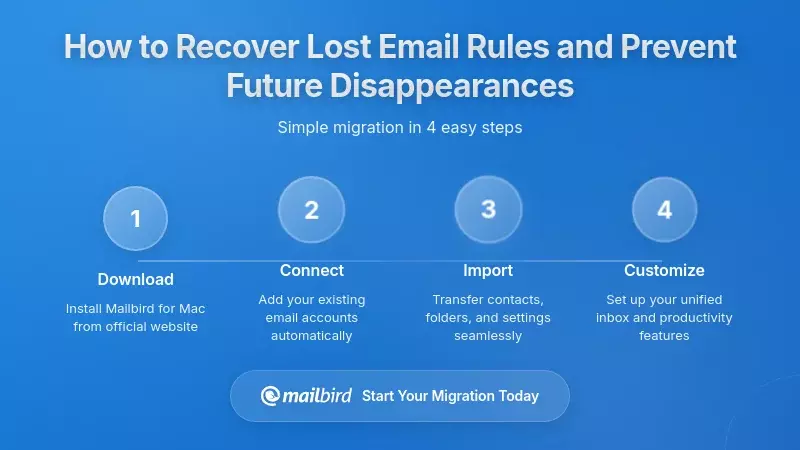
If you're among the thousands of users who lost email rules during the January 2026 Outlook crisis, you have several recovery options depending on which type of failure you experienced. Here's a practical, step-by-step approach to recovering your rules and protecting yourself from future data loss.
Step 1: Check If Your Rules Still Exist on the Server
Before assuming your rules are permanently lost, verify whether they're stored on your mail server and simply not displaying in the desktop client:
For Exchange and Microsoft 365 accounts:
- Log into Outlook Web Access (outlook.office.com or your organization's webmail URL)
- Click the Settings gear icon and select "View all Outlook settings"
- Navigate to Mail > Rules
- Check whether your rules appear in the web interface
If your rules are visible in Outlook Web Access but not in the desktop client, this indicates a display issue rather than permanent data loss. Installing Microsoft's KB5078127 emergency update and restarting Outlook often resolves this visibility problem.
Step 2: Attempt PST File Repair for Client-Side Rules
If your rules were client-side rules stored in PST files, you may be able to recover them using Microsoft's Inbox Repair Tool:
- Close Outlook completely (check Task Manager to ensure OUTLOOK.EXE is not running)
- Locate SCANPST.EXE (typically in C:\Program Files\Microsoft Office\root\Office16\)
- Browse to your PST file location (commonly in Documents or OneDrive)
- Run the repair process and allow it to create a backup before attempting repairs
- Reopen Outlook and check whether rules have been recovered
Important limitation: SCANPST.exe can only repair minor to moderate corruption. Severely damaged PST files may not be recoverable, and multiple repair attempts sometimes produce inconsistent results. If the first repair attempt doesn't recover your rules, additional attempts are unlikely to succeed and may cause further damage.
Step 3: Move PST Files Out of Cloud-Synchronized Folders
To prevent future corruption from similar Windows update issues, Microsoft recommends moving PST files to local directories that are not synchronized with OneDrive or other cloud services:
- Close Outlook completely
- Locate your PST files (File > Account Settings > Account Settings > Data Files tab shows current locations)
- Copy (don't move) PST files to a local directory like C:\Users\[YourName]\Documents\Outlook Files
- In Outlook, remove the old PST file location and add the new local location
- Verify that all folders and rules are accessible in the new location
- Only after verification, delete the old PST files from OneDrive
This workaround addresses the immediate file-system conflict but forces users to choose between automatic cloud backup convenience and Outlook reliability—a choice that highlights fundamental architectural problems with how Outlook handles local data storage.
Step 4: Reset Send/Receive Settings if Rules Won't Execute
If your rules are visible but not executing automatically, the Send/Receive Settings file may be corrupted:
- Close Outlook completely
- Navigate to C:\Users\[YourName]\AppData\Roaming\Microsoft\Outlook
- Locate and delete (or rename) any files with .SRS extension
- Restart Outlook, which will recreate default Send/Receive Settings
- Reconfigure any custom send/receive intervals you had previously set
Step 5: Consider Migrating to a More Reliable Email Client
For many professionals who experienced the January 2026 email rules crisis, the incident served as a wake-up call about the reliability risks of depending entirely on Outlook. Alternative email clients like Mailbird offer architectural advantages that make them less vulnerable to these kinds of catastrophic failures, according to detailed comparisons of Mailbird versus Microsoft Outlook.
Mailbird stores email data locally on your computer using a different architecture than Outlook's PST file system, reducing vulnerability to cloud-synchronization conflicts. The application provides unified inbox functionality for multiple email accounts, superior search capabilities, and faster performance—all without the complexity and reliability issues that plagued Outlook during the January 2026 crisis. For professionals tired of investing hours in recovering from Microsoft-caused problems, Mailbird represents a practical alternative that prioritizes stability and user control.
Why Professionals Are Reconsidering Their Email Client Choices
The widespread Outlook reliability problems and email rules disappearance crisis in January 2026 prompted renewed interest in alternative email client solutions among users frustrated with Microsoft's approach to quality assurance and customer support. While Outlook maintains significant market share due to enterprise standardization and integration with Microsoft 365 services, the crisis highlighted several alternative email clients that offer features and reliability characteristics that many users prefer.
The Case for Mailbird: Reliability Without Complexity
Mailbird emerged as a notable alternative that consolidates multiple email accounts into a unified interface without the complexity and reliability issues that users experienced with Outlook, according to verified user reviews on the G2 platform. Users consistently praised Mailbird's clean interface, fast performance, and ability to manage multiple email accounts from different providers in a single unified inbox.
Specific advantages that users highlighted in their reviews included:
- Superior email search functionality compared to Outlook's often-frustrating search experience
- Faster application loading times and more responsive interface during normal operations
- Local architecture that stores email data on the user's computer rather than relying on complex cloud synchronization
- Privacy-focused approach that appealed to users concerned about Microsoft's data collection practices
- Unified inbox that truly consolidates multiple accounts rather than requiring separate folder navigation
For professionals who lost hours of productivity recovering from the January 2026 Outlook crisis, Mailbird's architectural approach offers genuine peace of mind. The application doesn't depend on PST files stored in cloud-synchronized folders, eliminating the specific vulnerability that caused widespread rule disappearances during the KB5074109 incident.
Understanding the Trade-offs
Mailbird doesn't provide identical functionality to Outlook in every area, and understanding these trade-offs helps professionals make informed decisions about whether switching makes sense for their specific workflow:
Calendar integration: Mailbird offers calendar functionality but doesn't provide the same depth of meeting scheduling and Microsoft Teams integration that Outlook offers for users working in heavily Microsoft-centric environments. However, for professionals who primarily need reliable email management and basic calendar functionality, Mailbird's streamlined approach often proves sufficient.
Email rules and filters: Mailbird supports email filtering and organization rules, though the implementation differs from Outlook's server-side versus client-side rule architecture. The advantage is that Mailbird's rules are less complex and less prone to the kinds of corruption and disappearance issues that plagued Outlook users in January 2026.
Licensing model: Mailbird requires a paid subscription for full features, which contrasts with Outlook's inclusion in Microsoft 365 subscriptions. However, for professionals who calculate the true cost of Outlook including productivity losses from reliability issues and time spent on troubleshooting, Mailbird's straightforward pricing often represents better value.
Other Alternatives Worth Considering
Beyond Mailbird, several other email clients address different priorities and use cases, as detailed in comprehensive analyses of the best Outlook alternatives:
Gmail/Google Workspace: Offers industry-leading search functionality and deep integration with Google Calendar and Drive, with a reliability reputation that stands in contrast to Outlook's January 2026 crisis. However, migration requires changing email addresses or implementing forwarding, creating organizational friction.
Thunderbird: Emphasizes open-source reliability and community-driven development, appealing to users who want transparency and control over their email client. The interface feels less modern than commercial alternatives, but the stability and lack of vendor lock-in attract technically-minded professionals.
ProtonMail: Prioritizes end-to-end encryption for security-conscious users, particularly valuable for professionals handling sensitive client communications or working in regulated industries. The security focus comes with some usability trade-offs compared to conventional email clients.
None of these alternatives provide a perfect drop-in replacement that fully replicates Outlook's feature set while solving all reliability and rules problems. However, for many professionals, the January 2026 crisis demonstrated that Outlook's feature breadth comes at the cost of complexity and fragility that creates unacceptable business risk.
The Compliance and Legal Implications of Email Rules Disappearing
While email rules might seem like mere organizational conveniences, in regulated industries and enterprise environments, email rules often function as critical components of compliance and retention infrastructure. The widespread disappearance of email rules during the January 2026 Outlook crisis created significant compliance and legal exposure for both Microsoft and organizations that suffered data loss.
Regulatory Risk from Failed Email Routing
Organizations using email rules to automatically route sensitive communications to compliance officers, archive emails in accordance with retention schedules, or sort communications by regulatory category face significant compliance risk when those rules disappeared without warning. The specific regulatory implications vary by industry:
Financial services organizations using rules to manage trading communications and compliance archiving faced potential violations of Securities and Exchange Commission regulations if emails were not properly retained during the period when rules were non-functional.
Healthcare organizations using rules to separate and manage patient communications faced potential violations of HIPAA regulations if emails containing protected health information were not properly archived or were inadvertently disclosed to unauthorized parties due to failed routing rules.
Legal firms using rules to organize and retain client communications faced potential malpractice liability if case-critical emails were lost or misplaced due to non-functional organizational rules during the crisis period.
Data Loss Beyond Rules: Missing Emails and Server-Side Failures
The crisis extended beyond email rules to include reports of complete email loss that raised even more serious questions about Microsoft's infrastructure reliability. One documented case involved the loss of an entire year of emails from a primary inbox, spanning from March 1, 2025 through February 28, 2026, with the missing emails not located in Deleted Items, Recoverable Items, Archive, or any other accessible location across multiple devices and platforms.
This apparent server-side data loss suggested either a server-side infrastructure failure that exceeded the protection of normal backup systems, or a failure in Microsoft's data recovery processes. Users expected that server-based mailboxes were protected by Microsoft's infrastructure redundancy and backup systems that would prevent permanent data loss even in the face of significant system failures.
Support Process Failures and Escalation Challenges
Microsoft's handling of affected users' support requests came under scrutiny when users reported difficulty escalating their cases to engineering teams with authority to investigate data loss and potentially perform specialized recovery operations. Users described navigating through low-tier support agents who read from scripts and provided generic troubleshooting steps rather than escalating to teams with access to backend mailbox recovery tools.
This support process friction meant that users with legitimate data loss incidents faced delays in recovery attempts, potentially resulting in data loss that might have been preventable with faster escalation to appropriate technical teams. For organizations with compliance obligations, these delays created additional regulatory exposure and potential liability.
Lessons Learned and Ongoing Outlook Reliability Concerns
The January 2026 email rules disappearance and broader Outlook crisis exposed several systemic issues with Microsoft's testing, deployment, and support processes that raised ongoing concerns about Outlook reliability throughout 2026. By March 2026, new complaints continued to surface regarding missing emails, non-functional rules, and Outlook instability even after the release of multiple emergency patches.
The Fragility of PST Files in Cloud-Synchronized Folders
The fundamental lesson from the crisis centered on the fragility of configurations that store active PST files in cloud-synchronized folders, as documented in technical analyses of PST file corruption patterns. Microsoft support guidance increasingly recommended that users maintain PST files in local directories not synchronized by OneDrive, creating additional friction for users who had configured their systems to automatically back up important files to cloud storage.
This guidance effectively required users to choose between the convenience of automatic cloud backup and the reliability of Outlook functionality—a choice that many users did not appreciate having to make and that highlighted fundamental architectural problems with how Outlook handles local data storage in modern cloud-integrated environments.
Quality Assurance Gaps in Windows Update Testing
The crisis highlighted significant gaps in Microsoft's testing coverage for the interaction between Windows updates and Outlook configurations. The fact that KB5074109 was released without adequately testing its impact on applications accessing files in cloud-synchronized folders represented a quality assurance failure that affected thousands of users and countless hours of lost productivity.
Technology industry observers noted that "It's clear that the quality bar for Windows is at an all time low right now, marking an absolutely dreadful start to the year for Microsoft and Windows." The incident involved two emergency out-of-band updates within a week, yet users continued reporting problems even after installing all available patches, suggesting that Microsoft's testing had not adequately validated fixes against the full range of affected configurations.
The Growing Appeal of Alternative Email Solutions
For professionals evaluating their email infrastructure choices in 2026, the January crisis served as a compelling case study in the risks of depending entirely on a single vendor's ecosystem—particularly when that vendor demonstrates quality control and support process failures of this magnitude.
Mailbird's approach to email client architecture offers specific advantages for users concerned about reliability, as detailed in comprehensive desktop email client comparison guides:
- Simplified data storage that doesn't depend on complex PST file formats vulnerable to cloud synchronization conflicts
- Unified account management that consolidates multiple email providers without the fragility of Outlook's profile system
- Faster recovery from problems when issues do occur, without requiring complex manual file repairs
- Transparent pricing and support that doesn't leave users navigating multi-tier support hierarchies during crises
- Regular updates focused on stability rather than feature bloat that increases complexity and failure points
The email rules disappearance crisis, combined with ongoing complaints of missing emails and unstable Outlook behavior appearing through March 2026, demonstrated that Microsoft's initial fixes had not fully resolved the underlying file-system and synchronization problems. For professionals who cannot afford to lose critical business communications or spend hours recovering from vendor-caused failures, exploring alternative email clients became not just an option but a business necessity.
Frequently Asked Questions
Can I recover email rules that disappeared after the January 2026 Windows update?
Recovery depends on which type of failure you experienced. If your rules were server-side rules (for Exchange or Microsoft 365 accounts), check Outlook Web Access—your rules may still exist on the server and simply aren't displaying in the desktop client. Installing Microsoft's KB5078127 emergency update often resolves this visibility issue. If your rules were client-side rules stored in PST files, you may be able to recover them using Microsoft's SCANPST.exe Inbox Repair Tool, though severely corrupted PST files may not be recoverable. The research findings indicate that users with POP accounts storing PST files in OneDrive experienced the most severe and often permanent rule loss, requiring manual recreation of their entire rule sets.
Why did Microsoft's emergency fixes not work for everyone affected by the Outlook rules problem?
Microsoft released multiple emergency patches (KB5077744, KB5078127, and KB5078129) that addressed different aspects of the problem, but the fragmented deployment created inconsistent results. According to the research findings, Windows 11 users received KB5078127 through standard Windows Update channels, but Windows 10 users (particularly those not on Enterprise LTSC versions) did not receive the fix automatically. Additionally, some users reported that problems reappeared days after installing the emergency updates, suggesting that the patches addressed some root causes while leaving others intact, particularly in cases where PST files had been severely corrupted by the initial KB5074109 incident. Users whose PST files were already corrupted before the fix was applied often could not recover their data even after installing all available patches.
Should I move my PST files out of OneDrive to prevent future Outlook problems?
Based on the research findings, Microsoft's official support guidance recommends moving PST files to local directories that are not synchronized with OneDrive or other cloud services to prevent future corruption from similar Windows update issues. However, this workaround forces users to choose between automatic cloud backup convenience and Outlook reliability—a trade-off that highlights fundamental architectural problems with how Outlook handles local data storage. If you depend on automatic cloud backup for disaster recovery, consider alternative email clients like Mailbird that use different data storage architectures less vulnerable to cloud synchronization conflicts, or implement a separate backup strategy for locally-stored PST files using dedicated backup software rather than relying on OneDrive synchronization.
What's the difference between server-side and client-side email rules, and why does it matter?
Server-side rules are stored on your mail server (Exchange or Microsoft 365) and execute regardless of which device you're using or whether Outlook is running. Client-side rules are stored locally in PST files and execute only when Outlook is running on your specific computer. According to the research findings, this distinction became critical during the January 2026 crisis because client-side rules stored in PST files were vulnerable to the file corruption caused by KB5074109, while server-side rules were generally protected (though some users experienced visibility issues where server-side rules weren't displayed in the desktop client even though they remained functional). Users with POP email accounts, which rely entirely on client-side storage, experienced the most severe rule loss. The new Outlook for Windows only supports server-side rules, meaning users migrating from classic Outlook lost functionality for any client-side rules they had created.
Are there more reliable alternatives to Outlook that won't lose my email rules during Windows updates?
According to the research findings, several email clients offer architectural advantages that make them less vulnerable to the kinds of failures that affected Outlook during the January 2026 crisis. Mailbird stores email data locally using a different architecture than Outlook's PST file system, reducing vulnerability to cloud-synchronization conflicts while providing unified inbox functionality for multiple email accounts, superior search capabilities, and faster performance. The research indicates that Mailbird users consistently praised the application's clean interface, fast performance, and reliability compared to Outlook's complexity and fragility. Other alternatives include Thunderbird (emphasizing open-source reliability), Gmail/Google Workspace (offering industry-leading search and cloud-based stability), and ProtonMail (prioritizing end-to-end encryption for security-conscious users). While none provide identical functionality to Outlook in every area, many professionals found that Mailbird's streamlined approach and superior reliability made it a practical alternative that prioritized stability and user control over feature bloat.


