Where Is the Address Book in New Outlook?
In new Outlook for Windows, select People in the navigation bar to find your saved contacts. To open address lists, start a new message and click To. If your work or school account provides a Global Address List (GAL), you can choose it there to look up coworkers.



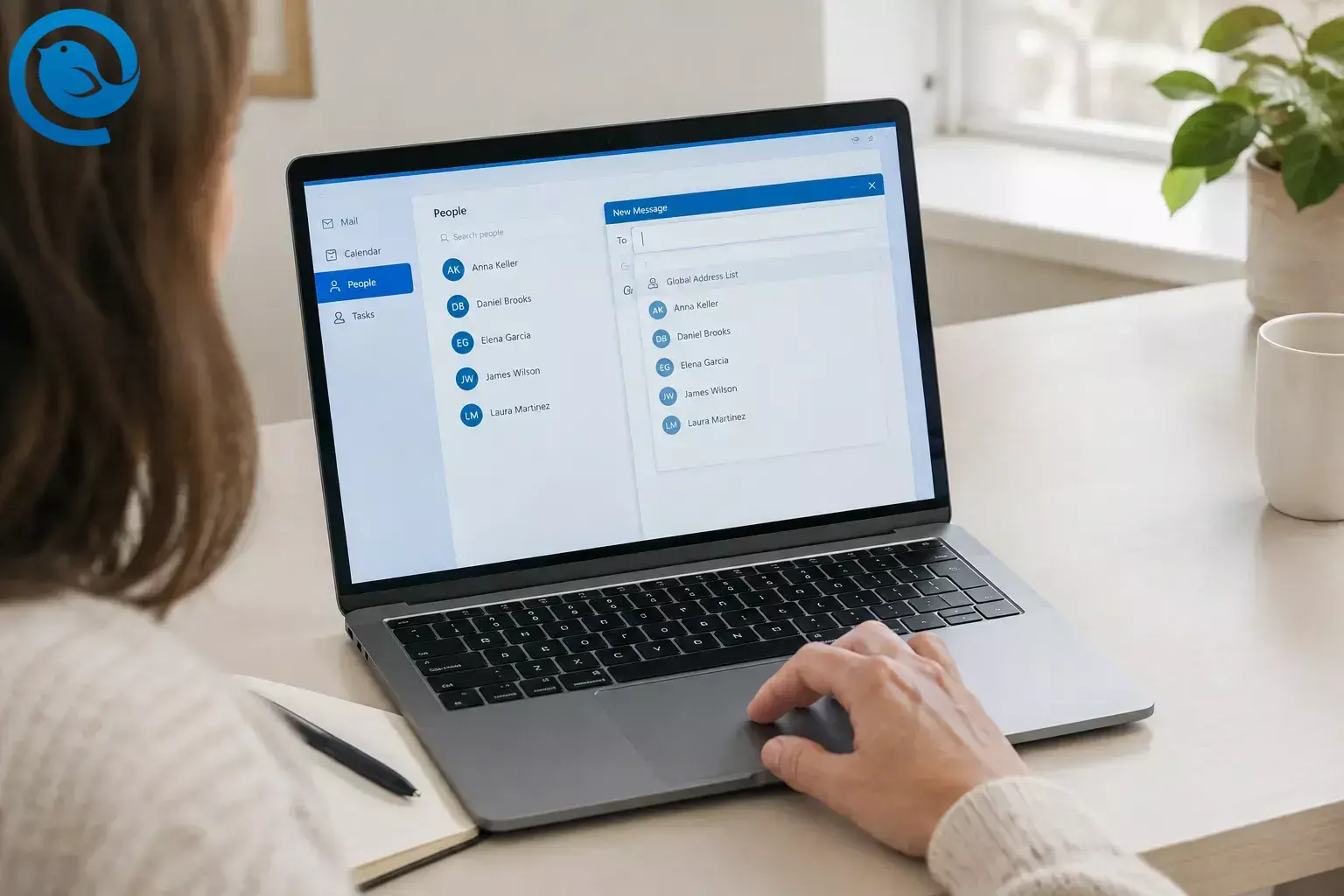
In new Outlook for Windows, select People in the navigation bar to find your saved contacts. To open address lists, start a new message and click To . If your work or school account provides a Global Address List (GAL) , you can choose it there to look up coworkers. [1] [2]
Key takeaways
- Find saved contacts in People .
- Click To in a new message to open address lists. Cc and Bcc also work.
- Choose the GAL to look up coworkers if your work or school account provides one.
- Add a contact in People or from a sender’s profile card.
- If a large GAL looks blank, search for a name or email address.
Find contacts and open the address book
Find contacts and open the address book in new Outlook
- Find saved contacts: Select People , choose your contacts list, and search for a name. People is where you manage contacts you’ve saved. [2]
- Open address lists: Return to Mail, select New mail , then click the To label beside the recipient field. You can also use Cc or Bcc . [1]
- Find coworkers: In the recipient picker, choose your organization’s Global Address List if it appears. Search for a name or email address. Large GALs may show no names until you search. [3]
Add or edit a contact
- Add someone: In People , select New contact , enter their details, and select Save . You can also select a sender’s name in an email and choose Add to contacts from their profile card. [2]
- Edit someone: Open a saved contact in People, select Edit contact if shown, make your change, and save it.
You can edit your own saved contact entry, but your organization manages GAL details. Ask your IT team if a coworker’s directory information needs correcting. [4]
What changed from classic Outlook?
Classic Outlook has a Home > Address Book command. In new Outlook, use People for saved contacts or click To in a new message to choose recipients. Some layouts also show an Address book button on the message ribbon. [1]
Not every classic contacts feature works the same way in new Outlook. Microsoft’s feature comparison lists sharing a Contacts folder as “Investigating” and classic-style contact Business Cards as unsupported. [5]
If you can’t find a contact or list
- People looks empty: Check which account and contacts list you’ve selected, then search for a name you know.
- The GAL is missing: Check that you’re using your work or school account. If your organization provides a GAL and it still doesn’t appear, ask your IT team. [1]
- The GAL looks blank: Search for part of a name or an email address. Large directories may not display names before you search. [3]
- A name appears in To but not People: It may be a suggested recipient rather than a saved contact. Search People to check, then save a contact there if you need one.
Sources
- Microsoft Support: Open and use the address book in Outlook
- Microsoft Support: Add, find, edit, or delete a contact in Outlook
- Microsoft Support: Manage suggested recipients and address lists
- Microsoft Support: Manage contacts in Outlook
- Microsoft Support: Feature comparison between new and classic Outlook


