Samsung Email App: What It Does Well and What to Use Instead
The Samsung Email app is still a solid email app for Android if you want a simple, Galaxy-friendly inbox, but Microsoft-heavy, privacy-first and power users may be better served by an alternative.



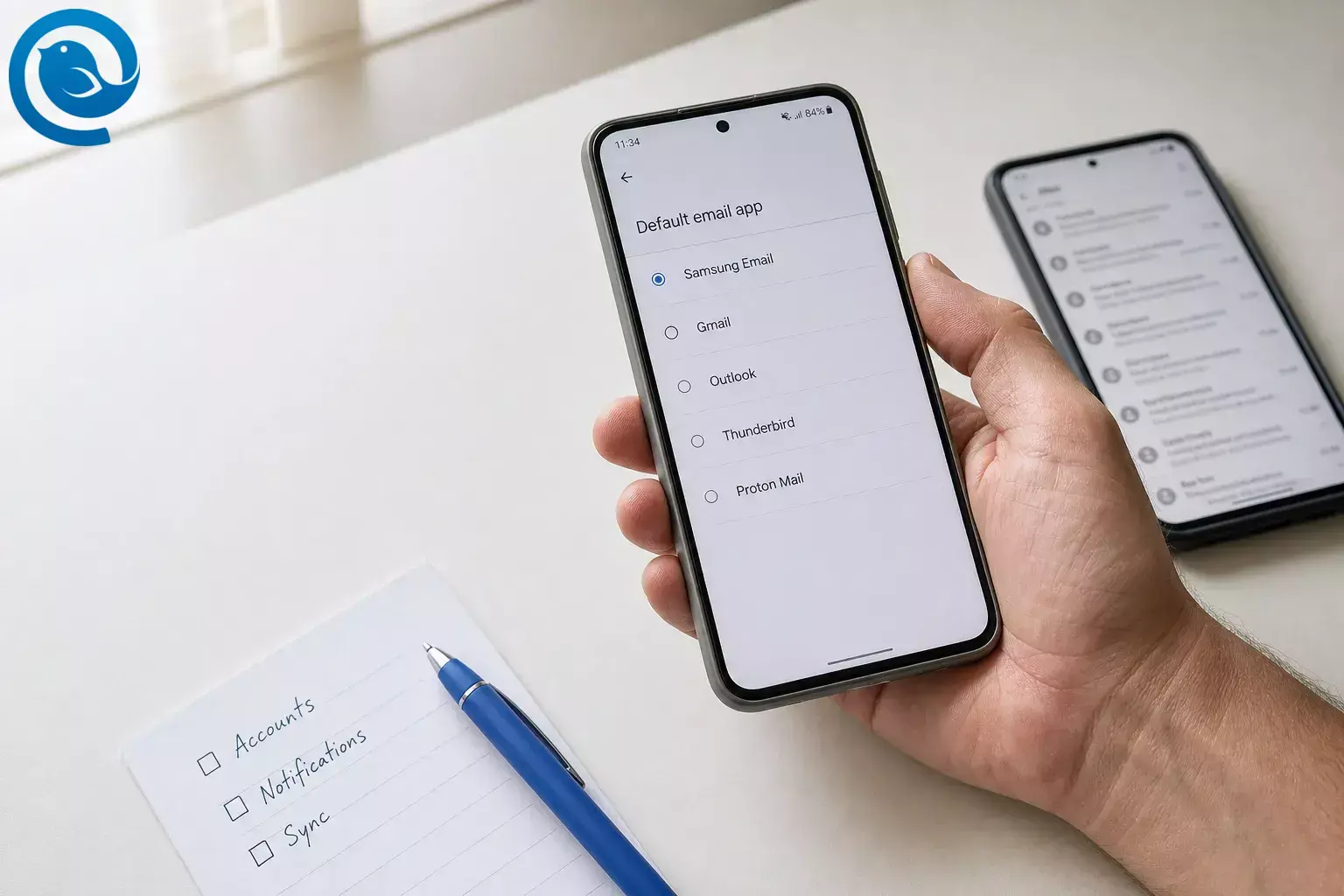
The Samsung Email app is still a solid email app for Android if you want a simple, Galaxy-friendly inbox. Samsung says it supports POP3, IMAP, Exchange ActiveSync, S/MIME, combined mailboxes, spam management, and thread view, and its current Google Play data safety card says no data is collected or shared with third parties and that data is encrypted in transit. [1]
What’s new
Where the choice matters more is Microsoft-connected mail. As of , Microsoft says devices running Exchange ActiveSync below version 16.1 can no longer connect to its services. That matters because Samsung positions Samsung Email as a business-capable Android app with EAS support. [1] [3]
If Samsung Email is where you handle Outlook.com, Exchange, or Microsoft 365 on your Galaxy phone, the app you choose now matters more than it did a year ago.
Samsung’s own U.S. support site also published guidance for a scrolling issue caused by newer Android System WebView builds and said an Email app update was being developed. It is a useful reminder that stock apps can still become the weak point in your setup. [2]
TL;DR
Short answer: keep Samsung Email if you want a simple app and it already handles your accounts well. Switch if you want stronger privacy controls, smarter inbox triage, better cross-device consistency, or much deeper customization.
- Samsung Email is still a solid email app for Android if you want a simple, Galaxy-friendly inbox.
- It supports POP3, IMAP, Exchange ActiveSync, S/MIME, combined mailboxes, spam management, and thread view.
- Switch if you want stronger privacy controls, smarter inbox triage, better cross-device consistency, or much deeper customization.
- If Samsung Email is where you handle Outlook.com, Exchange, or Microsoft 365 on your Galaxy phone, the app you choose now matters more than it did a year ago.
- Outlook is the safe first pick for Microsoft-heavy mail; Gmail is the least disruptive move if you want a familiar Android inbox fast.
- Thunderbird and FairEmail fit privacy-first or control-first users; Spark does not support POP3.
- Run both apps side by side for a few days before you change your default mail app or remove Samsung Email.
What can change: pricing, free-plan limits, privacy disclosures, provider support, and minimum Android versions can all change. Double-check the current Play listing or help center before you move a work account.
This guide looks at what Samsung Email still gets right, where it starts to feel limited, and which Samsung Email app alternative makes the most sense by use case.
Samsung Email app alternatives: quick comparison
| Alternative | Best for | Key strength | Biggest drawback |
|---|---|---|---|
| Gmail | The easiest mainstream switch | Low-friction setup on Android | Some third-party account features are changing |
| Outlook | Microsoft 365 and Exchange users | Best fit for Microsoft-heavy mail | Can feel busier than a simple mail app |
| Thunderbird for Android | Open-source universal inbox fans | Privacy-first and flexible | Not ready for Exchange on Android |
| FairEmail | Advanced users who want control | Deep privacy options | Steeper learning curve |
| Proton Mail | People willing to change providers for privacy | Privacy-first ecosystem | Not a universal multi-provider inbox |
| Spark | People who want a guided workflow | Cross-device sync and smart features | More cloud-assisted than plain email apps |
| Aqua Mail | Tinkerers and notification nerds | Very deep Android customization | Best capabilities are not all free |
| BlueMail | Lots of accounts in one polished app | Broad provider support | Privacy model takes more homework |
What Samsung Email still does well
Samsung Email is more capable than many people give it credit for. Based on Samsung’s current Play listing, its main strengths are: [1]
- Support for common account types: POP3, IMAP, and Exchange ActiveSync.
- Business-friendly extras: S/MIME plus personal and business accounts in one app.
- Useful day-to-day basics: combined mailboxes, spam management, and thread view.
- A reassuring data safety summary: Samsung’s current Play data safety card says no data is collected or shared with third parties and that data is encrypted in transit.
Stay with it if: you use one or two accounts, like Samsung’s interface, rely on Exchange ActiveSync or S/MIME, and do not need advanced collaboration, deeper tracker controls, or endless tuning. [1]
Where Samsung Email starts to feel limited
The Samsung Email app is mainly a strong generalist. It is not the first choice for heavy customization, team features, extreme privacy control, or a polished cross-device experience that follows you beyond your phone.
The pressure points show up when compatibility or reliability becomes important. Samsung documented a WebView-related issue in 2026, and Microsoft’s March 1, 2026 ActiveSync cutoff raised the stakes for Microsoft-connected Android mail setups. If your inbox is part of work, travel, or client communication, “stock app” stops being a good enough reason to stay. [2] [3]
Why people switch
-
“I didn’t choose this app — it just happened to be the one on my phone.”
Once you manage more than a couple of accounts, the default experience can start to feel too basic. -
“My Microsoft or work account is the part that makes me nervous.”
When protocol rules or sign-in requirements change, the safest choice is often the app built around that ecosystem. -
“I want a clear priority: privacy, speed, or control.”
Samsung Email is balanced, but it is not the strongest specialist in those categories.
How to choose a Samsung Email app alternative
- Start with account type, not design. IMAP, POP3, Exchange ActiveSync, EWS, and provider-locked apps do not behave the same way.
- Decide how much cloud help you want. Some apps connect mostly straight to your provider; others use their own servers for smart features, push, or send later.
- Check how notifications really work. On Android, “instant” may mean direct push, provider push, or timed fetch depending on the app and account.
- Be honest about privacy goals. Do you want decent defaults, or do you want fine-grained control over images, links, trackers, and offline behavior?
- Think beyond email. Some people need calendar and contacts tied into the same setup. Others would rather keep mail separate.
- Match the app to your patience level. Gmail and Outlook are quicker to settle into. FairEmail and Aqua Mail reward people who like to tweak things.
Best Samsung Email app alternatives, grouped by use case
The right Samsung Email app alternative depends on whether you want the easiest Android switch, stronger Microsoft support, deeper privacy, or far more control over how your inbox behaves.
For the easiest switch on Android
Gmail
Positioning: The least disruptive move if you want a familiar Android inbox fast.
Key differentiator: Gmail can still add and use non-Google accounts on mobile, and linked accounts can get Gmail features like spam protection and inbox organization. Biggest drawback: it makes the most sense if you are comfortable with Google’s way of handling email. Watch-out: Google says web syncing for third-party accounts is already gone. Starting in January 2027, Gmail will also remove some third-party features, including “Send as,” Gmailify, and POP fetching for third-party accounts, even though the mobile app will still let you add and use non-Google accounts. [4] [5]
Outlook
Positioning: The safe first pick if your life already runs through Microsoft.
Key differentiator: Microsoft officially supports Exchange, Office 365, Gmail, Outlook.com, iCloud, Yahoo, IMAP, and POP in Outlook for Android. Biggest drawback: it can feel busier than a plain mail client if all you want is simple reading and replying. Watch-out: Microsoft says some work or school accounts may require extra admin steps, device registration, Company Portal, or app management before Outlook for Android will work. [6] [7]
For privacy-first or control-first users
Thunderbird for Android
Positioning: Best if you want an open-source universal inbox instead of another ecosystem.
Key differentiator: Thunderbird for Android supports IMAP and POP3, offers a unified inbox option, and presents itself as an open-source, privacy-focused app. Biggest drawback: it still feels more practical than polished, especially if you expect deep enterprise support. Watch-out: Mozilla says Exchange support on Android is still future work, so this is not the right pick for Exchange-heavy setups unless IMAP is enough. [8] [9]
FairEmail
Positioning: Best if you want maximum control over a universal inbox.
Key differentiator: FairEmail is open source and packs in unlimited accounts, push notifications, offline operations, and a long list of privacy-minded controls. Biggest drawback: even the developer says it may not be the right choice if you want a very simple email app. Watch-out: FairEmail does not support Microsoft Exchange Web Services or Microsoft ActiveSync. [19]
Proton Mail
Positioning: Best if you want to leave not just the app, but the usual email privacy model.
Key differentiator: Proton is strongest when you want your mail app and your mail service to follow the same privacy-first approach. Biggest drawback: it is not a general-purpose unified inbox for every provider you use. Watch-out: Proton says its Android app does not integrate with third-party email clients on Android, and the rebuilt app is still re-adding some older features. [10]
For smarter workflow or deeper customization
Spark
Positioning: Best if you want a guided, cross-device workflow instead of a plain inbox.
Key differentiator: Spark works with Gmail, iCloud, Yahoo, Exchange, Outlook, Kerio Connect, and other IMAP/EWS accounts, and it syncs your added accounts and personal settings across devices. Biggest drawback: it feels more like an ecosystem than a simple mail client. Watch-out: Spark does not support POP3, manual setup is IMAP only, and its July 2026 move of Microsoft accounts from EWS to Microsoft Graph can require a fresh sign-in or admin approval for some Microsoft 365 users. Spark also says features like Teams and Send Later store the related emails on Spark servers in encrypted form. [11] [12] [13] [14]
Aqua Mail
Positioning: Best if you like tweaking almost everything on Android.
Key differentiator: Aqua Mail goes deep on Android-specific customization, widgets, Exchange and Office 365 sync, signatures, backup options, and third-party integrations. Biggest drawback: it can feel like a tool for enthusiasts rather than a clean default. Watch-out: Google Play currently shows ads and in-app purchases, and Aqua Mail lists unlimited accounts and push for Exchange among its premium unlocks. [15]
BlueMail
Positioning: Best if you want lots of provider support in one polished app.
Key differentiator: BlueMail says it supports unlimited accounts across Gmail, Outlook, Yahoo, iCloud, Office 365, IMAP, POP3, and Exchange in a unified interface. Biggest drawback: its privacy story takes more reading than some rivals. Watch-out: BlueMail’s privacy policy says portions of incoming mail may be momentarily processed on its servers for instant push on OAuth-compliant Android accounts, and its help center says POP3 accounts never get instant push. [16] [17] [18]
How to switch from Samsung Email without losing your footing
The biggest trap is assuming every replacement supports the same protocols. Samsung Email covers POP3, IMAP, and EAS. Outlook covers Microsoft services plus IMAP and POP. Thunderbird covers IMAP and POP3. Spark drops POP3. FairEmail drops EWS and ActiveSync. Check this before you fall in love with an interface. [1] [6] [8] [12] [19]
Safe switching steps
- Write down every account in Samsung Email, including whether it is Gmail, Outlook or Microsoft 365, custom-domain IMAP, or old POP3.
- Pick the replacement that matches the hardest account in your mix, not the easiest one.
- Add one account first and test send, reply, search, archive, spam, attachments, and notifications.
- If you use work mail, confirm whether you need calendar and contacts sync, admin approval, or special sign-in rules.
- Run both apps side by side for a few days. Only then change your default mail app or remove Samsung Email.
Risks to watch
- Protocol mismatch: POP3, IMAP, Exchange ActiveSync, EWS, and provider-specific ecosystems are not interchangeable.
- Work-policy surprises: your company may allow one setup and block another.
- Different notification behavior: “instant push” does not mean the same thing in every app.
- Hidden cloud dependency: smart features may involve vendor servers even when the app still feels like a normal mail client.
Work accounts deserve the most caution. Microsoft notes that some work or school setups in Outlook for Android require extra security steps before mail will sync, and locked-down organizations can apply the same kind of rules elsewhere too. [7]
Quick checklist
- I know which of my accounts use POP3, IMAP, Exchange, or Microsoft 365.
- I tested folders, spam, archive, sent mail, attachments, and notifications.
- I checked whether I need calendar or contacts sync.
- I know whether the app uses only direct provider access or also vendor servers for some features.
- I kept Samsung Email installed until the new app proved itself.
Common mistakes when switching
- Choosing by looks before checking protocol support.
- Deleting Samsung Email the same day you install the replacement.
- Forgetting that work mail and personal mail often follow different security rules.
- Picking a privacy-first app when you actually needed calendar or contact sync, or vice versa.
- Assuming every “free” app will keep its best features free forever.
If you’re still unsure
Ask yourself these three questions:
- What is my hardest account type? If it is Microsoft 365 or Exchange, start with Outlook. If it is mostly Google plus a few side accounts, start with Gmail. If it is mixed custom domains or old-school IMAP and POP3, look at Thunderbird, FairEmail, Aqua Mail, or BlueMail.
- Do I want a universal inbox or a new privacy home? If you want one app for many providers, start with universal clients. If you want your provider and app to share the same privacy model, Proton Mail makes more sense.
- Do I want fewer decisions or more control? Fewer decisions: Gmail or Outlook. More control: FairEmail or Aqua Mail. More guided workflow: Spark or BlueMail.
Frequently Asked Questions
Is Samsung Email still worth using?
What’s the best Samsung Email app alternative for Microsoft 365 or Exchange?
Can Gmail replace Samsung Email for Outlook, Yahoo, or iCloud accounts?
Which replacement is best if privacy is my top priority?
Can I keep Samsung Email installed while testing another app?
Yes—and that is the safest way to switch. Run them side by side until folders, notifications, search, and sending all look right.
Which alternatives are weak choices if I still use POP3?
Spark is the main one to rule out first. If POP3 is still part of your setup, check protocol support before you switch.
Sources: [12]
Does Mailbird have an Android app?
No. Mailbird is a desktop option for Windows and Mac, so it helps when you want a better place to handle email off your phone rather than a Samsung Email replacement on Android.
Sources: [20]
Prefer to do your heavy email on desktop?
If your real goal is to spend less time fighting email on a small screen, a better mobile app is only half the fix. Mailbird is a desktop email client for Windows and Mac that brings Gmail, Outlook, Yahoo, iCloud, Exchange, and other IMAP or SMTP accounts into one workspace. [20]
Use the Android app that best fits your phone, then do the heavy lifting—multi-account triage, long replies, and daily organization—on desktop.
To verify: before you switch a work or primary personal account, open the latest Play listing and help page for the app you are considering and confirm protocol support, privacy notes, notification method, and any paid limits that matter to you.
Sources
- Google Play: Samsung Email
- Samsung Support: Cannot scroll in the Email app on Galaxy phone or tablet
- Microsoft Support: Set up email in Android email app
- Gmail Help: Get Gmail features for your other email accounts
- Gmail Help: Learn about changes to third-party email account support in Gmail
- Microsoft Support: What email services does your app support?
- Microsoft Support: Set up email in the Outlook for Android app
- Google Play: Thunderbird for Android
- Mozilla Support: Thunderbird and Exchange
- Proton Support: Using Proton Mail on Android
- Spark Help: Connect to Your Email Account in Spark
- Spark Help: Add More Email Accounts to Spark
- Spark Help: Email Storage and Backups
- Spark Help: Microsoft Account Sign-In Required After Spark Update
- Google Play: Aqua Mail
- Google Play: BlueMail
- BlueMail: Privacy Policy
- BlueMail Help: What are the Notifications Methods?
- Google Play: FairEmail
- Mailbird: Desktop Email Client for Windows and Mac


