Property Management Email Workflow for Tenants, Owners, and Vendors
A property management email workflow for tenant, owner, and vendor messages across properties. Read in one combined view, send from role-based identities, and file with repeatable folders and rules.



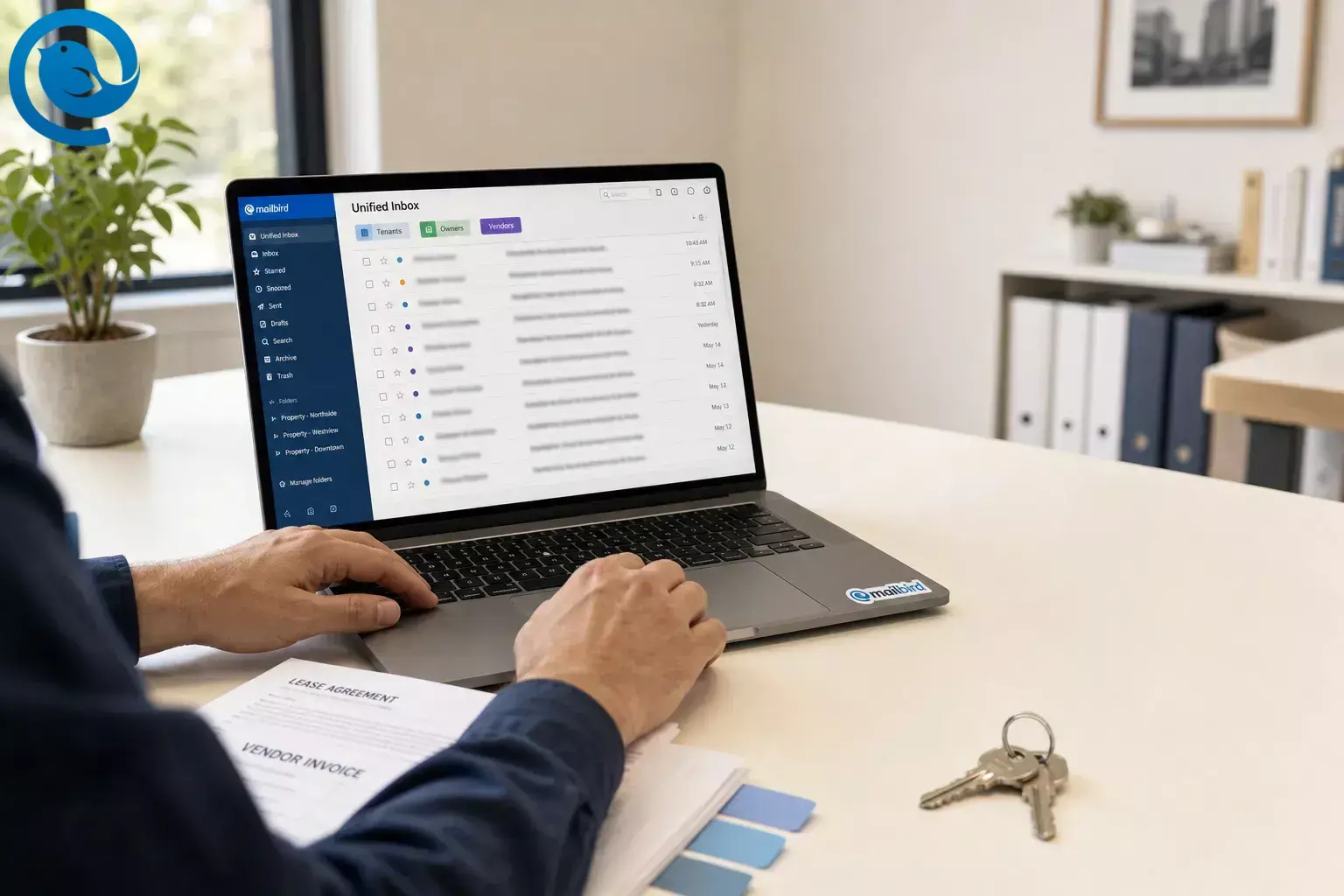
Use Mailbird to organize tenant, owner, and vendor messages across multiple properties with one triage view , clear send-from identities, and repeatable folders and rules.
What’s new
Important: if any Microsoft 365 or Exchange Online mailbox still depends on older Basic authentication for client submission, test sending before you rely on it. Microsoft retired that method in 2026. [1]
Key takeaways
- Read in one combined view, send from role-based identities, and file into a short folder set.
- Use a full inbox when different people need separate access, separate storage, or separate records; use an identity when the same person needs another send-from role.
- Sign in to each mailbox in webmail first, approve MFA prompts, and turn on IMAP if your provider requires it.
- Turn on Unified Inbox, rename every account clearly, and let the original account mapping control the send-from address.
- Start with a short folder set and a small starter set of rules; use provider-side rules for anything that must run while your computer is off.
- Use Snooze for anything waiting on time, then run a short weekly audit to remove dead rules and check for duplicates.
The simplest property management email workflow is this: read in one combined view, send from role-based identities, and file into a short folder set. That keeps tenant, owner, and vendor conversations separate without forcing you to live in a dozen tabs. [7] [8] [9] [10]
In Mailbird, that usually means bringing multiple email accounts into one client, turning on Unified Inbox, adding identities, and using a small folder-and-rule structure you can repeat across accounts. It works for solo landlords, assistants, and portfolio teams that need better landlord inbox organization without opening a separate tab for every role. [2] [7] [8] [9] [10]
Before you start
- Prerequisites: your live tenant, owner, vendor, and billing addresses; passwords; access to multi-factor authentication prompts; and any custom IMAP or SMTP settings for domain-based accounts. [7] [13]
- Tools: Mailbird on your computer, plus a notepad, spreadsheet, or shared document for your inbox map.
- Time: set aside one focused setup session, then allow older mailboxes time to finish syncing.
- Budget check: if you need approval before rollout, check current Mailbird pricing and plan options first. [3]
- Safety notes: turn on two-factor authentication where available, and choose an authenticator app or security key over text or email when you can. [4]
Fallback if you only have one mailbox today: keep the one mailbox, then use identities, folders, and rules to create separate lanes inside it. You do not need a new address for every role on day one.
Caution: for legally sensitive notices, use the delivery methods your lease, owner agreement, local rules, and company policy require.
The 3 email lanes every property manager needs
Separate the work before you separate the mailboxes. This is the simplest way to improve tenant and owner email management across properties without creating a brand-new inbox for every small task.
Tenant lane
Maintenance requests, keys, lease renewals, move-in questions, complaints, and routine resident follow-up.
Default move: reply, Snooze, or file to Today or Waiting .
Owner lane
Approvals, fee questions, reports, lease exceptions, vacancy decisions, and budget conversations.
Default move: file to Approvals or Waiting .
Vendor lane
Scheduling, invoices, W-9s, certificates of insurance, inspection photos, and completion updates.
Default move: file to Vendors or Archive .
Step-by-step Mailbird setup
Step-by-step Mailbird setup
-
List every live address, alias, and shared inbox
Make a simple sheet with columns for property or portfolio, audience, current address, and who owns the reply. Include personal inboxes that still catch property mail, forwarding addresses, old vendor addresses, and any “just in case” mailboxes nobody really wants to monitor.
Delete, forward, or retire anything that no longer deserves daily attention. Email management gets easier the moment you stop pretending every old address still matters.
Check: every live address now has one owner and one clear purpose.
-
Decide what needs a real inbox and what should stay an identity
Use a full inbox when different people need separate access, separate storage, or separate records. Use an identity when the same person needs to send from
billing@,leasing@, ormaintenance@without carrying another full inbox all day. Mailbird lets you add identities and test them before you rely on them. [7]Use a full inbox when...
Different people need access, the mailbox has its own record-keeping needs, or the folder structure must stand on its own.
Use an identity when...
One person just needs another send-from role, with a distinct address and signature, inside the same daily workflow.
Check: each address is marked either “full inbox” or “identity only.”
-
Sign in to each mailbox in a browser first
Before you add anything to Mailbird, open each mailbox in webmail. Finish password resets, approve MFA prompts, and turn on IMAP if your provider requires it. For Microsoft 365 or Exchange Online accounts, use modern sign-in rather than older Basic authentication. [1] [13]
Check: every mailbox opens in webmail and accepts a clean sign-in.
-
Add your accounts to Mailbird one at a time
If you manage multiple email accounts, do not connect everything at once. In Mailbird, open Settings → Accounts → Add , add one account , test it, then move to the next. Let auto-detection run first. Choose IMAP unless you have a specific reason to keep POP, because IMAP keeps folders and read status synced across devices instead of trapping mail on one machine. [7] [12]
Check: you can send yourself one test message and receive one back from each account.
-
Turn on Unified Inbox and rename every account so they are impossible to confuse
Use blunt, obvious names such as
Maple - Tenants,Maple - Owners,All Vendors, orHOA Billing. Then enable Unified Inbox so you can read everything in one place. Mailbird keeps each message tied to its original account, so replies go out from the correct address. [8]Check: messages from at least two accounts show in one list, and the reply address matches the original inbox.
-
Add identities and make the signatures look different on purpose
Create identities for every send-from role that matters: leasing, billing, renewals, vendor coordination, or after-hours maintenance. Run Test Connection on each identity, then give each one a visibly different signature with the role or property name on the first line. [7]
Check: the From menu shows every role you need, and the signature changes automatically when you switch roles.
-
Build a short folder set that repeats across every account
A short set is enough to start:
Today,Waiting,Approvals,Vendors,Lease Docs, andArchive. Keep property names in the account names or in the subject line, not buried in a giant custom tree for every building.Use the inbox as a work surface, not permanent storage. Once a thread is decided, file it.
Check: one tenant email, one owner email, and one vendor email can each be filed in seconds.
Property-specific note: keep the current approved fee sheet and leasing language in one reference folder so staff are not copying old numbers into replies. In late 2025, the FTC said Greystar agreed to pay $24 million and change its advertising practices, and it separately warned 13 property management software providers about accurate rental pricing information. [5] [6]
-
Create a small starter set of rules before you create dozens
Start with the mail you see every week. Good first rules are: invoices, W-9s, and certificates of insurance go to
Vendors; owner approvals and statements go toApprovals; lease, renewal, and application threads go toLease Docs; emergency keywords stay visible; newsletters and auto-reports skip the main lane. In Mailbird, filters are local and apply to incoming mail while the app is open, so use provider-side rules for anything that must run while your machine is off. [9]Check: your test messages land in the right folder or stay visible for the right reason.
-
Use Snooze for anything waiting on time instead of action
Snooze owner approvals until the date you must follow up. Snooze vendor callbacks until the site visit window. Snooze routine lease reminders until the next business morning. If you cannot act on it now, it should not sit in the same place as work you can finish now. [10]
Check: at least one waiting thread disappears and returns when you expect it.
-
Learn a few search patterns and reuse them every day
Search by sender, subject, folder, date, unread status, or attachment. Useful examples:
has:attachment AND from:(Acme Plumbing),subject:(renewal) AND newer:2026/01/01, andin:anywhere AND Oak Streetwhen you need to include Spam or Trash in the results. [11]Check: you can find one old invoice, one lease thread, and one owner approval without opening a second app.
-
Set a response order before the day gets noisy
Work your combined view in the same order every time: emergencies and safety issues, owner approvals that block work, vendor scheduling, lease deadlines, routine tenant questions, then low-value alerts. For each email, do exactly one thing: reply, Snooze, or file.
Check: urgent work no longer shares the same visual space as newsletters, promo mail, or automatic reports.
-
Run a short weekly audit
Remove dead rules, archive closed threads, confirm each shared inbox still has one owner, and update signatures after staffing changes. If a message looks duplicated in Unified Inbox, first check whether it was sent to two connected addresses; Mailbird shows one copy per account in that case. [15]
Check: no orphaned inboxes, dead aliases, or mystery duplicates are left in the system.
Why this workflow works
This workflow works because it separates reading, sending, and filing. Unified Inbox cuts tab-hopping, identities lower the odds of sending from the wrong address, rules sort predictable mail, and Snooze keeps time-based follow-ups out of the way until they matter. That is especially useful for tenant and owner email management across multiple properties. [7] [8] [9] [10]
What can change behind the scenes
Provider rules change faster than folder systems. Microsoft has already retired Basic auth for Exchange Online client submission, some providers still require IMAP to be enabled before a desktop client can sync, and local security software can interfere with sending. If a mailbox suddenly stops behaving, check authentication first, then IMAP access, then firewall or antivirus settings. [1] [13] [14]
Troubleshooting common email problems
| Symptom | Likely cause | Fix |
|---|---|---|
| Unified Inbox does not appear | You only added one account, or the setting is off | Add a second account, then turn on Unified Inbox in Mailbird settings. [8] |
| The same email seems to appear twice | The sender emailed two connected addresses | Open the individual accounts to confirm. Mailbird shows one copy per account in Unified Inbox; it does not merge them. [15] |
| Vendor invoices never move out of the inbox | The rule conditions do not match, or Mailbird was closed when the email arrived | Retest with an exact subject line and keep Mailbird open during active email hours. If you need the rule to run while your machine is off, make that rule at the provider level instead. [9] |
| A Microsoft 365 mailbox connects but cannot send | The account was added with the wrong auth method, or sending auth is failing | Remove and re-add it with modern Microsoft sign-in, then retest sending in Mailbird and in webmail. Older Basic authentication for Exchange Online client submission was retired in 2026. [1] [14] |
| An account will not add at all | IMAP is disabled at the provider, or the incoming or outgoing settings are wrong | Enable IMAP first, then retry setup with the correct server details. [7] [13] |
| Messages stay in Drafts or fail to send | Firewall, antivirus, or server authentication is blocking outgoing mail | Check Sent in webmail before resending, then whitelist Mailbird or test on a clean connection. [14] |
| Search cannot find an old invoice or lease attachment | Your query is too narrow, or Spam and Trash are excluded |
Search with operators such as
has:attachment
,
subject:(invoice)
, and
in:anywhere
.
[11]
|
| You keep replying from the wrong address | Account names are vague, or all signatures look the same | Rename each account with property and audience labels, then give every identity a clearly different signature. |
Variations for landlords and portfolio teams
Solo landlord setup
Keep one main inbox, then add identities for billing, leasing, and maintenance. This is the simplest version of landlord inbox organization when you do not need separate records for each role.
Portfolio team setup
Use one tenant inbox per portfolio, one owner inbox, and one vendor or accounting inbox. This keeps day-to-day tenant work from burying approvals and invoices.
After-hours setup
Create a separate emergency address or identity, keep emergency keywords visible, and Snooze all non-urgent items to the next business window.
Locked-down office setup
If IT will not allow one mailbox in a desktop client, leave that mailbox in webmail and forward only the approved categories into your main triage lane, if company policy allows it.
Make-ahead, storage, and scaling
Make-ahead
Before you connect the last account, draft short reply text for the messages you answer constantly: “maintenance request received,” “owner approval needed,” “vendor visit confirmed,” and “lease renewal received.” Keep that text in one note so new staff can copy the same tone on day one.
Storage
After you send or receive a lease packet, invoice, certificate of insurance, inspection photo, or owner approval, save the final file to your property management system or cloud folder the same day. Treat email as the work surface, not the only archive. If you use IMAP, your read status and folders stay synced across devices, which makes the archive easier to trust. [12]
Scaling
When you add a new property, copy the same account naming pattern, folder set, identity list, and starter rules. Consistency matters more than clever folder trees. The faster every property looks familiar, the less time your team wastes deciding where a message belongs.
Quick checklist
- Every live address is listed once, with one owner.
- Each address is marked as either a full inbox or an identity.
- Every mailbox signs in cleanly in webmail.
- Mailbird is connected to each account you actually need.
- Unified Inbox is turned on for triage.
- Each send-from role has its own identity and signature.
- The same short folder set exists across every account.
- Your starter rules are tested with real sample emails.
- Snooze is handling follow-ups that are waiting on time.
- Your weekly inbox audit is on the calendar.
Frequently Asked Questions
Should I create a separate inbox for every property?
No. Create separate inboxes only when different people need separate access or separate records. Otherwise, one inbox plus identities, folders, and clear signatures is usually easier to manage. [7]
Can I keep tenants, owners, and vendors in one combined view without replying from the wrong address?
Should I use IMAP or POP for property management email?
IMAP is usually the better choice for property email because it keeps folders and read status in sync across devices. POP is more of a special-case setup. [12]
Why do some emails look duplicated in Unified Inbox?
If the same message was sent to two connected addresses, you will see one copy for each account in the combined view. [15]
Do Mailbird rules keep working when the app is closed?
No. Local Mailbird rules apply when new mail arrives while Mailbird is open. If you need a rule to run while your machine is off, create that one at the provider level. [9]
What is the fastest way to find an old vendor invoice or lease thread?
Use advanced search with sender, subject, date, and attachment operators. For buried items, include Spam and Trash in the search. [11]
Sources
- Microsoft Learn — Deprecation of Basic authentication in Exchange Online — https://learn.microsoft.com/en-us/exchange/clients-and-mobile-in-exchange-online/deprecation-of-basic-authentication-exchange-online
- Mailbird — Manage Multiple Email Accounts in One Place — https://www.getmailbird.com/manage-multiple-email-accounts-in-one-place/
- Mailbird — Pricing — https://hub.getmailbird.com/pricing
- Federal Trade Commission — Use Two-Factor Authentication To Protect Your Accounts — https://consumer.ftc.gov/articles/use-two-factor-authentication-protect-your-accounts
- Federal Trade Commission — Greystar Agrees to Pay $24 Million and Stop Deceptive Advertising Practices — https://www.ftc.gov/news-events/news/press-releases/2025/12/greystar-agrees-pay-24-million-stop-deceptive-advertising-practices-result-ftc-colorado-lawsuit
- Federal Trade Commission — FTC Sends Warning Letters to 13 Property Management Software Providers Nationwide — https://www.ftc.gov/news-events/news/press-releases/2025/12/ftc-sends-warning-letters-13-property-management-software-providers-nationwide
- Mailbird Support — Connecting Accounts and Adding Identities in Mailbird — https://support.getmailbird.com/hc/en-us/articles/220106607-Connecting-Accounts-And-Adding-Identities-In-Mailbird
- Mailbird Support — Unified Inbox — https://support.getmailbird.com/hc/en-us/articles/220108147-Unified-Inbox
- Mailbird Support — Setting up Filters and Rules — https://support.getmailbird.com/hc/en-us/articles/360037803653-Setting-up-Filters-and-Rules
- Mailbird Support — Managing your inbox with Snooze — https://support.getmailbird.com/hc/en-us/articles/220108067-Managing-your-inbox-with-Snooze
- Mailbird Support — Advanced Search queries and UI — https://support.getmailbird.com/hc/en-us/articles/360042425014-Advanced-Search-queries-and-UI
- Mailbird Support — What is the difference between IMAP and POP3? — https://support.getmailbird.com/hc/en-us/articles/20469571644183-What-is-the-difference-between-IMAP-and-POP3
- Mailbird Support — How to enable IMAP for your email account in Mailbird — https://support.getmailbird.com/hc/en-us/articles/39932264536087-How-to-enable-IMAP-for-your-email-account-in-Mailbird
- Mailbird Support — Emails fail to send / Sending error / Emails stay in drafts — https://support.getmailbird.com/hc/en-us/articles/360020966234-Emails-fail-to-send-Sending-error-Emails-stay-in-drafts
- Mailbird Support — Why am I seeing duplicate emails in Mailbird? — https://support.getmailbird.com/hc/en-us/articles/15265554571927-Why-am-I-seeing-duplicate-emails-in-Mailbird


