Outlook Error 500: What It Means and How to Fix It
Outlook error 500 means a server could not complete a request. Start by checking Microsoft’s service status. If there is no relevant incident, test your sign-in and browser before asking IT to check a work or school account.



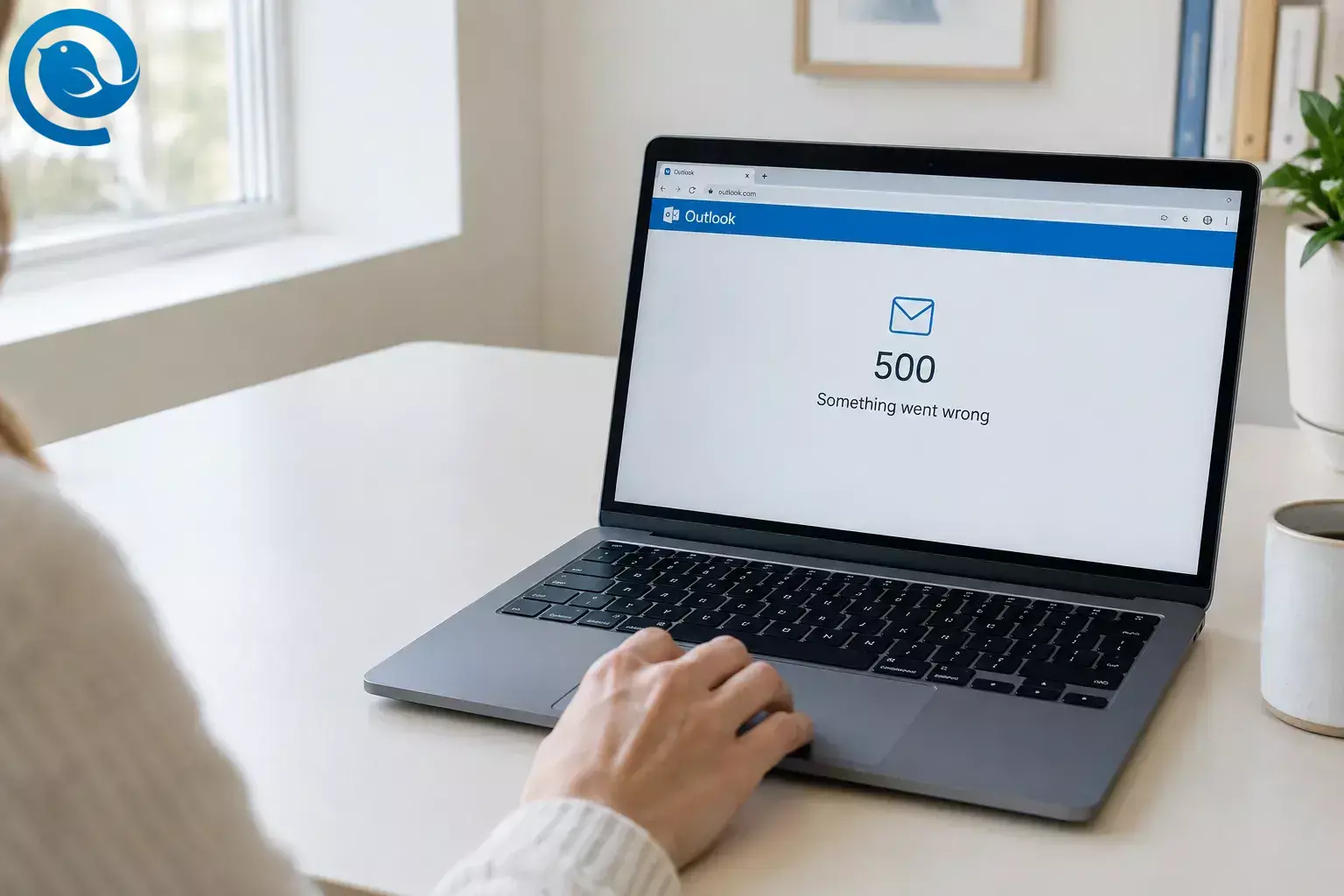
Outlook error 500 means a server could not complete a request. Start by checking Microsoft’s service status. If there is no relevant incident, test your sign-in and browser before asking IT to check a work or school account.
Quick checklist
- ☐ Save the exact error message and note which Outlook app shows it.
- ☐ Check Microsoft’s service status; ask IT about organization-specific incidents.
- ☐ Refresh once, then sign out and back in.
- ☐ For Outlook on the web, clear site data and try a private window or another browser.
- ☐ For new Outlook, test the same account on the web.
- ☐ If one work account fails everywhere, ask IT to check its license and mailbox.
- ☐ If an incident is active, follow its updates; otherwise contact support with your test results.
What does Outlook error 500 mean?
HTTP 500 is a server error, but the number alone does not tell you why Outlook on the web or new Outlook failed. A service incident, a troublesome sign-in session, or an account problem may require different fixes. In one Microsoft Q&A case, an Outlook on the web error 500 was linked to an account without an Exchange Online mailbox or qualifying license. If the error follows your account across browsers, clearing cookies alone may not fix it.
Before you start
- Have ready: Your Microsoft account sign-in and, for a work or school account, a way to reach IT.
- Tools: Your current browser and, if available, a second browser. No special software is needed.
- Time and cost: Allow about 10 minutes for the checks. They cost nothing.
- Take care: Save any unsent draft you can still access. Clearing cookies signs you out of affected sites; do not share passwords or sign-in codes with anyone investigating the error.
Fix Outlook error 500, in order
Fix Outlook error 500, in order
- Note where the error appears. Is it in Outlook.com, Outlook on the web for work or school, or the new Outlook desktop app? Copy the exact message, including text such as “Something went wrong” or “Repeating redirects detected.” If there is a request ID, save it for support.
- Check Microsoft’s service status first. Open the Microsoft Service Health Status page. For a work or school account, ask an administrator to check Microsoft 365 admin center → Health → Service health for Exchange Online incidents affecting your organization. If an incident matches your symptoms, stop changing browser settings and follow its updates. Microsoft explains how administrators check service health.
- Retry once. Refresh the Outlook page, or close and reopen new Outlook. If your inbox loads and you can open a message, you are done. If error 500 returns, continue rather than repeatedly refreshing.
- Sign out and sign back in. If Outlook opens far enough, select your profile picture, choose Sign out, close the Outlook tab, then sign in again. If the error page prevents you from reaching Sign out, move to the next step. Check whether the inbox loads after the fresh sign-in.
- Clear Outlook site data in your browser. For Outlook on the web, open your browser’s privacy or site-data settings and remove cookies and cached data for the Outlook site you use. Close its tabs, reopen the site, and sign in. This can reset a faulty web session, but it cannot repair a Microsoft service incident or create a missing mailbox. Microsoft includes clearing cache and cookies among its Outlook.com workarounds.
- Try a private window, then another browser. Open Outlook in an InPrivate or Incognito window. If it works there, retest in your regular window with extensions disabled for Outlook. If the error continues, try another up-to-date browser. Note which test works; it helps distinguish a browser-specific problem from an account or service problem. Microsoft lists supported browsers for Outlook on the web and Outlook.com.
- If you use new Outlook, compare it with the web version. Sign in to the same mailbox in a browser. If both fail, focus on service status or the account rather than the desktop app. If the browser works but new Outlook fails, tell IT or Microsoft support that the problem is limited to the app. Clearing your browser’s cookies is not the same as clearing data inside new Outlook; Microsoft describes the app as using a WebView2-based architecture.
- Check whether another account works. If you have a separate Microsoft email account, try it without mixing up your work and personal sign-ins. If one inbox opens and the other consistently shows error 500, note which account fails. Do not change licenses or mailbox settings yourself.
-
Ask IT to check a work or school mailbox.
If the error persists across browsers—or includes
OwaUserHasNoMailboxAndNoLicenseAssignedExceptionor “mailbox couldn’t be found”—send IT the exact wording. Ask them to verify that your account has a license including Exchange Online and that a mailbox exists. Microsoft documents license assignment as an administrator action when Outlook on the web cannot find a mailbox. - Wait for an incident, or contact support. If Microsoft lists an active incident, check its updates and try again after service is restored. If no relevant incident is listed and the error survives these checks, contact IT for a managed account or Outlook.com support for a personal account. Include the exact error, affected account type, when it started, and which browsers you tested; never include your password.
Why these checks help
The tests change one thing at a time. Service status checks for a wider disruption; a fresh sign-in and clean browser session test local session data; another browser and the web-versus-app comparison show where the failure occurs. An account that fails everywhere needs account or service investigation, not endless cache clearing.
What your results may tell you
- Outlook works in a private window but not your usual window → saved site data or an extension may be involved → clear Outlook site data, then retest with extensions disabled.
- Outlook fails in every browser → a browser-only problem is less likely → check service health and report the result to support or IT.
- New Outlook fails, but the same mailbox opens on the web → the problem appears limited to the app → close and reopen it, then report the app-only failure if it persists.
- Several coworkers get the error → a shared service or organization issue is possible → ask IT to check Exchange Online service health before changing individual accounts.
- Only your work account fails → its mailbox or access may need checking → ask IT to confirm the Exchange Online license and mailbox.
- “Repeating redirects detected” appears → the sign-in session may be looping → sign out if possible, clear Outlook site data, and test a private window; if it persists everywhere, report the exact message.
- Outlook opens, but mail does not load → the issue may differ from a sign-in failure → test another browser and disable extensions for Outlook. Microsoft notes that some blockers can interfere with Outlook.com loading.
Which Outlook account are you using?
Personal Outlook.com account
Use Microsoft’s public service-status page, then run the browser checks. If only your account fails, contact Outlook.com support rather than a workplace administrator.
Work or school Microsoft 365 account
Ask IT to check your organization’s Exchange Online service health and your mailbox assignment. You may not have permission to view the admin center yourself.
New Outlook for Windows
Use Outlook on the web as a comparison test. Clear browser data only when troubleshooting the browser; tell support whether the same account succeeds on the web.
Frequently asked questions
What does “Something went wrong” and error 500 mean in Outlook?
Outlook could not complete a server request. The message does not, by itself, tell you whether the cause is a wider outage, a browser session, or your account.
Is Outlook error 500 always a Microsoft outage?
No. Check service status first, then test a fresh sign-in and another browser. A problem affecting just one work account may need an IT check.
Will clearing cookies delete my Outlook emails?
Clearing browser cookies signs you out and removes saved site data from that browser; it does not delete messages from your mailbox. Save any unsent text you can access before clearing it.
Why does Outlook work in Incognito but not in my normal browser?
Your normal browser’s saved site data or an extension may be interfering. Clear Outlook site data and retest with extensions disabled for that site.
Who fixes an Outlook 500 error caused by a missing mailbox?
For a work or school account, contact your Microsoft 365 administrator. They can check the mailbox and the license assigned to your account.
Can a desktop email client bypass Outlook error 500?
It may be worth testing another way to access an already working mailbox, but a desktop client cannot repair a Microsoft outage or supply a missing mailbox or license.
- RFC 9110: HTTP 500 Internal Server Error
- Microsoft Q&A: Outlook on the web error 500 case
- Microsoft Learn: How to check Microsoft 365 service health
- Microsoft Support: Fixes or workarounds for Outlook.com issues
- Microsoft Support: Supported browsers for Outlook on the web and Outlook.com
- Microsoft Learn: Overview of the new Outlook for Windows
- Microsoft Learn: Getting a mailbox not found error in Outlook on the web
- Microsoft Support: Get help with Outlook.com
- Mailbird: Mailbird Next for Windows and Mac, features and plans


