How to Combine Multiple Email Accounts Into One Inbox
A step-by-step Mailbird guide to combining multiple email accounts into one inbox, including setup, troubleshooting, filters, and backup best practices.


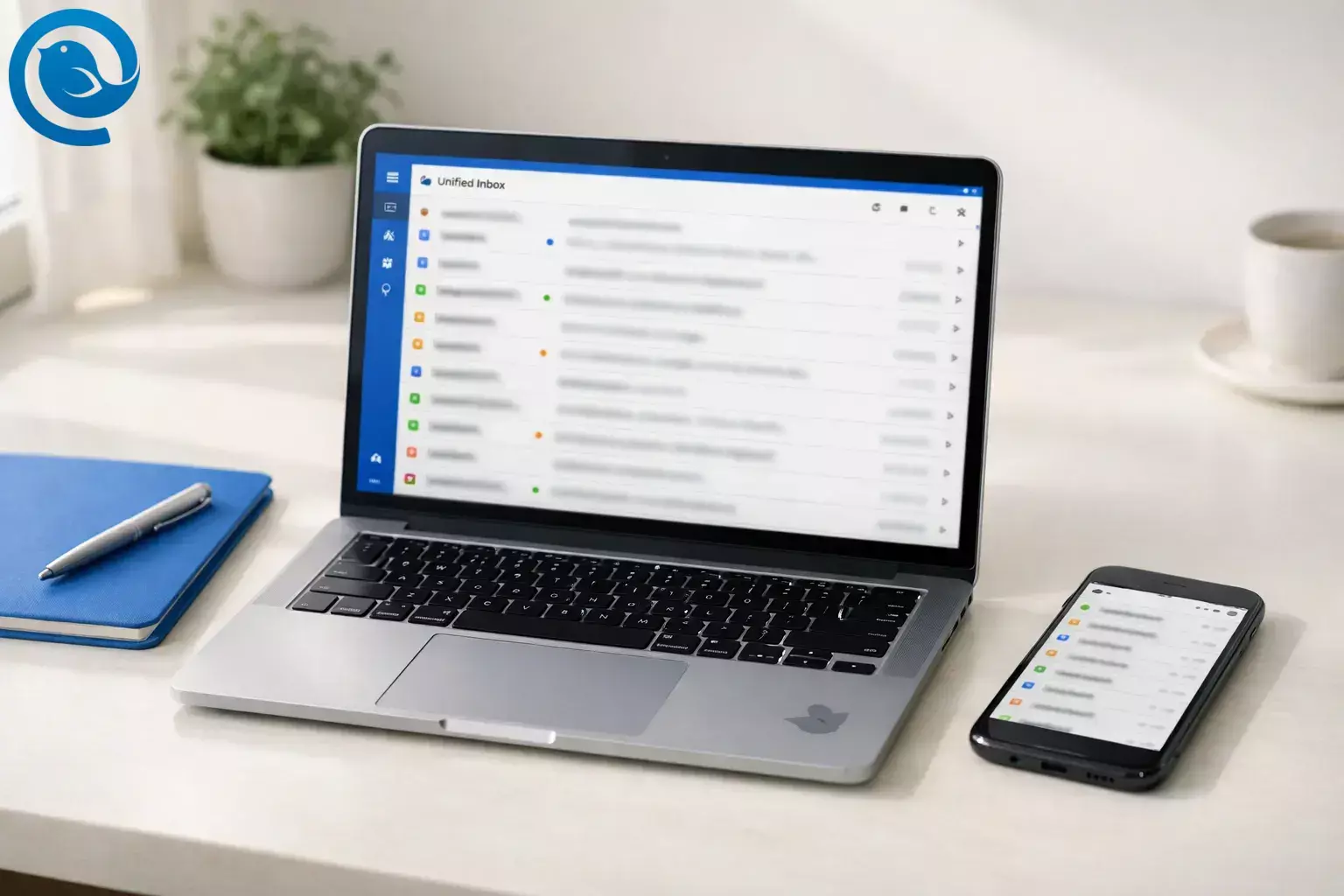
Mailbird’s Unified Inbox lets you combine multiple email accounts into one inbox, so you can read, search, and reply without switching between inboxes. Mailbird has a Free plan and paid plans; if you need more than one connected account, confirm your plan supports multiple accounts before you start. 1, 2 If you want the broader workflow view first, start with our guide to managing multiple email accounts.
Key takeaways
- Mailbird Free supports one account; combining multiple accounts into one inbox requires a plan that supports more than one connected account. 1, 2
- Add each email account via Settings → Accounts → Add, then verify it syncs before moving on. 3
- Enable the Unified Inbox: on Windows, check Enable unified account; on Mac, check Include in unified account for the accounts you want, then Save. 6, 8
- From the unified view, do a quick reply test and confirm the correct From address before sending. 6
- IMAP is usually best for a unified setup; POP3 can work, but it makes reliable local backups more important. 4, 5, 11
- Filters aren’t server-side (they run while Mailbird is open), and you can back up Mailbird data on Windows once everything looks right. 10, 11
- If your main need is Gmail-specific multi-account workflow, this setup also overlaps with using a Gmail email client and a Gmail unified inbox.
Quick answer
Before you start
- Prerequisites: Mailbird installed; sign-in access to each email account; permission to connect any managed work accounts. Mailbird supports standard mail protocols like IMAP (and POP3 where available), depending on your provider and account type. 4, 5
- Tools/ingredients: Your email addresses + passwords (or app passwords/OAuth sign-in when required), and a stable internet connection. 12
- Time: One focused setup session, plus background syncing time for large mailboxes (Mailbird may run slower during the first sync). 4
- Cost range: Free to paid. Mailbird Free supports one account; combining multiple accounts into one inbox requires a plan that supports more than one connected account. 1, 2
- Safety notes: Don’t share passwords over email or chat; use your provider’s secure sign-in flow when prompted. If you back up Mailbird data, fully quit Mailbird first (including in the background) so the backup isn’t incomplete. 11
Step-by-step: Combine multiple email accounts into one inbox in Mailbird
Combine multiple email accounts into one inbox in Mailbird
-
Confirm you can connect more than one account. Mailbird Free supports one account. If you need multiple email accounts in one inbox, switch to a plan that supports multiple connected accounts before you continue. 1, 2
-
Make a short “account cheat sheet.” For each mailbox, note: email address, password (or app password), and whether you’ll connect via IMAP. Mailbird usually auto-detects server settings; if it doesn’t, be ready to enter IMAP/SMTP details from your provider. 4
-
Open the account setup screen.
- Mailbird for Windows: Open the Mailbird menu → Settings → Accounts.
- Mailbird for Mac: Open Settings → Accounts.
-
Add your first email account and verify it syncs. Click Add, enter your credentials, and finish the prompts. When setup completes, open that account’s Inbox and confirm mail appears (or send yourself a test email and wait for it to arrive). 3
-
Add the rest of your email accounts (one at a time). Repeat Accounts → Add for each address. After each add, do a quick check: open the account inbox and confirm you can see new mail (or send a test message to that address).
-
Turn on the Unified Inbox.
- Windows: Settings → Accounts → check Enable unified account. 6
- Mac: Settings → Accounts → check Include in unified account for each account you want included → Save. 8
Check: a Unified Inbox option appears, and it contains messages from your included accounts. 6, 8 If you want the broader strategy behind this workflow, see our guide to managing multiple email accounts.
-
(Optional) Start in the Unified Inbox every time (Windows). Go to Settings → Accounts and enable Select on startup for the Unified Inbox. Close and reopen Mailbird to verify it opens to the unified view. 6
-
(Optional) Color-code accounts so you can scan faster (Windows). Settings → Accounts → click the color indicator next to each account → choose a distinct color. Then open Unified Inbox and confirm each message shows the matching color marker. 7
-
Test the most important behavior: “reply from the right address.” In Unified Inbox, open a message and click Reply. Before you send, confirm the From address matches the account that received the message. 6
-
Create identities (aliases) and signatures if you need them. Identities let you send from additional “From” addresses without adding another inbox. Go to Settings → Identities → Add, then use Test Connection to confirm it works. To set a signature, open an identity and add your signature in the editor. 3, 9
-
Add one “noise-reducer” filter (then test it). Go to Settings → Filters → choose an account (or Unified Accounts) → Add. Create one simple rule, then click Save and Run to verify it affects existing mail and future mail. 10
-
Make a backup once everything looks right (Windows). Quit Mailbird completely, then copy the Mailbird data folder from
C:\Users\<your-username>\AppData\Local\Mailbirdto a safe location (external drive or trusted cloud folder). 11
Why this works
Mailbird connects to each email account (most commonly via IMAP) and then shows a Unified Inbox that aggregates messages into a single view. The unified inbox is a view—not a merge—so messages stay tied to their original accounts, and you can still open each inbox separately when you need to. 4, 6, 8 This is the same core idea behind a practical multiple email accounts workflow: one place to triage, without losing account-level control.
Troubleshooting
-
Symptom: You don’t see “Unified Inbox” anywhere. Likely cause: Only one account is connected, or Unified Inbox is turned off. Fix: Add a second account, then go to Settings → Accounts and enable Enable unified account (Windows) or include the account in unified (Mac). 6, 8
-
Symptom: Mailbird won’t let you add a second account. Likely cause: You’re on a plan limited to one account. Fix: Switch to a plan that supports multiple accounts (or use the forwarding variation below). 1, 2
-
Symptom: “Authentication failed” (or setup stalls) when adding an account. Likely cause: Provider security requirements (OAuth, app passwords) or a network/security tool blocking sign-in. Fix: Re-try with VPN off; use OAuth sign-in if offered; if you use 2FA, create an app password where your provider requires it. 12
-
Symptom: Your Gmail account won’t connect with just “username + password.” Likely cause: Gmail may require OAuth 2.0 instead of basic authentication. Fix: In the account setup, choose OAuth 2.0 (if offered) and sign in through the Google window. 12
-
Symptom: Unified Inbox shows messages, but one account seems missing. Likely cause: On Mac, the account isn’t checked as Include in unified account. Fix: Settings → Accounts → check Include in unified account for that account → Save, then reopen Unified Inbox. 8
-
Symptom: Mailbird feels slow right after setup. Likely cause: Initial synchronization is downloading messages and attachments (large histories take longer). Fix: Leave Mailbird open until syncing settles; avoid changing advanced connection settings unless you’re troubleshooting a connection problem. 4
-
Symptom: Your filters/rules don’t run unless Mailbird is open. Likely cause: Mailbird filters aren’t server-side; they run in Mailbird while it’s running. Fix: Keep Mailbird running for always-on filtering, or recreate critical rules in your email provider’s web settings. 10
-
Symptom: A filter works, but “Move to folder” doesn’t work when you select Unified Accounts. Likely cause: Move/Copy actions aren’t supported in unified accounts. Fix: Create the same “Move to folder” rule separately for each account, or use other actions (mark read/star/flag) at the unified level and move messages manually. 10
-
Symptom: You set up POP3 and now worry about losing mail. Likely cause: POP3 setups can make local storage more important. Fix: Back up your Mailbird data before major changes or device moves, and consider switching the account to IMAP if your provider supports it. 4, 11
Variations
-
Variation 1: One Unified Inbox for everything (fast triage). Keep all accounts included, color-code them where available, and do a quick pass: delete, reply, or archive—then switch to per-account views for focused work. 7
-
Variation 2: A “priority-only” Unified Inbox. Add all accounts (so you can send from them), but include only high-priority accounts in the Unified Inbox. This is easiest in Mailbird for Mac using the per-account Include in unified account toggle. 8
-
Variation 3: One mailbox, multiple identities (instead of multiple accounts). If you have one real mailbox but several “From” addresses (aliases like billing@, support@), set them up as identities so you can send from different addresses while reading one inbox. 3
-
Variation 4: No multi-account plan? Forward mail into one account. Set up automatic forwarding from secondary accounts to one primary mailbox, then use labels/folders to keep things separated. This won’t preserve separate inboxes inside Mailbird, but it can be enough if you mainly want “one place to read.”
Prep, backups, and adding more accounts
Prep (small steps, fewer mistakes)
- Decide account names up front (for instance: “Work,” “Personal,” “Invoices”) so you don’t guess later.
- Pick a consistent color scheme (where available) before assigning colors. 7
- If 2FA is enabled, create any required app passwords first and store them safely. 12
Storage & backups
- After your setup is stable, back up your Mailbird data (especially important if you use POP3 or you’re moving to a new computer). 11
- Keep a simple note with your custom-domain server settings (IMAP/SMTP hostnames and ports) so you can re-add accounts quickly if needed. 4
Scaling up (adding more accounts later)
- Add accounts one at a time and let the first sync settle before adding the next—this makes it easier to spot which account caused a login or sync problem. 4
- Create one “Unified Accounts” filter for simple actions (mark as read/flag), then create account-specific filters for anything that needs “move to folder.” 10
What can change
- Plan limits and features: How many accounts you can connect depends on your plan, and plan details can change—double-check current limits before you set up a large multi-account inbox. 2
- Sign-in requirements: Email providers can tighten security (OAuth requirements, app passwords, authentication changes). If an account that used to work suddenly fails to add, follow provider-specific authentication guidance and re-authorize the account. 12
Frequently Asked Questions
Is a unified inbox the same as "merging" email accounts? - No, one view
Will replies automatically send from the correct email address? - confirm the "From"
Mailbird can keep messages tied to their original accounts, but you should still confirm the "From" field before sending, especially when you're replying from a unified view. 6
Can I combine Gmail, Outlook, and a custom-domain email in one inbox? - Often, yes
IMAP vs. POP3: which is better for a combined inbox? - IMAP is usually
Can I exclude one account from the Unified Inbox but still send from it? - choose which accounts
In Mailbird for Mac, you can choose which accounts are included in the unified view. If you exclude an account, you can still open that account's individual inbox when you need it. 8
Why do I see duplicate emails when I add multiple accounts? - Common causes include
Common causes include adding the same account twice, mixing POP3 with another device, or provider-specific folder/label behavior. Remove the duplicate account entry, prefer IMAP where possible, then re-sync. 4
Does Mailbird Free support multiple accounts in one inbox? - confirm your plan
My work account won't connect, what should I ask IT? - Ask whether IMAP
Ask whether IMAP is allowed for your mailbox, whether third-party desktop clients are permitted, and whether you need an app password or an approved OAuth sign-in method. 12
Quick checklist
- I can add at least 2 accounts in Mailbird (my plan supports it).
- Each account syncs (I can see new mail and send a test email).
- Unified Inbox is enabled and shows mail from the right accounts.
- Each account has its own color (where available), so I can scan fast.
- Reply test passed (From address matches the receiving account).
- Identities + signatures are set (if I send from aliases/roles).
- At least 1 filter/rule is created and tested with “Save and Run.”
- A backup is saved after setup (especially if using POP3 or migrating devices).
- Mailbird Help Center: “Is Mailbird free?” https://support.getmailbird.com/hc/en-us/articles/360026807893-Is-Mailbird-free
- Mailbird: Pricing and plans https://www.getmailbird.com/pricing/
- Mailbird Help Center: “Connecting Accounts and Adding Identities in Mailbird” https://support.getmailbird.com/hc/en-us/articles/220106607-Connecting-Accounts-and-Adding-Identities-in-Mailbird
- Mailbird Help Center: “IMAP Support in Mailbird” https://support.getmailbird.com/hc/en-us/articles/220106687-IMAP-Support-in-Mailbird
- Mailbird Help Center: “POP3 settings” https://support.getmailbird.com/hc/en-us/articles/220106727-POP3-settings
- Mailbird Help Center: “Unified Inbox” (Windows) https://support.getmailbird.com/hc/en-us/articles/220108147-Unified-Inbox
- Mailbird Help Center: “Unified Inbox Color Indicator” https://support.getmailbird.com/hc/en-us/articles/360004002594-Unified-Inbox-Color-Indicator
- Mailbird for Mac Help Center: “Unified Inbox in Mailbird for Mac” https://nextsupport.getmailbird.com/hc/en-us/articles/26319534760855-Unified-Inbox-in-Mailbird-for-Mac
- Mailbird Help Center: “Create a Signature” https://support.getmailbird.com/hc/en-us/articles/220107567-Create-a-Signature
- Mailbird Help Center: “Setting up Filters and Rules” https://support.getmailbird.com/hc/en-us/articles/360037803653-Setting-up-Filters-and-Rules
- Mailbird Help Center: “How to backup your email data” https://support.getmailbird.com/hc/en-us/articles/115003544187-How-to-backup-your-email-data
- Mailbird Help Center: “Authentication Failed — Unable to add email account” https://support.getmailbird.com/hc/en-us/articles/220108287-Authentication-Failed-Unable-to-add-email-account


