How to View Message Headers in Outlook
Full email headers show how a message was delivered and which authentication checks it passed. Where you find them depends on your Outlook version. Use the received copy of the email—not a copy in Sent Items—when checking how it arrived.



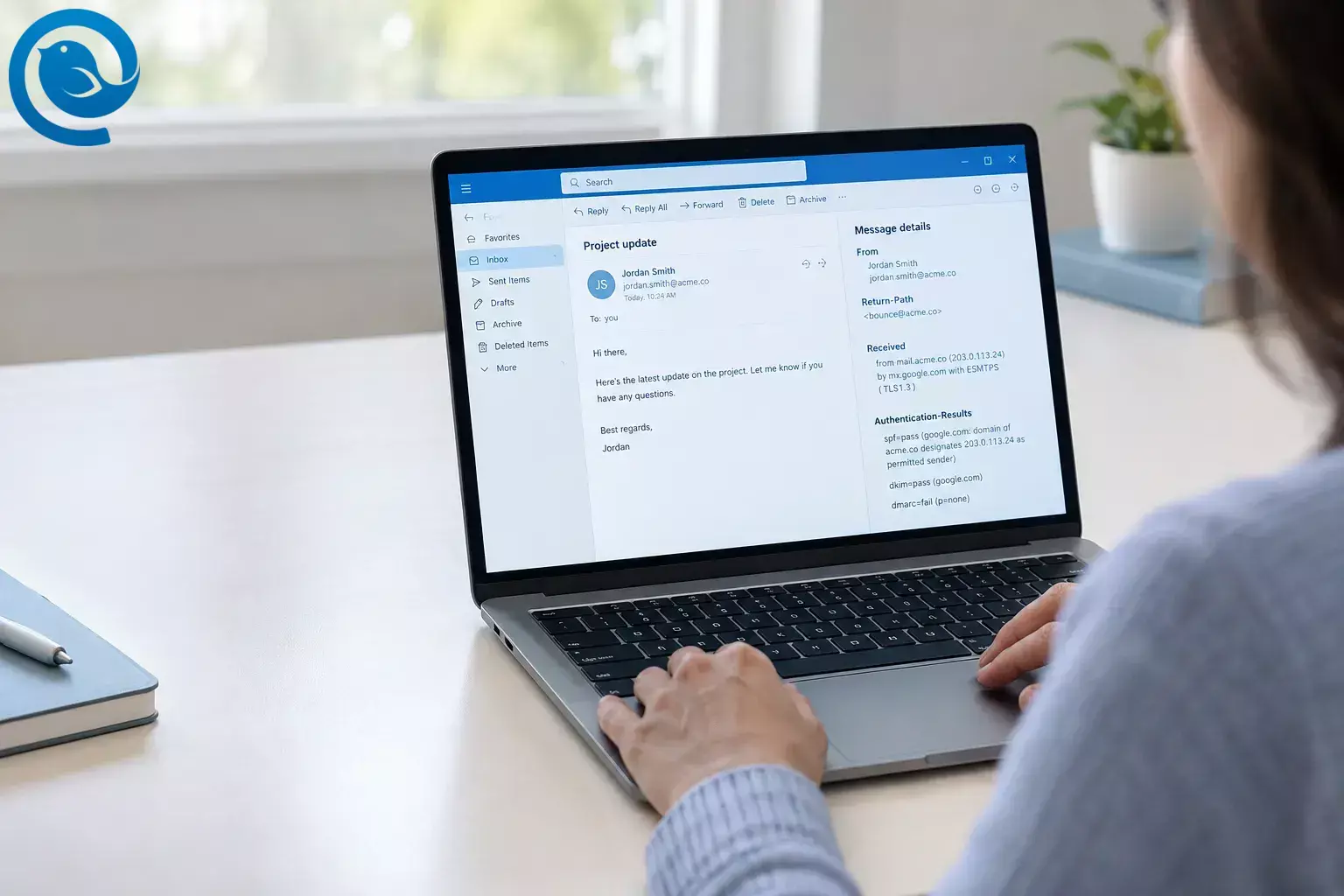
Full email headers show how a message was delivered and which authentication checks it passed. Where you find them depends on your Outlook version. Use the received copy of the email—not a copy in Sent Items—when checking how it arrived. [1] [2]
Key takeaways
- Check the received message, not a copy in Sent Items.
- In new Outlook for Windows and Outlook on the web, use More actions → View → View message details.
- In classic Outlook for Windows, open the message in its own window and use File → Properties.
- In Outlook for Mac, right-click or Control-click the email in the message list and choose View Source.
-
Start with
From:,Return-Path:,Received:, andAuthentication-Results:. - An authentication pass is not a guarantee that a message is safe.
Where to find full email headers in Outlook
New Outlook for Windows
- Open the received message.
- Select More actions (the three-dot menu) at the top of the message.
- Choose View → View message details. The headers appear in the message-details pane. [1]
Classic Outlook for Windows
- Double-click the message to open it in its own window.
- Choose File → Properties.
- Find the Internet headers box. If it is too small to read comfortably, select and copy its text into a plain-text editor. [1]
Outlook on the web or Outlook.com
- Open the message in your browser.
- Choose More actions → View → View message details. The headers appear in the message-details pane. [1]
Outlook for Mac
- In the message list, right-click or Control-click the email.
- Choose View Source. The headers appear at the top of the source, before the message body. [3]
If View Source is unavailable and you can access the same mailbox in Outlook on the web, use the web steps above instead. If you copy text from the Mac source, stop at the blank line between the headers and the message body. [3]
How to read Outlook email headers
You do not need to understand every line. Start with these fields:
-
From:
and
Return-Path:
—
From:identifies the sender address shown to readers.Return-Path:is associated with where delivery-failure notices go. A mailing service may use a different Return-Path, so a mismatch is a reason to check further, not proof of fraud. [4] [6] -
Received:— These lines record mail-server handoffs. Read from the bottom upward to follow the apparent route, because servers normally add newer entries above older ones. A server name alone does not prove who sent the message or whether it is safe. [4] -
Authentication-Results:
— Look for
spf=,dkim=, anddmarc=. SPF checks the sending server for the envelope sender’s domain; DKIM checks a domain’s signature; DMARC checks whether an authenticated domain aligns with the visible From domain. An SPF or DKIM pass for an unrelated domain does not, by itself, authenticate the address inFrom:. [5] [6]
To compare the domains in the authentication results, look for values such as
smtp.mailfrom=,
header.d=, and
header.from=. An SPF pass alongside a DMARC failure can mean the domain that passed SPF does not align with the visible From domain.
[6]
Do not treat a pass as a safety guarantee. A deceptive lookalike domain can pass authentication. If an unexpected message asks you to sign in, pay, or share information, contact the organization using a contact method you already know. Follow your workplace’s process for reporting suspicious messages. [7]
If you cannot find the headers
- File → Properties is missing: In classic Outlook, double-click the email first. If you use new Outlook, use the message’s More actions → View → View message details menu instead. [1]
- View message details is missing: Check the three-dot menu on the open message, rather than a menu for the mailbox or folder. If you use classic Outlook, look under File → Properties in the message window. [1]
- View Source is missing on Mac: Try right-clicking the email in the message list, not in the open message body. If available, open the same mailbox in Outlook on the web. [3]
Outlook menus may change. If these labels differ from what you see, confirm which version you use and check Microsoft’s current header instructions. [1]
Frequently asked questions
How do I view email headers in new Outlook?
Open the message and choose More actions → View → View message details. [1]
Where are Internet headers in classic Outlook?
Double-click the message, then choose File → Properties. Look in the Internet headers box. [1]
Can I view full headers in Outlook on the web?
Yes. Open the message and choose More actions → View → View message details. [1]
Does a different Return-Path mean an email is fake?
Sources
- Microsoft Support: View internet message headers in Outlook
- Microsoft Learn: Message Header Analyzer
- Cornell IT: View Full Headers in Outlook
- RFC 5321: Simple Mail Transfer Protocol
- Microsoft Learn: Anti-spam message headers and authentication results
- Microsoft Learn: Use DMARC to validate email
- Microsoft Learn: Anti-phishing policies and lookalike-domain impersonation
- Mailbird: Mailbird Next for Windows and Mac


