How to Stop Spam Emails on iPhone
To cut down spam on your iPhone, unsubscribe from newsletters you trust, move suspicious messages to Junk, and set repeat-sender filters with the account receiving the mail. Apple Mail lets you handle messages on your phone; iCloud, Gmail, and Outlook account settings can handle future messages before you read them there.



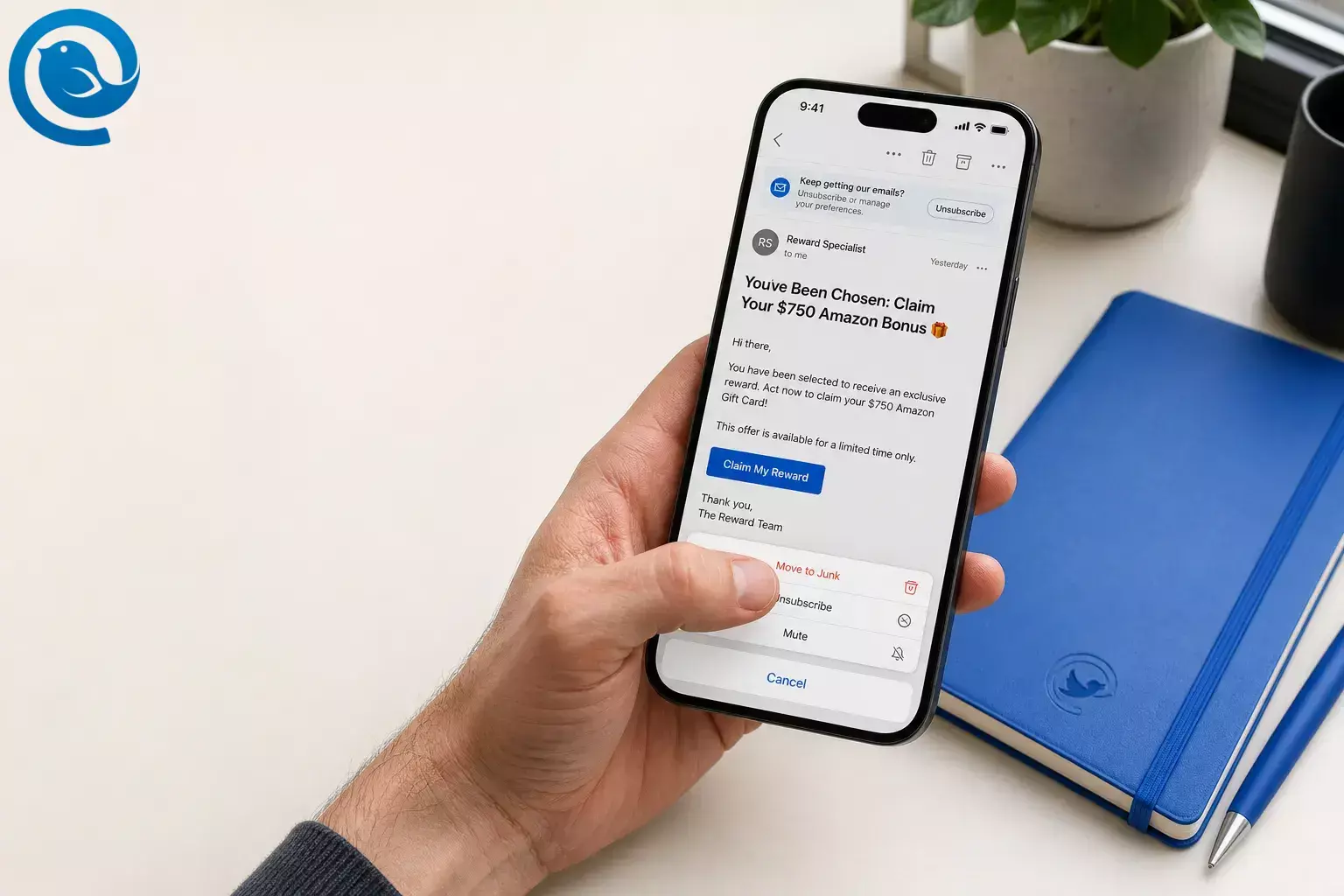
To cut down spam on your iPhone, unsubscribe from newsletters you trust, move suspicious messages to Junk, and set repeat-sender filters with the account receiving the mail. Apple Mail lets you handle messages on your phone; iCloud, Gmail, and Outlook account settings can handle future messages before you read them there.
Quick checklist
- Find which account receives the unwanted messages.
- Unsubscribe only from senders you trust.
- Move suspicious messages to Junk.
- Set repeat-sender rules with the receiving account provider.
- Use Hide My Email for future sign-ups if you have iCloud+.
- Check Junk and Trash for messages you wanted to keep.
Before you start
Have your iPhone and an unwanted message ready. Check which account receives it: an iCloud Mail rule won’t affect a Gmail or Outlook inbox. The Mail actions need no extra purchase; Hide My Email requires iCloud+.
Don’t use an unsubscribe link in a message that looks fraudulent. Don’t reply or enter a password. Move the message to Junk or report it in your email provider’s app instead.
Stop unwanted emails in iPhone Mail
Stop unwanted emails in iPhone Mail
-
Find the account getting spam
In Mail, tap back until you reach Mailboxes. Open the Inbox for the affected iCloud, Gmail, or Outlook account rather than All Inboxes. You’ll need that account’s settings if you create a rule later.
-
Unsubscribe from emails you recognize
Open a newsletter from a company you knowingly signed up with. If Mail shows an Unsubscribe banner, tap it and confirm. If there’s no banner, use the company’s email preferences or its unsubscribe link only when you’re confident the message is genuine. Mail does not offer the banner for every message.
-
Move spam to Junk
Open an unwanted message in Mail, tap the reply/actions button, and choose Move to Junk. To move several messages without opening them, tap Select in the message list, choose the messages, then tap Mark → Move to Junk. Check your selection first: in some Mail category views, selecting a sender can also select that sender’s other messages in the category. Apple’s Mail guide covers these controls. [1]
-
Check iCloud Mail’s unsubscribe recommendations
If you use iCloud Mail and the option appears on your iPhone, go to Settings → [your name] → iCloud → Mail → iCloud Mail Cleanup. Turn on Use iCloud Mail Cleanup, then tap Get Recommendations under Unsubscribe Recommendations. Select only senders you no longer want and tap Unsubscribe. If there are no recommendations, move on. Apple explains iCloud Mail Cleanup. [2]
-
Set an iCloud Mail rule for a repeat sender
For an iCloud Mail address, open Settings → [your name] → iCloud → Mail → iCloud Mail Rules → Add Rule. Name the rule, set Message to match the unwanted sender, choose an Action such as moving or deleting matching mail, and tap Add. Check the sender address carefully before choosing Delete. Apple says new or changed rules can take up to 15 minutes to affect incoming mail. See Apple’s iCloud Mail rules instructions. [3]
-
Use Gmail or Outlook controls for those accounts
Gmail: In the Gmail iPhone app, open the message and tap More → Report spam. You can also move it to Junk in Apple Mail. For a custom filter, Google’s instructions use Gmail on a computer: open Show search options, enter the sender, then choose Create filter and an action. [4]
Outlook: In Outlook for iPhone, select the message and tap ⋮ → Report Junk, then choose Junk or Phishing. You can also use Junk in Apple Mail. For a lasting rule, sign in to Outlook on the web and open Settings → Mail → Rules → Add new rule. If those controls aren’t available in your iPhone browser view, use a computer. See Microsoft’s rules instructions. [5]
Create the filter or rule in the account that receives the messages, not in Apple Mail’s viewing filters. Account-level changes will affect the mail you see from that account on your iPhone.
-
Block a sender if the same address keeps returning
In Mail, open a message, tap the sender’s address, choose View Contact Card, then tap Block this Contact. Blocking one address is less useful when spam comes from a different address each time. See Apple’s guide to blocking email senders on iPhone for more detail. [6]
-
Use Hide My Email for future sign-ups
If you subscribe to iCloud+, go to Settings → [your name] → iCloud → Hide My Email → Create New Address. Label the address for the site where you’ll use it. If it later attracts unwanted mail, return here, tap the address, and choose Deactivate Email Address to stop forwarding. Don’t deactivate an address you still need for account access. Hide My Email won’t stop messages already being sent to your regular address. See Apple’s Hide My Email instructions. [7]
-
Check Junk and Trash for mistakes
Return to Mailboxes and inspect Junk and Trash under the affected account. Move wanted messages back to the Inbox, then narrow or remove any rule that caught them. Repeat the account-specific steps for other addresses that receive spam.
If spam keeps arriving
- No Unsubscribe banner? Mail doesn’t show one for every message. Use the sender’s preferences only if you trust them; otherwise move the message to Junk.
- Spam arrives after you block someone? Check whether it came from a different address. Move it to Junk, or use a narrowly targeted account rule for a recurring sender.
- An iCloud rule seems not to work? Recheck its condition and action, then allow time for it to take effect. Apple says a new or changed rule can take up to 15 minutes to affect incoming mail. [3]
- Can’t find iCloud Mail Rules? Confirm that the affected address is an iCloud Mail address, then look under Settings → [your name] → iCloud → Mail.
- Mail’s filter button hides messages but spam still arrives? That button changes which messages you see on screen. Turn the viewing filter off, then use Junk or an account rule to handle incoming mail. See Apple’s viewing-filter guide. [8]
Frequently asked questions
How do I unsubscribe from emails on my iPhone?
For a newsletter from a sender you trust, open the message in Apple Mail and tap Unsubscribe in the mailing-list banner if it appears. Don’t use an unsubscribe link in a suspicious message.
Does blocking a sender stop all spam?
No. It addresses the sender you blocked, not other addresses that may send spam. Move suspicious messages to Junk and use an account rule when a sender or pattern repeats.
Can I make an email rule directly on my iPhone?
For iCloud Mail, you can create a rule under Settings → [your name] → iCloud → Mail → iCloud Mail Rules. For Gmail and Outlook, use those providers’ account controls rather than Apple Mail settings.
Will Hide My Email stop spam sent to my regular address?
No. It provides a separate address for future sign-ups. Use Junk and account rules for mail already arriving at your regular address.
For your desktop inbox
Mailbird is an email client for Windows and Mac. Mailbird is on Android and iPhone too. Get it on Google Play and the App Store. If you also want to read your accounts together on a computer, download Mailbird for desktop below.


