How to Reset Outlook to Default Settings
There is no single reset button for every version of Outlook. If only your inbox layout changed, reset the view. In new Outlook for Windows, change the affected setting or try Windows app Repair before Reset. In classic Outlook, test a clean profile before using broader reset commands or repairing Office. Start with the smallest fix and stop when Outlook works again.



There is no single reset button for every version of Outlook. If only your inbox layout changed, reset the view. In new Outlook for Windows, change the affected setting or try Windows app Repair before Reset. In classic Outlook, test a clean profile before using broader reset commands or repairing Office. Start with the smallest fix and stop when Outlook works again.
Key takeaways
- For a changed inbox layout, reset the view rather than the whole app.
- In new Outlook, change the affected setting or try Windows Repair before Reset.
- In classic Outlook, test a new profile while keeping the old one available.
-
Back up important
.pstfiles before changing classic Outlook profiles. - Use startup switches only for the specific problem they address.
- Repair Office for installation problems, not to reset Outlook preferences.
Before you start
- Identify your version. New Outlook for Windows has a Settings gear; classic Outlook has a File tab and the traditional ribbon. If Outlook is open in a browser, use the web instructions below.
- Save unfinished work. Note the accounts, signatures, and settings you may want to restore.
-
Protect local mail.
If you use POP or a local archive in classic Outlook, locate and
back up its
.pstfile before changing profiles. Check File → Account Settings → Account Settings → Data Files, then close Outlook before copying the file. - Using a managed work or school PC? Ask IT before resetting the app, changing profiles, or repairing Office.
Follow only the steps for your version. Creating a new profile, resetting an app, and repairing Office address different problems.
First, check whether you only need to reset the view
If sorting, spacing, the reading pane, or one folder’s layout is the problem, use Mailbird’s separate guide, “reset your inbox layout.” A view reset changes the selected layout or view customizations, not your email messages. Return to the steps below only if the problem goes beyond the view.
Reset new Outlook settings
Reset new Outlook settings
-
Restore the setting that changed
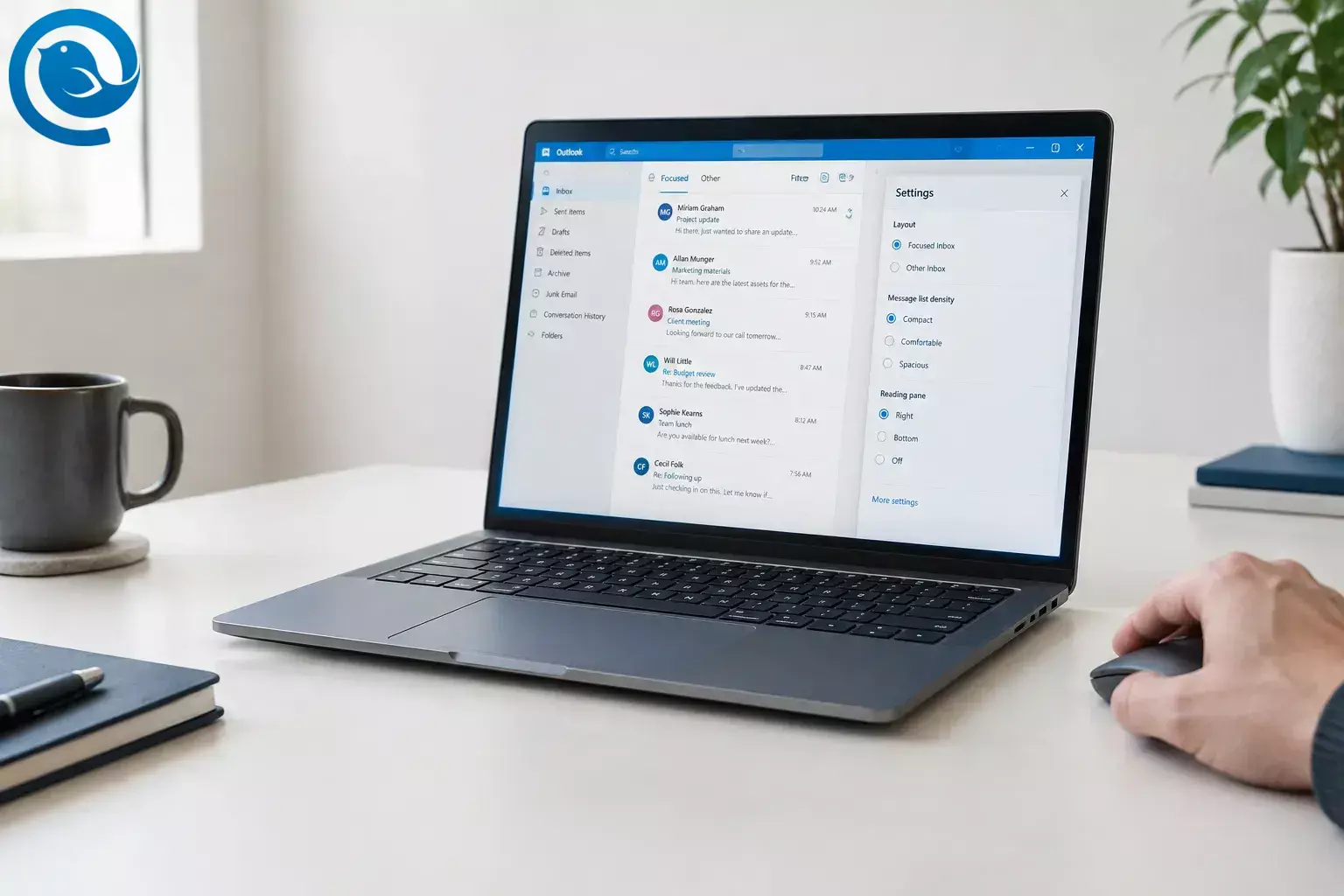
Select the Settings gear. Check General → Appearance for appearance options and Mail → Layout for options such as the reading pane and Focused Inbox. Change one setting at a time, close Settings, and check the result.
Changes: Only the preferences you select. Some new Outlook preferences can also appear in Outlook on the web.
-
Repair the Windows app if Outlook still malfunctions
Close new Outlook. Go to Start → Settings → Apps → Installed apps. Find Outlook (new), open its three-dot menu, and choose Advanced options → Repair. Reopen Outlook and test the action that failed. If Advanced options is unavailable, skip this step rather than choosing Uninstall.
Changes: Repairs the app without intentionally removing its data.
-
Use Windows Reset only if Repair fails
First, confirm that the mail you need is available from your email provider and that no unsent work exists only on this PC. Return to Outlook (new) → Advanced options → Reset and confirm. Reopen Outlook, sign in if prompted, and check your mail.
Changes: Windows Reset may remove local app data and require you to sign in or set up the app again. It is not a reliable way to clear preferences that are also saved online.
If Windows does not offer Repair or Reset for the app on your PC, use Outlook’s available settings instead. Microsoft documents these Windows app repair options.
Reset classic Outlook settings with a clean profile
A new profile lets you test fresh account and profile settings while keeping the old profile available. Back up any important
.pst
files first, especially if you use POP mail or local archives.
-
Create a profile without deleting the old one
Close classic Outlook. Hold Shift while starting Outlook (classic). In the profile picker, choose Options → New, give the profile a distinct name, and add your email account. If the picker does not open, press Windows+R, enter
outlook.exe /profiles, and press Enter.Changes: Creates a separate profile. It does not delete your existing profile.
-
Test the new profile
Choose the new profile when Outlook starts. Check that the account signs in, the expected folders appear, and the original problem is gone. Add any other accounts you need only after the first account works. Keep the old profile until you have confirmed access to local mail and archives.
Changes: Uses the new profile for this test. Removing an old profile later removes its account setup and offline data, although associated
.pstfiles remain on the PC.
Microsoft has separate instructions for creating a classic Outlook profile, finding Outlook data files, and removing a profile.
Use classic Outlook startup switches for specific problems
Close classic Outlook before running a switch. Press Windows+R, enter the appropriate command below, and press Enter. Run only the switch that matches your problem.
-
Folder or navigation pane is broken:
Run
outlook.exe /resetnavpane. This clears and rebuilds navigation-pane customizations for the profile; it does not reset your mailbox. -
Multiple folder views are broken:
Run
outlook.exe /cleanviews. This restores default views and removes all custom views you created in classic Outlook. It does not delete email messages. Do not use it to fix just one folder’s layout.
outlook.exe /resetquicksteps
removes custom Quick Steps, and
outlook.exe /cleanrules
removes client- and server-based rules. Check what a switch removes before using it.
See Microsoft’s Office command-line switch reference for their documented effects.
Repair Office if classic Outlook still fails
Use Office repair when classic Outlook crashes, will not open, or appears to have an installation problem. Office repair is not a reset of your Outlook profile or preferences.
-
Try Quick Repair
Close Office apps. Go to Start → Settings → Apps → Installed apps, find Microsoft 365 or your Office installation, open its three-dot menu, and choose Modify. Select Quick Repair if offered. When it finishes, reopen classic Outlook and test it.
Changes: Repairs the Office installation, not just Outlook. It does not intentionally clear your Outlook profile.
-
Try Online Repair if needed
Return to the same Modify screen and choose Online Repair if available. Follow the prompts, then check the original symptom. If your installation offers only Repair, use that option instead.
Changes: Repairs the Office installation more thoroughly. A troublesome Outlook profile or customized view may still need separate attention.
Microsoft provides more detail on repairing an Office application.
If you use Outlook in a browser
There is no Windows app or Office installation to repair. Open Settings → General → Appearance or Mail → Layout, change the specific setting that looks wrong, and check the page again. Microsoft’s mailbox appearance guide covers Outlook.com and Outlook on the web.
If the reset does not work
- outlook.exe is not found: Start Outlook (classic) from the Start menu, or ask IT for the installed executable path before using a switch.
- New Outlook opens instead of classic Outlook: Use Switch back to classic Outlook if available, then launch Outlook (classic) from Start.
-
Old mail is missing from a new profile:
It may be in a local
.pstfile or still syncing. Check your backup and old profile before removing either one. - A setting returns after resetting new Outlook: Check the setting inside Outlook rather than repeatedly resetting the Windows app; some preferences also appear on the web.
- Office repair finishes but classic Outlook still fails: Test the clean profile. Repairing program files does not fix every profile problem.
Frequently asked questions
Is there one button to reset all Outlook settings?
No. Views, new Outlook app data, classic Outlook profiles, and the Office installation need different fixes.
Will resetting Outlook delete my emails?
A view reset does not delete messages. Before resetting an app or changing profiles, check for unsent or locally stored mail and back up important
.pst
files.
How can I reset Outlook without removing my account?
Start with the affected view or setting. In new Outlook, try Windows Repair before Reset. In classic Outlook, keep your existing profile while testing a new one.
What does
outlook.exe /cleanviews
remove?
It restores default views in classic Outlook and removes custom views you created. It is broader than resetting one folder’s view.
Does repairing Office restore Outlook’s default settings?
No. Office repair addresses installation problems. Use a separate view or profile fix if your settings are the issue.
Want a different desktop email app?
If your account works but Outlook’s setup still does not suit you, download Mailbird for desktop from Mailbird’s website. Mailbird is a separate email client, not an Outlook reset; check that your accounts work in it before changing your daily setup.


