How to Make Outlook Open Links in Your Default Browser (Not Edge)
To stop Outlook opening email links in Edge, set Open hyperlinks from Outlook in to Default Browser or System default browser. Then make sure Chrome, Firefox, or your preferred browser is the Windows default. You need both settings to match.



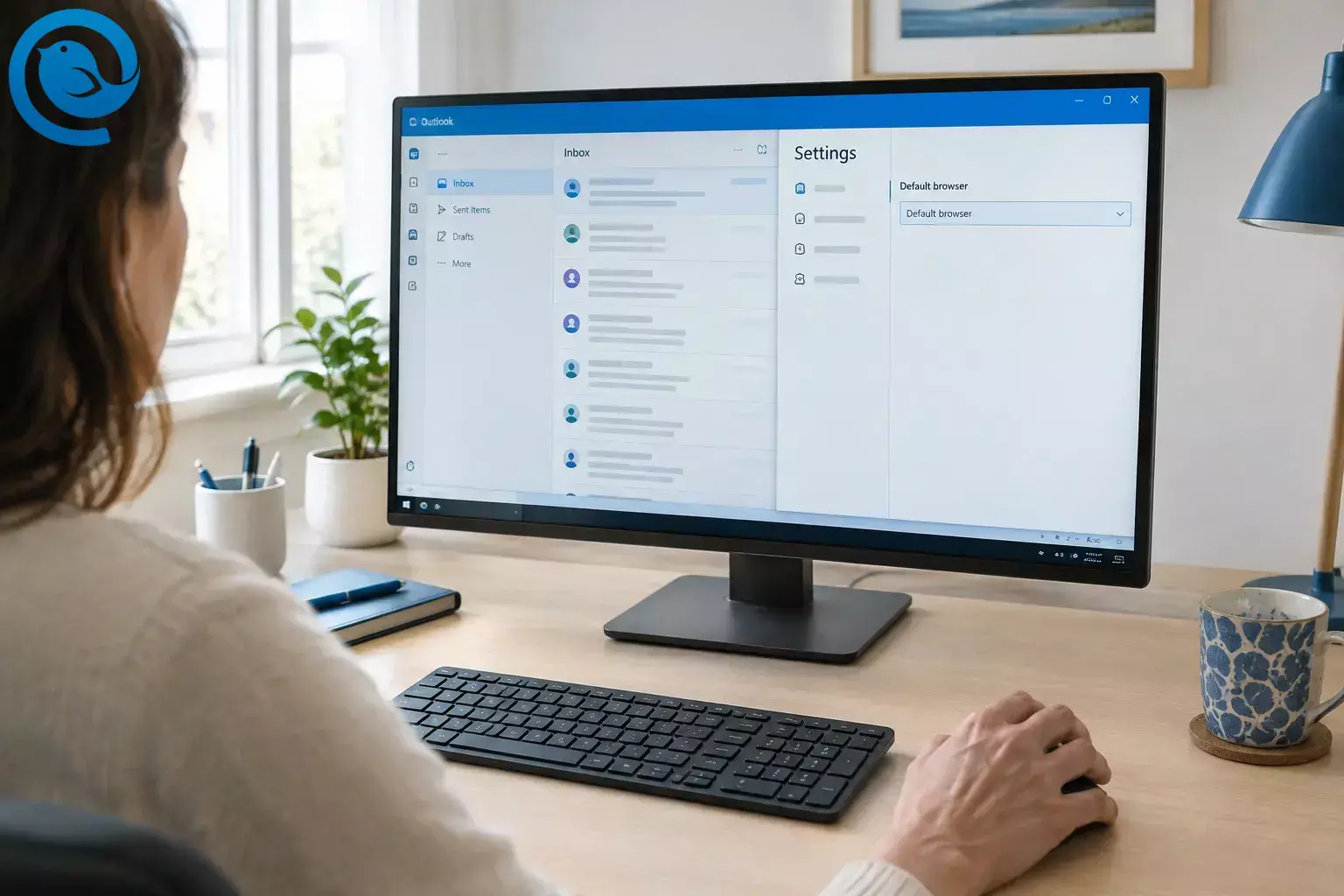
To stop Outlook opening email links in Edge, set Open hyperlinks from Outlook in to Default Browser or System default browser. Then make sure Chrome, Firefox, or your preferred browser is the Windows default. You need both settings to match. 2
In new Outlook, find the setting under Settings → General → Files and links. In classic Outlook, go to File → Options → Advanced → File and browser preferences.
Quick checklist
- ☐ Identify new or classic Outlook.
- ☐ Set Open hyperlinks from Outlook in to your default browser.
- ☐ Set Chrome, Firefox, or your preferred browser as the Windows default.
- ☐ Test a trusted, ordinary website link from an email.
- ☐ If it still opens in Edge, check both settings; treat Office document links separately.
Before you start
- You’ll need: Outlook for Windows, access to Windows Settings, and the browser you want to use installed.
- Time: Set aside a few minutes; allow longer if your workplace controls app settings.
- Cost: No purchase is needed to change these settings.
- Safety: Test with a link you trust. You do not need to edit the registry or turn off security protections.
Change the browser Outlook uses for links
Change the browser Outlook uses for links
- Identify your Outlook version. Open Outlook. If you see a File menu at the upper left, use the classic Outlook path below. Otherwise, use the Settings gear for new Outlook. Check: You know which settings path to use.
- Open the browser you want to use. Launch Chrome, Firefox, or your preferred browser. If it is not installed, install it before continuing. Check: The browser opens on your PC.
- Find Outlook’s link setting. In new Outlook, select Settings → General → Files and links. In classic Outlook, select File → Options → Advanced, then find File and browser preferences. 2 Check: You can see “Open hyperlinks from Outlook in.”
- Choose the default-browser option. Open the Open hyperlinks from Outlook in menu and select Default Browser or System default browser, whichever your version displays. Do not leave it set to Microsoft Edge if you want Outlook to follow Windows. 2 Check: The menu shows the default-browser choice.
- Confirm the change. In classic Outlook, select OK. In new Outlook, close Settings. Reopen the menu to check that your selection remains. Check: Outlook still displays the default-browser choice.
- Open Windows default-app settings. Select Start → Settings → Apps → Default apps, then find the browser you want Outlook to use. 3 Check: You are viewing your preferred browser’s settings, not Edge’s.
- Set your Windows default browser. In Windows 11, select your browser and choose Set default if offered. If links still open in the wrong app, inspect the HTTP and HTTPS assignments in Default apps and change either one that differs. In Windows 10, use the Web browser choice under Default apps. 3 6 Check: Windows lists Chrome, Firefox, or your preferred browser for web links.
- Test an ordinary website link. Return to an email from a sender you trust and open a regular website link. Check: It opens in your chosen browser rather than Edge.
- If Edge still opens, check both settings again. Confirm Outlook has not reverted to Microsoft Edge and Windows still assigns web links to your preferred browser. Close and reopen Outlook, then repeat the trusted-link test. Check: You have tested again after confirming both settings.
Why does Outlook open links in Edge?
Outlook can send email links to Edge even when another browser is your Windows default. Selecting Outlook’s default-browser option lets ordinary web links follow the browser choice in Windows. 2
If Outlook still opens links in Edge
- Chrome is the Windows default, but Outlook opens Edge: Outlook’s hyperlink menu may still be set to Edge. Repeat steps 3–5 and select the default-browser option. 2
- Outlook says “Default Browser,” but links open in Edge: Check the Windows default browser and the HTTP and HTTPS assignments in Default apps. 3
- The Outlook setting is missing or locked on a work PC: Your version may show different options, or an organization policy may control browser choice. If setting the Windows default does not help, ask IT about the Choose Which Browser Opens Web Links policy. 4
- Teams links behave differently after the change: Outlook and Teams can share this browser preference. Check Teams → Settings → Files and links → Link open preferences and test a Teams link. 2
- Word, Excel, or PowerPoint links behave differently from website links: Office document-opening preferences are separate from the web-link browser choice. In classic Outlook, check File → Options → Advanced → File and browser preferences → Open Word, Excel, and PowerPoint files using. Microsoft has also documented a separate classic Outlook issue involving document links that appear blank or show an error. 1
- You cannot set Chrome or Firefox as the default on a Windows 11 PC in S mode: Windows 11 in S mode keeps Edge as the default browser. Check whether your PC is in S mode before considering a switch out of it; discuss that change with the device owner if needed. 5
- Clicking an email address opens the wrong mail app: An email-address link is not an ordinary website link. Check the MAILTO link type or your default email app in Windows Default apps rather than changing HTTP and HTTPS. 3
Other browser choices
Open Outlook links in Chrome or Firefox
You do not need a separate Outlook setting for each browser. Choose the default-browser option in Outlook, then set Google Chrome or Mozilla Firefox as your Windows default. 2 3
Keep Edge but hide the Outlook email sidebar
If you want links to open in Edge without showing the related Outlook email beside them, open Edge’s sidebar settings, select Outlook, and turn off Automatically open Outlook email context in the side pane. This changes the sidebar, not your browser choice. 2
Use Outlook on a Mac
These Outlook-to-Edge steps are for Windows. Microsoft says this Edge link-opening behavior does not apply to Macs, so start by checking your Mac’s default browser instead. 2
Frequently asked questions
Why does Outlook open links in Edge when Chrome is my default?
Outlook has a separate hyperlink preference. Set it to use your default browser, then confirm Chrome is the Windows default. 2
Where is the browser setting in new Outlook?
Go to Settings → General → Files and links, then look for Open hyperlinks from Outlook in. 2
Where is the browser setting in classic Outlook?
Go to File → Options → Advanced → File and browser preferences, then change Open hyperlinks from Outlook in. 2
Can I make Outlook links open in Firefox?
Will changing this setting also affect Teams?
It can. Outlook and Teams share the choice for this Edge web-link experience, so test a Teams link afterward if you use both apps. 2
Why do Word or Excel links still open somewhere else?
Shared Office documents have a separate file-opening preference. Check that setting in classic Outlook rather than changing your web browser repeatedly. 1
Want a different desktop email client?
Sources
- Microsoft Support: Office document links opened in classic Outlook might appear blank or show an error
- Microsoft Support: Web links from Outlook emails and Teams chats open in Microsoft Edge
- Microsoft Support: Change default apps in Windows
- Microsoft Learn: Manage which browser opens Outlook and Teams web links
- Microsoft Support: Windows 10 and Windows 11 in S mode FAQ
- Microsoft Support: Default-browser steps for Windows 10 and Windows 11


