How to Export Outlook Contacts (and Import Them Elsewhere)
To export Outlook contacts, use People → Export contacts in new Outlook or Outlook on the web. In classic Outlook for Windows, use File → Open & Export → Import/Export and choose a CSV file. If your Outlook for Mac contacts are in an online Outlook account, you can export them through Outlook on the web. Then check the file and import it into your new contact app or account.



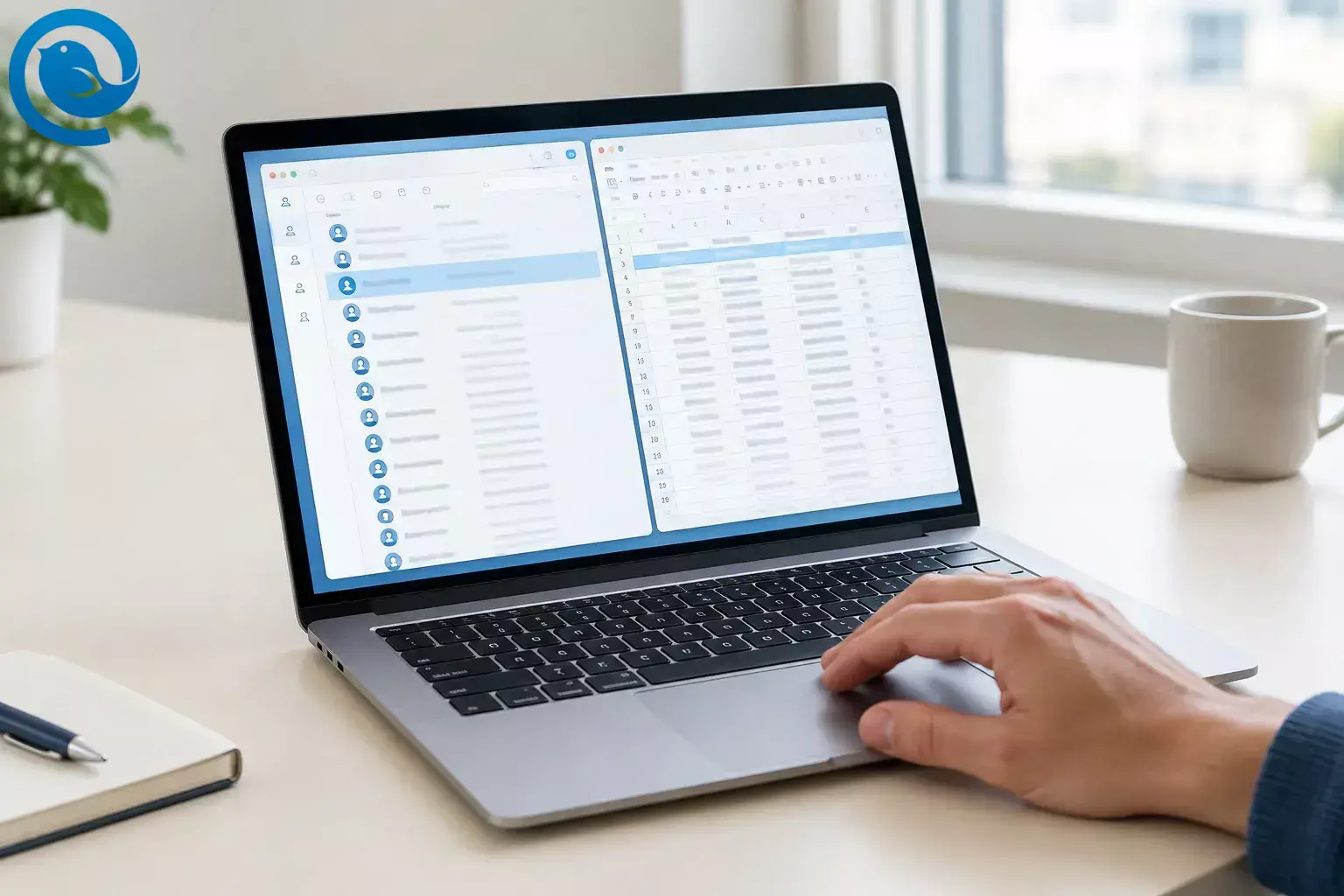
To export Outlook contacts, use People → Export contacts in new Outlook or Outlook on the web. In classic Outlook for Windows, use File → Open & Export → Import/Export and choose a CSV file. If your Outlook for Mac contacts are in an online Outlook account, you can export them through Outlook on the web. Then check the file and import it into your new contact app or account. [2]
A CSV opens in Excel, but you do not need to turn it into an Excel workbook to move your contacts. People search can also show linked accounts or an organization’s directory, so check that the people you need are actually in your export. [1, 2]
Quick checklist
- ☐ I found the account and Contacts folder I need.
- ☐ I exported a CSV or saved the vCard my destination requires.
- ☐ I found the file and checked three real contacts.
- ☐ I kept the original and edited only a copy.
- ☐ I imported or synced contacts in the destination.
- ☐ I checked names, email addresses, and important details there.
- ☐ I stored the backup privately and removed stray copies.
Before you start
- Have ready: Access to the Outlook account holding your contacts and a private place to save the file.
-
Check the destination:
Find out whether your new app or contact account accepts CSV or vCard (
.vcf). - Optional tool: Excel or another spreadsheet app can help you inspect and edit a CSV. You can also inspect it in a text editor.
- Keep it private: An export can contain other people’s phone numbers, addresses, and notes. Avoid unfamiliar conversion sites and shared computers.
Export and move your contacts
Use the export step for your Outlook version, then continue with the file check and import.
Export and move your contacts
-
Choose the file type
Choose CSV for a spreadsheet-style transfer or vCard (.vcf) if the destination asks for a digital contact card. Bulk exports from Outlook on Windows and the web use CSV, which you can open in Excel. [2]
-
Find the account and folder holding your contacts
Open People and check the contact folders under each account. Note the folder you need, especially if you have multiple accounts or a Contacts (This computer only) folder. Select that folder when you export. [2]
-
Classic Outlook for Windows: export a CSV
Choose File → Open & Export → Import/Export → Export to a file → Comma Separated Values . Select the correct Contacts folder, click Browse , name the file, then choose Next → Finish . Look for the
.csvfile in the location you selected. Repeat for any other Contacts folders you need. [2] -
New Outlook for Windows: export a CSV
Open People from the side panel. Select Export contacts on the ribbon, choose an option under Contacts from this folder , and select Export . Check Downloads for the CSV. If People is hidden, open More apps first. [2]
-
Outlook on the web or Outlook.com: export a CSV
Open People → Manage contacts → Export contacts . Select All contacts or the available option you need, then select Export . Find the CSV in your browser’s downloads. [2]
-
Outlook for Mac: use the route that fits your contacts
If your contacts are saved in an Outlook.com or Microsoft 365 account, sign in to Outlook on the web with that account and follow step 5 to get a CSV. Check that the contacts appear on the web before relying on this route, particularly if some are stored only on your Mac. [2]
For an individual contact in the Mac app, open People , select the contact, and use Home → Forward to create a message with a vCard attachment. Save the attachment if you need a
.vcffile. [4]In legacy Outlook for Mac , Tools → Export can save contacts in an
.olmarchive. Keep that as an Outlook archive, not as a replacement for the CSV or vCard another app requests. [5] -
Open the export and check three contacts
Make a copy of the exported file and open the copy in Excel or another spreadsheet app. Find three contacts you recognize, including one with a phone number or another detail you want to keep. Check names, email addresses, and whether the file includes the people you expected. If people are missing, revisit the account and folder you exported. [2]
-
Clean a working copy of the CSV
Remove clearly unwanted rows and fix obvious errors. Keep the first row of column headings, and review possible duplicates before deleting either copy. If you edit in Excel, save the working copy as CSV UTF-8 when available—not just
.xlsx—and reopen it to check accented names and other characters. Keep the untouched export as your backup. [3] -
Import into the destination app or contact account
Open its contact-import screen, choose the edited CSV or requested vCard, and inspect the result. For example, Google Contacts on a computer accepts CSV and vCard files through Import → Select file → Import . If your destination shows a field-mapping preview, check that email addresses go into email fields before confirming. [7]
-
Moving to Mailbird? Check your edition
If your contacts are in a supported Microsoft or Google account, you can connect contacts in Mailbird instead of importing a file directly. See our migrate from Outlook to Mailbird guide. In Mailbird Next , open Contacts → Accounts settings , select the account, and enable Contacts under Apps & Services if available. For Mailbird Classic , the Contacts-app guidance describes a gear-menu command called Import contact from vCard . [8, 9]
File-import options can differ by version. Mailbird Next’s contact guide says direct CSV and vCard import is unavailable, while its Mac release notes list contact-file import as added. If your Mac app offers a contact-file import command, you can try it; otherwise, import into a supported contact account and sync it. Do not assume the command exists in every installation. [8, 10]
-
If needed, import the CSV back into Outlook
In new Outlook , open People → Import contacts → Browse → Import . On the web , use People → Manage contacts → Import contacts . In classic Outlook , use File → Open & Export → Import/Export → Import from another program or file → Comma Separated Values ; choose how to handle duplicates and select the destination Contacts folder. Outlook for Mac does not support bulk CSV import, so use the web route for contacts in an eligible online account. [2, 6]
-
Confirm the move and store the backup
In the destination, search for the same three people you checked in step 7. Open each card and confirm its email address and any important phone number or note. Keep the original export in a private backup location, and delete unneeded copies from Downloads or a shared computer.
Why check after importing?
A CSV puts contact fields into columns; a vCard packages details for sharing. Opening actual contact cards after import helps you spot missing people or fields that a successful-upload message would not reveal. [3, 11]
Troubleshooting
- No File → Import/Export menu: You may be in new Outlook, Outlook on the web, or the Mac app. Use the matching People export step above. [2]
- People shows contacts, but the CSV is short: Check the folder and account you exported. In classic Outlook, look for Contacts (This computer only) . People search can also show directory results beyond your personal contacts. [1, 2]
- The file seems to be missing: Check Downloads for new Outlook and web exports. Classic Outlook saves to the location you selected. [2]
- Names show strange characters: The CSV may have the wrong text encoding. Import it into Excel as text, choose the encoding that displays names correctly, and save a new CSV UTF-8 copy. [2, 3]
-
Import rejects your Excel file:
An
.xlsxworkbook is not a CSV. Save a copy as.csvand keep its heading row. [3] - Contacts appear twice after reimport: The destination may already contain those people. In classic Outlook, review its duplicate-handling choice before importing again; compare records with your original export first. [2]
- Mailbird Next shows email but no contacts: The account may be connected only through IMAP or POP, or Contacts may be disabled. Check whether you can connect it as a supported Microsoft or Google account and enable Contacts under Apps & Services . [8]
- Outlook for Mac will not accept your CSV: Bulk CSV import is not supported in the Mac app. For an online Outlook account, import the CSV through Outlook on the web instead. [2, 6]
Other ways to move contacts
-
Export one Windows contact as a vCard:
In classic Outlook, open the contact and choose
File → Save As
. Use this when you need a
.vcfrather than a CSV address book. [11] - Move contacts already in Apple Contacts: Select them in Apple’s Contacts app and choose File → Export → Export vCard . This helps only with contacts you can see in that app. [12]
- Move several classic Outlook folders: Export each Contacts folder separately and label each CSV by its account or folder before importing. To get your Outlook contacts onto a phone, see how to sync Outlook contacts with iPhone. [2]
Keeping a copy or moving a large list
Keep one untouched export and edit a separate copy. Name files by account and export date so you can tell them apart. For a large import into Google Contacts, Google advises splitting files with more than 3,000 contacts; check your destination’s limits before uploading a large address book. [7]
Frequently asked questions
How do I export Outlook contacts to Excel?
Export them as a CSV, then open that file in Excel. Keep a CSV copy if you plan to import the contacts elsewhere. [2, 3]
Can I export all my Outlook contacts as one vCard?
For a bulk move from Outlook on Windows or the web, start with CSV. If your destination requires vCard, check its other import options before converting or sharing a file containing personal information. [2]
Where does new Outlook save exported contacts?
Check your Downloads folder for the CSV file. [2]
Why aren’t all the people I can search for in my export?
People search can include an organization’s directory and linked accounts. Check whether each missing person is saved in the contact folder you exported. [1, 2]
How do I import contacts into Outlook again?
Use People → Import contacts in new Outlook, Manage contacts → Import contacts on the web, or the Import/Export wizard in classic Outlook. Select your CSV and check the destination folder. [2]
Can Outlook for Mac import a CSV of contacts?
Not in bulk through the Mac app. If the contacts belong in an online Outlook account, import the CSV through Outlook on the web. [2, 6]
Do I have to import a file to see Outlook contacts in Mailbird?
Not necessarily. If your contacts are in a supported Microsoft account, connect that account’s Contacts service in Mailbird. Check your Mailbird edition before looking for a file-import command. [8, 9]
Ready to move your email, too?
Get Mailbird from our website. Choose the Windows or Mac version , connect your account, and check the contact options available in your edition. [8, 10, 13]
Sources
- Microsoft Outlook Blog: updated People experience
- Microsoft Support: import or export Outlook contacts using CSV
- Microsoft Support: create or edit CSV files for Outlook
- Microsoft Support: send a contact as a vCard in Outlook for Mac
- Microsoft Support: export an archive from legacy Outlook for Mac
- Microsoft Support: Outlook for Mac contact-import limitations
- Google Contacts Help: import contacts from CSV or vCard
- Mailbird Next Help: “Native Contacts in Mailbird Next” ( Mailbird website )
- Mailbird Help: “Importing and exporting a contact group and individual contacts” ( Mailbird website )
- Mailbird: “Mailbird Next release notes” ( Mailbird website )
- Microsoft Support: send and save contacts as vCards
- Apple Support: export contacts from Contacts on Mac
- Mailbird website: desktop email client and downloads


