How to Sync Outlook Contacts with iPhone
To keep Outlook contacts available in the iPhone Contacts app, set up email on iPhone and turn on Contacts. If you use Outlook for iPhone, its Save Contacts option can put copies in the address book. A vCard import is another option when you only need a one-time copy.



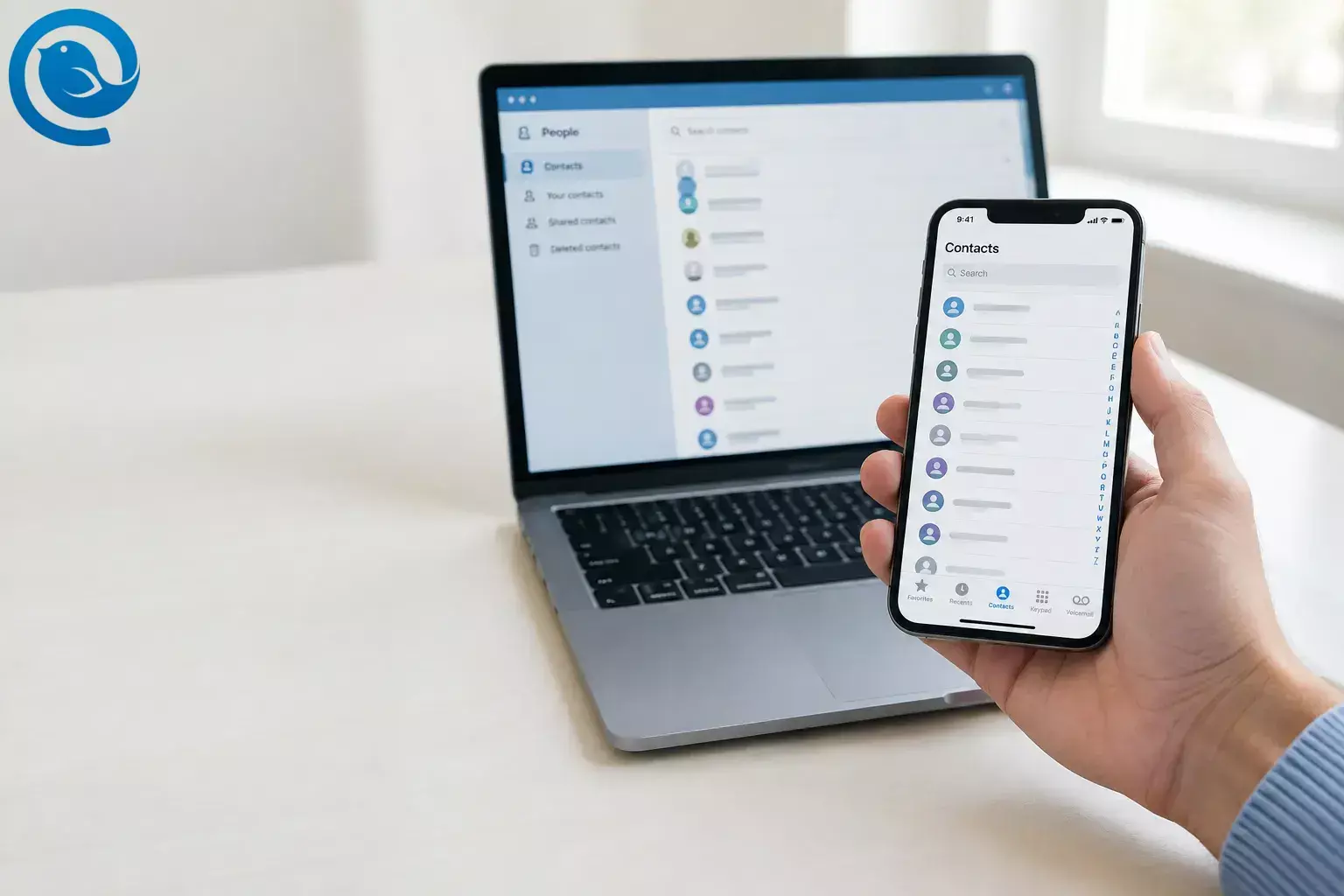
To keep Outlook contacts available in the iPhone Contacts app, set up email on iPhone and turn on Contacts. If you use Outlook for iPhone, its Save Contacts option can put copies in the address book. A vCard import is another option when you only need a one-time copy.
Choose the right method
- Ongoing account sync: Add your Outlook.com or work or school Exchange account in iPhone Settings. This is the best starting point if you want to view its contacts in the iPhone Contacts app. [1]
- Outlook app’s Save Contacts: Use this if you mainly want Outlook names available for calls and texts. Edits to the saved cards in iPhone Contacts do not sync back to Outlook. [3] [4]
- One-time import: Import a vCard when you want a copy, not ongoing updates. This can help with contacts stored only in desktop Outlook. [5] [8]
Choose one route first. Adding the same contacts through an account, Save Contacts, and a file import can leave you with duplicate cards. [10]
Before you start
Have your iPhone, an internet connection, and the sign-in details for the account that holds your contacts. Check where those contacts are stored: signing in to an online account will not bring over contacts that exist only in a local desktop Outlook folder. Account setup usually takes a few minutes; a large first download or file import may take longer. You do not need an additional paid tool for the built-in iPhone method. [5]
Method 1: Sync Outlook contacts through iPhone Settings
Use this method for a personal Outlook.com account or a work or school Microsoft Exchange account. Your organization may restrict how you connect a work account. [1] [13]
Sync Outlook contacts through iPhone Settings
- Check the source account. In Outlook’s People view, find a contact you want on your iPhone and confirm which account holds it. If the contacts are only in Contacts (This computer only) , see the one-time import method below. [5]
- Check whether the account is already on your iPhone. Open Settings → Apps → Contacts → Contacts Accounts . If it is listed, open it and check its Contacts setting rather than adding it again. [1]
- Add a missing account. Tap Add Account . Choose Outlook.com for a personal Outlook.com, Hotmail, or Live account, or Microsoft Exchange for a work or school Exchange account. An IMAP or POP mail setup will not sync contacts. [1] [2] [12]
- Sign in. Enter your address, follow the sign-in prompts, and approve any required sign-in request. [2]
- Turn on Contacts. Open the account’s settings, switch Contacts on, and tap Save if prompted. You can leave other switches off if you only want contacts. [1]
- Check for a known name. Open the iPhone Contacts app, tap Lists , and view the Microsoft account’s list or All Contacts . Search for the contact you found in Outlook People. [1]
- Set the destination for new contacts, if needed. To save contacts you create on the iPhone to this account by default, go to Settings → Apps → Contacts → Default Account and choose it. Create a test contact and check for it in Outlook People. Leave the setting unchanged if you prefer new contacts to go elsewhere. [1]
Note: Changing Default Account affects new contacts. It does not move contacts you already saved to another account. [1]
Method 2: Use Outlook for iPhone’s Save Contacts option
If you already use the Outlook iOS app, open Outlook → Settings → your account and turn on Save Contacts . Allow Contacts access if prompted. Microsoft recommends setting the iPhone’s Default Account to iCloud for this route. If you use both an iPhone and an iPad, enable Save Contacts on only one device. [3] [10]
This is not two-way contact editing. Changes you make to these saved cards in the iPhone Contacts app do not sync back to Outlook; make edits in Outlook instead. Turning off Save Contacts can remove the cards it exported to the iPhone address book. [4]
Method 3: Import Outlook contacts to iPhone once
Choose a file import when you need a copy rather than ongoing sync. Outlook exports contacts as a .csv file; to use the iCloud.com import described here, you will need to turn that CSV into a .vcf vCard on a Mac. [5] [6] [7] [8]
- Export from Outlook. In Outlook on the web, use People → Manage contacts → Export contacts . In new Outlook for Windows, use People → Export contacts . For a local Contacts folder in classic Outlook for Windows, use File → Open & Export → Import/Export → Export to a file → Comma Separated Values , then select the Contacts folder and save the CSV. [5]
- Make a vCard on a Mac. Open the Mac Contacts app and choose File → Import . Select the CSV and check its field labels. Select only the newly imported contacts, then choose File → Export → Export vCard to save a .vcf file. [6] [7]
- Check before importing again. If those contacts were imported into an iCloud Contacts account that already syncs with your iPhone, look for them on the iPhone first. Do not import the vCard as well if they are already there. [6] [8]
- Import the vCard if needed. On a computer or tablet, open iCloud.com/contacts , choose Add → Import Contact , and select the vCard. Make sure Settings → [your name] → iCloud → See All → Contacts is on for your iPhone, then check for a few names and phone numbers. [8]
Keep the CSV and vCard private because they contain contact details. If you do not have a Mac or an existing vCard, these steps do not convert the CSV on an iPhone; avoid uploading your address book to an unfamiliar converter.
Already have a .vcf file?
For a small one-time import, send the file to yourself in an email or message. Open it on the iPhone and tap the attachment to import it. Check Contacts afterward before importing the same file again. [9]
Fix missing or duplicate Outlook contacts
- Mail works, but contacts are missing: Check whether the account was added as IMAP or POP, which does not sync contacts. For an Outlook.com or Exchange account, check its Contacts switch under Contacts Accounts , then look in Contacts → Lists → All Contacts . [1] [12]
- Only some contacts appear: Find a missing name in Outlook People and check whether it belongs to a different account or a local desktop folder. Do this before exporting or adding another account. [5]
- New iPhone contacts do not appear in Outlook: They may be saving to iCloud or another account. Set Settings → Apps → Contacts → Default Account to your Microsoft account for future contacts. The change will not move cards you already created. [1]
- Names appear twice: Open Contacts → Lists to identify which accounts or imports hold them. Stop using the extra route only after checking where the originals are stored. For duplicates that remain, review View Duplicates below My Card before merging; do not delete unfamiliar cards in bulk. [10] [11]
- Duplicates return with Save Contacts: Keep Save Contacts on only one device and allow an export to finish. Microsoft documents Outlook → Settings → Help & Feedback → Delete All Saved Contacts as a cleanup option; use it only after confirming which cards Outlook saved. [10]
- A work account will not connect: Update your iPhone and ask your IT team whether the native Exchange connection is permitted. Do not repeatedly remove an account until you know where its contacts are stored. [13]
- Imported contacts do not reflect later Outlook edits: A vCard import is a copy, not a live connection. Use the account method if you need ongoing updates. [1] [8]
Frequently asked questions
Can I sync Outlook contacts with my iPhone without installing Outlook?
Yes. Add your Outlook.com or Exchange account in iPhone Settings and turn on Contacts. [1]
Will Outlook’s Save Contacts sync iPhone edits back to Outlook?
No. Edit those contacts in Outlook, not in the iPhone Contacts app. [4]
Why are my Outlook contacts missing when my email works?
Can I import Outlook’s CSV directly into iCloud Contacts?
Will removing an Outlook account delete my contacts?
Contacts supplied by that account will stop appearing on the iPhone. Confirm they still exist in the online account before removing it; separately imported contacts may be stored elsewhere. [1]
Quick checklist
- Find the account that holds the contacts you want.
- For ongoing sync, add it under Settings → Apps → Contacts → Contacts Accounts and turn on Contacts.
- Check Contacts → Lists for a known name.
- Set Default Account if new iPhone contacts should go to Outlook.
- Use Save Contacts or a vCard only if you need that route—not as an automatic extra step.
Sources
- Apple Support: Add or remove accounts in Contacts on iPhone
- Microsoft Support: Add your Outlook.com account to another app or device
- Microsoft Support: Save Outlook contacts to the iOS Contacts app
- Microsoft Support: Sync Outlook contacts to your address book
- Microsoft Support: Import or export Outlook contacts using a CSV file
- Apple Support: Import contacts into Contacts on Mac
- Apple Support: Export contacts as a vCard on Mac
- Apple Support: Import contacts on iCloud.com
- Apple Support: Import a vCard on iPhone
- Microsoft Learn: Duplicate Outlook contacts in iOS Contacts
- Apple Support: Get rid of duplicate contacts on iPhone
- Microsoft Support: Set up Outlook for iOS and understand IMAP or POP limits
- Microsoft Learn: Outlook mobile and Exchange Online account policies


