Email Management for Teachers: Organize School Emails in 10 Steps
In one focused session, you'll set up a teacher email organization system: a simple folder structure, rules that file incoming mail automatically, and reusable replies for common parent questions.



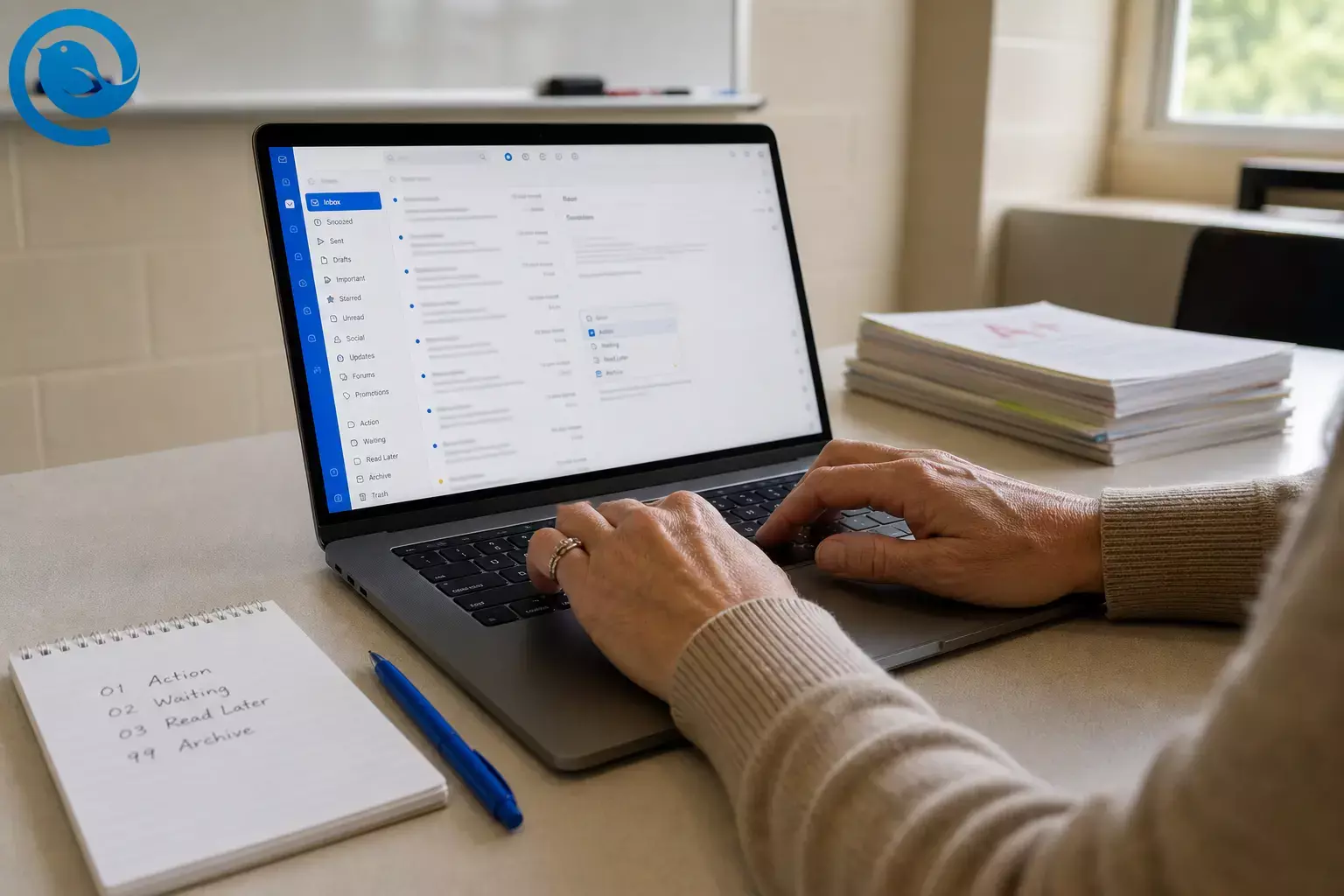
In one focused session, you’ll set up a teacher email organization system: a simple folder structure, rules that file incoming mail automatically, and reusable replies for common parent questions.
Most people can set up the basics in about 30–45 minutes 2 . Difficulty: easy.
Key takeaways
- Use one place to triage multiple school inboxes (if your district allows account connections).
- Use four folders that match your next action: Action, Waiting, Read Later, Archive.
- Add rules/filters for predictable notifications before you read them.
- Save reply templates for common parent questions and routine updates.
- Create a routine (daily processing + weekly reset) so clutter doesn’t creep back.
- Use district email (not personal) for families, and use Bcc for group messages to protect privacy 6 .
- Make VIP messages unmistakable (admin + key staff + families) so time-sensitive items don’t get buried.
Introduction
Microsoft’s 2025 Digital Defense Report discusses how the cyber threat landscape continues to evolve for public-sector organizations, including education 1 . What it means for you: when your inbox is noisy, it’s harder to spot the message that’s urgent—or suspicious.
Between families, students, admins, and automated school platforms, teachers end up doing high-volume, multi-inbox communication on top of planning and grading. This guide shows how to organize school emails so the important messages are obvious—and everything else lands somewhere you check on purpose.
Before you start
- Prerequisites: Login access to your school email (and any club/department inboxes), plus permission from your district to connect accounts in a desktop email app (if you choose that route).
- Tools / ingredients: A laptop or desktop (much easier than mobile). Optional: Mailbird on Windows for one-screen multi-account triage.
- Time: About 30–45 minutes for initial setup, then short check-ins to keep it stable 2 .
- Cost: Usually $0 to start (uses features built into your email service). Optional paid upgrades depend on which email app you use.
- Safety notes: Use your district email (not personal) when communicating with families, and use Bcc for group messages so family contact info stays private 6 .
- Student privacy: Treat student information as sensitive—FERPA gives parents rights to access records and limits disclosure of personally identifiable information from education records 7 .
- Phishing caution: Assume some messages are malicious; breach reporting continues to highlight social engineering and stolen credentials as common factors 8 .
Step-by-step: Teacher email organization (10 steps)
Step-by-step: Teacher email organization (10 steps)
-
Do a quick “inbox inventory” (accounts + message types)
Open your inbox and scan a recent slice of messages. In a note, make three columns: Sender/type , What it usually needs , Where it should go . Include at least: families, admins, students, counselors/support staff, HR/payroll, and automated tools (LMS/SIS, newsletters, “no-reply” systems).
Done when: you can point to each recurring email type and say “reply now,” “schedule it,” or “file it.” -
Put all your school accounts in one place (so you stop switching tabs)
If you use Mailbird: Add each inbox (district account, department inbox, club/coaching address) one at a time: open the Mailbird menu (☰) → Settings → Accounts → Add , sign in, and wait for the mailbox to load before adding the next one 3 .
Next, turn on Unified Inbox : menu (☰) → Settings → Accounts → check Enable unified account . (Unified Inbox appears after you’ve added more than one account.) You can also set it to open on startup with Select on startup , and Unified Inbox keeps each message tied to its original account for replies 4 .
Fallback if you can’t install a desktop client: Create separate browser profiles for each account (work/personal), pin the tabs you must check, and close the window when you’re not in an email block.
Mailbird tip: If you manage more than one inbox, start with a single triage view, then dive into individual accounts only when you need to. If you’re new to multi-inbox setups, look for a guide on managing multiple email accounts in one inbox (so you can stop switching constantly).Done when: you can read and reply to all school email without signing in/out or hunting for the right tab. -
Create four folders/labels you’ll actually use (and name them so they sort themselves)
In each school account, create these folders/labels (copy the names exactly): 01-Action , 02-Waiting , 03-Read Later , 99-Archive . Optional: create a label/category called Families for parent/guardian threads.
- 01-Action: needs something from you (reply, form, meeting, phone call).
- 02-Waiting: you already replied and you’re waiting on someone else.
- 03-Read Later: FYIs, announcements, newsletters.
- 99-Archive: “done” emails you want searchable later.
Done when: you can move any message out of your inbox in one move without wondering “where should this go?” -
Remove obvious clutter first (unsubscribe, digest, or turn off extra notifications)
Search your mailbox for “unsubscribe” and leave lists that aren’t directly connected to your classroom or job. Then open the notification settings inside your most common school tools (LMS, gradebook, PD portal) and turn off non-essential alerts when the tool allows it.
Done when: you’ve removed one obvious source of inbox noise and reduced alerts from one school tool. -
Create rules that file predictable messages before you read them
Create filters/rules based on sender or subject keywords . Start with these common teacher categories (edit the wording to match your district’s senders):
Email type Match (example) Action Destination District/newsletter announcements From contains “communications@” or subject contains “newsletter” Mark as read 03-Read Later LMS notifications From includes your LMS domain or subject contains “posted” / “new assignment” Mark as read 03-Read Later No-reply system mail From contains “no-reply” Keep (don’t delete automatically) 03-Read Later Attendance / time-sensitive student items Subject contains “attendance” / “referral” / “conference request” Flag/star 01-Action Receipts / confirmations Subject contains “receipt” / “confirmed” / “ticket” Skip inbox (optional) 99-Archive Done when: the next automated notification lands in 03-Read Later (or 99-Archive) without you touching it. -
Create a “VIP lane” for messages you can’t miss (admin + key staff + families)
Make a short VIP list: principal/AP, department chair, counselor, attendance clerk, case manager/co-teacher—anyone whose email can change your day fast. Add a rule so those messages stay in your inbox and get a star/flag/category.
For families: use your Families label/category as your “communication log.” Each time a parent/guardian emails you, add that address to your contacts and apply the Families label. (After a little time, your most frequent contacts will be searchable in one place.)
Done when: you can click one view (VIP or Families) and instantly see what you must respond to. -
Save teacher-ready reply templates (so you don’t type the same email all year)
Create email templates for messages you send repeatedly. Keep them short, polite, and specific. Here are five to start (edit to match your voice):
- Receipt + timeline: “Thanks for reaching out. I saw your message and will follow up by {DAY/TIME}.”
- Missing work: “{STUDENT} is missing {ASSIGNMENT}. It can be submitted by {DATE}. Here’s where to find it: {LINK}.”
- Meeting request: “I’m available {OPTION 1}, {OPTION 2}. If those don’t work, suggest two times that do.”
- Behavior follow-up: “Today I observed {FACTS}. Next step: {PLAN}. Please reply with any context I should know.”
- Redirect to the right channel: “For same-day dismissal/transportation changes, please call the main office at {PHONE}. Email isn’t monitored in real time.”
If you have Mailbird Premium: draft the email once, then click the Email Templates icon → Save draft as template → Save as new template , then name it. (Templates don’t save recipient details like To/CC/BCC.) 5
Fallback: Save templates in a Google Doc or notes app and keep it pinned; copy/paste as needed.
Done when: you can answer the most common parent email in a few clicks without rewriting from scratch. -
Put boundaries in writing (signature + subject line rules)
Update your signature so it reduces back-and-forth. Include: your name/title, school, best contact method, and one clear expectation (for example: “Please include Student Name + Class Period in the subject line.”).
Practical wording to steal: “For the quickest help, include Student Name + Period in the subject line. For urgent same-day changes, call the main office.”Done when: your next email you send already contains your expectation line. -
Use a repeatable triage routine (read once, then decide)
Schedule a daily calendar block to process email (not “all day”). During that block, start at the top of your inbox and handle each message with one decision:
- Reply now if you can answer immediately.
- Move to 01-Action if it needs work (then add a calendar reminder/task with the due date).
- Move to 02-Waiting if you’re waiting on someone else.
- Move to 03-Read Later or 99-Archive if it doesn’t need action.
Done when: your inbox only holds unprocessed messages (not “finished” ones). -
Do a weekly reset (and an end-of-term archive) so clutter doesn’t creep back
Once a week, run this reset:
- Open 01-Action : finish, schedule, or delegate anything lingering.
- Open 02-Waiting : send follow-ups for anything stuck.
- Skim 03-Read Later quickly, then archive what you don’t need.
- Move old threads out of your inbox into 99-Archive so your inbox stays current.
At the end of a grading period/semester, create an archive folder like Archive 2025–2026 (or by term) and move completed threads there. Keep it searchable; don’t rely on your memory.
Done when: your inbox shows “this week,” and your archive holds “everything else.”
Why this works
The fastest way to calm a teacher inbox isn’t reading faster—it’s reducing decisions. Rules handle the predictable messages, folders match your next action, and templates cut the time spent composing repeats.
When your inbox is “only new, unprocessed mail,” you stop re-reading the same threads and you’re less likely to miss a time-sensitive message from a family or admin.
Troubleshooting
| Symptom | Likely cause | Fix (do this now) |
|---|---|---|
| Important emails are landing in “Read Later.” | A rule is too broad. | Edit the rule to match a specific sender or keyword. Add an exception for VIP senders (admin/counselor/co-teacher). |
| You replied from the wrong address. | You’re switching accounts quickly and didn’t check the “From” identity. | Pause before sending and confirm the “From” line. Use separate signatures per account (so mistakes stand out). |
| Rules aren’t filing anything automatically. | Rules are created in an app that only runs when the app is open, or the rule is set to apply only to existing messages. | Keep the email app running during your workday (if it needs to be). Also create rules/filters in your webmail when possible. |
| Your inbox keeps refilling with “done” email. | You’re reading but not filing/archiving consistently. | Use the triage rule: every email ends in a folder (Action/Waiting/Read Later/Archive) before you stop your email block. |
| You get emails all night and feel “on call.” | Notifications are enabled on your phone for every folder/account. | Turn off notifications for non-VIP folders, or schedule Do Not Disturb/Focus mode outside work hours. |
| Families can see each other’s email addresses after a group email. | You used To/CC instead of Bcc (or a district messaging tool). | Put your address in To, place family emails in Bcc, and avoid “reply all” situations. Use approved school tools when available. |
| Searching for old messages is slow or unreliable. | Inconsistent subject lines and scattered storage. | Use a simple subject convention (Student Name + Period). Archive by school year/term so you always know where “old” lives. |
| You stop trusting your system mid-semester. | Too many folders/rules, too soon. | Delete or disable the rules you don’t use. Keep four core folders and rebuild slowly with real examples from your inbox. |
Variations
- If you teach multiple class periods: Add labels like P1 , P2 , P3 , and ask families to include the period in the subject line. Then create a rule that applies the matching label when it sees “P1” (etc.).
- If you’re a coach/club sponsor: Use a separate role inbox (if your district provides one) and pull it into the same triage view. Keep one folder called Club/Team — Action so student logistics don’t flood your teaching Action list.
- If your district uses a student information system message center: Keep official mass communication inside that tool, and use email mostly for individual follow-ups. Your inbox rules should file SIS notifications into Read Later unless they require action.
- If you share a department mailbox: Create a folder called Needs Reply and move anything there that requires a response. Add a second folder called Done so the shared inbox isn’t a forever-to-do list.
Make-ahead / storage / scaling
- Make-ahead: Set up folders, VIP list, and templates before the first big grading window. The best time is when you’re not already buried.
- Storage: Archive by school year/term (for example: Archive 2025–2026 ). Keep it searchable instead of deleting “just in case” messages.
- Scaling: When you add a new inbox (new prep, new club, new role), reuse the same four folder names. Consistency is what keeps the system fast.
Quick checklist (screenshot this)
- I listed my inboxes and the main email types I receive.
- I connected my school accounts in one place (or set up separate browser profiles).
- I enabled a unified triage view for multiple accounts (if available).
- I created: 01-Action, 02-Waiting, 03-Read Later, 99-Archive.
- I unsubscribed from non-essential lists and reduced noisy tool notifications.
- I created rules for newsletters, LMS notifications, no-reply mail, and receipts.
- I created a VIP lane for admin + key staff, and a Families label for parent threads.
- I saved templates for my most common replies.
- I updated my signature with one clear expectation (Student Name + Period in subject).
- I scheduled a daily email-processing block and a weekly reset.
Frequently Asked Questions
What’s the simplest way to organize school emails as a teacher?
Use four destinations: Action, Waiting, Read Later, and Archive. Then add a small set of rules that auto-file the predictable stuff (newsletters, system notifications, receipts).
Should teachers use separate email accounts for clubs, coaching, or leadership roles?
If your district offers role inboxes (or aliases) and your policy allows it, separating roles can reduce mistakes and keep threads clearer. The key is to view them in one triage place so you don’t forget to check one.
How do I make sure parent emails don’t get buried?
Create a Families label/folder and apply it to every parent/guardian thread. Add a VIP rule for the principal/counselor so the truly urgent items are unmistakable.
Is it okay to email parents from my personal email?
Follow your district policy. In general, use your district account for official communication and keep personal accounts separate to protect privacy and maintain clear records.
How do I email multiple families without sharing addresses?
Use Bcc for group emails (or use an approved district messaging tool). Put your own address in To, then paste family addresses into Bcc.
How many folders and filters should I create?
Start small: four folders plus a Families label, and a handful of rules for the biggest sources of noise. Add new rules only when you see a repeated pattern you want to file automatically.
What should I do with emails at the end of the school year?
Create a year/term archive folder and move completed threads out of your inbox. Keep them searchable so you can reference prior communication if needed.
Sources
- Microsoft (Source Asia): “Microsoft Releases 2025 Digital Defense Report” (Jan 7, 2026)
- Mailbird: “Manage Multiple Email Accounts in One Inbox (Without Switching Constantly)” (includes setup time estimate)
- Mailbird Help Center: “Multiple Email Accounts in Mailbird”
- Mailbird Help Center: “Unified Inbox”
- Mailbird Help Center: “Email Templates”
- Saint Paul Public Schools: “Best Practices for Classroom-to-Home Communication” (district email + Bcc guidance)
- U.S. Department of Education: FAQ — “Student Records and Privacy” (FERPA summary)
- Verizon: “2026 Data Breach Investigations Report (DBIR)” (overview/FAQ page)


