Email Cleaner Apps: What They Do and Whether You Need One
Email cleaner apps, sometimes called inbox cleaners or email cleanup apps, connect to your mailbox and help you unsubscribe, archive, move, or delete similar messages in batches.8, 13



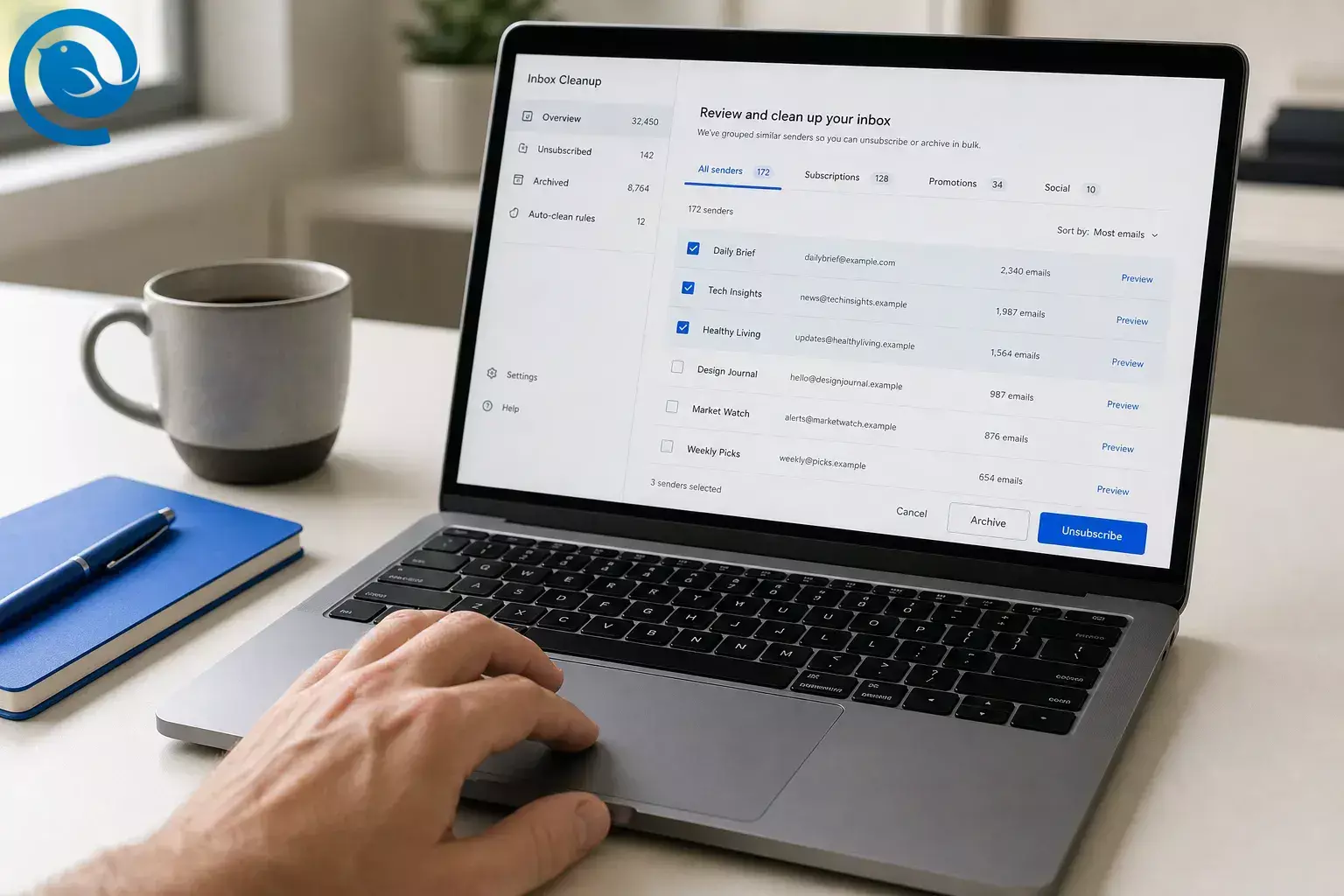
Email cleaner apps, sometimes called inbox cleaners or email cleanup apps, connect to your mailbox and help you unsubscribe, archive, move, or delete similar messages in batches. 8, 13
What’s new
Built-in Gmail features, app permission screens, and workplace access policies change faster than the core cleanup ideas on this page. Gmail’s Manage subscriptions feature is still rolling out, and Google Workspace admins can limit third-party access by specific API scope, so it is worth re-checking permissions every time you connect or reconnect a tool. 4, 20
TL;DR
If you want to clean up an email inbox fast, start with this rule of thumb:
- Use native tools first if you only need to unsubscribe from a few newsletters in one Gmail or Outlook.com account. 4, 5
- Use an email cleaner app if you need bulk cleanup across several inboxes or want ongoing rules after the first sweep. 8, 10, 13
- Expect a privacy trade-off because the app needs some level of mailbox access to do the job. 2, 3, 16
- Remember the limit: unsubscribe helps with future mail; delete or archive handles the backlog already sitting in your inbox. 4, 8, 10, 13, 17
Why it matters
Many people go looking for an inbox cleaner when they are really solving two different problems: first-time cleanup and everyday email management. Cleaner apps help with the first job. An email client helps with the second. 1, 21
That distinction matters as Gmail changes support for some third-party account features and points affected users toward native provider apps, the Gmail mobile app, or a desktop client. An email cleaner can declutter mail, but it does not replace the app you live in all day. 1
It also matters because “cleaner” can mean four different jobs: unsubscribe, delete, organize, or roll up low-priority mail. The right choice depends on which of those jobs you actually need done. 4, 5, 8, 10, 11, 13, 14
How an email cleanup app works
- You connect the mailbox. Most tools use a provider permission flow such as OAuth; some also support IMAP or app-specific passwords when needed. Google says linked apps only get access after you authorize the requested permissions, and Apple lets you remove a third-party app’s iCloud Mail access later from your account settings. 2, 13, 16
- The app scans for patterns. Built-in tools like Gmail and Outlook.com identify subscription mail from message headers, while third-party tools group messages by sender, list, subject, or age. Some services say they work mostly from metadata; others say they may inspect message content when headers are not enough to find an unsubscribe link. 4, 5, 10, 13
- You decide in batches instead of one message at a time. That is the real time-saver. You stop making dozens of tiny choices and start making one decision per sender or mailing list. 8, 13
- Unsubscribe is one action, not all actions. When you click Unsubscribe, the tool typically follows a recognized unsubscribe method or sends a request on your behalf. That helps with future mail, but it does not automatically decide what to do with the pile already sitting in your inbox. 7, 8, 10, 13
- The app then applies ordinary mailbox actions. Delete moves mail to Trash, archive removes it from the inbox without deleting it, block or rules reroute future mail, and rollups bundle low-priority messages into a digest or folder. The category sounds more magical than it is because many apps package these familiar actions under cleaner branding. 4, 5, 11, 13, 17, 18
- Some tools keep working after the first cleanup. They create filters, rules, or blocklists so future mail from the same sender skips your inbox. That is useful, but it also means the tool may keep touching incoming mail until you turn it off or revoke access. 8, 10, 12, 18
What email cleaner apps actually delete
Most tools in this category act on your copy of a message inside your mailbox. They do not erase the sender’s records, and “unsubscribe” usually changes future delivery rather than removing the old pile already sitting in your inbox. 4, 8, 10, 13
| Action | What it really means | Usually reversible? |
|---|---|---|
| Unsubscribe | Sends an unsubscribe request or follows a recognized unsubscribe method. It can still take a few days to stop, and some senders may keep writing during that gap. 4, 7, 8, 10, 13 | Usually yes, because you can often sign up again later. |
| Delete / Trash | Moves existing messages out of the inbox into Trash or a similar folder. What happens next depends on the mailbox provider and the tool. 8, 12, 13 | Usually yes, until that trash folder is emptied. |
| Archive | Removes mail from the inbox but keeps it stored and searchable. In Gmail, archived mail still exists in All Mail. 13, 17 | Yes. |
| Block / Rule | Routes future mail away from the inbox. It does not automatically remove you from a mailing list. 4, 5, 18, 26 | Yes. |
| Rollup | Bundles selected mail into a digest or special folder. It is organization, not deletion. 11, 14 | Yes. |
What email cleaner apps look like in practice
Simple example: one sender, one mess
You keep getting sale emails from one retailer. A cleaner app can unsubscribe you from that list and then trash or archive the 300 old messages from the same sender already in your mailbox. Those are separate actions, even if the app presents them as one smooth cleanup flow. 8, 10, 13
Realistic example: multiple inboxes, mixed providers
You use Gmail for personal mail, Outlook.com for family logistics, and another IMAP inbox for freelance work. Native tools help on Gmail and Outlook.com, but they are mailbox-specific, so a dedicated cleanup tool starts to make more sense if you want one place to work across providers. 4, 5, 13
Edge case: work or school email
If your Google Workspace admin limits third-party app access by API scope, a cleanup tool that works perfectly on your personal account may be blocked or restricted on your work account. In that situation, built-in rules or no third-party access at all may be the right answer. 20
Inbox cleaner options: an honest roundup
For many people, the right first move is no new app at all: try Gmail’s Manage subscriptions or Outlook.com’s Subscriptions page first and see if that gets you most of the way there. 4, 5
Where Mailbird fits: Mailbird is not an email cleaner app, so it is not being compared here as one. It is the desktop email client you use once cleanup is done and you want the accounts you kept in one place. 21, 22
| Tool or type | Best at | Not ideal for | Access trade-off |
|---|---|---|---|
| Gmail and Outlook.com built-ins | Quick subscription cleanup inside the mailbox you already use. 4, 5 | Cross-provider cleanup, heavy backlog removal, or long-term automation across several inboxes. | No extra third-party mailbox access. |
| Clean Email | Bulk unsubscribe, optional cleanup of existing messages, and ongoing automation rules. 8 | People who only need a few native unsubscribe clicks, or who do not want another company processing mailbox data. | Its official docs say it can trash existing mail, route future ignored senders to trash, and use headers or metadata rather than message bodies to identify subscriptions for that task. 8, 9 |
| Leave Me Alone | Unsubscribe plus rollups and inbox-shielding style controls. 10 | People who want everything deleted inside the app itself. | It checks headers first and may scan message content for unsubscribe links; rollups stay in a folder, and deletion happens later in your email client. 10, 11 |
| Trimbox | Fast Gmail-focused cleanup and old-email deletion. 12 | People who want one tool for many non-Gmail providers or deeper inbox workflow features. | It says mail stays on your device and that it creates Gmail filters for unwanted senders. 12 |
| Mailstrom | Heavy batch archive, move, delete, and inbox management across large mailboxes. 13 | People who only want a lightweight unsubscribe tool. | It says it stores subject lines and metadata on its servers and has access to message contents when you display emails. 13 |
| Unroll.Me | Simple daily digests for subscriptions you still want to keep. 14 | People who want deeper cleanup controls or who prefer to avoid products with a long privacy-history footnote. | The rollup is organization, not deletion, and the product’s history includes a 2019 FTC settlement over disclosure issues—so this is a read-the-notice-carefully option. 14, 15 |
The privacy trade-off, plainly
The real question is not whether a tool has a pretty interface. It is how much mailbox power you are giving another company, and for how long. Google says its permission screen shows the data and actions a linked app requests, Gmail scopes can range from narrower access to very broad mail access, and Apple lets you authorize and later remove third-party access to iCloud Mail from your account settings. 2, 3, 16
| Question to ask | Why it matters | What to look for |
|---|---|---|
| What permissions does it request? | Some Gmail scopes are narrow; others can read, modify, send, or even permanently delete mail. 3 | Prefer the least access that still does the job. |
| Where is processing done? | If processing happens on the vendor’s servers, another company handles mailbox data. Some tools say they keep more of the work in your browser or on your device. 9, 12, 13 | Look for a direct statement about local processing, metadata-only handling, or server-side storage. |
| Does it need message bodies? | Some tools say they identify subscriptions from headers or metadata; others say they may inspect message content when needed. 9, 10, 13 | Match the tool to your own privacy threshold. |
| How easy is the exit? | You should be able to revoke access from the provider side and stop using the app without guessing where the off switch is. 2, 16 | If the revoke path is hard to find, treat that as a warning sign. |
Price alone tells you very little. A free tool can be careful, and a paid tool can still ask for broad permissions. Category history matters, though: the FTC finalized a settlement with Unroll.Me over claims that it misled consumers about how it accessed and used email receipts, which is a useful reminder to read the current privacy notice line by line before you connect any mailbox. 14, 15
How to clean up your email inbox without a third-party app
You can get a large share of the same result without giving another company mailbox access. Gmail and Outlook.com already let you unsubscribe, archive, filter, and route mail; what you mostly lose is the cross-provider batching layer you get from dedicated cleaners. 4, 5, 17, 18
How to clean up your email inbox without a third-party app
- Start with the built-in subscription tool. Use Gmail’s Manage subscriptions or Outlook.com’s Subscriptions page for the obvious repeat offenders. 4, 5
- Archive the gray-area mail. If you might need receipts, confirmations, or travel details later, archive them instead of deleting them outright. 17
- Create filters or rules for repeat clutter. Auto-archive shipping notices, move retailer promos to a folder, or route routine updates out of the main inbox. 17, 18
- Block suspicious senders instead of “unsubscribing.” If a message looks shady, use your provider’s blocking tools rather than treating it like a normal newsletter. 26
- Use built-in privacy tools where available. They will not clean up old messages, but they can reduce tracking after the cleanup. 19
Common misconceptions
- “Unsubscribe deletes everything.” No. It mainly affects future mail; old messages stay until you archive or trash them separately. 4, 8, 10
- “Block and unsubscribe are the same.” No. Block reroutes future mail; unsubscribe asks the sender to stop. 4, 5, 26
- “Archive is just another word for delete.” No. Archive takes mail out of the inbox without removing it from storage. 17
- “OAuth means zero risk.” No. It is safer than handing over your main password, but the risk still depends on the scopes you approve. 2, 3
- “All cleaner apps see the same amount of data.” No. Access models vary from metadata-first to message-body access to on-device processing. 9, 10, 12, 13
- “Free means harmless.” No. Price tells you very little about permissions, disclosures, or data handling. 2, 15
- “A cleaner app is the same as an email client.” No. A cleaner app does a cleanup pass; an email client is where you actually read and manage the inbox afterward. 1, 21
When an email cleaner app makes sense—and when it doesn’t
Use one when…
- You manage multiple personal inboxes across providers.
- You need to remove years of old promos in a single pass.
- You want rules, rollups, or ongoing cleanup after the first sweep.
- You have read the permissions and are comfortable with the access trade-off.
Skip it when…
- You only need to remove a handful of newsletters from one Gmail or Outlook.com inbox.
- The mailbox is work-managed or contains sensitive regulated information.
- Your privacy bar rules out another company processing mailbox data.
- The messages look suspicious or malicious rather than merely annoying.
Good rule of thumb: if the job is “unsubscribe from five newsletters,” stay native first. If the job is “clean a giant backlog across several inboxes and keep future clutter under control,” a dedicated email cleanup app has a real case. 4, 5, 20, 26
Key terms
- OAuth
- A permission-based sign-in flow where you approve specific account access without directly giving the app your main Google password. 2
- Scope
- The exact permission an app requests, such as read-only mail access or the ability to modify or permanently delete messages. 3
- List-Unsubscribe header
- A standard email header that helps providers surface unsubscribe controls more reliably, including one-click flows. 6, 7
- Metadata
- Message details such as sender, subject, date, and headers—not the full body or attachments. 13
- Archive
- Taking a message out of the inbox without deleting it. In Gmail, archived messages remain in All Mail. 17
- Rollup
- A separate digest or folder for lower-priority mail you still want to keep, not delete. 11, 14
After cleanup, use Mailbird to manage the inbox you keep
Mailbird is the email client for the inbox you keep after cleanup—not the cleanup tool itself. It brings Gmail, Outlook, and other accounts together on Windows and Mac, and once you add more than one account you can work from a Unified Inbox and manage folders from one place. 21, 22, 24
It also includes Block Sender and works with your provider’s spam controls, and recent release notes added pixel-tracker blocking in Privacy Hub. 23, 25
Frequently Asked Questions
Do I need an email cleaner app if I already use Gmail?
Are email cleaner apps safe?
Can I remove an email cleaner app later?
Can an email cleanup app delete old emails and unsubscribe me at the same time?
Do email cleaner apps delete the sender’s copy of an email?
What is the difference between block and unsubscribe?
Will these tools work with work or school email?
Sometimes yes, sometimes no. Admin policies may limit or block third-party app access.
Sources: 20
Are rollups the same as deleting email?
What should I use after the cleanup is done?
Sources
- Google Help — Learn about changes to third-party email account support in Gmail
- Google Account Help — How Google helps you share some of your account data with apps from other developers safely
- Google for Developers — OAuth 2.0 Scopes for Google APIs
- Gmail Help — Manage your subscriptions in Gmail
- Microsoft Support — How to manage email subscriptions in Outlook.com
- Gmail Help — Email sender guidelines
- RFC Editor — RFC 8058: One-Click Unsubscribe
- Clean Email Help — How Do I Get Rid of Unwanted Emails?
- Clean Email — Unsubscriber
- Leave Me Alone Help — What happens after I click Unsubscribe?
- Leave Me Alone Help — Finding and deleting rolled-up emails in your mailbox
- Trimbox — How does Trimbox use my Gmail account?
- Mailstrom — Frequently Asked Questions about Mailstrom
- Unroll.Me Support — What happens to email subscriptions that I add to my Rollup?
- Federal Trade Commission — FTC finalizes settlement with Unroll.Me
- Apple Support — Access your iCloud Mail, Calendar, and Contacts in third-party apps
- Gmail Help — Organize & archive email
- Microsoft Support — Manage email messages by using rules in Outlook
- Apple Support — Protect email privacy in Mail on Mac
- Google Workspace Updates — Configure third-party apps by select API scopes
- Mailbird — Best email client for Windows and Mac
- Mailbird Support — Unified Inbox
- Mailbird Support — Spam and Mailbird: how to block unwanted emails
- Mailbird Support — How to organize folders from within Mailbird
- Mailbird — Mailbird Next release notes
- Gmail Help — Block an email address in Gmail


