Cancellation Email Templates: Sending and Responding
Need a cancellation email template you can copy and send? Use the examples below to cancel a service or booking, respond to a customer cancellation, or send a refund confirmation.



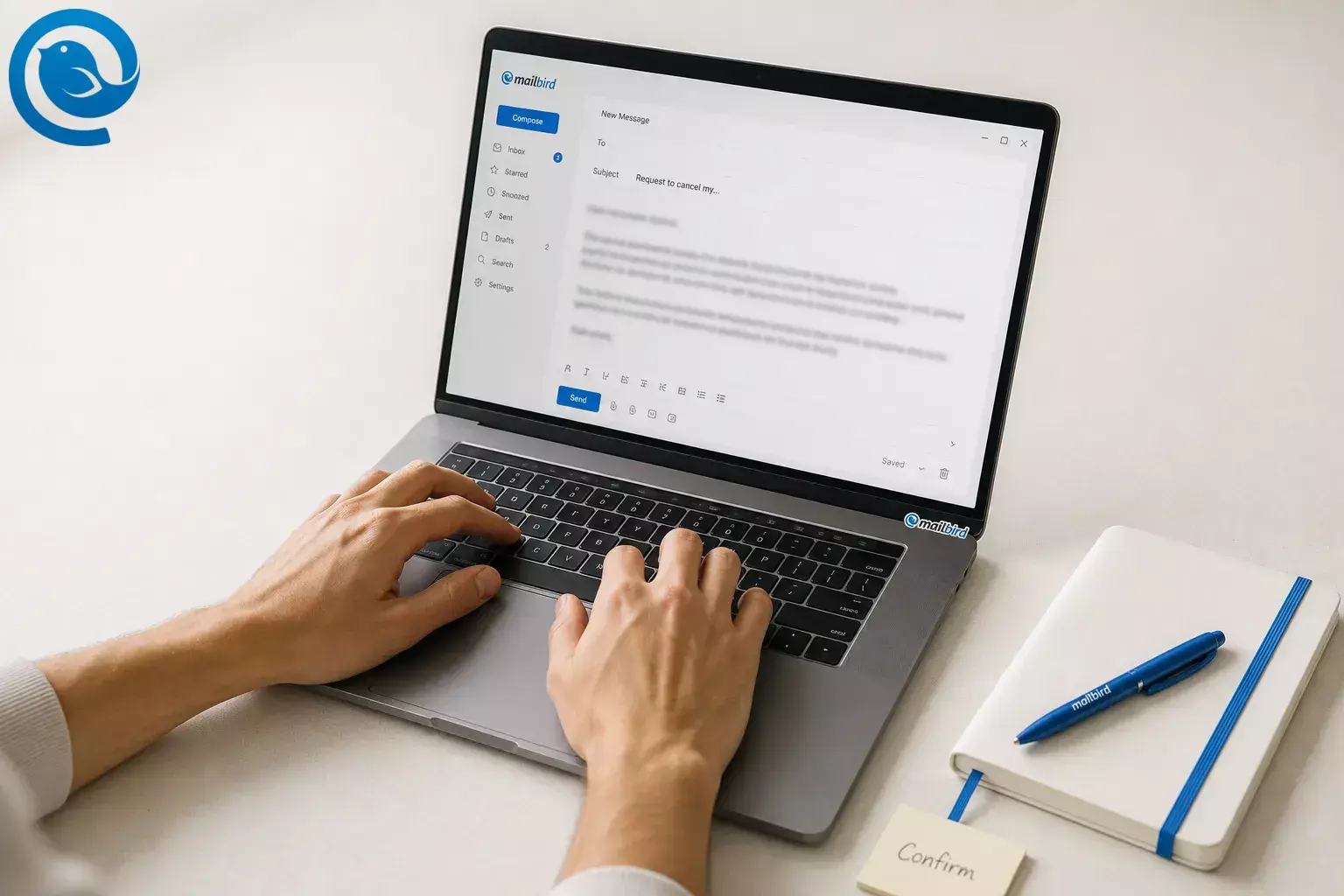
Need a cancellation email template you can copy and send? Use the examples below to cancel a service or booking, respond to a customer cancellation, or send a refund confirmation.
Each template is neutral, editable, and built for real inbox use. If you are looking for how to respond to a cancellation email, start with Templates 3, 4, and 5.
TL;DR: choose the right cancellation email template
- Cancel a service or subscription: use Template 1.
- Cancel a booking, reservation, or appointment: use Template 2.
- Respond to a cancellation email from a customer: use Template 3.
- Acknowledge a cancellation while the refund is still under review: use Template 4.
- Send a refund email template after the refund is processed: use Template 5.
Copy-and-paste cancellation email templates
Choose the closest version, paste it into your email, and replace every bracketed field before you send.
Template 1: canceling a service or subscription
Subject: Request to cancel my [service name]Hi [Company or Contact Name],I’m writing to cancel my [service name or account] under the account email [your email] and account number [account ID], effective [date].Please confirm the cancellation in writing and let me know:- the final date of access or service,- whether any further charges will be made, and- whether any refund or credit applies.If another step is required on my side, please reply with the exact steps.Thank you,[Your name][Phone number, optional]Template 2: canceling a booking, reservation, or appointment
Subject: Cancellation request for booking [booking ID]Hi [Business or Contact Name],Please cancel my [appointment, reservation, or booking] for [date and time] under the name [your name] and booking ID [booking ID].If a refund, credit, or rebooking option is available, please let me know the next step. If there is a cancellation fee, please send the amount and reason before processing any charge.Thank you for confirming when this has been canceled.Best,[Your name]Template 3: respond to a cancellation email from a customer
Subject: Cancellation confirmed for [service or booking]Hi [Customer name],We’ve received your request and canceled [service or booking].Here is what happens next:- Effective cancellation date: [date]- Final date of access or service: [date, if relevant]- Refund status: [no refund, under review, or refund approved]- Next step: [none required, reply with details, or choose a new date]If you would like to rebook or restart later, reply to this email and we’ll help.Thank you,[Your name][Company][Support contact]Template 4: respond to a cancellation email when the refund is under review
Subject: We received your cancellation requestHi [Customer name],We’ve received your cancellation request for [service, order, or booking] and have started the review.Here are the details we have on file:- Reference number: [ID]- Cancellation date: [date]- Refund status: under review- Expected response time: [timeframe]If we need anything else, we’ll reply to this email. If you want to add information now, simply reply with the details.Thank you,[Your name][Company]Template 5: refund email template (confirmation)
Subject: Your refund for [order or invoice ID] has been processedHi [Customer name],Your refund has been processed.Refund details:- Amount: [refund amount]- Payment method: [card, bank, wallet, or store credit]- Reference number: [order, invoice, or refund ID]- Processed on: [date]- Expected posting time: [your actual timeline]If the refund does not appear by [date], reply to this email and we’ll check it for you.Best regards,[Your name][Company][Support contact]If the refund is not final yet, use Template 4 instead of the refund confirmation template.
How to respond to a cancellation email from a customer
Confirm that you received the request, state the effective cancellation date, explain what happens next, and say whether the refund is approved, denied, or still under review.
- Confirm receipt: say the request was received.
- State the date: include the effective cancellation date and final access date if relevant.
- Explain the next step: say whether the customer needs to do anything else.
- Clarify the money status: use “under review” until the refund outcome is verified.
What to gather before you send a cancellation email
- Details to collect: the right name, order or booking ID, service name, cancellation date, and the exact outcome you want.
- Policy check: review the contract, renewal terms, or refund policy before you mention fees or promise money back.
- Mailbird option: Mailbird’s Email Templates can be saved from Compose or Quick Reply, do not store To, CC, or BCC, and can save a signature with the draft. That feature is available for Premium license owners. [4]
- Fallback: keep approved versions in a pinned note, shared doc, or draft folder. Mailbird Free does not include Email Templates, Undo Send, or Send Later. [7]
- Safety: never include full card numbers; this guide gives general information, not legal advice.
Fast path: If you are canceling something, start with Templates 1 and 2. If you are replying to a customer cancellation, use Templates 3, 4, and 5.
Step-by-step: write and send the right cancellation email
Step-by-step: write and send the right cancellation email
-
Pick the exact situation before you type
Choose one: cancel a service, cancel a booking, reply to a customer cancellation, or confirm a refund. Write that label above your draft so you do not drift into a different kind of message halfway through.
You can describe the email in one line.
-
Pull the facts into one place
Collect the name, booking or account number, service name, effective cancellation date, refund status, and any deadline that matters. If you are replying on behalf of a business, confirm the policy before you mention fees or refunds.
Use these fields: [Name], [Service or Booking], [ID], [Date], [Refund amount], [Payment method], [Next step], [Reply address]
Nothing important is missing from your fact list.
-
Choose a subject line that says exactly what the email does
Keep the subject plain and searchable. Use one of these and change only the bracketed parts.
-
Request to cancel my [service name] -
Cancellation request for booking [booking ID] -
Please cancel my subscription effective [date] -
Cancellation confirmed for [service or booking] -
Your refund for [order or invoice ID] has been processed
The subject will still make sense in your Sent folder a month from now.
-
-
Write the first sentence in direct language
State the action immediately. Good openers sound like “I’m writing to cancel…”, “We’ve canceled…”, or “We received your cancellation request…”. Skip long explanations in the first line.
The reader can tell what happened before reaching sentence two.
-
State what changes next
Add the exact next step: when service ends, whether the booking is canceled, whether a refund is under review, or when a refund has already been issued. If a business uses subscriptions or free trials, make the cancellation method and terms easy to understand; the FTC says cancellation should be straightforward, and California’s attorney general says businesses covered by the state’s automatic-renewal law must offer a toll-free phone number, email address, or another easy-to-use cancellation method. [2] [3]
The reader knows whether they need to do anything else.
-
Use the closest template above, then replace every bracket
Copy the version that matches the real situation. Replace every bracketed field before you send.
For how to respond to a cancellation email from a customer, start with Templates 3, 4, and 5.
There are no leftover brackets, draft notes, or internal comments.
-
Trim emotion, blame, and filler
Delete anything defensive, vague, salesy, or passive-aggressive. Keep apologies short, explanations factual, and next steps easy to scan. One calm sentence beats three paragraphs of justification.
The email still sounds neutral if it is forwarded.
-
Add proof and a reply path
Include the reference number, the amount if money is involved, and the best reply address. If you are the business, say whether the customer needs to do anything else. If you are the customer, ask for written confirmation.
The reader can find the account or booking without searching another system.
-
Save the final version where you will actually reuse it
If you use Mailbird’s built-in templates, save the finished draft now so you do not rewrite it later.
- Click the Email Templates icon.
- Select Save draft as template .
- Choose Save as new template .
- Name the template and save the subject line.
Mailbird does not save To, CC, or BCC inside the template, and any signature already in the draft is saved with it. If you want a short safety net after clicking send, Mailbird’s Undo Send delay can be set from 5 to 30 seconds. If you do not use Mailbird’s template feature, store the approved version in a plain-text note or shared document. [4] [5]
You know exactly where to find the approved version tomorrow.
-
Send, then file the thread for follow-up
Send from the address that matches the account or business. If you schedule the message with Mailbird’s Send Later feature, keep Mailbird open and connected until the scheduled send time passes; otherwise the email will go out the next time Mailbird is running with internet access. After sending, file the thread where you keep billing or booking records or save the thread as a PDF . If the other side requires a portal or phone step, do that too and keep the email thread as your record. [6]
The email came from the right address, and the thread is easy to find again.
Why a clear cancellation email works
A good cancellation email lowers uncertainty. It tells the reader what changed, what happens next, and where the written record lives without making them decode tone, policy, or hidden steps.
Troubleshooting
| Symptom | Likely cause | Fix |
|---|---|---|
| The other side asks, “So is it actually canceled?” | The email never stated an effective date. | Add one plain sentence: “Effective cancellation date: [date].” Resend or reply in the same thread. |
| The customer keeps asking about the refund. | You confirmed the cancellation but left out the money details. | Add the refund amount, method, reference number, and the date they should check again. |
| You almost sent the email with the wrong name or ID. | Placeholders or copied details were never checked. | Search the draft for brackets before sending, then read the subject line and first two lines once more. |
| A customer argues about a promised refund. | The message promised money back before the policy or payment record was verified. | Use “under review” until finance or the policy confirms the outcome. Then send the refund confirmation template. |
| Your reusable draft inserts an old signature. | The outdated signature was saved inside the template. | Open the draft, update the signature, then overwrite the saved template in Mailbird. [4] |
| You want to pull back a sent email immediately. | Undo Send is off, or the delay window already expired. | Turn on Undo Send in Mailbird’s Composing settings and choose the delay you want. The current window can be set between 5 and 30 seconds. [5] |
| A scheduled cancellation reply did not go out on time. | Mailbird was closed or offline at the scheduled time. | Keep Mailbird open with internet access until the scheduled time passes, or send the email immediately instead. [6] |
| Your team sends different wording every time. | There is no approved master draft. | Store one approved set in Mailbird templates or a shared plain-text document, then review it on a fixed schedule. |
The other side asks, “So is it actually canceled?”
- Likely cause
- The email never stated an effective date.
- Fix
- Add one plain sentence: “Effective cancellation date: [date].” Resend or reply in the same thread.
The customer keeps asking about the refund.
- Likely cause
- You confirmed the cancellation but left out the money details.
- Fix
- Add the refund amount, method, reference number, and the date they should check again.
You almost sent the email with the wrong name or ID.
- Likely cause
- Placeholders or copied details were never checked.
- Fix
- Search the draft for brackets before sending, then read the subject line and first two lines once more.
A customer argues about a promised refund.
- Likely cause
- The message promised money back before the policy or payment record was verified.
- Fix
- Use “under review” until finance or the policy confirms the outcome. Then send the refund confirmation template.
Your reusable draft inserts an old signature.
- Likely cause
- The outdated signature was saved inside the template.
- Fix
- Open the draft, update the signature, then overwrite the saved template in Mailbird. [4]
You want to pull back a sent email immediately.
- Likely cause
- Undo Send is off, or the delay window already expired.
- Fix
- Turn on Undo Send in Mailbird’s Composing settings and choose the delay you want. The current window can be set between 5 and 30 seconds. [5]
A scheduled cancellation reply did not go out on time.
- Likely cause
- Mailbird was closed or offline at the scheduled time.
- Fix
- Keep Mailbird open with internet access until the scheduled time passes, or send the email immediately instead. [6]
Your team sends different wording every time.
- Likely cause
- There is no approved master draft.
- Fix
- Store one approved set in Mailbird templates or a shared plain-text document, then review it on a fixed schedule.
Variations
Short version
Use one line for the request, one line for the reference, and one line for the next step.
Formal business version
Add the company name, contract or invoice number, authorized contact, and the exact end date of service.
Hospitality or appointment version
Lead with the date and time first, then booking ID, party size, and any rebooking options.
Confirmation-first reply
When a customer leaves, confirm the cancellation first. Offer rebooking or restart help only after the cancellation is clear.
Partial refund version
Spell out the amount returned, the amount kept, and the policy line that explains the difference.
Make-ahead, storage, and scaling
- Make-ahead: write one approved version for each scenario above, then save them before you need them. In Mailbird, save the finished draft as an Email Template from Compose or Quick Reply if you have access to that feature. [4]
- Storage: name templates by job, not by tone. Good examples: “Cancel service — customer”, “Cancel booking — customer”, “Cancellation confirmed — business”, and “Refund processed — business”.
- Scaling: if more than one person handles these emails, keep a shared owner, last-reviewed date, and policy note on each template so everyone uses the same version.
- Fallback: keep the same set in a shared plain-text file or internal knowledge base if you prefer not to use built-in templates.
Need these ready inside your inbox?
Quick checklist to screenshot
- I picked the correct situation before writing.
- I added the name, ID, and effective date.
- The subject line says exactly what the email does.
- The first sentence states the cancellation or confirmation clearly.
- I included refund details or clearly said the refund is still under review.
- I removed blame, filler, and long explanations.
- I asked for written confirmation or provided it.
- I replaced every bracket and checked the sender address and signature.
- I saved the reusable version where I can find it again.
- I kept the thread as my record.
Frequently Asked Questions
What should a cancellation email include?
At minimum: the person’s name, the service or booking, the reference number, the effective date, and the next step. If money is involved, add the refund status and how follow-up will work.
Should I explain why I am canceling?
Only if it helps. A short reason is enough. You do not need a long defense of your decision.
How to respond to a cancellation email from a customer
Confirm that you received the request, state the effective cancellation date, explain what happens next, and say whether a refund is approved, denied, or still under review.
When should I send a refund confirmation email?
Send it after the refund has actually been processed, not when it is only being reviewed. That keeps the message accurate and easier to trust.
Is email enough to cancel a subscription?
Can I save these as templates in Mailbird?
Yes, if your plan includes Email Templates. Save the finished draft from Compose or Quick Reply, then reuse it and fill in the new details each time.
Sources: [4]
Does Mailbird save recipient fields inside a template?
No. Keep the recipient details outside the saved template and double-check them before you send.
Sources: [4]
Can I schedule a cancellation or refund email to send later in Mailbird?
What can change with cancellation and refund rules
Subscription rules, free-trial notice requirements, cancellation methods, and Mailbird plan features can change over time. The FTC has said state laws with stronger consumer protections can still apply, and California’s current alert is one example. If you handle auto-renewals or refunds, verify your current policy, billing settings, and applicable state rules before you roll a template out to a team. [2] [3] [7]
Sources
- Federal Trade Commission — Shutterstock to Pay $35 Million to Settle FTC Allegations Over Illegal Subscription and Cancellation Practices (May 13, 2026)
- Federal Trade Commission — Click to Cancel: The FTC’s amended Negative Option Rule and what it means for your business
- California Department of Justice — Attorney General Bonta Issues Consumer Alert on California’s Automatic Renewal Law (September 4, 2025)
- Mailbird Support — Email Templates
- Mailbird Support — Undo send feature in Mailbird
- Mailbird Support — Send Later
- Mailbird Support — Is Mailbird free?


