AI is opt-in
No AI runs in Mailbird until you turn it on.
Mailbird AI privacy
Mailbird AI runs privately on your machine by default, and only if you turn it on. Mailbird's servers don't see your mail or AI requests. Cloud providers and models you connect on another computer receive the data needed for processing.
In the default on-device setup, AI processes your mail on your computer. Mailbird's servers don't get a copy of your mail or AI requests, and Mailbird does not use your email to train models.
Your messages, attachments, contacts, and account settings. In the on-device setup, the AI's own notes about your mail (what's urgent, what's a newsletter) are stored locally, not sent to Mailbird's servers.
Classification by category and urgency uses a small model built into Mailbird. Summaries and drafts use a separate model through Ollama, which must be installed for local chat. In the on-device setup, both run on your computer, with no Mailbird server in the loop.
Nothing. Your mail and your AI requests never reach Mailbird's servers, so there's nothing for us to read, store, or train on.
Use a model running on your computer, swap in another model from advanced settings, or connect a cloud provider like OpenAI or Anthropic if you prefer. If you point Ollama at another computer or a remote server, the data it processes goes to that machine.
Mailbird's AI can work in one of two ways: local or cloud. Which one you use is up to you.
On your computer · Open-weights model · Runs on Ollama
You make a requestYou ask the AI for something in Mailbird, say a summary of a thread or a draft reply.
Mailbird looks it up locallyMailbird finds the relevant messages in its own database on your computer and puts together what the model needs to see.
A local model processes itThe model runs on your computer too. Mailbird passes the request to it over localhost, which is two programs on the same machine exchanging data.
Mailbird shows the answerThe model works out a reply and Mailbird displays it.
Your mail, your request, and the answer never leave your computer. Mailbird's servers and outside AI providers are not involved. Your email provider keeps syncing your mail as usual.
You connect a providerYou add your own API key (BYOK) for OpenAI, Anthropic, or OpenRouter in Settings, or connect a hosted AI app such as Claude or ChatGPT through the MCP server.
You make a requestYou ask the AI for something, exactly as you would on the local path.
The provider processes itMailbird sends the mail needed for that request to the provider you chose, and it works out an answer on its own systems, under its own terms.
Mailbird shows the answerThe model works out a reply and Mailbird displays it.
If you connect Mailbird MCP to a hosted AI app or enable BYOK cloud inference (a cloud provider with your own API key), the selected provider receives the data needed to answer your request. Their privacy policy and your provider/API settings apply.
Your API key is encrypted and stored in a local Mailbird file on your computer.
A remote Ollama address is not on-device processing. If you configure Ollama on another computer, including one on your network, the email content needed for processing goes to that host—even when cloud inference is off. This can include automatic processing of incoming mail, not only requests you type. To keep processing on your device, use a model and client that both process locally.
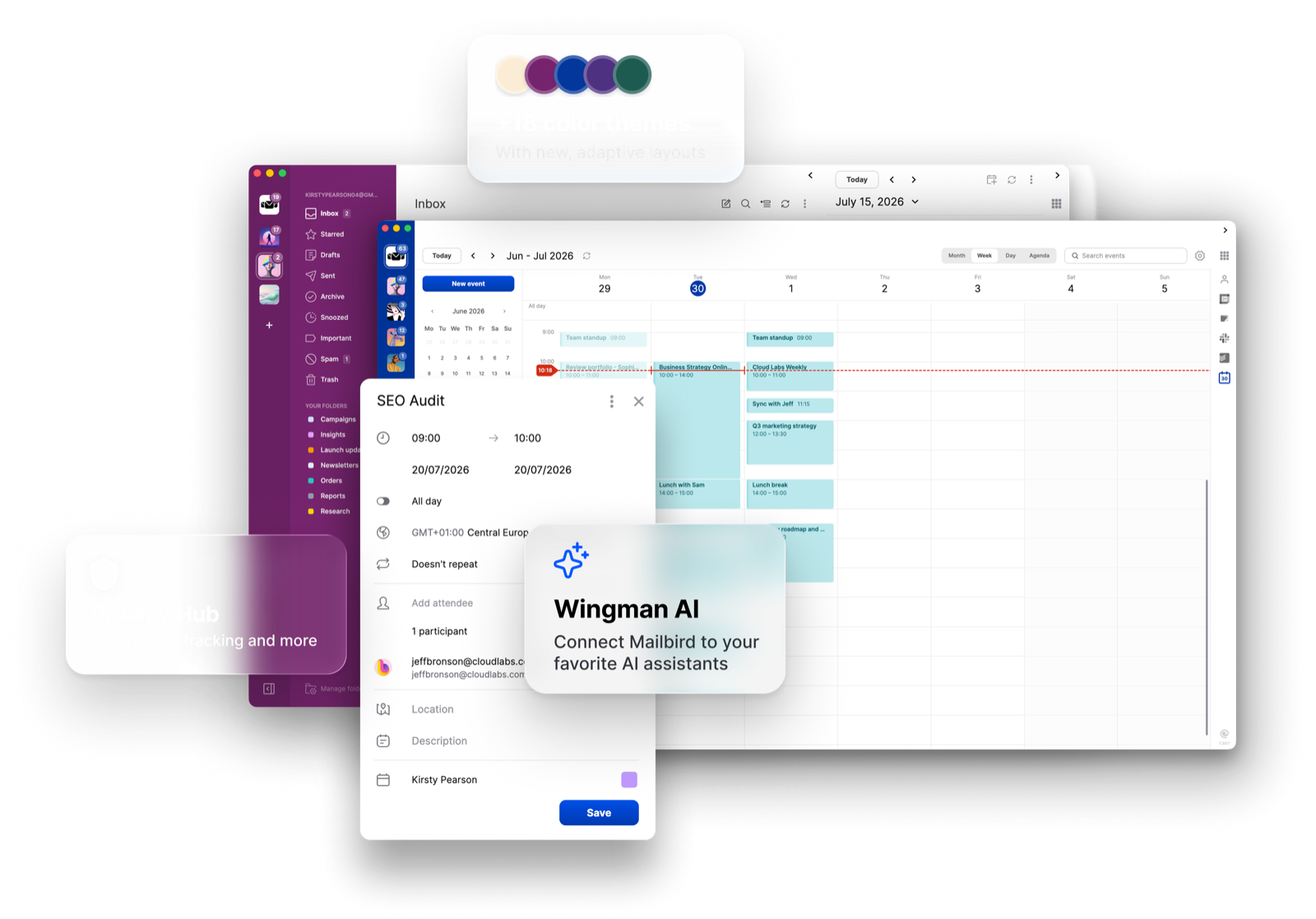
Wingman is the assistant built into Mailbird. The MCP server lets an AI app you already use work with your mail through Mailbird. Both support local and hosted setups. Under the hood, Wingman uses the same local tools the MCP server exposes.
Built-in assistant · Closed beta planned for Q4
Wingman is the assistant that comes with Mailbird. It tells you which emails need attention, summarizes long threads, and drafts replies you can edit before sending. Local summaries and drafts require Ollama and a compatible model. You can manage models in advanced settings. Processing stays on your computer when the model runs there; cloud providers and remote Ollama endpoints process data elsewhere.
Advanced connection · Available in Mailbird Next
If you already use an AI app such as Claude, ChatGPT, or a compatible local AI client, the MCP server lets it read and work with your mail through Mailbird. It exposes tools on your computer; where their results go depends on the app and model you connect. A fully on-device setup keeps processing on your computer; a hosted app or remote model receives the data it needs.
The MCP server runs inside Mailbird. These are the controls that decide who can connect to it, what they can do, and what gets recorded.
The server accepts connections from your own computer only (127.0.0.1 / localhost). It isn't reachable from your network or the internet, and there is no Mailbird cloud endpoint.
Every connection runs over HTTPS and must present a bearer token. Mailbird shows the token in Wingman AI settings; it is stored on your computer and never sent to Mailbird.
Write actions need authorization, but the grant is shared by Wingman and connected external MCP clients. Choosing “Always Allow” for an action in Wingman chat also grants connected external clients write access, including sending.
If you turn it on, Mailbird records which MCP method was called and its parameters, with subject, body, preview, and token redacted. It doesn't record responses, and the log stays on your computer.
Sending through MCP: The connected AI client supplies the send-confirmation flag. Mailbird does not display a separate confirmation dialog; any prompt before sending depends on that client. Mailbird provides a brief undo toast after sending.
Wingman's default setup is on-device. The MCP server runs locally, but where the data it returns is processed depends on the connected app and model. A cloud provider, hosted AI app, or Ollama endpoint on another computer receives the data needed for processing. A remote Ollama endpoint can do this even when cloud inference is off.
Yes. Turn Wingman off in the App catalog and the MCP server off in Settings. With both off, Mailbird runs no AI at all: the built-in classifier stops too, and its category and urgency groupings disappear from the inbox.
Whatever is needed to answer the request you made: typically the text of the messages involved, and for the MCP server, the results of the tools the app called. It goes to the provider you chose, under that provider's privacy policy and your own account settings with them. Mailbird's servers are not in between.
In the on-device setup: your messages, attachments, contacts, and account settings; Wingman's insights, sender rules, and rejection history; the MCP token; encrypted cloud API keys; and the MCP log if you turn it on. None of this is sent to Mailbird's servers. If you connect an external app or model, the data needed by that setup can be sent to it.
No. Your email provider still syncs your mail the way it always has. "On your device" describes what Mailbird's AI does with your mail, not how the mail gets to you.
A connected app can read your accounts, folders, messages, attachments, and calendars. Calendar reading is available when the server is enabled and does not need write permission. Full contacts access is not currently exposed. Write permission is shared with Wingman chat: “Always Allow” in chat grants connected external clients write access, including sending. The connected client supplies the send-confirmation flag; Mailbird does not show a separate confirmation dialog.
Its own notes about each message: how important or urgent it looks, a category, a detected deadline, a short reason, and any corrections you make. These insights are stored locally. Wingman also retains sender rules and rejection history, including sender addresses, counts, and timestamps. Message content used for chat, rewriting, or drafting is processed transiently in the on-device setup; not all sender information is transient.
Which method was called and its parameters, with the subject, body, preview, and token blanked out. It does not record responses. The log is off by default and stays on your computer.
An independent review is on our roadmap, and we'll publish the findings when we have them. It has not been completed yet.
Any supported account you've added to Mailbird, including Gmail, Outlook, Microsoft 365, iCloud, Yahoo, Exchange, and IMAP. Wingman works from the mail Mailbird has already synced to your computer, so the account type makes no difference.
 Just purchased
 0 person just downloaded Mailbird
 Join
+4,000,000
users who trust Mailbird.
Join
+4,000,000
users who trust Mailbird.


