Outlook Dark Mode: How to Turn It On or Off
To change Outlook dark mode, first find out which version you use. In new Outlook for Windows and Outlook on the web, go to Settings → General → Appearance → Dark mode and choose Dark. In classic Outlook for Windows, go to File → Office Account → Office Theme and choose Black. You can choose a light option in the same place to turn dark mode off. Mac and phone steps are below.



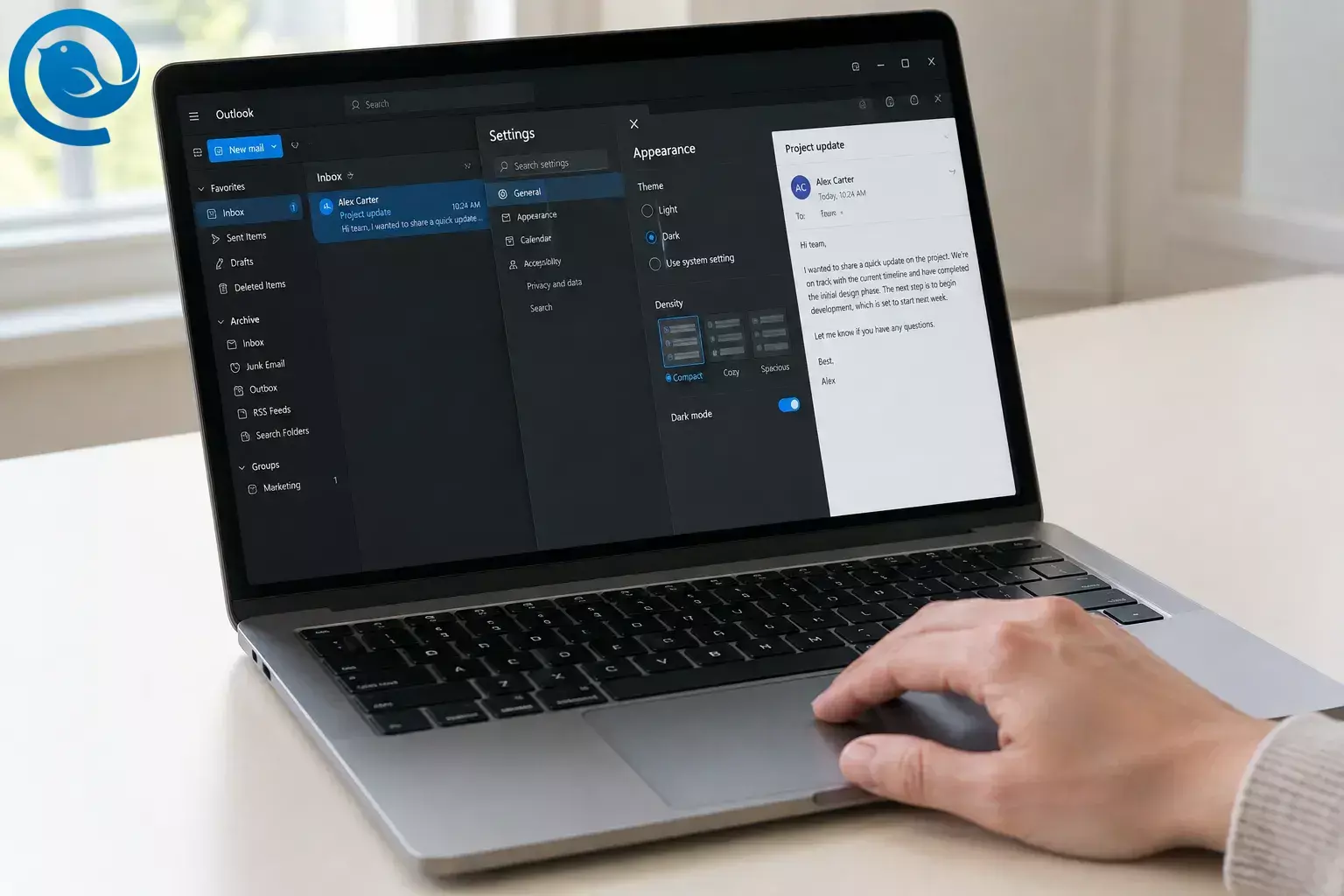
To change Outlook dark mode, first find out which version you use. In new Outlook for Windows and Outlook on the web, go to Settings → General → Appearance → Dark mode and choose Dark. In classic Outlook for Windows, go to File → Office Account → Office Theme and choose Black. You can choose a light option in the same place to turn dark mode off. Mac and phone steps are below. [1, 2]
Key takeaways
- New Outlook for Windows and Outlook on the web have a Dark mode setting under Settings → General → Appearance. [2]
- Classic Outlook for Windows uses File → Office Account → Office Theme; choose Black for dark mode. [2]
- Outlook for Mac offers Dark, Light, and System under Outlook → Preferences → General. [3]
- On iPhone, appearance choices include Dark, Light, and System Default. Android’s available settings vary by app screen. [4, 5]
- You can keep Outlook dark while viewing some email content on a light background; the control depends on your Outlook version. [2]
New or classic Outlook on Windows?
Look at the top of the app. A Settings gear at the upper right points to new Outlook; a File tab without that gear points to classic Outlook. If you use Outlook in a browser, follow the web instructions instead. [1]
New Outlook dark mode on Windows
- Select Settings → General → Appearance.
- Under Dark mode, choose Dark and select Save.
- To turn dark mode off, return to the same setting, choose Light, and select Save. Choose Use system settings instead if you want Outlook to follow your device’s appearance.
If you want a dark inbox but a light reading and compose area, select View → Light Reading Pane rather than changing the whole app to Light. [2]
Classic Outlook dark mode on Windows
- Select File → Office Account.
- Set Office Theme to Black to turn dark mode on. This theme choice also applies to your other Microsoft 365 desktop apps.
- To turn dark mode off, change Office Theme to White or Colorful. If your version offers Use system setting, you can choose that to follow Windows instead.
Classic Outlook has a separate control for email backgrounds. To keep the app dark while leaving message backgrounds light, go to File → Options → General. Under Personalize your copy of Microsoft Office, check Never change the message background color and select OK. Clear the check box to let message backgrounds turn dark again. [2, 3]
Dark mode in Outlook on the web or Outlook.com
Dark mode in Outlook on the web or Outlook.com
- Settings → General → Appearance.
- Dark mode, choose Dark to turn it on or Light to turn it off.
- Save and check the page’s appearance. [2]
Dark mode in Outlook for Mac
- In the Mac menu bar, select Outlook → Preferences → General.
- Under Appearance, choose Dark or Light. Choose System if you want Outlook to follow your Mac’s appearance.
- Return to your inbox to check the result. If you chose System, you can change your Mac’s appearance under Apple menu → System Settings → Appearance. [3]
Dark mode in the Outlook app on iPhone or Android
iPhone
Open Outlook and go to Settings → Appearance. Choose Dark to turn dark mode on, Light to turn it off, or System Default to follow your iPhone. Your iPhone’s appearance setting is under Settings → Display & Brightness. [4]
Android
Open Outlook’s Settings. Under Preferences, look for Dark Theme and turn it on or off. If your app instead shows Display & Appearance, open it to find the available appearance setting. Some Android screens also offer Set by Battery Saver. Return to the inbox to confirm your choice. [5]
Why do some emails still look bright in dark mode?
Outlook’s interface theme and an email’s background are not always the same thing. A sender’s colors may look odd against a dark background, and Outlook mobile does not convert images in emails to dark mode. [7, 8]
To read a troublesome email on a light background without turning the whole inbox light:
- New Outlook or Outlook on the web: Open the email and select Turn on the lights at the top of the reading pane. Check More if the button is hidden.
- Classic Outlook: Open the message and select the sun button at the top of its window. If the button will not switch the background, check whether Never change the message background color is enabled. [2]
If Outlook dark mode is not working as expected
- Outlook changes back to dark after you make it light: Check whether Outlook is set to follow your device. Choose Light in Outlook instead, or change the device’s appearance. [2, 3]
- Classic Outlook is dark, but every message stays white: Go to File → Options → General, clear Never change the message background color, and select OK. [2]
- The dark-mode setting is missing on your phone: Close Outlook from your phone’s recent-apps screen, reopen it, and check Settings again. [6]
- Your inbox and a new draft have different backgrounds: In new Outlook, check whether View → Light Reading Pane is on. It can leave the reading and compose areas light while the rest of the app stays dark. [2]
Before you finish, check the inbox, an open email, and a new unsent draft. Change the viewing settings—not the text or formatting of an email you plan to send.
Want a different desktop inbox?
Mailbird Next is a separate email client for Windows and Mac with System, Light, and Dark appearance choices. Changing its theme does not change Outlook’s settings. [9, 10]
Frequently asked questions
Can I keep Outlook dark but read emails on a light background?
Yes. In new Outlook, select View → Light Reading Pane. In classic Outlook, check Never change the message background color under File → Options → General. [2]
Does changing classic Outlook’s Office Theme affect other apps?
Yes. The Office Theme choice also applies to your other Microsoft 365 desktop apps. [2]
Can Outlook follow my device’s light or dark setting?
New Outlook offers Use system settings, Outlook for Mac offers System, and Outlook for iPhone offers System Default. Android options vary by app screen. [2, 3, 4, 5]
Sources
- Microsoft Support: What version of Outlook do I have?
- Microsoft Support: Dark Mode in Outlook
- Microsoft Support: Change the look and feel of Microsoft 365
- Microsoft Support: Switch to Dark Mode in iOS
- Microsoft Support: Enable Dark Mode on Outlook for Android
- Microsoft Support: I don’t see the Dark Mode setting
- Microsoft Learn: Troubleshoot email rendering, including dark-mode colors
- Microsoft Support: Images and highlighting in mobile dark mode
- Mailbird Support: Install Mailbird Next on Windows and macOS
- Mailbird Support: Enable Dark Mode in Mailbird Next


