Outlook Certificate Error: Why It Appears and How to Fix It
An Outlook security certificate error means classic Outlook cannot verify a certificate presented for its connection to a mail server or discovery service. The warning can point to a mismatched server name, invalid certificate dates, or an issuer your PC does not trust. Check the exact warning before changing any settings.



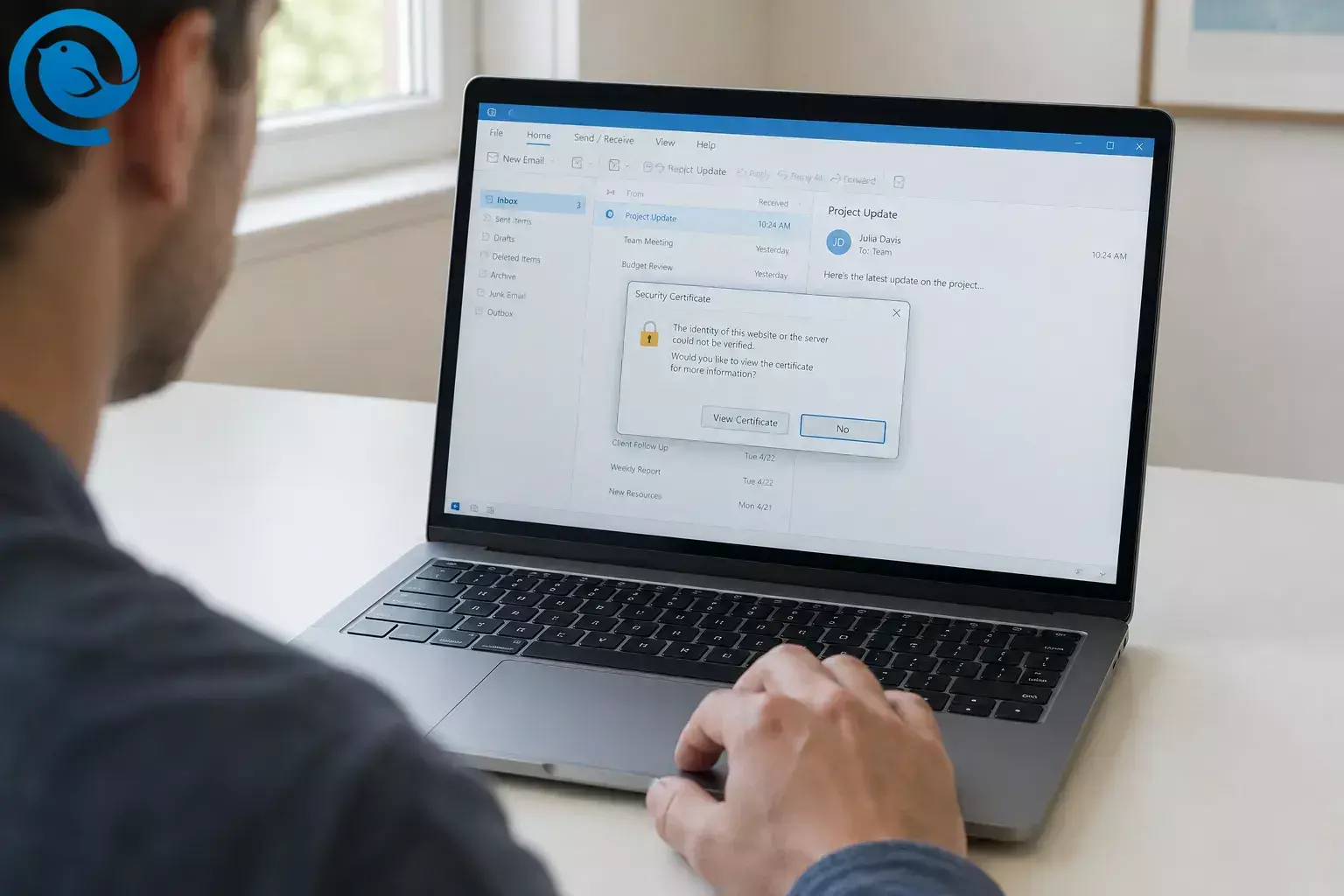
An Outlook security certificate error means classic Outlook cannot verify a certificate presented for its connection to a mail server or discovery service. The warning can point to a mismatched server name, invalid certificate dates, or an issuer your PC does not trust. Check the exact warning before changing any settings.
Key takeaways
- Record the exact warning, then check the certificate’s names, issuer, and validity dates.
- Check your Windows date, time, and time zone before changing account settings.
- If you’re on guest Wi-Fi, complete any browser sign-in and retry Outlook.
- For IMAP or POP, compare incoming and outgoing server names with your provider’s instructions.
- For an Exchange or Microsoft 365 name mismatch, give the warning and certificate names to IT.
- Don’t bypass an unexplained warning, turn off encrypted connections, or install a certificate from an unknown party.
Before you start
Have ready: Your Windows PC, classic Outlook, your email address, and access to your email provider’s help page. Take a screenshot or note the warning text.
Safety: Don’t select Yes to proceed past an unexplained certificate warning, turn off encrypted connections, or install a certificate sent by an unknown party. For a work or school account, follow your IT team’s instructions before changing network or security software settings. [1]
Fix the error in classic Outlook
Fix the error in classic Outlook
- Record the exact warning. Write down the affected account, the server name shown, and whether Outlook says the name is invalid, the certificate has expired, or the issuer is not trusted. If Outlook asks whether to proceed, choose No while you investigate.
- Inspect the certificate without installing it. In a security-alert dialog, select View Certificate. If Outlook instead shows Certificate Error on its status bar, select it, then choose Show certificate errors and View Certificate where available. Note the certificate’s names, issuer, and validity dates. [1]
- Check your PC’s clock. In Windows, open Start > Settings > Time & language > Date & time. Check the date and time zone, and turn on Set time automatically if available. Restart Outlook to see whether the date-related warning disappears. [2]
- Check for a Wi-Fi sign-in page. If you’re on public or guest Wi-Fi, open a browser and visit a public website. Complete any network sign-in, then reopen Outlook. If permitted, try another trusted network to help determine whether the warning is tied to your current connection. [1]
- Identify the account type before editing settings. In classic Outlook, select File > Account Settings > Account Settings and find the affected account. For IMAP or POP, continue to the next step. For Microsoft 365 or Exchange, skip to step 8; changing IMAP or POP server names is not the right fix for an account that uses automatic connection settings. [3]
- Compare IMAP or POP server names with your provider’s instructions. Select the account, then Change, or use File > Account Settings > Server Settings if that is what your version shows. Check both incoming and outgoing server names for typos. Use your provider’s own help, such as Gmail Help or Microsoft’s Outlook.com help, to confirm the names and encryption options. For another provider, use its official support site or ask its support team; don’t guess from your email address. [4]
- Change only settings your provider confirms. Correct a mistyped server name or mismatched encryption setting, then save. Use Test Account Settings if your Outlook version offers it. Otherwise, reopen Outlook and check whether mail sends and receives without a warning. If the documented server name still produces a mismatch, restore any uncertain changes and contact the provider. [4]
- Send Exchange or Microsoft 365 name mismatches to IT. Tell your administrator the server name in the warning and the names on the certificate. Outlook can warn when automatic discovery of an Exchange service reaches a name that its certificate does not cover; ordinary incoming-mail settings may not address the cause. [5]
- Consider a proxy or security-software change. If the warning began after joining a company network, enabling a VPN, or installing security software, note when it started and who issued the certificate Outlook received. Ask the network or security-software administrator whether encrypted traffic is being inspected and whether the configuration is correct. Don’t disable antivirus or a company proxy just to silence the warning. [1]
- Stop if the certificate still appears wrong. If its validity date has passed, its name does not match the provider’s documented server, or its issuer is unexpectedly untrusted, send the warning text, screenshot, and your completed checks to your provider or IT team. Install an organization’s self-signed certificate only if your administrator confirms the server and authorizes that specific certificate. Installing one will not fix an expired certificate or a wrong name. [1]
Why the warning appears
Outlook checks whether the certificate covers the name it contacted, falls within its valid dates, and comes from an issuer it can trust. A mistyped IMAP or POP server name or an incorrect PC clock may be fixable locally. An expired certificate on the server—or an incorrect certificate presented by a proxy—needs the provider or network operator to investigate. [1]
Match the warning to the next step
- “The name on the security certificate is invalid”: Compare IMAP or POP server names with your provider’s help. For Exchange or Microsoft 365, give the warning and certificate names to IT; automatic discovery may be involved. [5]
- “The security certificate has expired or is not yet valid”: Check your PC’s date, time, and time zone first. If the certificate dates still fail, contact your provider or IT team. [1]
- “The security certificate is not trusted”: Record the issuer. Ask IT to verify an organization’s certificate before installing anything; an unexpected issuer may also warrant a network or security-software check. [1]
- The warning appears only on guest Wi-Fi: Complete any browser sign-in for that network, then retry Outlook.
- The warning started after a VPN, proxy, or security-software change: Give the certificate issuer and the timing of the change to the relevant administrator. [1]
- The warning returns after you click through it: Proceeding does not correct the underlying problem. Stop accepting the warning and have the connection name or certificate checked. [5]
- Webmail works, but classic Outlook still warns: Outlook may be reaching a different mail or discovery endpoint. Tell your provider what works in webmail and which server name appears in Outlook’s warning.
What changes by account type?
Personal IMAP or POP account
Start with the incoming and outgoing names in classic Outlook. Change them only to values published or confirmed by your email provider. [4]
Work or school Exchange account
Record the warning and contact IT if the clock and network checks do not resolve it. The name may come from automatic discovery rather than an editable IMAP or POP field. [5]
Organization with a self-signed certificate
Ask IT to verify the server and certificate. An administrator-approved certificate installation can address a trust problem, but it will not correct an expired certificate or name mismatch. [1]
Frequently asked questions
What does an Outlook security certificate error mean?
Classic Outlook could not confirm part of its secure connection. Read the exact warning to learn whether it concerns the server name, certificate dates, or trust.
Should I click Yes to continue?
Not when you do not know why the warning appeared. Record its details and check the cause first.
Can the wrong date on my PC cause this error?
Yes. Check Windows’ date, time, and time zone, then restart Outlook before changing account settings.
Why does the name warning keep coming back?
Proceeding past the warning does not correct a mismatched name. An Exchange account may encounter the mismatch again during automatic discovery. [5]
How do I fix “Outlook certificate not trusted”?
Check which certificate Outlook received and who issued it. For a work account, ask IT whether it is the approved certificate. Do not install one merely to silence the warning.
Will reinstalling Outlook or switching email apps fix an expired certificate?
Not if the mail server is presenting the expired certificate. The provider or server administrator needs to replace it.
Is this the same as an email signing certificate problem?
No. This guide concerns the certificate used for Outlook’s connection to a server. A warning about signing or encrypting an individual message calls for different checks. [6]
Quick checklist
- Save the exact warning and server name.
- Check the certificate’s names, issuer, and dates.
- Correct your Windows date, time, and time zone.
- Complete any Wi-Fi sign-in and retry.
- For IMAP or POP, compare settings with your provider’s own help.
- For Exchange, an expired certificate, or an unexpected issuer, contact IT or your provider.
- Don’t bypass the warning or turn off encryption.
Want a different desktop email client once the server connection is sound? Download Mailbird for Windows. Switching clients will not renew an expired certificate on your provider’s server.
Sources
- Microsoft Support: How to resolve certificate errors
- Microsoft Support: Set time, date, and time zone settings in Windows
- Microsoft Support: Troubleshoot Outlook email setup
- Microsoft Support: Change email account settings in Outlook for Windows
- Microsoft Learn: Resolve AutoDiscover mismatch warnings in Outlook
- Microsoft Support: Secure messages with a digital ID in Outlook


