Outlook Cannot Synchronize Subscribed Folders: How to Fix It
If classic Outlook shows this IMAP error, first check whether the affected folder still exists in webmail. Then refresh Outlook’s folder list and subscribe to the folder under its current name. If that does not work, check your provider’s root folder path before rebuilding Outlook’s local cache or profile.



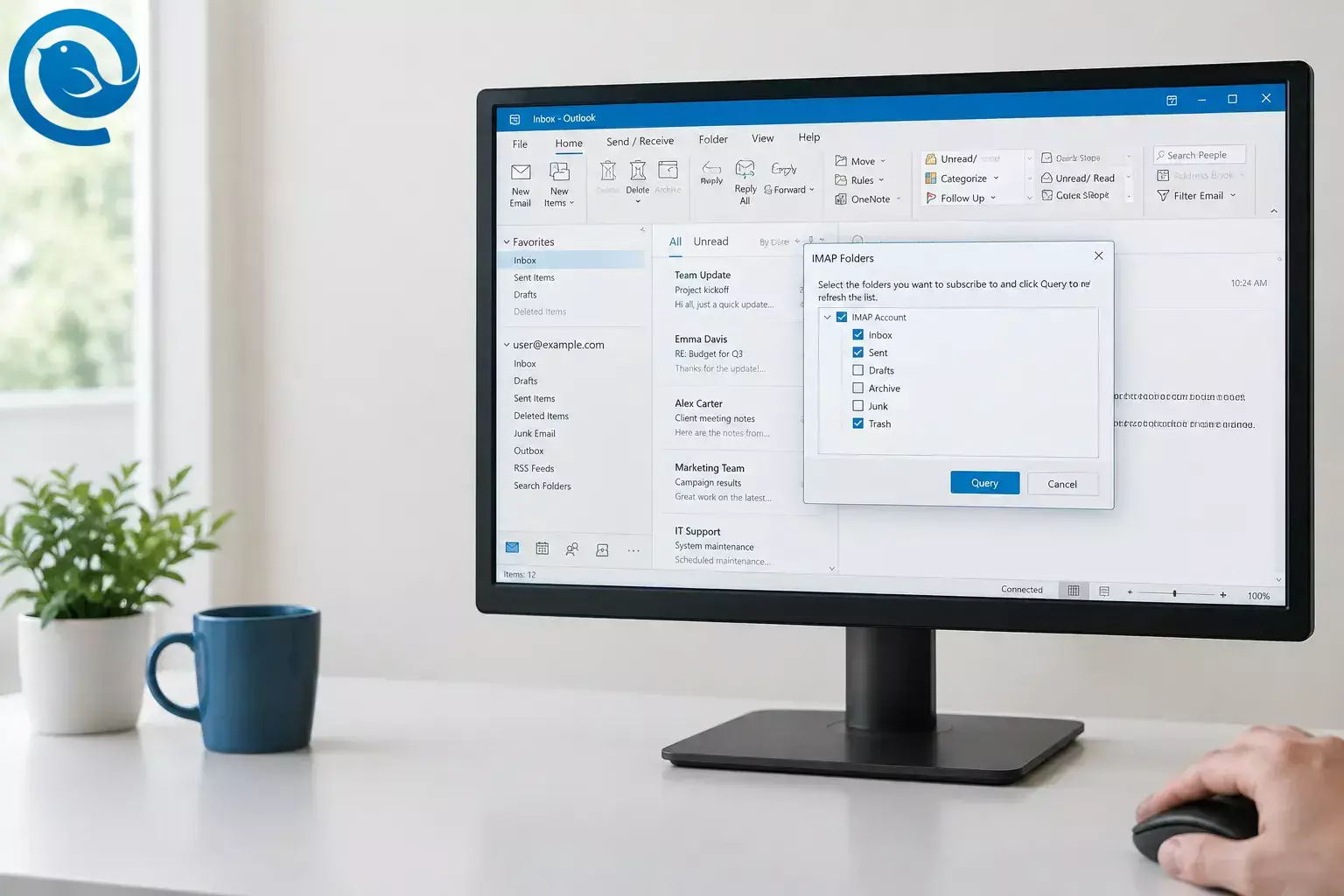
If classic Outlook shows this IMAP error, first check whether the affected folder still exists in webmail. Then refresh Outlook’s folder list and subscribe to the folder under its current name. If that does not work, check your provider’s root folder path before rebuilding Outlook’s local cache or profile. [4]
These steps are for classic Outlook for Windows with an IMAP account . Record the full error message and code: a similar-looking sync error may need a different fix.
Quick checklist
- Confirm the account says IMAP and record the exact error code.
- Check the affected folder in webmail before changing Outlook.
- Run Update Folder List , then IMAP Folders → Query .
- Subscribe to current folders; unsubscribe obsolete names.
- Change the root folder path only when the provider specifies one.
-
Verify a backup of PC-only items before rebuilding the
.ostor testing a new profile. - Move a test message and confirm its folder matches in webmail.
Before you start
- Have ready: Classic Outlook, access to your provider’s webmail, and your account sign-in details. Ask your provider for its IMAP settings if you do not have them.
- Allow time: The folder checks may fit into one sitting. A rebuilt cache can take longer while Outlook downloads mail again.
- Protect your mail: Do not delete server folders, remove the account, or erase an Outlook data file to test a fix. Before rebuilding a cache or profile, export items that exist only on this PC and verify the backup. [3]
Fix the IMAP subscribed-folder error
Fix the IMAP subscribed-folder error
-
Confirm the account uses IMAP
In classic Outlook, open File → Account Settings → Account Settings . On the Email tab, find the affected address and read its Type . Continue only if it says IMAP . Write down the exact error code shown under Send/Receive .
Check: You have the affected address, account type, and error code. -
Compare Outlook with webmail
Sign in to the same account on your provider’s website. Open the Inbox and the folder Outlook cannot sync. If the folder was renamed or deleted on the server, note its current status; do not recreate it in Outlook yet. If webmail cannot open the mailbox, contact the provider before changing Outlook.
Check: You know whether the affected folder exists in webmail and what it is called. -
Refresh the server folder list
In Outlook’s folder pane, right-click the account’s top-level name and select Update Folder List . Microsoft recommends this to retrieve a server folder that has not appeared in Outlook. [4]
Check: Look for the folder under its current server name. -
Correct the folder subscriptions
Right-click the account name again and choose IMAP Folders → Query . Select a folder that exists in webmail but is missing from Outlook, then choose Subscribe . If the list shows an old name for a folder that was deleted or renamed on the server, select that name and choose Unsubscribe . Unsubscribing changes which folders Outlook displays; it does not delete a server folder. [4]
Check: Folders you need are subscribed, and obsolete names are not. -
Run a fresh sync
Close the IMAP Folders window, select Send/Receive → Send/Receive All Folders , and open an affected folder. Compare a recent message with webmail. If the error has stopped and the message appears in both places, stop here.
Check: A recent server message appears in Outlook without another subscribed-folder error. -
Check the root folder path—but do not guess
If folders are still missing, open File → Account Settings → Account Settings , select the IMAP account, and open its settings. Look for Root folder path under the account’s folder settings or More Settings → Advanced ; the route varies by Outlook version. Write down its current value. Enter
Check: The path matches your provider’s instructions, and the expected folders remain visible after restart.INBOXonly if your email provider instructs you to —one.com, for example, specifies that value for its Outlook setup. Otherwise, use your provider’s stated path or leave the field unchanged. Save, restart Outlook, and repeat the folder-list, subscription, and sync checks. [5] -
Rule out a sign-in problem
If Query cannot retrieve any folders, or the error says Cannot connect to the server , check your provider’s service status and reconnect using its required sign-in method. For Gmail, Microsoft has documented subscribed-folder errors when Google access permission was not granted. Its guidance is to use Retry and approve the requested mail access when available. [6]
Check: Outlook can retrieve the folder list after you reconnect. -
Back up items that exist only on this PC
If webmail and subscriptions are correct but Outlook still fails, look for folders marked “This computer only” , unsent drafts, or other items absent from webmail. In classic Outlook, use File → Open & Export → Import/Export → Export to a PST file . Select the affected account, check Include subfolders , and save the file somewhere you can find it. Open the exported file in Outlook and verify that the PC-only items you need are present. If you cannot verify the backup, do not proceed with the cache rebuild. [3]
Check: You can open the backup and find the items that are missing from webmail. -
Rebuild only the affected offline cache
Open File → Account Settings → Account Settings → Data Files . Select the affected account and choose Open File Location . Close Outlook completely. In File Explorer, show file-name extensions and rename that account’s
Check: Outlook creates a new.ostfile to a name ending in.ost.old; do not rename a.pstfile. Reopen Outlook and allow it to create a fresh cache. An IMAP account’s.ostholds a local copy of its mailbox, so do this only after checking for PC-only items. [7].ost, and folders and messages begin appearing again. -
Test a new profile if the cache did not help
Keep your original profile. Close Outlook, then hold Shift while opening it. In the profile picker, choose Options → New , name the profile, and add the IMAP account. Alternatively, press Windows + R and run
Check: The folder syncs in the new profile—or you have confirmed that the problem persists outside the old one.Outlook.exe /profiles. Test an affected folder in the new profile before deciding whether to keep using it. Microsoft documents both ways to create a classic Outlook profile. [8] -
Confirm the fix from both sides
Send yourself a test message, open it in Outlook, and move it to an existing subscribed folder. Refresh webmail and confirm the message is in that same folder. If the new profile also fails, give your provider the exact error code, folder name, and result of your webmail test.
Check: The test message and its folder match in Outlook and webmail.
Why these checks work
Outlook needs an up-to-date server folder list, the right folder subscriptions, and a usable local copy of the mailbox. Checking them in that order helps separate a missing server folder from a stale subscription, an incorrect folder path, or a local cache problem. [4]
Match the symptom to the next check
| Symptom | Possible cause | Do this |
|---|---|---|
| Query returns no folders | Outlook may be unable to reach or authenticate with the IMAP server | Confirm webmail works, check the provider’s IMAP settings, and reconnect before changing subscriptions. |
| A folder exists in webmail but not Outlook | The folder list may be stale, or the folder may be unsubscribed | Run Update Folder List , then IMAP Folders → Query → Subscribe . |
| An old folder name keeps failing | The server folder may have been renamed or removed | Compare names in webmail, unsubscribe the obsolete name, and subscribe to the current one. |
| Folders appear under the wrong parent | The root folder path may not match the provider’s layout | Use only the path your provider specifies. If a change made things worse, restore the previous value and refresh the list. |
Gmail shows
0x800CCC0E
and “Cannot connect to the server”
|
Google access may not have been granted during sign-in | Follow Microsoft’s Retry guidance and approve access when prompted; do not treat this as a folder-name problem. [6] |
| Gmail labels are missing | The labels may not be exposed to IMAP | In Gmail on the web, open Settings → See all settings → Labels and check Show in IMAP for the labels you need, if that option is available. Then refresh Outlook’s list. [9] |
| Webmail works, but Outlook still shows the error | The local cache or Outlook profile may be damaged |
Back up PC-only items, then test a fresh
.ost
and, if needed, a new profile.
|
The error code is
0x80004005
|
It may be the separate classic Outlook issue Microsoft documented | Read Microsoft’s notice before changing IMAP folders, and confirm your account type and full error text. [1] |
- Symptom
- Query returns no folders
- Possible cause
- Outlook may be unable to reach or authenticate with the IMAP server
- Do this
- Confirm webmail works, check the provider’s IMAP settings, and reconnect before changing subscriptions.
- Symptom
- A folder exists in webmail but not Outlook
- Possible cause
- The folder list may be stale, or the folder may be unsubscribed
- Do this
- Run Update Folder List , then IMAP Folders → Query → Subscribe .
- Symptom
- An old folder name keeps failing
- Possible cause
- The server folder may have been renamed or removed
- Do this
- Compare names in webmail, unsubscribe the obsolete name, and subscribe to the current one.
- Symptom
- Folders appear under the wrong parent
- Possible cause
- The root folder path may not match the provider’s layout
- Do this
- Use only the path your provider specifies. If a change made things worse, restore the previous value and refresh the list.
- Symptom
-
Gmail shows
0x800CCC0Eand “Cannot connect to the server” - Possible cause
- Google access may not have been granted during sign-in
- Do this
- Follow Microsoft’s Retry guidance and approve access when prompted; do not treat this as a folder-name problem. [6]
- Symptom
- Gmail labels are missing
- Possible cause
- The labels may not be exposed to IMAP
- Do this
- In Gmail on the web, open Settings → See all settings → Labels and check Show in IMAP for the labels you need, if that option is available. Then refresh Outlook’s list. [9]
- Symptom
- Webmail works, but Outlook still shows the error
- Possible cause
- The local cache or Outlook profile may be damaged
- Do this
-
Back up PC-only items, then test a fresh
.ostand, if needed, a new profile.
- Symptom
-
The error code is
0x80004005 - Possible cause
- It may be the separate classic Outlook issue Microsoft documented
- Do this
- Read Microsoft’s notice before changing IMAP folders, and confirm your account type and full error text. [1]
Provider and Outlook differences
If your provider is Gmail
Check label visibility and Google sign-in before changing the root path. For personal Gmail accounts, Google says the old Enable IMAP switch is no longer available; IMAP access is on by default. Look for a Sign in with Google option when reconnecting. [10]
If you use a hosted domain
Ask your host whether its folders sit beneath
INBOX
. If its setup instructions specify that root folder path, enter it exactly as written. Do not apply another provider’s setting to your mailbox.
[5]
If you use new Outlook or an Exchange account
Do not look for classic Outlook’s IMAP Folders dialog in the new app or apply IMAP subscription steps to an Exchange account. Check your account type, then use instructions for that app and account. [2]
Frequently asked questions
What does “synchronizing subscribed folders” mean?
Outlook is trying to update IMAP folders selected for display. The error means it could not complete that update; the wording alone does not identify the cause.
Will unsubscribing delete my email?
No. Unsubscribe in the IMAP Folders window stops displaying that folder in Outlook. Do not choose Delete Folder if you want to keep it on the server.
Should I set the root folder path to INBOX?
Only if your email provider specifies
INBOX
for your account. Save the original value first so you can undo the change.
Why is a folder visible in webmail but not Outlook?
Outlook may need a fresh folder list, or the folder may not be subscribed. Run Update Folder List , then Query and Subscribe .
Is it safe to remove the OST file?
Not until you have checked for items missing from webmail and verified a backup. To rebuild the cache, rename only the affected account’s
.ost
while Outlook is closed; leave
.pst
files alone.
Can I use these steps in new Outlook?
These subscription menus are for classic Outlook for Windows. In new Outlook, confirm the account type and follow instructions for that app instead.
What if a new Outlook profile still cannot sync?
Check webmail, then contact your email provider with the exact error code and affected folder name. A new profile cannot repair a missing server folder or a server connection failure.
Sources
- Microsoft Support — Mailbox folders are not syncing with 0x80004005 error
- Microsoft Support — Feature comparison between new Outlook and classic Outlook
- Microsoft Support — Export emails, contacts, and calendar items using a .pst file
- Microsoft Support — Choose which IMAP account folders appear in Outlook
- one.com Support — Setting up mail in Microsoft Outlook
- Microsoft Support — Unable to add a Gmail account to classic Outlook
- Microsoft Support — Outlook Data Files and offline mailbox copies
- Microsoft Support — Create a profile in classic Outlook for Windows
- Microsoft Support — Check Gmail labels and IMAP folder visibility
- Google Gmail Help — Add Gmail to another email client


