How to Add Another Email Account to Mail on iPhone
To add a second or third email account to iPhone Mail, open Settings > Apps > Mail > Mail Accounts > Add Account, choose your provider, and finish the sign-in flow. Gmail, Outlook, iCloud, Yahoo, AOL, and Exchange usually set up quickly. Custom domain accounts may need manual IMAP, POP, and SMTP set



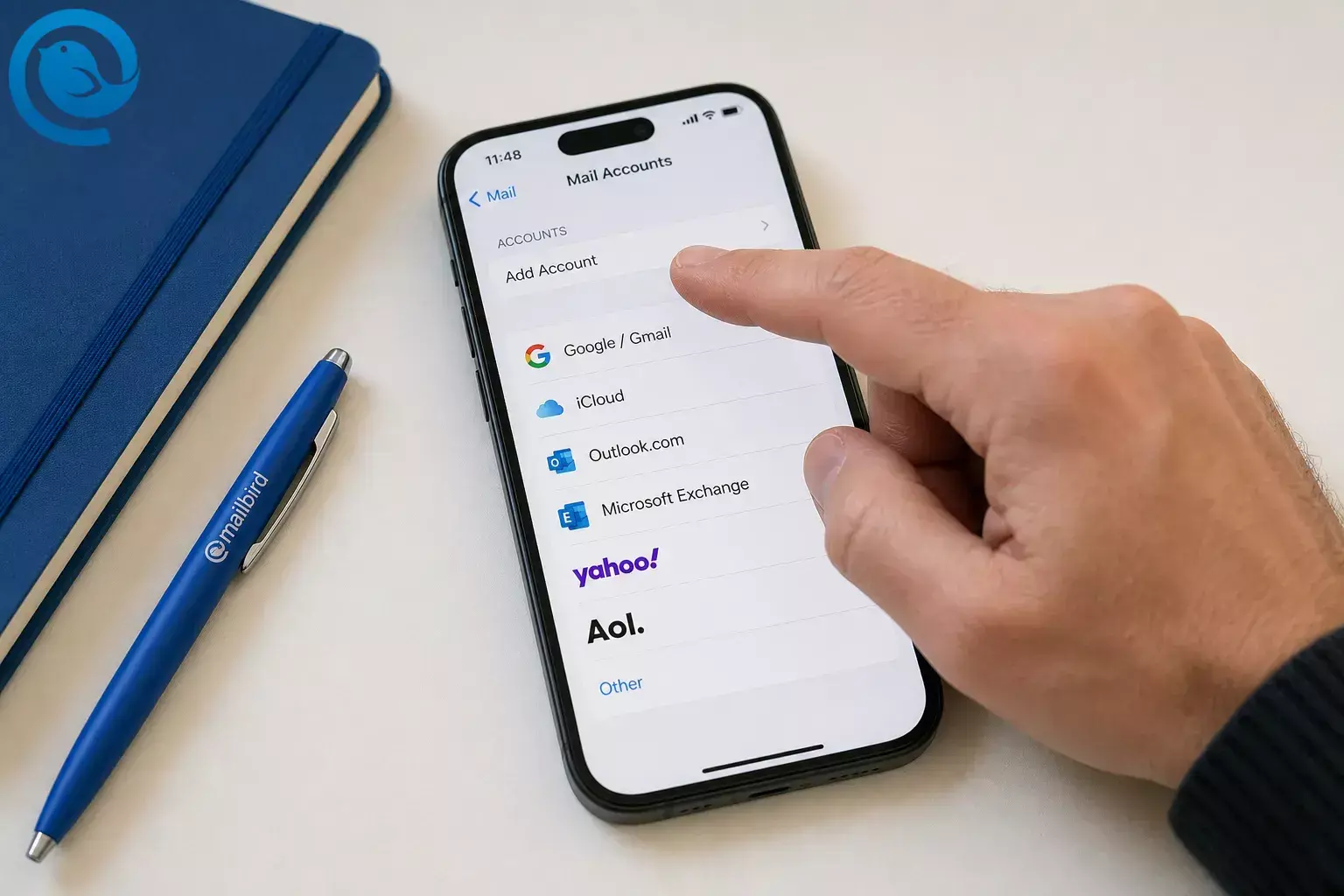
To add a second or third email account to iPhone Mail, open Settings > Apps > Mail > Mail Accounts > Add Account , choose your provider, and finish the sign-in flow. Gmail, Outlook, iCloud, Yahoo, AOL, and Exchange usually set up quickly. Custom domain accounts may need manual IMAP, POP, and SMTP settings. 2 3 10
What’s new
Heads-up: the exact screens can vary a little by iOS version. On newer iPhones, Apple’s current path is Settings > Apps > Mail , while older guides may show Settings > Mail . 2 4
TL;DR
- On current iPhone software, the path is Settings > Apps > Mail > Mail Accounts > Add Account . 2 4
- Choose the provider before you sign in: Google , iCloud , Outlook.com , Microsoft Exchange , Yahoo , AOL , or Other . 3
- Gmail, Outlook, iCloud, Yahoo, AOL, and Exchange usually set up fastest through the normal provider sign-in flow. 2 10
- Use Microsoft Exchange for work or school Exchange or Microsoft 365 mailboxes. 10
- Use Other for custom domains or smaller providers, and enter exact IMAP , POP , and SMTP settings only if Mail cannot detect them. 2
- After setup, check the new mailbox in Mailboxes and send one test email from the new From address. 7 4 14
- Clean up Fetch New Data , Notifications , and Signature > Per Account right away if you use multiple inboxes. 4 5 8
Before you start
- Prerequisites: your iPhone, a working internet connection, the email address and password for the account, and access to any two-step code your provider sends.
- Tools: the Mail app, your provider’s sign-in page, or the incoming and outgoing server settings if this is a custom domain or smaller mail host.
- Time: usually one short sign-in flow for common providers; longer if you need to enter IMAP or POP settings by hand. 2
- Cost: none in the Mail app itself. Any mailbox fees come from your email provider, not from adding the account to iPhone.
- Safety: if this is a work or school account, use the server details your admin gave you. If manual setup fails, stop and verify the settings instead of guessing.
Step-by-step: add a second or third email account to iPhone Mail
How to Add Another Email Account to Mail on iPhone
-
Open the Mail account settings
On current iPhone software, open Settings > Apps > Mail > Mail Accounts > Add Account . Some older guides show only Settings > Mail instead. 2 4
-
Pick the right provider before you type anything
- Google — Gmail
- iCloud — iCloud, me.com, or mac.com
- Outlook.com — personal Outlook.com, Hotmail, Live, or MSN mailboxes on iPhone
- Microsoft Exchange — work or school Exchange or Microsoft 365 mailboxes
- Yahoo — Yahoo and many migrated carrier-branded addresses such as Comcast, Cox, Frontier, Rogers, and SBCglobal
- AOL — AOL, AIM, and Verizon.net
- Other — custom domains or smaller providers
Apple’s provider guide maps those addresses this way, so checking the provider first saves a lot of failed sign-ins. 3
-
Use the fast path for common providers
If your provider is recognized, enter the address, follow the provider’s sign-in screen, enter the password, then tap Next or Save when Mail verifies the account. For the common providers Apple lists, automatic setup is usually the shortest route. 2
-
For Microsoft work or school mail, choose Exchange
If this is a Microsoft 365, Exchange, or company mailbox, select Microsoft Exchange , enter the address and a description, tap Next , then Sign In . If your admin gave you server details, tap Configure Manually instead; after sign-in, choose what you want to sync and tap Save . 10
-
Use “Other” for custom domain email or smaller providers
If the provider is not listed, tap Other > Mail Account , then enter your name, email address, password, and a description. This is the normal path for many custom-domain addresses and smaller hosting companies. 2
-
Enter manual settings only if Mail cannot find them
If Mail cannot detect the account automatically, tap Next and enter the incoming and outgoing mail server details your provider gave you. Apple says you may need to choose IMAP or POP3 ; if you are not sure which one to use, get the exact settings from your provider before you continue. 2
-
Approve sync options and finish setup
Some accounts ask what you want to sync after login. Turn on the items you want, then tap Save . On Exchange accounts, this is where you decide whether to bring in mail only or also contacts, calendars, and other supported data. 10
-
Check both the combined inbox and the account’s own mailbox
Open the Mail app, go to Mailboxes , and make sure you can see the new account. From there, you can use the combined view or open one account at a time, which matters much more once you have more than one inbox on the phone. 7
-
Send one test email from the new address
Start a new message, tap the Cc/Bcc, From field, then tap From and choose the new account. Send yourself a short test email so you confirm the account can both receive and send. 4 14
-
Clean up multi-account settings right away
After the account works, check the settings that usually get messy when inboxes multiply: Fetch New Data if one account refreshes slowly, iOS email notifications if alerts or badge counts feel wrong, and Signature > Per Account so you stop sending from the wrong identity. 4 5 8
Limits of iPhone Mail’s combined view
- All Inboxes is useful, but it is not the whole account. When you need one account’s own Sent , Drafts , or folders, open that account under Mailboxes instead of staying in the combined view. 7
- Categories can change what looks unread. Apple says categories require iOS 18.2, are not available in all countries or regions, and can make the badge show only unread mail in Primary unless you switch the badge setting to show all unread messages. 6 8
- You still need to watch the sending identity. Check the From field on drafts and consider Per Account signatures if you use work and personal mail together. 14 5
Troubleshooting
- Symptom: You do not see Add Account . Likely cause: you are following an older guide. Fix: use Settings > Apps > Mail > Mail Accounts > Add Account on current iPhone software. 2 4
- Symptom: Mail says the account already exists. Likely cause: a failed or wrong-provider version of that account is still on the phone. Fix: remove the account first, then add it again with the correct provider. 3 4
- Symptom: Comcast, Cox, Frontier, SBCglobal, or similar addresses keep failing. Likely cause: the mailbox authenticates through Yahoo, not “Other.” Fix: remove the failed setup and add it again by choosing Yahoo . 3
- Symptom: Gmail says the password is wrong even though you know it is right. Likely cause: Google may want a more secure sign-in flow, or the device software is out of date. Fix: add the account through the Google provider, update iPhone software if needed, and only fall back to an app password if Google does not offer its normal sign-in flow and your account allows app passwords. 19 12 2
- Symptom: Yahoo keeps asking for the password. Likely cause: Yahoo wants a third-party app password for this sign-in. Fix: generate an app password in Yahoo Account Security and use that code in Mail instead of your normal Yahoo password. 13
- Symptom: Your work or school Microsoft mailbox behaves like a personal account. Likely cause: you chose Outlook.com instead of Microsoft Exchange . Fix: remove it and re-add it as Microsoft Exchange , then sign in or use Configure Manually if your admin gave server details. 3 10
- Symptom: One account gets new mail late. Likely cause: that account is using Fetch rather than Push . Fix: go to Settings > Apps > Mail > Mail Accounts > Fetch New Data and choose a schedule that fits you better. 4
- Symptom: The Mail badge count looks too low after you turned on categories. Likely cause: the badge can show only unread mail in Primary by default. Fix: go to Settings > Apps > Mail > Notifications > Customize Notifications > Badge Count > All Unread Messages . 8
- Symptom: You keep sending from the wrong address. Likely cause: the draft kept the wrong From field or every account shares the same signature. Fix: change the From field in the draft and set Signature to Per Account . 14 5
- Symptom: Tapping an email link opens a different app instead of Mail. Likely cause: another app is set as the default email app. Fix: go to Settings > Apps > Default Apps > Email and switch it to Mail . 16
Common setup variations
- Add another Gmail address: choose Google . Google says personal Gmail accounts no longer need an IMAP on/off switch because IMAP access is always on, so the normal Google sign-in page is usually the fastest path. 11 2
- Add an iCloud address: choose iCloud for iCloud, me.com, or mac.com mailboxes. 3
- Add Outlook.com, Hotmail, Live, or MSN: choose Outlook.com for personal addresses on iPhone, and choose Microsoft Exchange for work or school mailboxes. 3 10
- Add Yahoo, AOL, or carrier-branded mail: choose Yahoo for Yahoo and many migrated carrier domains, and choose AOL for AOL, AIM, and Verizon.net. If Yahoo refuses your normal password, switch to an app password. 3 13
- Add a custom domain mailbox: use Other , then enter the exact IMAP or POP and SMTP settings from your provider if Mail cannot detect them automatically. 2
- Keep work and personal separate after setup: customize Mail notifications, set Per Account signatures, and open each account’s own mailbox when All Inboxes feels too broad. 8 5 7
Setup prep, cleanup, and scaling tips
- Make-ahead: gather your password, your two-step verification method, and any manual server details before you open Settings.
- Storage and cleanup: if you just want a break from one account, turn it off instead of deleting it. Removing an account from iPhone removes it from the device, not from the email provider itself. 4
- Scaling past two accounts : use per-account signatures, notification settings, and one-account-at-a-time mailbox views when All Inboxes gets noisy. 5 8 7
- Desktop follow-through: if the same addresses also live on your computer, Mailbird can bring Gmail, Outlook, Yahoo, iCloud, Exchange, and IMAP/SMTP accounts into one desktop workspace, and its Unified Inbox can combine inbox, drafts, sent, archive, and other folders. 17 18
Quick checklist
Screenshot this before you close Settings. These are the key screens and checks that matter most after setup. 2 4 5 8
- I opened Settings > Apps > Mail > Mail Accounts > Add Account .
- I picked the right provider: Google , iCloud , Outlook.com , Microsoft Exchange , Yahoo , AOL , or Other .
- I finished the provider sign-in, or I used the exact IMAP/POP and SMTP settings from my provider.
- I can see the new mailbox inside Mailboxes .
- I sent myself one test email from the new address.
- I checked the From field so I know which account sends new mail.
- I set Per Account signatures if I use work and personal mail together.
- I adjusted Notifications or Fetch New Data if this account behaves differently from the others.
- If I use categories, I checked whether I want the badge to show Primary unread only or All Unread Messages .
Need the same accounts organized on desktop?
If your iPhone is set up but your computer is still split across tabs and apps, Mailbird can bring Gmail, Outlook, Yahoo, iCloud, Exchange, and IMAP/SMTP accounts into one desktop workspace , and its Unified Inbox can combine more than just incoming mail. 17 18
Frequently Asked Questions
How do I add a second email account to my iPhone without deleting the first one?
Where is Add Account on a newer iPhone?
Should I choose Outlook.com or Microsoft Exchange?
Why does Mail say my email account already exists?
Can I add a custom domain email address to iPhone Mail?
Yes. Choose Other , then enter the account manually if Mail cannot detect the settings for you.
Sources: 2
Why do my unread badge counts look off after I added more accounts?
Can I choose which address I send from on each message?
Does removing an account from my iPhone delete the mailbox itself?
No. It removes the account from your iPhone. It does not cancel or delete the account at the provider.
Sources: 4
Sources
- Apple Newsroom — “Apple Intelligence brings powerful AI capabilities into everyday experiences”
- Apple Support — “Add an email account to your iPhone or iPad”
- Apple Support — “Choose the correct email provider when adding an account to Mail”
- Apple Support — “Add and remove email accounts on iPhone”
- Apple Support — “Change your Mail settings on iPhone”
- Apple Support — “Automatically categorize incoming emails in Mail on iPhone”
- Apple Support — “Use mailboxes to organise email messages on your iPhone or iPad”
- Apple Support — “Customize your Mail notifications on your iPhone or iPad”
- Apple Support — “Filter emails in Mail on iPhone”
- Microsoft Support — “Set up an Outlook account on the iOS Mail app”
- Gmail Help — “Add Gmail to another email client”
- Google Account Help — “Sign in with app passwords”
- Yahoo Help — “Generate and manage 3rd-party app passwords”
- Apple Support — “Send email in Mail on iPhone”
- Apple Support — “How to get Apple Intelligence”
- Apple Support — “Change the default apps on iPhone”
- Mailbird — “The Best Email Client for Windows and Mac”
- Mailbird Support — “Unified Inbox”
- Google Account Help — “Password incorrect” error


