How to Send an Encrypted Email in Outlook
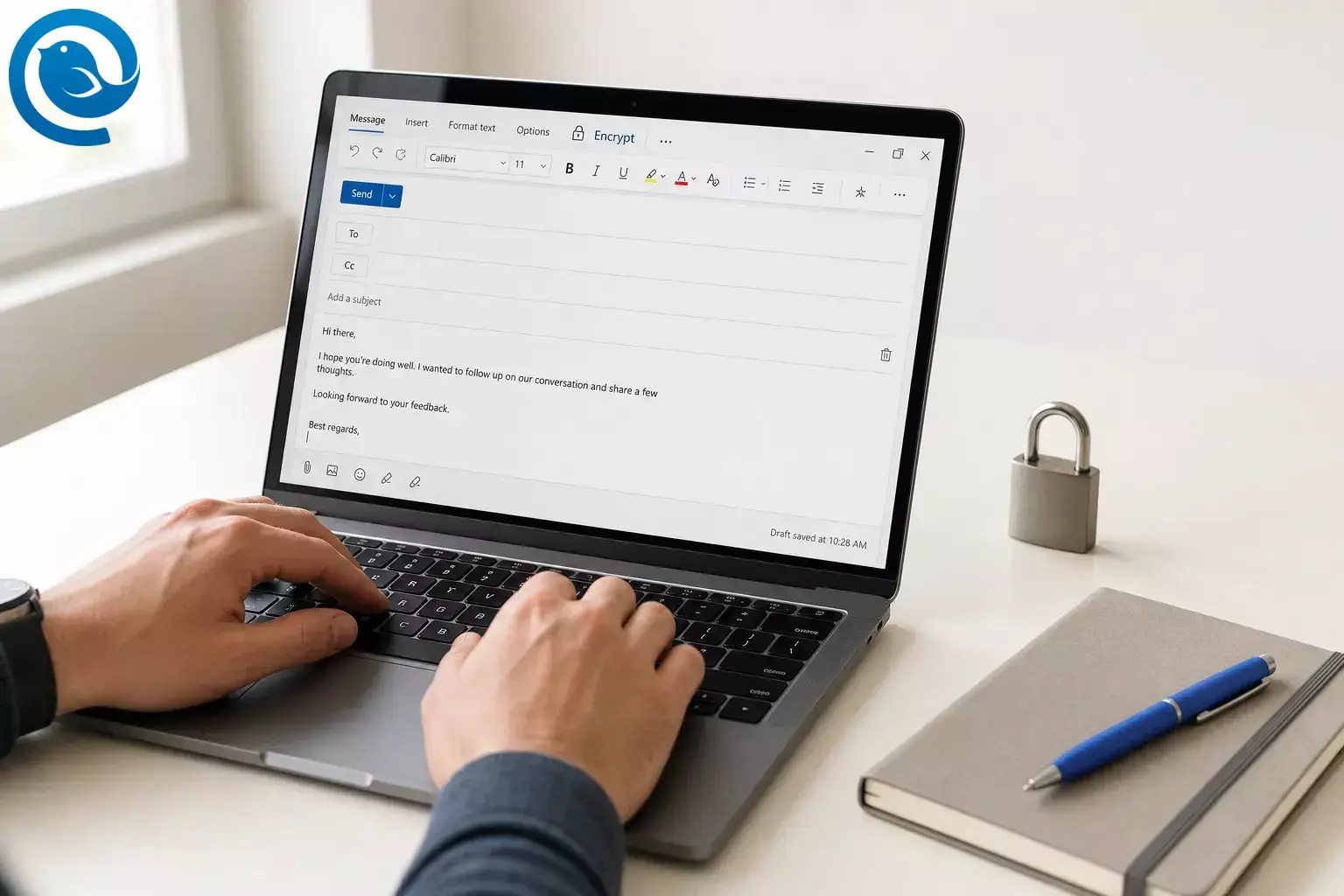
To send an encrypted email in Outlook, start a new message, open the compose options, choose Encrypt, and send. If your version only shows Message options, use the S/MIME path instead. The exact clicks differ in new Outlook, classic Outlook, Outlook on the web, and Outlook.com.



To send an
encrypted email
in Outlook, start a new message, open the compose options, choose
Encrypt
, and send. If your version only shows
Message options
, use the S/MIME path instead. The exact clicks differ in new Outlook, classic Outlook, Outlook on the web, and Outlook.com.
2
3
5
This guide follows Microsoft’s current documented menu paths and recipient-access instructions. Account type, app version, and admin settings can change what appears in the compose window, so if you do not see
Encrypt
or
Message options
in a blank draft, skip to troubleshooting.
2
4
6
7
What’s new
Important:
for “Encrypt Only” in classic Outlook, Microsoft documented a 2026 known issue tied to the older File route. If a recipient gets
message_v2.rpmsg
, update Outlook and resend from
Options → Encrypt
.
1
TL;DR
Quick answer: send encrypted email in Outlook by version
-
Use
Options → Encryptwhen your compose window shows it. 2 5 -
If your draft only shows
Message options, useEncrypt this message (S/MIME)instead. 2 3 - The exact clicks differ in new Outlook, classic Outlook, Outlook on the web, and Outlook.com. 2 3 5
- Gmail, Yahoo, or another mail app recipients usually open the message in a browser and may use a one-time passcode. 4
- Do not apply Microsoft Purview protection to a message that is already signed or encrypted with S/MIME. 2
-
If you do not see
Encrypt, account type, app version, or admin settings may be the reason. 6 7 8
| If you’re using | Click this |
|---|---|
| New Outlook |
New mail → Options → Encrypt
|
| New Outlook with S/MIME |
New mail → Options → More Options → Encrypt this message (S/MIME)
|
| Classic Outlook |
New Email → Options → Encrypt
|
| Outlook on the web, work or school |
New message → More options → Message options → Encrypt this message (S/MIME)
|
| Outlook.com or new Outlook with Microsoft 365 Personal/Family |
New message / New mail → Options → Encrypt
|
New Outlook
Click this:
New mail → Options → Encrypt
New Outlook with S/MIME
Click this:
New mail → Options → More Options → Encrypt this message (S/MIME)
Classic Outlook
Click this:
New Email → Options → Encrypt
Outlook on the web, work or school
Click this:
New message → More options → Message options → Encrypt this message (S/MIME)
Outlook.com or new Outlook with Microsoft 365 Personal or Family
Click this:
New message / New mail → Options → Encrypt
These are Microsoft’s current documented menu paths. The option you see can vary by Outlook version, account type, and admin settings. 2 3 5 6 7
Quick check:
open a blank draft. If you see
Options → Encrypt
, use the standard path. If you see
More options → Message options
, use the S/MIME path. If you see neither, use the troubleshooting table below.
2
3
6
Before you start
1) Confirm your Outlook version
Check whether you are in new Outlook, classic Outlook, or Outlook on the web before you compose the real message. Microsoft is still moving some classic Outlook users to new Outlook in stages. 7
2) Check that encryption is available
Start a blank draft and look for
Encrypt
or
More options → Message options
. Outlook.com documents the built-in Encrypt menu for Microsoft 365 Personal and Family, while work or school accounts depend on your organization’s setup. Admins can also control whether the Encrypt button appears in Outlook on the web.
5
6
3) Set up S/MIME first if you need it
S/MIME requires a digital certificate . On Outlook on the web, you may also need the S/MIME control. New Outlook does not import digital certificates automatically. 3
4) Do not mix protection methods
Do not apply Microsoft Purview protection to a message that is already signed or encrypted with S/MIME. 2
How to send encrypted email in new Outlook
Use the standard path if your compose window shows
Encrypt
. If your organization requires S/MIME, use the second path below instead.
2
3
Standard Encrypt path
-
Open a blank draft
Click
New mail. -
Open the encryption menu
Click
Options→Encrypt. -
Choose your setting
Select
EncryptorDo Not Forward. -
Send the message
Finish the draft and click
Send. 2
S/MIME path in new Outlook
-
Open the draft settings
In your message, click
Options→More Options. -
Turn on S/MIME encryption
In
Message options, checkEncrypt this message (S/MIME). -
Save the setting
Click
OK. -
Send the message
Click
Send. 2
If new Outlook warns that not all recipients can decrypt the message, fix the recipient list before sending. For external S/MIME messages, you also need the recipient’s certificate, and new Outlook does not import digital certificates automatically. 2 3
How to send encrypted email in classic Outlook
In classic Outlook, use the ribbon path instead of older File-dialog instructions. 1 2
How to send encrypted email in classic Outlook
-
Open a new email
Click
New Email. -
Open the encryption menu
On the ribbon, click
Options→Encrypt. -
Choose your setting
Select the option you want.
-
Send the message
Finish the draft and click
Send. 2
How to send encrypted email in Outlook on the web
On the web, Microsoft documents an S/MIME path for work or school accounts and a built-in
Encrypt
menu for Outlook.com and Microsoft 365 Personal or Family accounts.
3
5
Work or school account
-
Open a new message
Click
New message. -
Open message options
Click
More options→Message options. -
Turn on S/MIME encryption
Check
Encrypt this message (S/MIME). -
Send the message
Click
Send. 2
If your compose bar shows a visible
Encrypt
button
, you can use that shortcut instead. Outlook on the web warns you before sending if it cannot verify that every recipient can decrypt the message.
2
6
If Outlook on the web asks you to install S/MIME:
go to
Settings → Mail → S/MIME
, click the install link, run the file, then close and reopen Outlook on the web. On Chrome, your work device may also need the required S/MIME browser policy from IT.
3
Outlook.com or new Outlook with Microsoft 365 Personal or Family
-
Start a new message
Open a blank draft.
-
Open the encryption menu
Click
Options→Encrypt. -
Choose your setting
Select
EncryptorDo Not Forward. -
Send the message
Click
Send. 5
If you change your mind before sending, switch back to
No permission set
.
5
What recipients see after you send
| Recipient | What they see | What to tell them |
|---|---|---|
| Outlook or Microsoft 365 | The message usually opens in Outlook, often with a restrictions banner. If it looks blank in conversation view, open it in a new window. 4 | Ask them to open the email in a separate window if preview or conversation view looks wrong. |
| Gmail, Yahoo, or another mail app |
They usually get a
Read the message
link. They sign in with Google, Yahoo, or Microsoft, or request a one-time passcode. Each passcode expires after 15 minutes.
4
|
Tell them to click
Read the message
and request a fresh passcode if the first one expired.
|
| S/MIME recipient | They need the right certificate on their device. 2 | If the recipient is outside your organization, you also need that person’s certificate before you send. 2 |
Outlook or Microsoft 365
What they see: The message usually opens in Outlook, often with a restrictions banner. If it looks blank in conversation view, open it in a new window. 4
What to tell them: Ask them to open the email in a separate window if preview or conversation view looks wrong.
Gmail, Yahoo, or another mail app
What they see:
They usually get a
Read the message
link. They sign in with Google, Yahoo, or Microsoft, or request a one-time passcode. Each passcode expires after 15 minutes.
4
What to tell them:
Tell them to click
Read the message
and request a fresh passcode if the first one expired.
Troubleshooting Outlook encrypted email problems
| Symptom | Likely cause | Fix |
|---|---|---|
| Your menus do not match the steps. | You are in a different Outlook version than you expected. | Check whether you are in new Outlook, classic Outlook, or Outlook on the web before following the menu path. Microsoft is moving some Windows users from classic Outlook to new Outlook in stages. 7 |
You do not see
Encrypt
.
|
Your account may not have encryption available, or the action may be hidden. |
On work or school accounts, ask IT to confirm your setup. On Outlook.com, go to
Settings → Mail → Customize actions
and add the action if it is available.
6
8
|
The recipient only sees
message_v2.rpmsg
.
|
You used the older classic Outlook File route or hit the documented classic known issue. |
Update Outlook and resend from
Options → Encrypt
.
1
|
| New Outlook warns that some recipients may not be able to decrypt. | S/MIME cannot verify every recipient, or you are missing a needed certificate. |
Remove the problem recipient, install the right certificate, or use the standard
Encrypt
path if your account offers it.
2
3
|
| Outlook on the web says you must install S/MIME first. | The S/MIME control is not installed yet. |
Go to
Settings → Mail → S/MIME
, install the control, and reopen the web app before trying again.
3
|
| Chrome still says S/MIME is not configured for this domain. | Your work device may not have the required browser policy or domain setup. | Try Edge first, or ask IT to apply the required S/MIME browser policy for your work domain. 3 |
| A Gmail or Yahoo recipient cannot open the message. | They skipped the browser flow or the passcode expired. |
Tell them to open the email, click
Read the message
, and request a fresh passcode if needed.
4
|
| The message looks blank or broken in preview. | Conversation view does not support encrypted messages. | Open the email in a new window instead of relying on the preview pane alone. 4 |
| You used S/MIME and Purview on the same draft. | The message is using two protection methods. | Remove one method, keep the other, and resend the message. 2 |
Your menus do not match the steps.
Likely cause: You are in a different Outlook version than you expected.
Fix: Check whether you are in new Outlook, classic Outlook, or Outlook on the web before following the menu path. Microsoft is moving some Windows users from classic Outlook to new Outlook in stages. 7
You do not see
Encrypt
.
Likely cause: Your account may not have encryption available, or the action may be hidden.
Fix:
On work or school accounts, ask IT to confirm your setup. On Outlook.com, go to
Settings → Mail → Customize actions
and add the action if it is available.
6
8
The recipient only sees
message_v2.rpmsg
.
Likely cause: You used the older classic Outlook File route or hit the documented classic known issue.
Fix:
Update Outlook and resend from
Options → Encrypt
.
1
New Outlook warns that some recipients may not be able to decrypt.
Likely cause: S/MIME cannot verify every recipient, or you are missing a needed certificate.
Fix:
Remove the problem recipient, install the right certificate, or use the standard
Encrypt
path if your account offers it.
2
3
Outlook on the web says you must install S/MIME first.
Likely cause: The S/MIME control is not installed yet.
Fix:
Go to
Settings → Mail → S/MIME
, install the control, and reopen the web app before trying again.
3
Chrome still says S/MIME is not configured for this domain.
Likely cause: Your work device may not have the required browser policy or domain setup.
Fix: Try Edge first, or ask IT to apply the required S/MIME browser policy for your work domain. 3
A Gmail or Yahoo recipient cannot open the message.
Likely cause: They skipped the browser flow or the passcode expired.
Fix:
Tell them to open the email, click
Read the message
, and request a fresh passcode if needed.
4
The message looks blank or broken in preview.
Likely cause: Conversation view does not support encrypted messages.
Fix: Open the email in a new window instead of relying on the preview pane alone. 4
You used S/MIME and Purview on the same draft.
Likely cause: The message is using two protection methods.
Fix: Remove one method, keep the other, and resend the message. 2
Quick checklist before you send
Want a desktop email client for Windows or Mac? See how Mailbird handles security . 9
- ☐ I confirmed whether I’m in new Outlook, classic Outlook, or Outlook on the web.
-
☐ I know whether my path is
Options → EncryptorMessage options → Encrypt this message (S/MIME). - ☐ If I’m using S/MIME, my certificate is installed on this device.
- ☐ If I’m sending S/MIME outside my organization, I have the recipient’s certificate.
- ☐ I know what my recipient will see.
- ☐ I tested the exact path before sending anything sensitive.
Frequently Asked Questions
Why don’t I see the Encrypt button in Outlook?
Can I send an encrypted Outlook email to Gmail or Yahoo?
Yes. Those recipients usually receive a browser link and then sign in or use a one-time passcode.
Source: 4
Can recipients open an encrypted Outlook email without Outlook?
Why does Outlook on the web ask me to install S/MIME?
That account is using the web S/MIME path, which needs the S/MIME control before you can sign or encrypt messages.
Source: 3
Why did a recipient get
message_v2.rpmsg
?
Microsoft documented a classic Outlook “Encrypt Only” issue tied to the older File route. Use
Options → Encrypt
and resend after updating Outlook.
Source: 1
Do attachments stay encrypted?
For Outlook.com with Microsoft 365 Personal or Family, Microsoft documents different download behavior for attachments under
Encrypt
and
Do Not Forward
.
Source: 5
Sources
- Microsoft Support — Classic Outlook recipients are unable to open “Encrypt Only” emails
- Microsoft Support — Send S/MIME or Microsoft Purview encrypted emails in Outlook
- Microsoft Support — Set up Outlook to use S/MIME encryption
- Microsoft Support — Open encrypted and protected messages
- Microsoft Support — Send encrypted messages with a Microsoft 365 personal or family subscription
- Microsoft Learn — Manage Purview Message Encryption
- Microsoft Support — Switch to new Outlook for Windows
- Microsoft Support — Customize actions on your messages in Outlook.com
- Mailbird — Best Email Client for Windows and Mac


