How to Read and Clear Email Faster in Mailbird Next
Read and clear email faster in Mailbird Next with keyboard shortcuts, distraction-free layouts, and a workspace you can recognize at a glance.



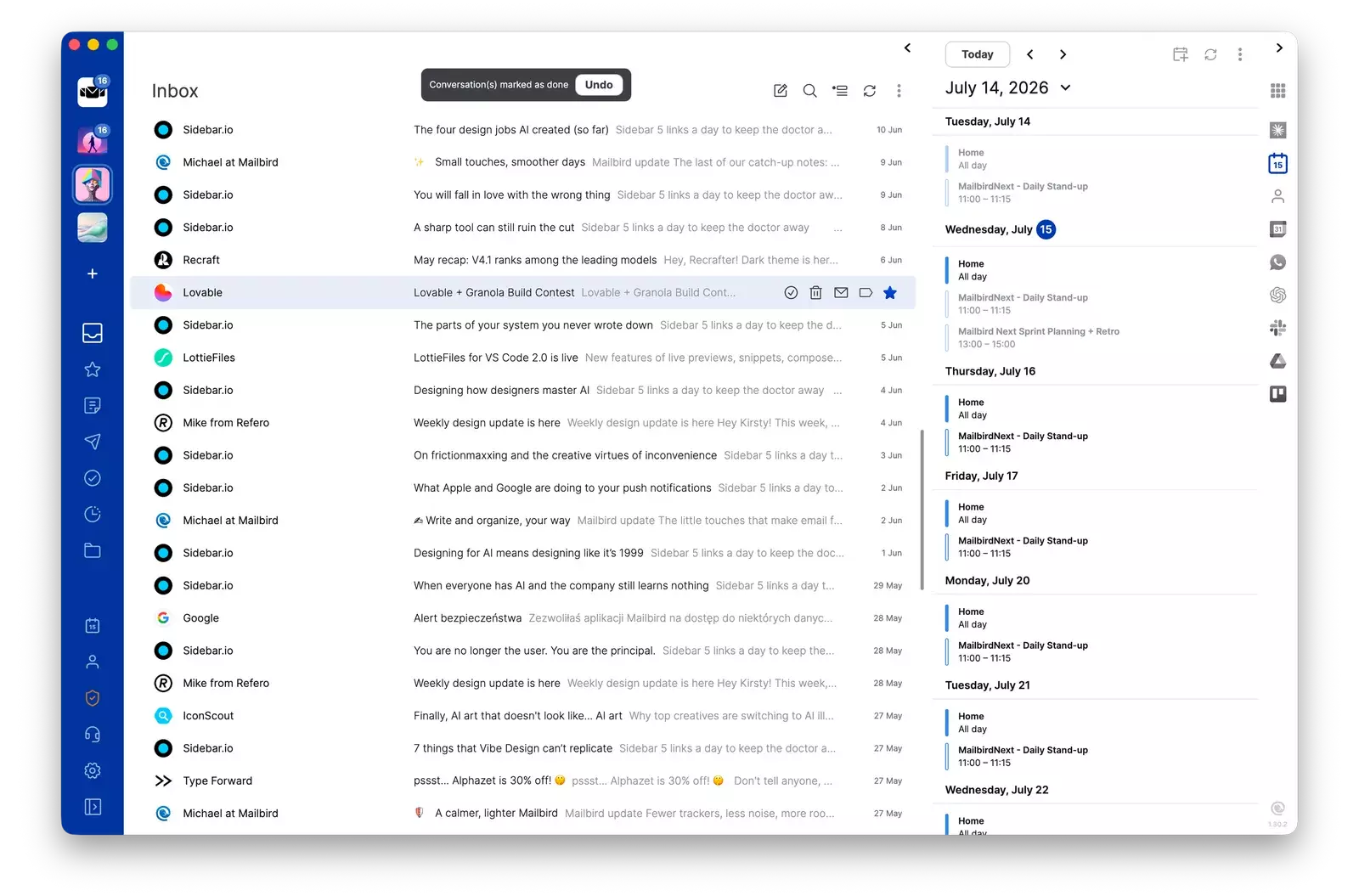
Most of the time you spend in email isn't writing. It's reading, deciding, and moving on. Mailbird Next is built so you can do that quickly: a keyboard shortcut for nearly every triage action, layouts that give the message you're reading the whole screen, and a workspace you can recognize at a glance.
This guide shows how to set those up on Windows or Mac in about ten minutes. The shortcuts, layouts, and themes are all included in the free version.
Clear your inbox from the keyboard
Reaching for the mouse between every message is what makes a long inbox feel slow. Mailbird Next has more than 20 keyboard shortcuts, and a handful of them cover almost everything you do while working down a list.
| What you want to do | Shortcut |
|---|---|
| Archive the conversation and move on | E |
| Undo an archive | Ctrl + Z (⌘ + Z on Mac) |
| Reply, reply all, or forward | R, A, or F |
| Send | Ctrl + Enter (⌘ + Enter on Mac) |
| Send and mark the conversation as done | Ctrl + Shift + Enter (⌘ + Shift + Enter on Mac) |
| Move to a folder | V |
| Star, or mark as important | S, or = |
| Mark as read or unread | Shift + I, or Shift + U |
| Mark as spam | Shift + 1 |
| Search | Ctrl + F (⌘ + F on Mac) |
| Write a new email | C |
A three-key routine for most messages
For each message, make one decision and press one key. If it needs nothing from you, press E and it leaves your inbox. If it needs a quick answer, press R, type your reply right there in the conversation, and send it with Ctrl + Shift + Enter, which sends your reply and archives the conversation in one step. If it needs real work, press S to star it and come back to it later.
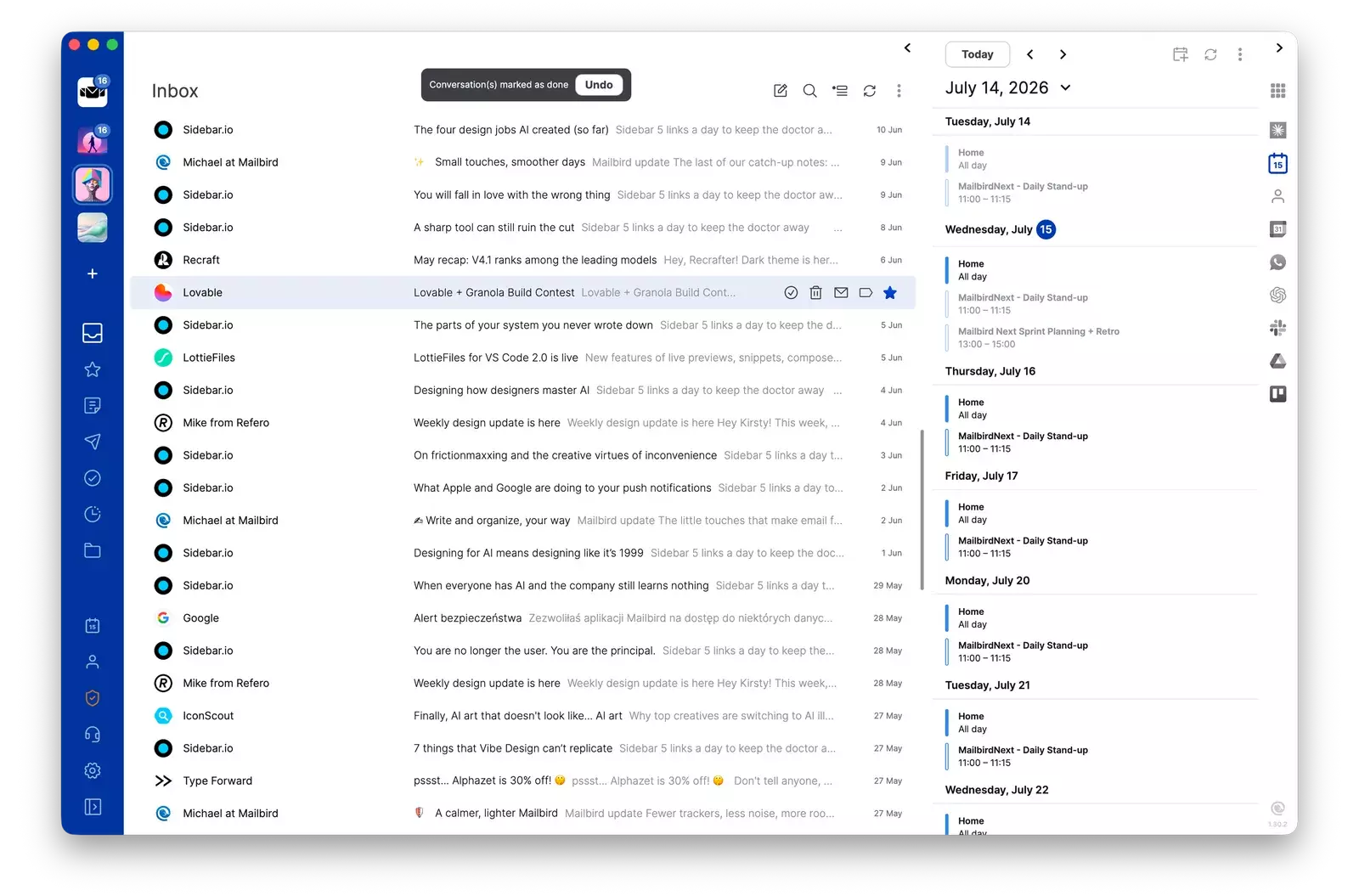
Archiving isn't deleting. The conversation stays in your Archive folder and in your email account, and a quick Undo appears at the top of the inbox if you archive the wrong one.
The full list, including formatting shortcuts for writing, is in Settings under Shortcuts and in the Mailbird Next shortcuts guide. If you also read Gmail in a browser, our Gmail keyboard shortcuts list covers the web version.
Read with fewer distractions
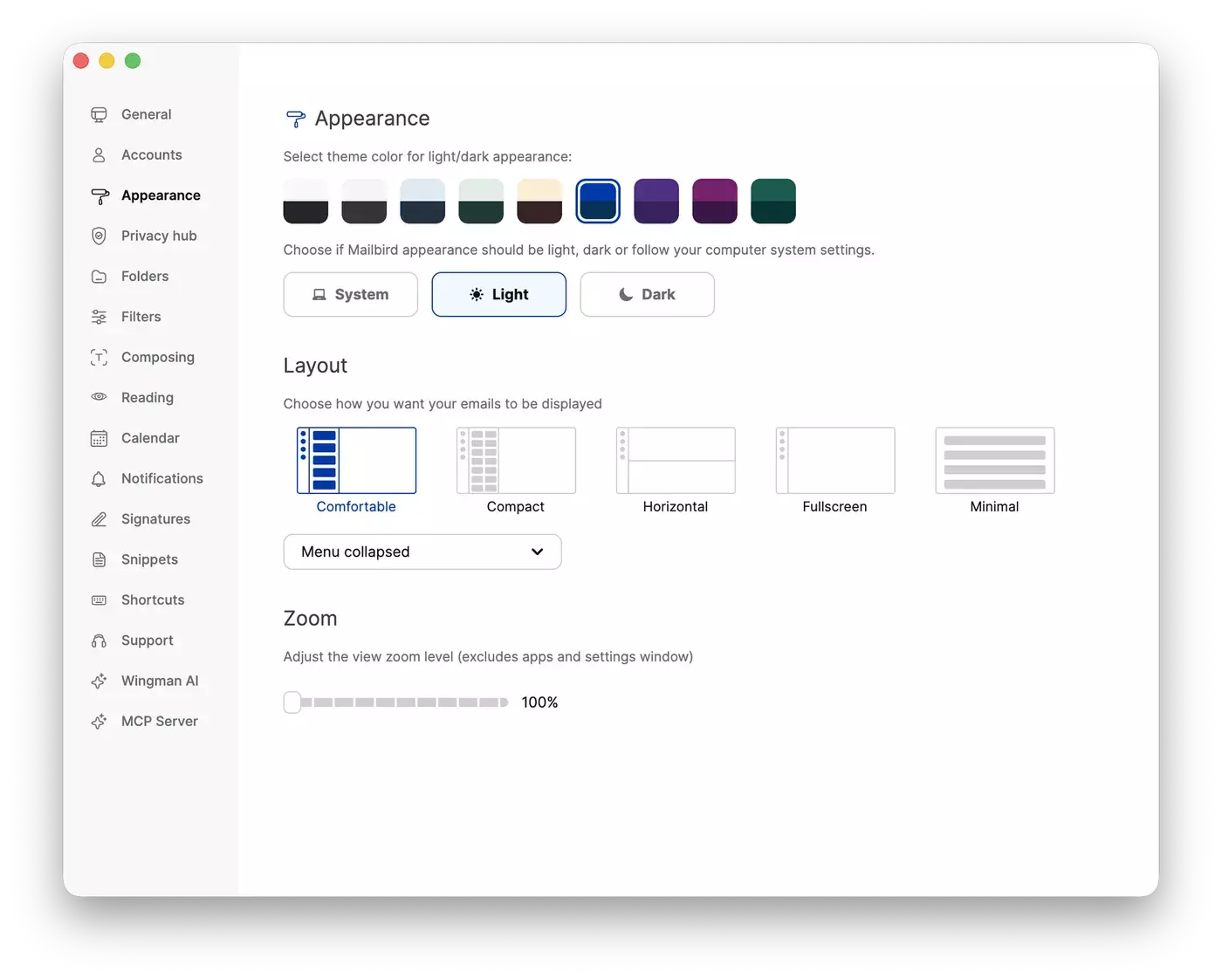
How fast you read an email depends partly on how much else is on the screen. Mailbird Next has five layouts, and you can switch between them in Settings under Appearance.
Fullscreen for long messages
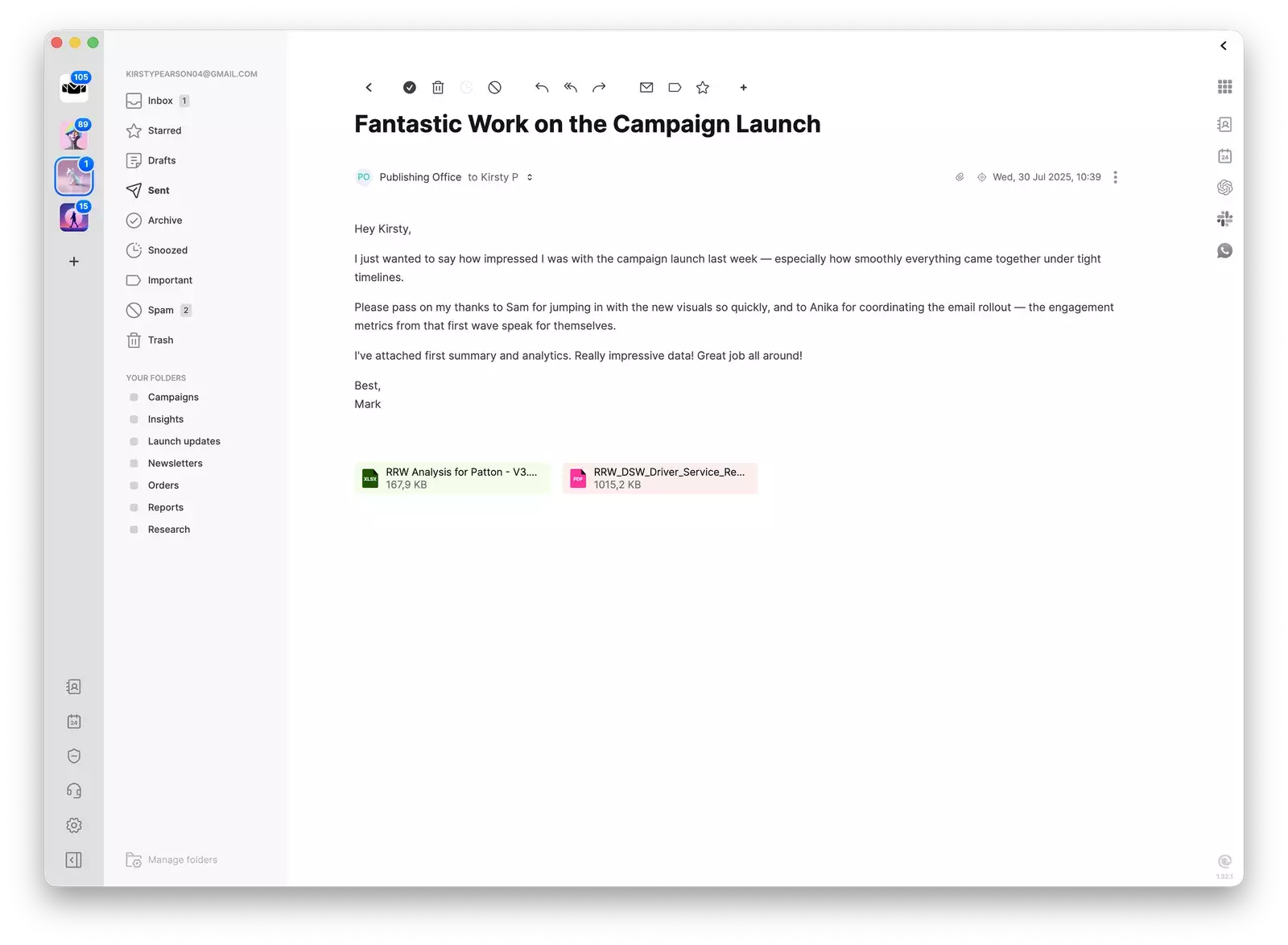
Fullscreen, called Focus Mode in earlier release notes, gives the open message most of the window. It's the layout to use for long threads, reports, and anything you need to read properly rather than skim.
Horizontal for wide screens
Horizontal puts the message below the conversation list, so you keep the whole list in view while you read. It works well on a wide monitor.
Minimal for scanning
Minimal shrinks the app down to the conversation list alone. Use it when you only want to see what has arrived and decide what to open, with nothing else competing for your attention.
Comfortable and Compact
Comfortable and Compact are the column views, with the conversation list beside the message. Compact is the denser of the two, which helps when you're clearing a long backlog.
You can also collapse the left sidebar to give the message more room, or expand it to show your full folder list. To make text larger or smaller without changing your whole computer's settings, use the zoom slider in Settings.
A workspace you can read at a glance
A lot of reading time goes on working out where a message came from and where it belongs. A few personalization settings make that instant.
- Favorite folders: star the folders you use most and they stay pinned at the top of the sidebar.
- Account colors and avatars: if you use more than one email account, give each a color and an image so you can tell at a glance which account a message arrived in, even in the unified inbox.
- Unread first: group unread conversations at the top so new mail is never buried under mail you've already seen.
- Themes and dark mode: pick one of nine color themes, then choose light, dark, or follow your computer's setting.
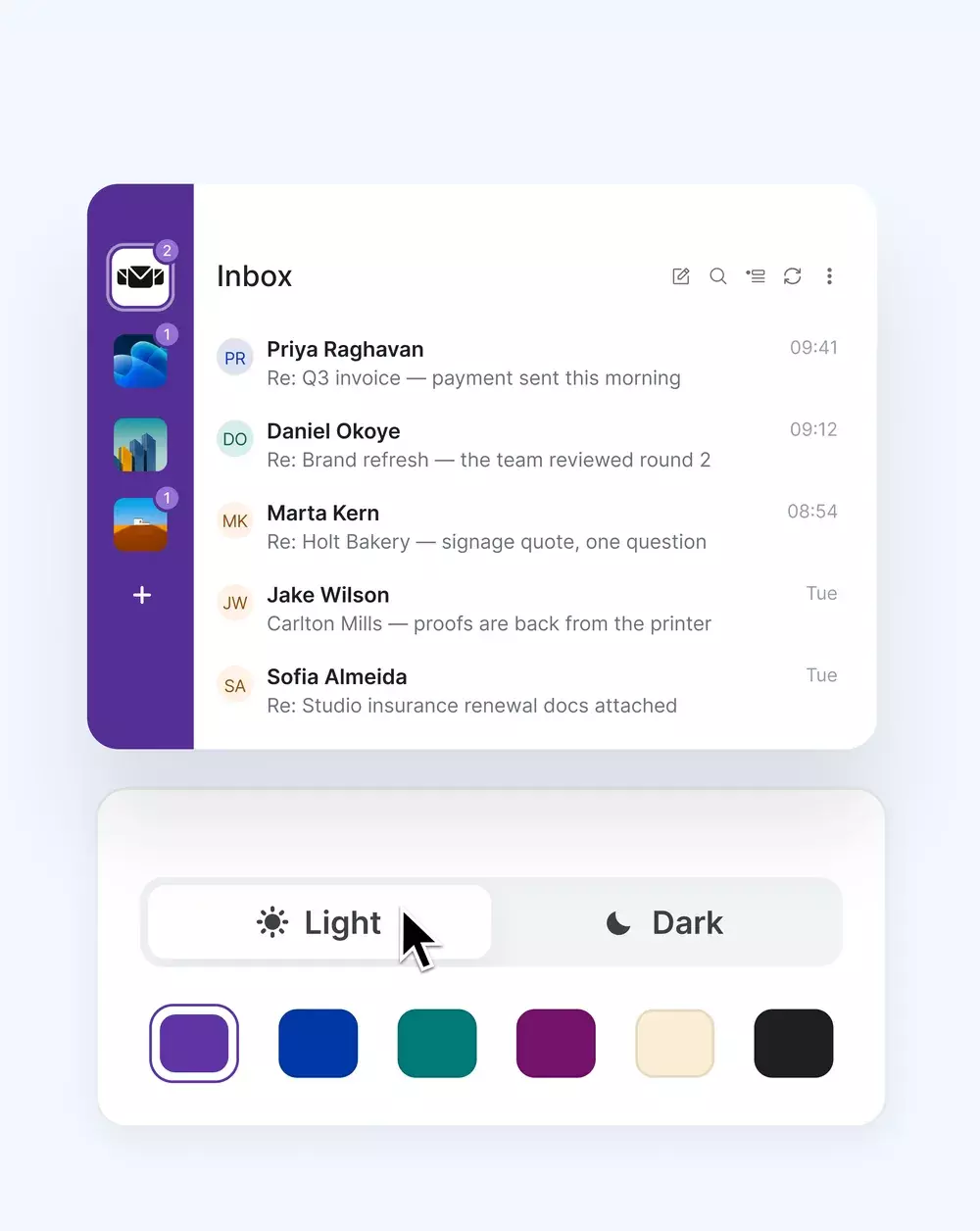
You'll find these in Settings under Appearance, Accounts, and Folders. Support's guide to personalizing your Mailbird Next workspace walks through each one.
Set it up in ten minutes
- Open Settings and go to Appearance. Pick a theme, choose light or dark, and try Fullscreen and Minimal to see which suits the way you read.
- Set the zoom so text is comfortable to read without leaning in.
- In Accounts, give each email account its own color and avatar.
- Star the three or four folders you open most so they sit at the top of the sidebar.
- Turn on unread grouping so new mail always shows first.
- Work through your inbox once using only E, R, and S. After one session, the keys start to feel automatic.
Next, try searching every account at once, which pairs well with Ctrl + F. For the full picture of what's in the app, see our Mailbird Next launch post or the features page.
Frequently asked questions
Are keyboard shortcuts, layouts, and themes included in the free version?
Yes. The 20+ keyboard shortcuts, nine color themes, five layouts, light and dark mode, and zoom are all included in the free version as well as Premium.
Do the same shortcuts work on Windows and Mac?
Yes. Single-key shortcuts like E, R, and S are the same on both. Where Windows uses Ctrl, Mac uses ⌘.
Where can I see every shortcut?
Open Settings and choose Shortcuts, or read the Mailbird Next shortcuts guide.
What happens to an email when I archive it?
It leaves your inbox and moves to your Archive folder. Nothing is deleted, and you can bring it back with Undo or Ctrl + Z (⌘ + Z on Mac).
Which layout is best for reading long emails?
Fullscreen, because it gives the open message most of the window. Switch back to Minimal or Compact when you want to scan and sort.


