Gmail's Privacy Evolution: What Default Settings Mean for Email Tracking in 2026
Gmail has evolved sophisticated privacy protections against email tracking pixels, but the reality is more nuanced than simple blocking claims. This guide explains how Gmail's default settings work, where tracking still occurs, and practical steps to enhance your email privacy in 2026.



If you're concerned about who's tracking your emails and what Gmail does to protect your privacy by default, you're not alone. Millions of professionals and everyday users are discovering that their inbox has become a surveillance point—where invisible tracking pixels silently report back to senders every time you open a message. The anxiety is real: Are marketers watching when I read their emails? Is my location being logged? Can I trust my email provider to protect me?
The good news is that Gmail has significantly evolved its approach to email privacy over the past decade, moving from relatively transparent image loading to sophisticated proxy systems and, most recently, to actively blocking tracking pixels in suspicious emails. But the reality is more nuanced than a simple "Gmail blocks tracking" headline. Understanding what Gmail does by default—and what it doesn't—is essential for anyone who values their privacy in 2026.
This comprehensive guide explores how Gmail's default privacy settings actually work, what they mean for tracking pixels, and how you can take additional control of your email privacy. We'll examine the technical mechanisms Gmail uses, the situations where tracking still happens, and practical steps you can take to protect yourself—including how dedicated email clients like Mailbird can complement Gmail's built-in protections.
Understanding Email Tracking Pixels: The Invisible Surveillance in Your Inbox
Before diving into Gmail's defenses, it's important to understand exactly what you're being protected from. Email tracking pixels are tiny, typically 1×1-pixel transparent images embedded in HTML emails that load from remote servers controlled by the sender. When your email client downloads this invisible image, the sender's server logs that you opened the email, often capturing your IP address, device type, email client, and timestamp.
According to InboxMonster's comprehensive tracking pixel guide, these pixels function as "one-trick ponies" whose primary purpose is to signal that an email has been opened. Unlike web cookies that follow you across sites, tracking pixels fire only when your email client loads the image—making them discrete measurement points rather than continuous trackers.
However, the privacy concerns are substantial. While tracking pixels cannot directly access your inbox contents or read other messages, they tie your identity to behavioral data that marketers use for profiling, segmentation, and targeting. InboxMonster notes that many platforms augment pixel-generated data with device type, email client, and approximate geolocation inferred from IP addresses—information that can be used to personalize content but also raises regulatory and ethical concerns when performed without clear consent.
Modern Tracking Goes Beyond Traditional Pixels
The tracking ecosystem has evolved beyond simple 1×1 pixels. Mailbird's analysis of email tracking techniques reveals that modern marketing emails may contain multiple invisible images, emoji assets loaded from distinct domains, and CSS or HTML attributes that enable device fingerprinting. Each of these elements can contribute to a composite tracking profile, even if traditional tracking pixels are blocked.
For example, apparently innocent decorative emojis can function as tracking resources if each icon is served from a URL unique to the recipient or segment. This means that simply blocking conventional tracking pixels, while important, does not fully address the broader privacy risks posed by HTML email—particularly when combined with behavioral analytics and AI-driven personalization systems.
The Legal Landscape of Email Tracking
The regulatory environment around email tracking varies significantly by region. InboxMonster's guide emphasizes that in the European Union, United Kingdom, Canada, and Australia, marketers generally need explicit consent for tracking pixels in marketing emails. In the United States, disclosure is strongly encouraged but consent may not be legally mandated, illustrating the global regulatory diversity that providers like Gmail must navigate.
Adding to this regulatory pressure, the U.S. Federal Trade Commission has signaled increasing concern about the use of tracking pixels to collect data from consumers without clear disclosure. The FTC has warned that combining pixel-based surveillance with manipulative interface designs and opaque AI profiling may violate consumer protection laws—creating additional incentive for platforms like Gmail to adjust default behaviors in ways that reduce stealth tracking.
Gmail's Privacy Evolution: From Transparent Loading to Conditional Blocking

Gmail's approach to email privacy and tracking has undergone a dramatic transformation over the past decade. Understanding this evolution helps explain why Gmail's current behavior is more sophisticated—and more protective—than many users realize.
The 2013 Shift: Image Proxying and Security Scanning
In December 2013, Google announced a fundamental change to how Gmail handles images. According to Gmail's official blog post, instead of loading images directly from their original external host servers, Gmail began serving all images through Google's own secure proxy infrastructure.
This architectural shift had two major privacy implications: First, it allowed Google to scan images for malware and other threats before delivering them to users. Second, it meant that tracking pixel requests would generally be made by Google's servers rather than directly from the user's device—thereby obscuring the recipient's IP address and standardizing certain user agent characteristics from the sender's perspective.
The combination of automatic image display and image proxying created a paradox for tracking: It made it more likely that pixels would load (because users no longer needed to manually approve images for most messages), but it reduced the granularity of location and device information available to senders because Google's proxy masked the direct connection from the user's device to the sender's server.
Gmail's Current Default Settings in 2026
Google's official Gmail help documentation confirms that by default, Gmail automatically displays external images in emails, relying on Google's secure proxy to serve those images after scanning them for potential threats. Users who prefer a more restrictive approach can change this setting by navigating to Gmail's "See all settings" interface, scrolling to the "Images" section, and selecting "Ask before displaying external images."
Crucially, the default setting is not "off" but "always display external images"—meaning that absent user intervention, Gmail will attempt to load images, including tracking pixels, for most messages that are not otherwise flagged as suspicious or spam.
However, this is where Gmail's behavior becomes more nuanced and protective than many realize. Gmail's spam and scam detection systems now play a central role in determining whether tracking pixels are allowed to function.
The New Reality: Conditional Blocking Based on Email Type
Recent industry analysis reveals that Gmail has moved beyond simple image proxying to actively blocking tracking pixels in certain contexts. WhiteLabelIQ's research on Gmail's tracking pixel blocking shows that Gmail now routinely hides images and blocks tracking pixels in cold outreach emails it flags as suspicious, preventing senders from reliably knowing whether their emails were opened.
Emfluence's parallel analysis confirms that there is clear evidence of Gmail blocking tracking pixels in cold outreach emails sent without prior consent—many of which end up in spam folders—while continuing to allow tracking pixels in legitimate, permission-based marketing campaigns and newsletters.
This means that Gmail's "default" behavior is effectively dual:
- For consent-based campaigns (newsletters, transactional emails, messages from known senders): Images and tracking pixels generally load normally through Gmail's proxy
- For unsolicited cold outreach (prospecting emails, mass campaigns to recipients who haven't opted in): Gmail may hide images and block tracking pixels as part of spam mitigation
This conditional approach protects users from stealth tracking in unwanted emails while preserving legitimate marketing measurement where consent has been established.
Smart Features and Server-Side Analysis: The Privacy Trade-Offs You Need to Know

While Gmail's tracking pixel protections are significant, there's another dimension of Gmail privacy that many users don't fully understand: Gmail's "smart features" that rely on server-side analysis of your email content.
What Gmail's Smart Features Actually Do
Google's official documentation on smart features explains that when users turn on smart features, Gmail can automatically add events from email (such as flight itineraries and invitations) to Google Calendar, offer personalized search across products like Drive, and enable Gemini-powered capabilities such as summarizing content, drafting responses, and extracting key information from emails.
The critical point: This processing happens on Google's servers, regardless of which email client you use to access Gmail. As Mailbird's analysis of Gmail's privacy trade-offs explains, using a third-party email client like Mailbird does not prevent Gmail's server-side analysis of your email content because Gmail's smart features operate independently of the client application.
Consent, Control, and What You Can Actually Change
Google's smart feature documentation makes clear that this processing is governed by user consent: smart features are controlled by settings toggles, and when users enable them, Google may use their "Content & Activity" both to deliver those features and to improve them over time.
This creates an important distinction for privacy-conscious users:
- Third-party tracking pixels (operated by marketers and senders) can be blocked at the client level by tools like Mailbird
- Gmail's own analysis (for smart features, spam detection, and AI capabilities) operates at the server level and is controlled through your Google account settings, not your email client
Mailbird emphasizes that privacy-conscious users should treat Gmail account settings—particularly smart feature toggles and image-loading preferences—as part of their privacy posture, alongside client-side tools like remote content blocking.
AI-Powered Scam Detection and Cross-Platform Analysis
Google has also extended its privacy and security efforts beyond email into broader ecosystem features. Google's Pixel scam detection help page explains that Pixel phones can analyze message notifications from supported apps to identify likely scams, showing "Likely scam" warnings with red icons and offering options to mark messages as scams or not scams.
While this feature doesn't directly relate to tracking pixels in Gmail, it signals that Google is investing in cross-channel risk analysis that could conceptually align with Gmail's detection of suspicious email patterns, including mass unsolicited outreach containing tracking elements.
Why Blocking Tracking Pixels Alone Isn't Enough
Even with Gmail's improved default protections, relying solely on Gmail's automatic defenses leaves significant privacy gaps. Understanding these limitations is crucial for anyone serious about email privacy.
Tracking Techniques Beyond Traditional Pixels
Mailbird's analysis of tracking pixel limitations argues that while blocking remote images in an email client can prevent traditional tracking pixels from firing, it does not fully protect users from modern tracking techniques embedded in email content.
Blocking remote images primarily neutralizes 1×1 transparent pixels and other externally hosted images, but it does not stop:
- Device fingerprinting via CSS and HTML attributes that reveal rendering environment, screen resolution, and font availability
- Emoji-based tracking where decorative elements are loaded from external servers with unique URLs for each recipient
- Link-based tracking that occurs when you click any link in an email, often revealing far more information than a simple open
- Read receipt requests and other email protocol features that can signal engagement
Mailbird's research on emoji tracking reveals that because email clients often treat emojis and decorative images as part of the content rather than as explicit tracking elements, users may not realize that remote requests to load these assets are being used to infer opens and engagement, even if more obvious tracking pixels are blocked.
How to Detect Hidden Tracking in Your Emails
For users who want to understand exactly how they're being tracked, Gblock's technical guidance for Gmail users demonstrates that many tracking patterns can be detected by manually inspecting email source using Gmail's "Show original" feature.
Look for these telltale signs of tracking:
- Strings like "track," "pixel," "beacon," "open," "1x1," or "display:none" in the email source
- External image tags pointing to known tracking domains like HubSpot's sidekickopen, Mailchimp's mandrillapp, or Salesforce Marketing Cloud's tracking endpoints
- Image URLs with long query strings containing unique identifiers or encoded recipient information
- Multiple external image requests to analytics or marketing automation platforms
Gblock recommends browser extensions such as Gblock, PixelBlock, Ugly Email, or Trocker to stop pixel fires before they reach the sender's server. These tools work alongside Gmail's protections to provide additional layers of defense.
Practical Protection Strategies: Taking Control of Your Email Privacy
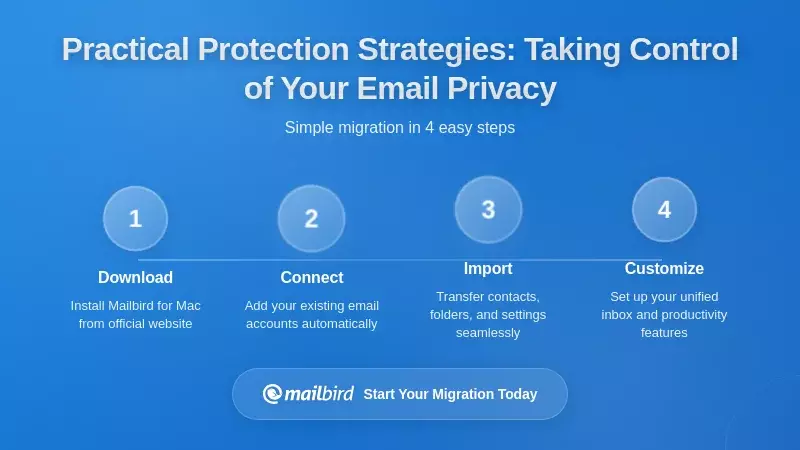
Understanding Gmail's default protections is just the first step. Here's how to build a comprehensive email privacy strategy that goes beyond what Gmail does automatically.
Step 1: Configure Gmail's Built-In Privacy Settings
Start by reviewing and adjusting Gmail's own settings:
- Image loading preferences: Navigate to Gmail settings and consider switching from "Always display external images" to "Ask before displaying external images" for maximum control
- Smart features: Review your smart features settings and disable any that you don't actively use or that make you uncomfortable
- Mobile settings: Check image-blocking settings in the Gmail mobile app, which may have separate controls from the web interface
Step 2: Add Client-Level Protection with Mailbird
While Gmail's server-side protections are valuable, using a dedicated email client like Mailbird provides an additional layer of privacy control that operates independently of Gmail's defaults.
Mailbird offers several privacy advantages:
- Unified remote content blocking: Disable automatic image loading across all your email accounts (Gmail, Outlook, Yahoo, etc.) from a single interface
- Consistent privacy rules: Apply the same privacy preferences across multiple email providers without managing separate settings for each
- Local processing: Handle email rendering and management on your device rather than relying entirely on cloud-based processing
- Granular control: Choose which senders or domains you trust to load images, creating a whitelist approach to remote content
Mailbird's privacy-focused approach complements Gmail's protections by giving you control at the point where emails are actually rendered and displayed. This means that even if Gmail's spam filters don't catch a suspicious email, Mailbird can still prevent tracking pixels from firing.
Step 3: Manage Subscriptions and Email Relationships
The most effective long-term privacy strategy is to reduce the number of tracked emails you receive in the first place:
- Unsubscribe aggressively: Use Gmail's built-in unsubscribe feature or tools like Mailbird's unified inbox to identify and remove unwanted marketing subscriptions
- Be selective with consent: Only opt in to marketing emails from organizations you genuinely trust and want to hear from
- Use email aliases: Create separate email addresses for shopping, newsletters, and personal correspondence to compartmentalize tracking
- Review periodically: Set a quarterly reminder to audit your subscriptions and remove any that no longer provide value
Step 4: Consider Browser Extensions for Web-Based Email
When accessing Gmail through a web browser, browser extensions can provide real-time tracking detection and blocking. Tools recommended by Gblock include:
- Gblock: Automatically blocks tracking pixels and notifies you when emails contain tracking
- PixelBlock: Shows a red eye icon next to emails with tracking pixels
- Ugly Email: Marks tracked emails with a distinctive icon in your inbox
- Trocker: Provides detailed information about tracking attempts
These tools work alongside Gmail's protections and Mailbird's client-side blocking to create a multi-layered defense against email tracking.
What Gmail's Changes Mean for Email Senders and Marketers
If you send marketing or sales emails through Gmail—whether using Gmail's interface or a client like Mailbird—understanding Gmail's new tracking pixel behavior is critical for campaign success.
The New Reality of Cold Outreach
WhiteLabelIQ's analysis makes clear that Gmail's blocking of tracking pixels in unsolicited emails has made open-rate data unreliable or unavailable for many prospecting campaigns, especially those targeting consumer Gmail addresses.
When Gmail blocks tracking pixels in cold outreach:
- Senders cannot see whether emails were opened
- A/B testing based on open rates becomes ineffective
- Automated follow-up sequences triggered by opens don't work
- Lead scoring based on open behavior loses accuracy
Emfluence warns that tools built around open tracking for cold emails may lose much of their functionality when Gmail suppresses pixels, forcing teams to rely more heavily on clicks, replies, and downstream conversions to infer engagement.
Permission-Based Campaigns Still Work
The good news: Emfluence's research confirms that Gmail still allows tracking pixels in legitimate, permission-based email marketing campaigns and newsletters, which typically land in the Promotions tab rather than spam.
To maintain tracking functionality:
- Build opt-in lists: Focus on growing permission-based email lists where recipients have explicitly consented to receive your messages
- Maintain sender reputation: Use authenticated sending domains, consistent sending patterns, and high-quality content to build trust with Gmail's filters
- Be transparent: InboxMonster recommends being upfront in privacy policies and email footers about tracking, noting that silence is a "trust-killer" and subscribers increasingly expect clear disclosures
- Limit tracking elements: Avoid stuffing emails with multiple tracking pixels, as spam filters are primed to flag messages laden with hidden tracking elements
The Shift to Multi-Metric Engagement Measurement
InboxMonster's guidance advises marketers to treat pixel data as "directional signals" rather than precise metrics and to combine opens with clicks, replies, and on-site behavior to form a more complete picture of campaign performance.
This shift was already underway due to Apple's Mail Privacy Protection, which preloads remote images through Apple proxies and obscures open timing and location. Gmail's new pixel blocking in cold outreach accelerates this trend by removing open data altogether in some contexts, especially where consent is absent.
Regulatory Compliance and Ethical Considerations
Gmail's evolution toward blocking tracking pixels in unsolicited emails reflects broader regulatory and ethical trends that all email users and senders should understand.
Global Legal Requirements for Email Tracking
InboxMonster's comprehensive guide provides clear regional breakdowns:
- European Union, United Kingdom, Canada, Australia: Senders generally need explicit consent for email tracking pixels in marketing emails, reflecting GDPR, UK GDPR, CASL, and Australian Privacy Act requirements
- United States: Disclosure is strongly encouraged but consent may not be legally mandated, though the FTC is increasing scrutiny of tracking practices
By aligning its default behavior with permission-based tracking, Gmail reduces the risk that its infrastructure is used to facilitate non-compliant tracking, especially in jurisdictions with strict consent requirements.
FTC Scrutiny of Pixel Tracking and Dark Patterns
The Blacklist Alliance's analysis of FTC focus reveals that U.S. regulators are becoming more attentive to pixel tracking, particularly where it intersects with dark patterns and AI-driven personalization.
The FTC has signaled concern about:
- Using tracking pixels to collect data without clear disclosure
- Combining pixel-based surveillance with manipulative interface designs
- Exploiting behavioral data through opaque AI profiling
- Circumventing users' privacy expectations through technical means
Gmail's blocking of tracking pixels in unsolicited emails can be seen as a platform-level response to these concerns, helping to protect users from stealth tracking and aligning Gmail's defaults with emerging expectations around privacy and consent.
Ethical Best Practices for Organizations
Beyond legal compliance, organizations should adopt ethical practices around email tracking:
- Transparency: Clearly disclose tracking in privacy policies and email footers
- Minimal tracking: Use only the tracking necessary for legitimate business purposes
- Respect preferences: Honor unsubscribe requests promptly and respect "Ask before displaying images" settings
- Data security: Protect tracking data with appropriate security measures
- Purpose limitation: Use tracking data only for the purposes disclosed to recipients
Mailbird's content implicitly advocates for responsible communication strategies by highlighting the risks of over-tracking and encouraging users to become more informed about how their email behavior is monitored.
The Future of Email Privacy: What's Coming Next
Gmail's current approach to tracking pixels represents a significant evolution, but the email privacy landscape continues to change rapidly.
AI-Powered Privacy and Scam Detection
Google's smart features documentation references Gemini and AI-powered capabilities like summarizing content and finding key information, suggesting that Gmail is moving toward more sophisticated AI analysis of email content.
This AI evolution has both privacy benefits and concerns:
- Benefits: More accurate spam and scam detection, better identification of tracking-heavy emails, improved user protections
- Concerns: Deeper analysis of email content, potential for AI-driven profiling, questions about how AI training data is used
The Blacklist Alliance warns that combining pixel tracking with AI-driven dark patterns can be particularly harmful, as AI systems may exploit user data to personalize manipulative experiences. Gmail's move to block tracking pixels in unsolicited emails can be seen as a defensive measure that limits the raw data available to potentially exploitative AI systems.
Broader Industry Trends
Gmail's changes are part of a broader industry movement toward privacy-protective defaults:
- Apple's Mail Privacy Protection: Continues to expand, affecting open-rate reliability across all email providers
- Browser privacy features: Increasing restrictions on third-party cookies and tracking scripts
- Regulatory pressure: More jurisdictions adopting comprehensive privacy laws
- User expectations: Growing demand for transparency and control over personal data
For email users, this means that privacy protections will likely continue to strengthen, but users should remain vigilant and use multiple layers of protection rather than relying on any single provider's defaults.
Mailbird's Role in the Evolving Privacy Landscape
As email privacy continues to evolve, dedicated email clients like Mailbird will play an increasingly important role in giving users direct control over their privacy:
- Client-side processing: Local rendering and management of emails reduces dependence on cloud-based analysis
- Unified privacy controls: Consistent privacy settings across multiple email providers
- Advanced filtering: More sophisticated rules for handling remote content and tracking elements
- Privacy-focused features: Continued development of tools that put users in control of their data
Mailbird's approach emphasizes that privacy is a shared responsibility between the email provider, the client application, and the user's own choices—and that the best protection comes from understanding and actively managing all three layers.
Frequently Asked Questions
Does Gmail automatically block all email tracking pixels by default?
No, Gmail's approach is more nuanced. According to industry analysis, Gmail now blocks tracking pixels in cold outreach emails that it flags as suspicious or spam, but continues to allow tracking pixels in legitimate, permission-based marketing campaigns such as newsletters. Gmail's default setting is still to display external images (through its proxy), but the system performs risk assessment on each message and can override this behavior when spam detection thresholds are met.
Can I completely prevent email tracking if I use Gmail?
While Gmail's protections are significant, Mailbird's research shows that blocking tracking pixels alone isn't enough to prevent all forms of email tracking. Modern tracking techniques include emoji-based tracking, device fingerprinting, link tracking, and other methods that go beyond traditional 1×1 pixels. For comprehensive protection, you should combine Gmail's built-in features with client-side blocking (using tools like Mailbird), browser extensions for web-based email, and careful management of which senders you trust. Changing Gmail's settings to "Ask before displaying external images" provides additional control.
Does using Mailbird instead of Gmail's web interface provide better privacy?
Mailbird provides complementary privacy protections that work alongside Gmail's server-side features. According to Mailbird's analysis, using Mailbird gives you client-side control over remote content loading, allowing you to block tracking pixels even in emails that Gmail's spam filters don't catch. However, Mailbird cannot prevent Gmail's server-side analysis of email content for smart features and security scanning—that processing is controlled by your Google account settings, not your email client. The best approach is to configure both Gmail's privacy settings and Mailbird's remote content blocking for layered protection.
Will Gmail's tracking pixel blocking affect my legitimate marketing campaigns?
Industry research from Emfluence confirms that Gmail still supports tracking pixels in legitimate, permission-based email marketing campaigns and newsletters. The key factors are: building opt-in email lists where recipients have explicitly consented, maintaining good sender reputation through authenticated domains and consistent sending patterns, and being transparent about tracking in your privacy policy. InboxMonster recommends limiting the number of tracking pixels in each email and avoiding practices that trigger spam filters, such as hidden elements or excessive tracking URLs.
What are Gmail's "smart features" and how do they affect my privacy?
According to Google's official documentation, Gmail's smart features include automatic event extraction (adding flights and reservations to Calendar), personalized search across Google products, and AI-powered capabilities like email summarization and response drafting. These features require Google to analyze your email content on its servers, and this processing happens regardless of which email client you use to access Gmail. Mailbird explains that you can control these features through your Google account settings by adjusting smart features toggles, but using a different email client doesn't prevent this server-side analysis—only changing your Google account settings does.
How can I detect if an email contains tracking pixels?
Gblock's technical guide recommends using Gmail's "Show original" feature to inspect the raw email source code. Look for telltale signs like strings containing "track," "pixel," "beacon," "open," "1x1," or "display:none," as well as external image tags pointing to known tracking domains like HubSpot, Mailchimp, or Salesforce Marketing Cloud endpoints. Image URLs with long query strings containing unique identifiers are also strong indicators of tracking. For easier detection, browser extensions like Gblock, PixelBlock, Ugly Email, or Trocker can automatically identify and block tracking pixels when you access Gmail through a web browser. Mailbird's remote content blocking can also prevent these pixels from loading in the first place.
Are there legal requirements for email tracking in different countries?
InboxMonster's comprehensive guide explains that legal requirements vary significantly by region. In the European Union, United Kingdom, Canada, and Australia, senders generally need explicit consent for tracking pixels in marketing emails under GDPR, UK GDPR, CASL, and the Australian Privacy Act. In the United States, disclosure is strongly encouraged but consent may not be legally mandated, though the FTC is increasing scrutiny of tracking practices, particularly when combined with dark patterns or AI-driven manipulation. Organizations sending international emails should comply with the strictest applicable requirements to ensure legal compliance across all jurisdictions.
What's the difference between Gmail's image proxy and blocking tracking pixels?
Gmail's image proxy, introduced in 2013, routes all external images through Google's servers to scan for malware and cache content. This proxy obscures your IP address from senders but still allows tracking pixels to register opens—just with less precise location data. The newer behavior of blocking tracking pixels in suspicious emails goes further: Gmail actively prevents the pixels from loading at all in cold outreach emails it flags as spam, completely eliminating the sender's ability to track opens. So the image proxy is always active for legitimate emails, while pixel blocking is applied selectively based on Gmail's spam detection algorithms.


