How to Make Your Outlook Calendar Private
To hide Outlook calendar details while still showing when you’re busy, set calendar viewers to free/busy access. To protect one appointment, mark that event Private. Check named viewers and delegates separately: changing a default permission does not necessarily change the access they already have.



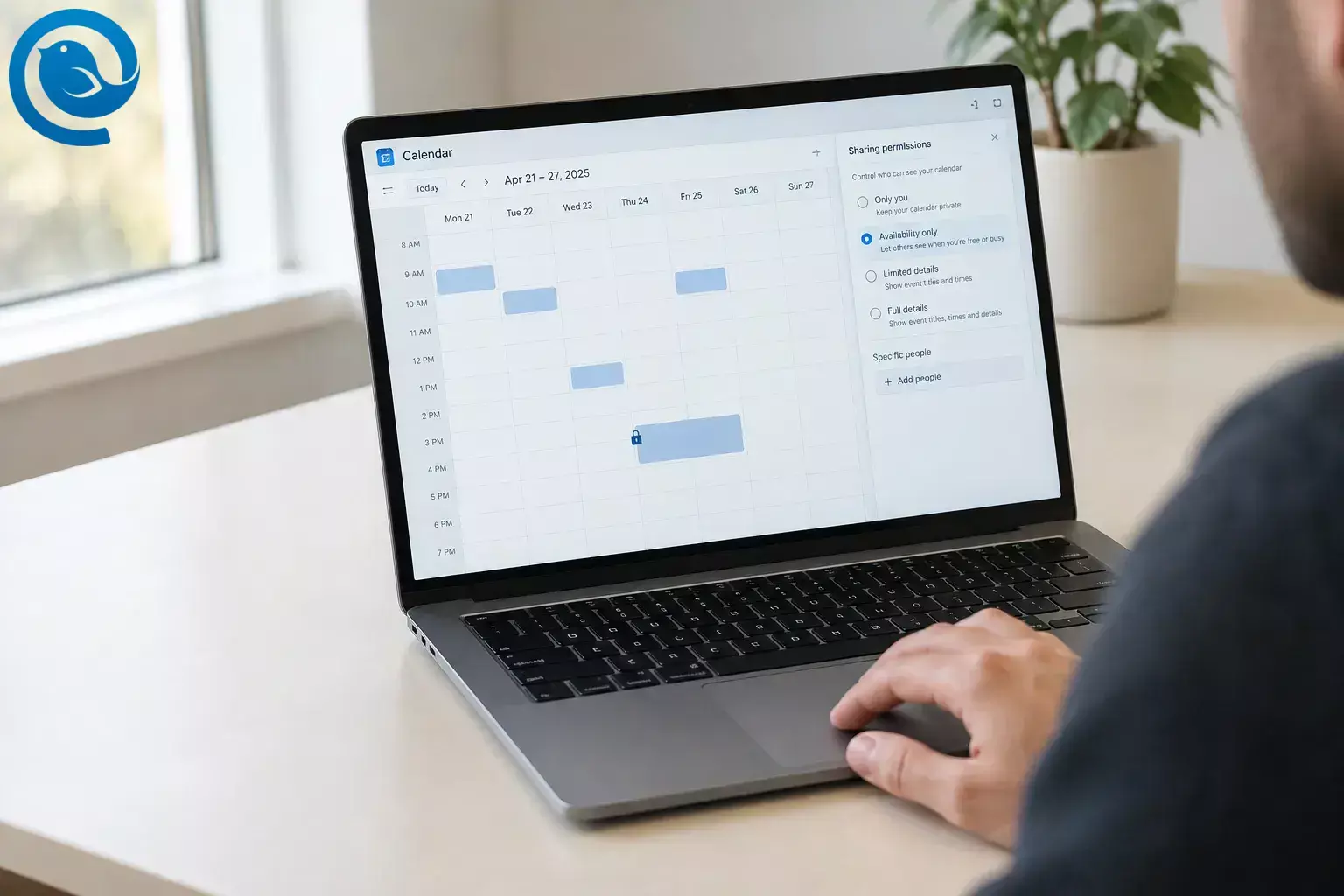
To hide Outlook calendar details while still showing when you’re busy, set calendar viewers to free/busy access. To protect one appointment, mark that event Private . Check named viewers and delegates separately: changing a default permission does not necessarily change the access they already have. [2, 5, 6]
Quick checklist
- ☐ I opened the calendar I own.
- ☐ I set the organization-wide permission to free/busy, if available.
- ☐ I checked permissions for each named person.
- ☐ I checked whether delegates can view private events.
- ☐ I marked sensitive events Private and set Busy where needed.
- ☐ I checked recurring events and published links.
- ☐ I confirmed what an ordinary calendar viewer sees.
Before you start
- You’ll need: Access to the Outlook account that owns the calendar. A desktop browser is a useful fallback if your app’s menus look different.
- Time: A few minutes for one calendar; allow longer if you have several calendars or delegates to review.
- Important: “Private” does not mean invisible. Invited attendees can still see meeting details, and a delegate you have allowed to view private events can see them too. [2, 6]
Hide calendar details with free/busy sharing
Calendar permissions control what people can see across a calendar. Free/busy access lets them see your availability without showing event titles, locations, or notes. [5, 8]
Hide calendar details with free/busy sharing
-
Choose the calendar you own
Open Calendar and find the calendar containing the events you want to protect. If you have separate work, personal, or additional calendars, check sharing on each one.
-
Open its sharing permissions
In new Outlook for Windows , choose Calendar → Home → Share calendar . In classic Outlook for Windows , choose Calendar → Folder → Calendar Properties → Permissions . In Outlook on the web , right-click your calendar under Calendars and choose Sharing and permissions ; Share calendar on the toolbar is another route. Confirm that the panel names the calendar you meant to edit. [3, 5]
-
Set the organization-wide default to free/busy, if available
For a work or school calendar, find My Organization or Default in the permissions list. Set it to Can view when I’m busy or, in classic Outlook, Free/Busy time . Save or close the panel. If you do not see an organization-wide entry, do not add a person just to complete this step. [4, 5]
-
Check each person with individual access
Inspect the named people in the same permissions list. Change someone who only needs scheduling information to Can view when I’m busy , or select Remove if they no longer need access. Changing My Organization does not replace a separate permission granted to an individual. [5]
-
Review delegate access
In new Outlook or Outlook on the web, open the delegate’s entry and check whether Let delegate view private events is selected. In classic Outlook, go to File → Account Settings → Delegate Access , select the delegate, and choose Permissions . Clear Delegate can see my private items if that access is unnecessary. [6]
Make an Outlook appointment private
Use the Private setting for a particular event. This is separate from the calendar-wide sharing permissions above. [2, 5]
-
Mark the event Private
Open an event you created. In new Outlook , choose Private on the Event tab, then save or send the meeting update. In classic Outlook , choose Private in the Tags group, then Save & Close . In Outlook on the web , open the full event form and look for Private . Check for a lock symbol on the saved event. [2]
-
Set the event to Busy if it should block your time
While editing, check the event’s availability setting and choose Busy if you want that time to appear occupied. Private controls access to the event’s details; availability controls whether the time shows as busy or free. [2, 7]
-
Check recurring events separately
For a recurring appointment, confirm whether you are editing one occurrence or the entire series. Mark the intended occurrence or series private, save it, and check the result in Calendar. People who can see a private recurring series may still see its recurrence pattern. [3]
Check other ways your calendar may be visible
-
Look for a published calendar link
In Outlook on the web, open Settings → Calendar → Shared calendars and inspect Publish a calendar . If a calendar you meant to restrict is published, select Unpublish . Published HTML or ICS links are separate from a coworker’s individual permission. [3]
-
Check what someone else sees
Ask a trusted coworker with ordinary viewing access to open your calendar and check a test event. They should see your availability, not its title, location, or notes. If details remain visible, recheck their individual permission, the organization-wide setting, and any delegate access. A change made in some Outlook apps may take time to reach the recipient’s copy. [5, 6]
Troubleshooting
- A coworker still sees event titles: Open their named permission and change it to Can view when I’m busy if they do not need details. [5]
- A delegate sees a private event: Check whether private-event access is enabled in their delegate permissions. [6]
- You cannot find “My Organization”: Check that you opened your primary work calendar. If the entry is still absent, review the named people instead. [4, 5]
- “Share calendar” is unavailable: Your organization may restrict sharing. Ask your IT team which permission changes your account can make. [8]
- Colleagues book over a private event: Edit its availability and choose Busy . The Private setting alone does not set availability. [2, 7]
- Someone still sees an old view: Ask them to reopen the shared calendar . If details remain visible, recheck permissions rather than assuming it is only a delay. [5]
- Your menus look different: Try the Outlook on the web route, or use the classic Outlook instructions if your Windows app has a File tab. [2, 3]
Microsoft updates shared-calendar behavior. If a control has moved, check the access level in your calendar’s current sharing or permissions panel. [1]
Common situations
- Hide just one appointment: Mark that event Private . Check delegate access too if the event is sensitive. [2, 6]
- Let a teammate schedule around you: Give them Can view when I’m busy rather than access to event details. [8]
- Use a personal Outlook.com account: Open Calendar , right-click your calendar, choose Sharing and permissions , and adjust or remove each person’s access. A personal account does not have a work organization-wide default to review. [9]
- Manage several calendars: Repeat the permission check for each calendar; changing one does not change the others.
Frequently Asked Questions
How do I hide my Outlook calendar details but still show when I’m busy?
Set the organization-wide permission, if present, to Can view when I’m busy . Check named people separately for broader access. [4, 5]
Does marking an Outlook appointment private hide the time?
No. Private hides event details from most calendar viewers, not the time slot. If the event is set to Busy , people with free/busy access can still see when you’re occupied. [2, 7]
Can an Outlook delegate see private appointments?
Yes, if you have allowed that delegate to view private events. Check their permissions before relying on the Private setting. [6]
Can meeting attendees see an event I marked private?
Yes. Private limits what other calendar viewers can see; it does not hide meeting details from invited attendees. [2]
Where is the Private button in new Outlook?
Open an event you created for editing, select Private on the Event tab, then save it or send the update. Look for a lock symbol afterward. [2]
Why can someone still see my calendar after I remove their access?
They may still have access through My Organization , even after their individual permission is removed. Check that setting as well. [5]
Is changing email apps enough to make my Outlook calendar private?
No. Change sharing permissions on the Outlook calendar itself. [5]
Sources
- Microsoft Support: Outlook calendar sharing updates
- Microsoft Support: Make an appointment or meeting private
- Microsoft Support: Share your calendar in Outlook on the web
- Microsoft Learn: Microsoft Bookings FAQ
- Microsoft Support: Calendar sharing in Microsoft 365
- Microsoft Support: Edit and delegate calendar permissions
- Microsoft Support: Create an all-day event
- Microsoft Support: Share an Outlook calendar as view-only
- Microsoft Support: Share your calendar in Outlook.com


