How to Share Your Outlook Calendar (and Set Permissions)
To share your Outlook calendar, open Calendar, select a calendar you own, add the recipient, and choose what they can see or change. Finish by selecting Share, OK, or Add, depending on your version of Outlook. You can change or remove their access later.



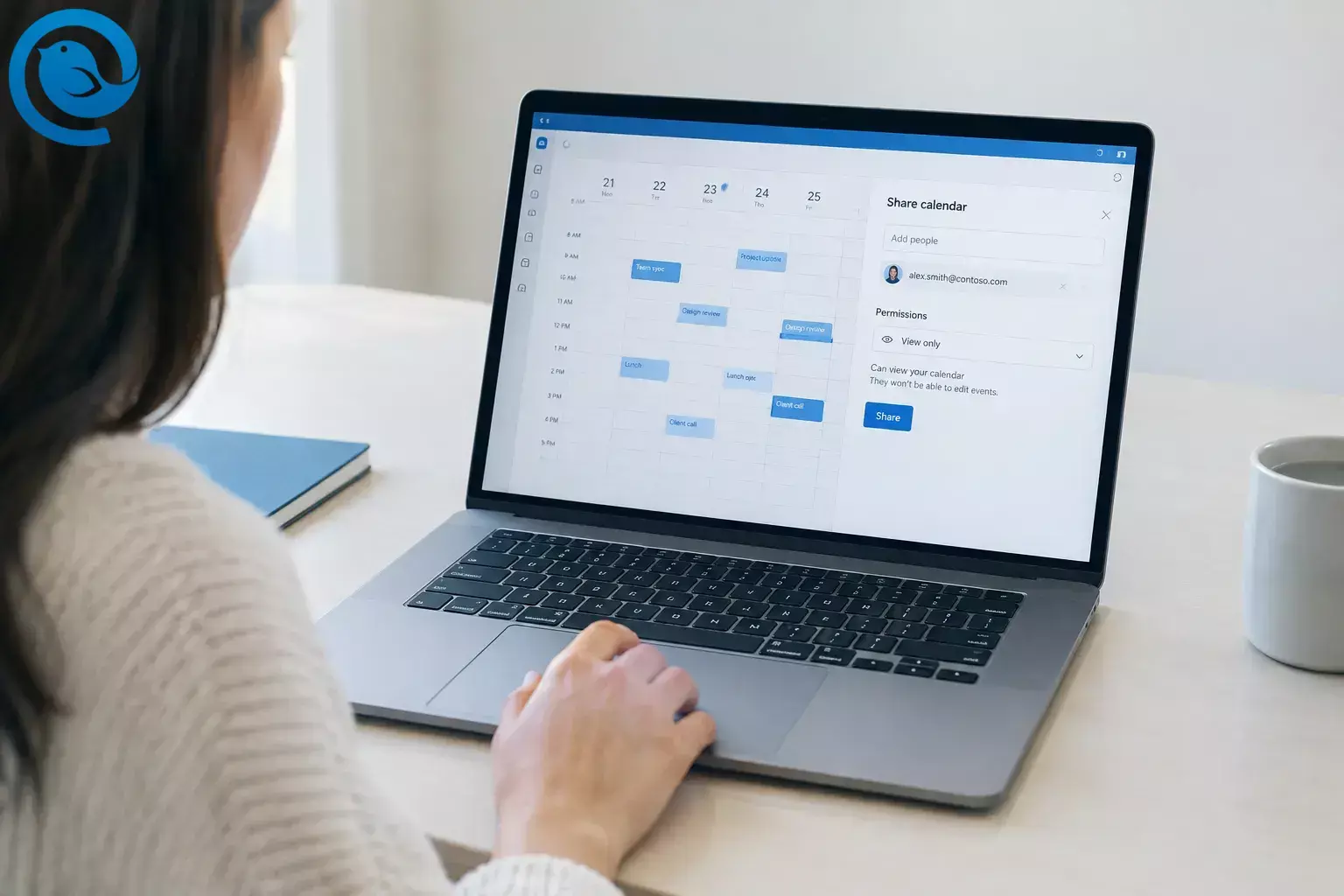
To share your Outlook calendar, open Calendar , select a calendar you own, add the recipient, and choose what they can see or change. Finish by selecting Share , OK , or Add , depending on your version of Outlook. You can change or remove their access later.
At a glance
- Share a calendar you own, using the instructions for your version of Outlook.
- Choose the least access the recipient needs, from busy times through edit or delegate access where available.
- For work or school calendars, edit and delegate access are limited to people inside your organization.
- To stop sharing with a person, reopen the calendar’s permissions and remove them.
- Publishing creates a read-only link rather than a named sharing invitation. You can turn the link off with Unpublish .
Before you start
- Have the recipient’s email address ready, and check that the calendar is under the Outlook account you intend to share. If someone else owns it, ask them to share it.
- Review event titles and details before granting access. If this is a work or school account, your organization may limit sharing outside the organization.
- You only need the instructions for your version of Outlook: new Outlook for Windows, classic Outlook for Windows, Outlook on the web, Outlook.com, or Outlook for Mac.
Choose an Outlook calendar permission
Choose the least access the person needs. The options you see depend on your account, the recipient, and your organization’s settings. [2]
- Can view when I’m busy: Shows occupied times without event details.
- Can view titles and locations: Shows occupied times, event titles, and locations.
- Can view all details: Lets the person read event details but not change them.
- Can edit: Lets the person change calendar items.
- Delegate: Lets the person edit the calendar and handle meeting requests on your behalf. This option is for the primary calendar of an eligible work or school account.
For work or school calendars, edit and delegate access are for people inside your organization. A personal Outlook.com calendar can offer edit access but not delegate access. People you share with generally see only the time of an event marked Private ; a delegate can see its details if you explicitly allow private-event access. [2]
How to share in new Outlook for Windows
How to share in new Outlook for Windows
- Calendar , then select Home → Share calendar .
- Enter .
- Share . If you choose Delegate , review the private-event and meeting-request options before finishing.
The recipient may need to accept the invitation to add your calendar to their Outlook calendar list. [1]
How to share in classic Outlook for Windows
How to share in classic Outlook for Windows
- Calendar , select Home → Share Calendar , and choose your calendar.
- Calendar Properties , select Add . Find or enter the recipient’s address and select OK .
- OK .
If the controls differ in your installation, select your calendar and look under Folder → Calendar Properties → Permissions , or use Outlook on the web . [1]
How to share in Outlook on the web or Outlook.com
How to share in Outlook on the web or Outlook.com
- Calendar and select Share or Share calendar at the top.
- Choose the calendar you own and enter the recipient’s name or email address.
- Share .
Alternatively, right-click your calendar in the left pane and look for Sharing and permissions . Available permissions may differ between a work or school account and a personal Outlook.com account. [3] [5]
How to share in Outlook for Mac
How to share in Outlook for Mac
- Calendar . Select the three dots beside your calendar, or Control-click it, and choose Sharing Permissions .
- Calendar Properties , select + and search for the person.
- Add .
Microsoft says this Mac sharing flow requires both people to have Exchange accounts. If that does not fit your accounts, try sharing through Outlook on the web. [4]
Change or remove someone’s access
Reopen the sharing permissions for the calendar you own, find the person, and choose a different permission or remove them:
- New Outlook: Open Calendar → Home → Share calendar .
- Outlook on the web or Outlook.com: Right-click the calendar and select Sharing and permissions .
- Classic Outlook: Open Folder → Calendar Properties → Permissions .
- Outlook for Mac: Reopen Sharing Permissions . Select a person and use the − button to remove them.
After removing someone, confirm they no longer appear in your permissions list. An existing copy of the calendar may remain visible to them, but it should stop receiving updates. [1] [4]
Publish a view-only calendar link instead
A sharing invitation grants a named person the permission you choose. Publishing creates a read-only link that anyone with the link can use to view the information you publish. Check the detail level carefully before sharing it. [3]
Publish a view-only calendar link instead
- Settings → Calendar → Shared calendars . In new Outlook for Windows, use View → Calendar settings → Calendar → Shared calendars .
- Publish a calendar , choose your calendar and the amount of detail to show, then select Publish .
- HTML link for viewing in a browser or the ICS link for subscribing in a calendar app. Neither link grants edit access.
To turn the link off, return to Shared calendars → Publish a calendar and select Unpublish . Unpublishing cannot remove information someone previously downloaded. [3]
Troubleshooting calendar sharing
- Sharing controls are missing: Check that you selected a calendar you own under the right account. If the desktop controls still do not appear, try Outlook on the web.
- An outside address is rejected: Check the address. If it is correct, ask your IT team whether external sharing is allowed. [3]
- Edit or delegate access is unavailable: For a work or school calendar, an outside recipient cannot receive those levels. Delegate access also requires an eligible account and primary calendar. Choose view-only access if it meets your needs. [2]
- The recipient cannot find the calendar: Confirm their email address in your sharing list and ask them to check for an invitation they need to accept.
- A private event appears as a busy block: That is normal. Only enable private-event access for a delegate who needs those details. [2]
- Publishing is unavailable: Your organization may restrict it. Use a named invitation if available, or ask your IT team about publishing. [3]
Frequently asked questions
Can I share my Outlook calendar with someone outside my company?
Usually, if your organization allows external sharing. For a work or school calendar, choose a view-only permission; edit and delegate access are limited to people inside your organization. [2]
What is the difference between an editor and a delegate?
An editor can change calendar items. A delegate can also handle meeting requests on your behalf on an eligible primary work or school calendar. [2]
Can someone see event details if I share only free/busy time?
No. Can view when I’m busy shows occupied times without event titles, locations, or other details. [1]
How do I stop sharing my Outlook calendar?
Open the calendar’s sharing permissions and remove the person. If you also published a link, go to Shared calendars and select Unpublish . [3]
What is the difference between an HTML and an ICS link?
An HTML link opens the published calendar in a browser. An ICS link can be used to subscribe in a calendar app. Both are read-only; subscription updates depend on the recipient’s provider. [3]
Other calendar tasks
Sharing a calendar you own is different from creating an additional calendar , using a group calendar , or opening someone else’s calendar . Microsoft has separate instructions for those tasks.
Download Mailbird for desktop
Once you have set sharing permissions in Outlook, you can keep your inbox and calendar together in a desktop email client . Download Mailbird for Windows or Mac at .
Sources
- Microsoft Support: Share an Outlook calendar as view-only with others
- Microsoft Support: Share a calendar with edit or delegate permissions
- Microsoft Support: Share your calendar in Outlook on the web
- Microsoft Support: Share your calendar in Outlook for Mac
- Microsoft Support: Share your calendar in Outlook.com


