How to Insert Emojis in Outlook
Click where you want the emoji in your draft, then open your device’s emoji picker. On Windows, press Windows + . (period). On Mac, press Control + Command + Space. These shortcuts work in the message body or subject line when the cursor is in that field.



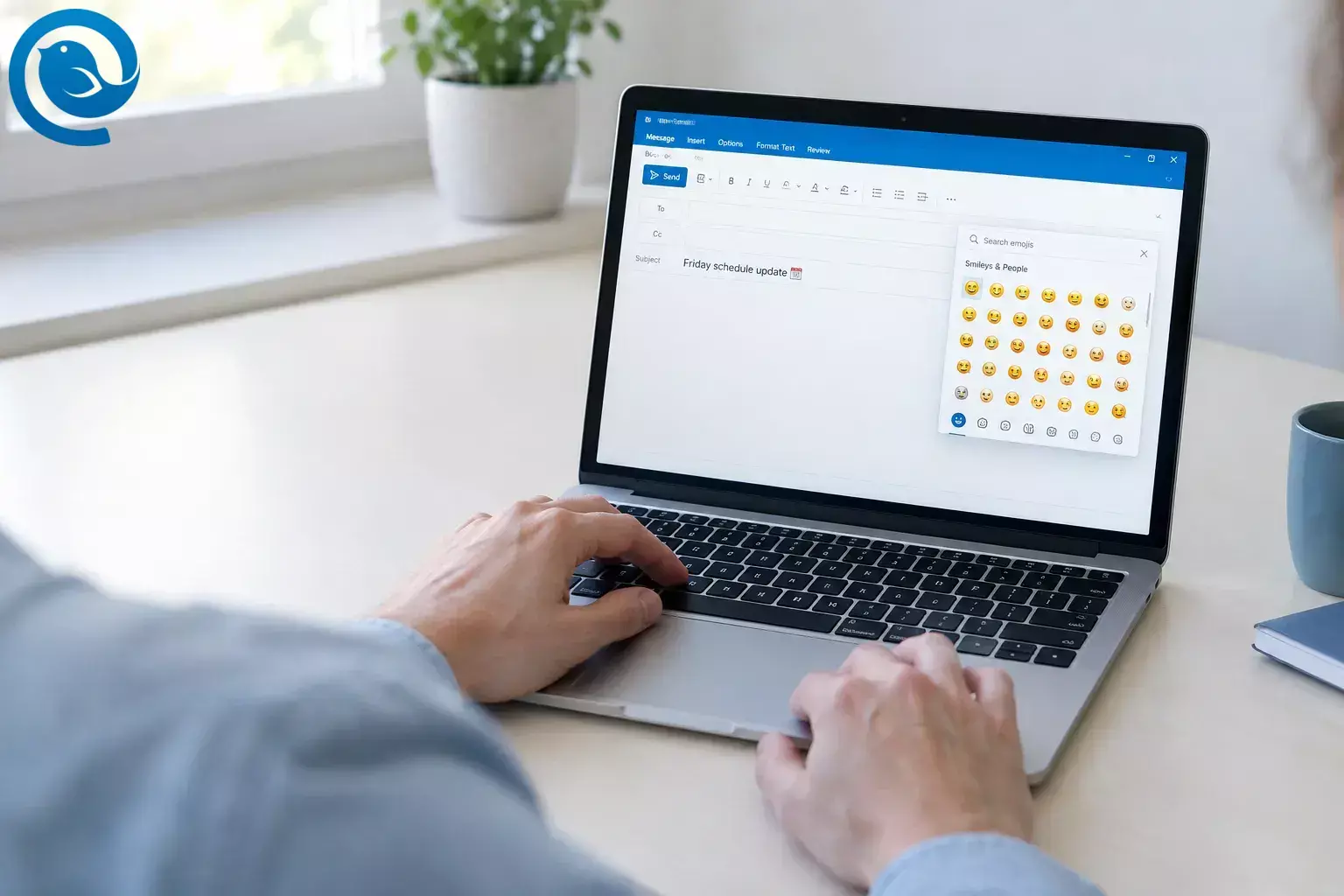
Click where you want the emoji in your draft, then open your device’s emoji picker. On Windows, press Windows + . (period). On Mac, press Control + Command + Space. These shortcuts work in the message body or subject line when the cursor is in that field. [3] [5]
Key takeaways
- Click in the message body or subject line before opening the emoji picker.
- On Windows, use Windows + .; on Mac, use Control + Command + Space.
- On the web, the composer’s emoji button is for the message body. Use your device’s keyboard for the subject line.
- On iPhone or Android, use your phone’s emoji keyboard.
- If a recipient sees a box or question mark, their device or font may not support the character.
Choose your Outlook version
On Windows, new Outlook has a Settings gear in the upper-right corner; classic Outlook has a File tab. If you use Outlook in a browser, follow the web instructions instead. [2]
Add an emoji to an Outlook message
Open a new email or reply, then click or tap the spot in the message body where the emoji should go. Follow the instructions for your device.
New Outlook for Windows
- Press Windows + ..
- Search or browse the emoji panel and select an emoji.
- Check that it appeared at the cursor. If your composer has a content picker for emojis, you can use that for the message body instead. [3] [1]
Classic Outlook for Windows
- Press Windows + . with the cursor in the message body.
- Select an emoji from the panel and check where it appeared. [3]
Outlook on the web
- In the message body, select Insert emojis and GIFs near the bottom of the composer.
- Choose an emoji rather than a GIF. If you don’t see the button, click in the body and use your Windows or Mac emoji shortcut. [4] [3] [5]
Outlook for Mac
- Press Control + Command + Space with the cursor in the body.
- Choose an emoji from the character viewer and check the draft. [5]
Outlook on iPhone or Android
How to put an emoji in an Outlook subject line
How to put an emoji in an Outlook subject line
- Open a draft and click or tap the Subject field. The cursor must be in the subject, not the message body.
- On Windows, press Windows + .. On Mac, press Control + Command + Space. In the mobile app, open your phone’s emoji keyboard. Use the Windows or Mac shortcut if you’re working in a desktop browser. [3] [5]
- Select an emoji and check that it appeared in the subject. The web composer’s emoji button is for the message body, so use your device’s keyboard for the subject field. [4]
Keep the subject line understandable without the emoji. For example, Friday schedule update 📅 still reads clearly as Friday schedule update.
If an emoji doesn’t appear as expected
- Nothing happens when you press the shortcut: Click in the body or subject field and try again. The draft may not have had focus.
- The emoji appears in the wrong place: Delete it, click the intended spot, and insert it again.
- You can’t find an emoji button: In classic Outlook, use Windows + .. If the web toolbar looks different, click in the draft and use your computer’s emoji shortcut. [3] [5]
- Your iPhone has no emoji key: Go to Settings → General → Keyboard → Keyboards → Add New Keyboard → Emoji, then return to Outlook. [6]
- A recipient sees a box or question mark: Their device or font may not support that character. Try a more familiar emoji or spell out the meaning; you can’t confirm their display from your own screen. [8]
If appearance matters: Send a test email to yourself and open it on another device or in another email app before sending the final message. Emoji artwork can vary between displays.
Frequently asked questions
What is the Outlook emoji shortcut on Windows?
Click in the message body or subject line, then press Windows + . and select an emoji. [3]
Can I copy and paste an emoji into an Outlook subject line?
Yes. Copy the emoji, click in the Subject field, paste it, and check that it appeared where you intended.
Why does an emoji show as a box for someone else?
Their device or font may not support the character. Replace it with words if the meaning is important. [8]
Is reacting to an email the same as inserting an emoji?
No. A reaction responds to a received message; an emoji you insert becomes part of the email you’re writing. [9]
Want a different desktop email client?
Sources
- Microsoft Learn: New Outlook for Windows release notes
- Microsoft Support: What version of Outlook do I have?
- Microsoft Support: Add emojis to your Outlook emails
- Microsoft Support: Customize your email message in Outlook on the web
- Microsoft Support: Keyboard shortcuts in Outlook for Mac
- Apple Support: Use emoji on your iPhone
- Google Gboard Help: Use your keyboard on Android
- Unicode Consortium: Display problems and missing characters
- Microsoft Support: Reactions in Microsoft Outlook


