How to Create a New Folder in Outlook (and Keep Folders Organized)
To create a new folder in Outlook, right-click your email account or, on the web, Folders. Choose the new-folder command, enter a name, and press Enter or Return. To make a subfolder, right-click the folder that should contain it instead. The menu wording varies by Outlook version, so use the steps below to find the right command.



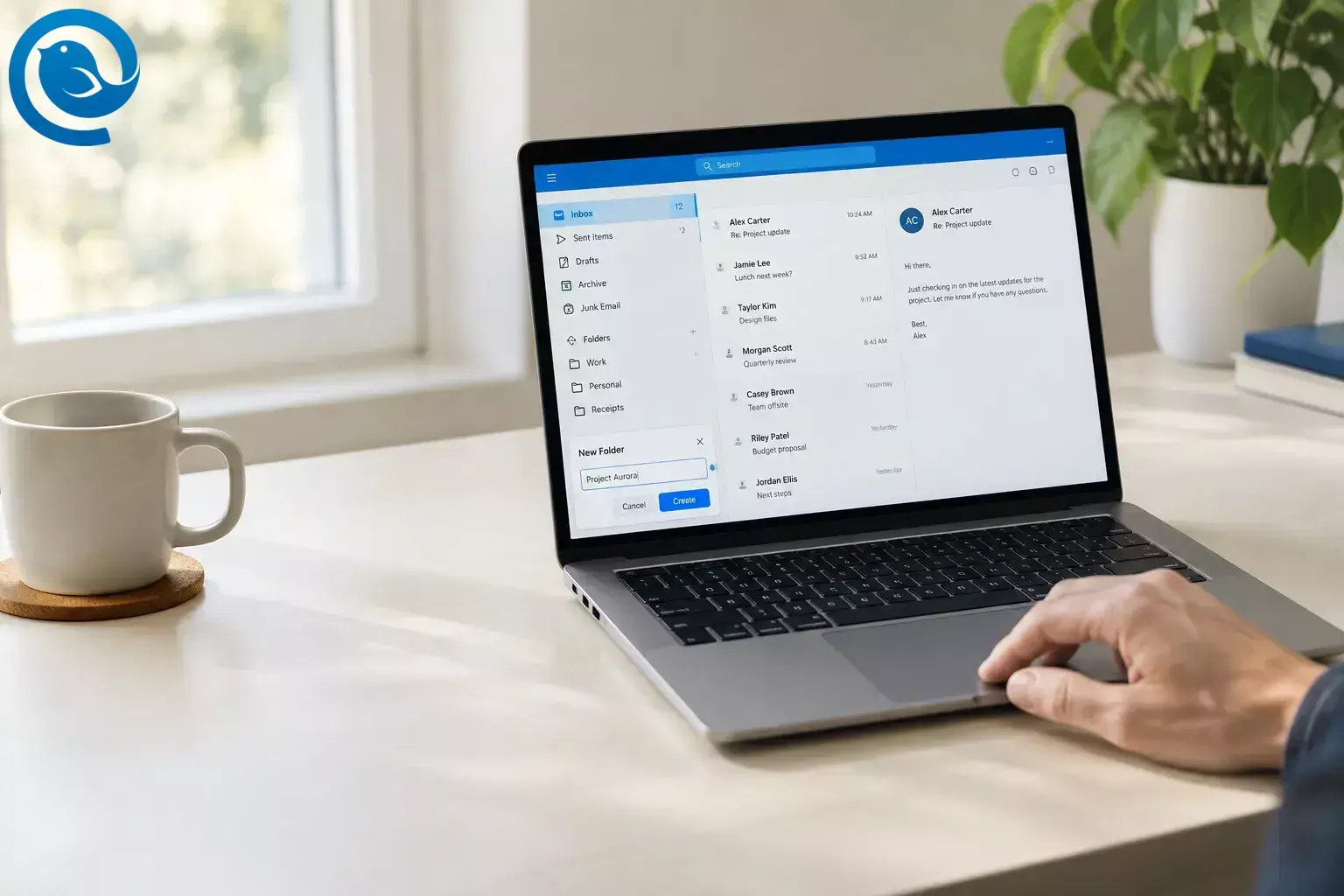
To create a new folder in Outlook, right-click your email account or, on the web, Folders . Choose the new-folder command, enter a name, and press Enter or Return . To make a subfolder, right-click the folder that should contain it instead. The menu wording varies by Outlook version, so use the steps below to find the right command. [1] [2]
Quick checklist
- Show the folder list and select the right account or parent folder.
- Create and name the folder, then check where it appears.
- Move one message into it and open the folder to confirm.
- Keep the structure shallow and add useful folders to Favorites.
- Check a folder’s contents before deleting it.
Before you start
Open your email account in Outlook for Windows, Outlook for Mac, or a browser. Creating one folder takes only a few minutes; moving existing messages will take longer. Before deleting a folder, check what is inside it—deleting the folder also moves its contents to Deleted Items. [6]
Create a folder or subfolder
Create a folder or subfolder in Outlook
- Identify your Outlook version. If Outlook is open in a browser, follow the web instructions. On a Mac, follow the Mac instructions. On Windows, a File tab indicates classic Outlook ; otherwise, follow the new Outlook instructions.
- Show the folder list. In new Outlook, choose View → Folder pane → Folder list → Show . In classic Outlook, choose View → Layout → Folder Pane → Normal . On the web, expand the left pane if it is collapsed. On Mac, expand the account in the sidebar. [3]
-
Choose the location and command for your version.
- New Outlook for Windows: Right-click your email address and choose Create new folder . For a subfolder, right-click its parent folder and choose Create new subfolder .
- Classic Outlook for Windows: Right-click your account or the intended parent folder and choose New Folder .
- Outlook on the web or Outlook.com: Right-click Folders and choose Create new folder . For a subfolder, right-click its parent and choose Create new subfolder .
- Outlook for Mac: Right-click your account name or the intended parent folder and choose New Folder .
- Name the folder. Enter a recognizable name, such as Client invoices , and press Enter on Windows or the web, or Return on Mac.
- Check where it appeared. A folder created under your account should appear alongside your other main folders. For a subfolder, expand its parent to find it. Check the account name, too, if you use more than one account.
- Try it with one message. Select an email, choose Move to , and select the new folder. You can also drag the message onto the folder. Open the folder to confirm the message arrived. [8]
Move, rename, or delete a folder
- Move a folder under another folder: Try dragging your custom folder onto the intended parent in the folder list, or use a Move option if your version offers one. Expand the parent afterward to check the result. This changes the folder’s location, not just its display order. If you have just created an empty folder in the wrong place and cannot move it, create it under the right parent and delete the empty mistake. [2] [7]
- Rename a folder: Right-click a custom folder and choose Rename or, on Mac, Rename Folder . Enter the new name and press Enter or Return . Built-in folders such as Inbox cannot be renamed. [2] [7]
- Delete a folder: Check its messages and subfolders first. Right-click the custom folder and choose Delete or Delete Folder , then confirm if prompted. Look in Deleted Items if you need to find the folder again; check it before emptying Deleted Items. [2] [6]
To change where folders appear within the list in new Outlook or on the web, choose View → Folder pane → Custom folder order (sometimes under Sort folders ), then drag a folder to the position you want. Reordering the list is different from placing a folder inside another folder. [4]
Keep your Outlook folders easy to use
Keep the main list short and add subfolders only when they help you find messages. For example, you could use Projects with a subfolder for each active project, or keep separate folders for Receipts and Contracts . Avoid several layers of subfolders unless you need them.
For folders you open often, right-click the folder and choose Add to Favorites . Favorites adds a shortcut; it does not move the folder or its messages. You can later choose Remove from Favorites without deleting the folder. [5]
Folders alone do not sort incoming messages automatically. For that, see the Outlook filtering guide .
Troubleshooting
| Problem | What to check |
|---|---|
| No folders appear on the left. | Show the folder list using the View menu in new or classic Outlook. On the web or Mac, expand the pane or account. [3] |
| You can only create a subfolder. | You may have right-clicked an existing folder. Right-click the account name in new Outlook or on Mac, or Folders on the web, for a main folder. [1] [2] |
| The new folder seems to be missing. | Expand its parent folder and confirm you are looking at the right email account. |
| Rename or Delete is unavailable. | Find the folder in the main list rather than Favorites. Built-in folders have restrictions; removing a Favorites shortcut does not delete its folder. [5] [6] [7] |
| Dragging does not change the folder order. | In new Outlook or on the web, select Custom folder order before trying to rearrange the list. [4] |
| You cannot create a folder in a shared mailbox. | Try creating one in your own mailbox. If that works, ask the shared mailbox owner or your IT team to check your access. |
No folders appear on the left.
Show the folder list using the View menu in new or classic Outlook. On the web or Mac, expand the pane or account. [3]
You can only create a subfolder.
You may have right-clicked an existing folder. Right-click the account name in new Outlook or on Mac, or Folders on the web, for a main folder. [1] [2]
The new folder seems to be missing.
Expand its parent folder and confirm you are looking at the right email account.
Rename or Delete is unavailable.
Find the folder in the main list rather than Favorites. Built-in folders have restrictions; removing a Favorites shortcut does not delete its folder. [5] [6] [7]
Dragging does not change the folder order.
In new Outlook or on the web, select Custom folder order before trying to rearrange the list. [4]
You cannot create a folder in a shared mailbox.
Try creating one in your own mailbox. If that works, ask the shared mailbox owner or your IT team to check your access.
Menu labels can vary by Outlook version and update. If yours differ, check Microsoft’s instructions for your version before moving or deleting a folder.
Frequently asked questions
How do I make a new folder alongside Inbox?
How do I create a subfolder in Outlook?
How do I show all folders in Outlook?
In new Outlook, choose View → Folder pane → Folder list → Show . In classic Outlook, choose View → Layout → Folder Pane → Normal . Then expand any collapsed accounts or folders. [3]
Does removing a folder from Favorites delete it?
No. Remove from Favorites removes the shortcut, while the folder remains in the main folder list. [5]
What happens when I delete an Outlook folder?
The folder and its contents move to Deleted Items. Check there before emptying it. [6]
Sources
- Microsoft Support: Create a folder or subfolder in Outlook
- Microsoft Support: Add or remove a folder in Outlook for Mac
- Microsoft Support: Show all folders in Outlook
- Microsoft Support: Change the order of folders in Outlook
- Microsoft Support: Use Favorites in Outlook
- Microsoft Support: Delete a folder in Outlook
- Microsoft Support: Work with message folders in Outlook on the web
- Microsoft Support: Organize email by using folders in Outlook


