How to Change the Font in Outlook (Including the Default Font)
You can change the font and size Outlook uses when you write emails, or format a single message without changing your default. The steps depend on which version of Outlook you use.



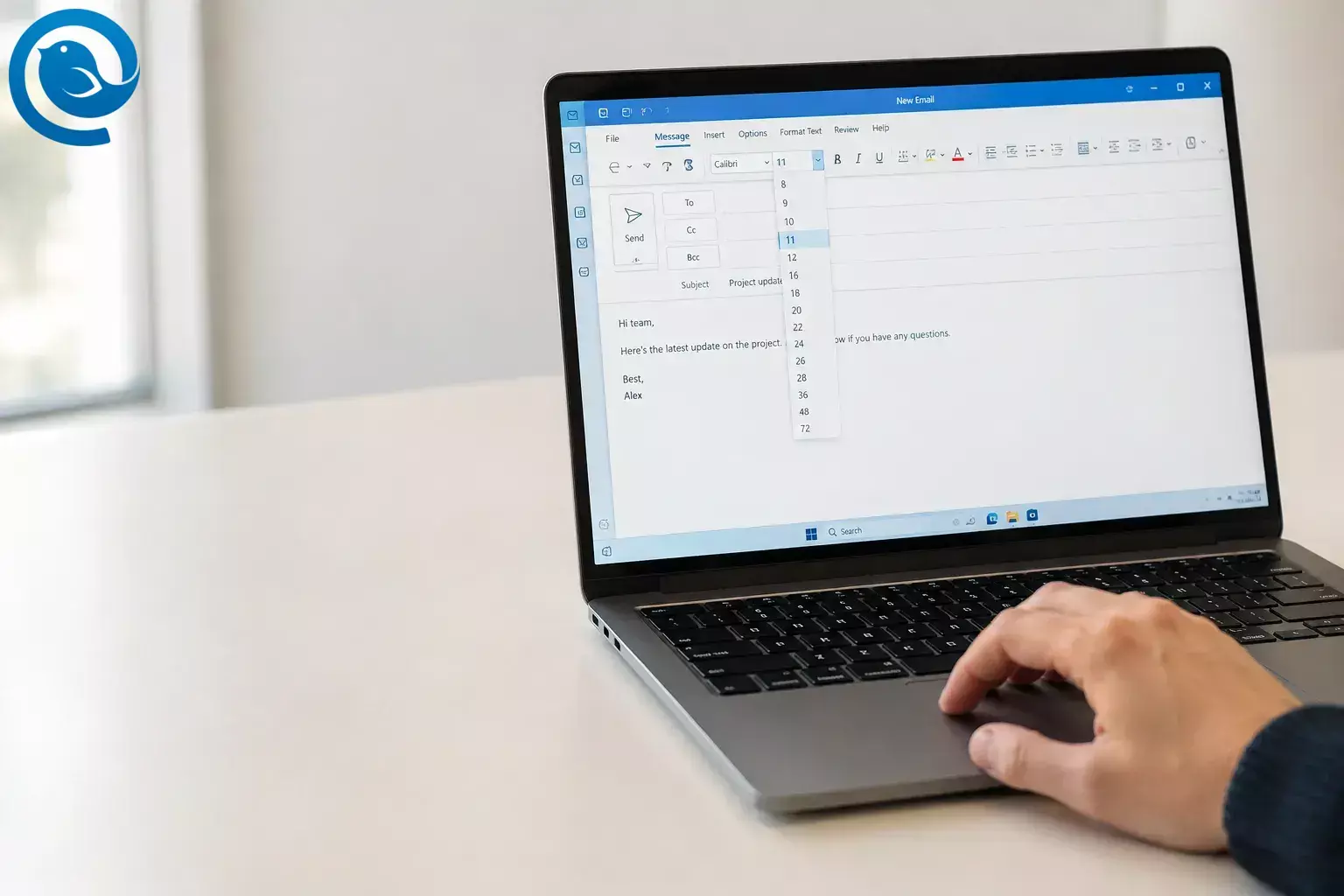
You can change the font and size Outlook uses when you write emails, or format a single message without changing your default. The steps depend on which version of Outlook you use.
Quick answer
In new Outlook for Windows, go to View → View settings → Mail → Compose. In classic Outlook, go to File → Options → Mail → Stationery and Fonts. On the web, open Settings → Mail → Compose. On Mac, open Outlook → Settings → Composing. Some versions call the Compose section Compose and reply. [2] [3]
First, identify your Outlook version
On Windows, look at the main Outlook window. A Settings gear at the top right indicates new Outlook. If you use File → Options to reach settings, follow the classic Outlook steps. If you opened Outlook in a browser, follow the web steps; if you’re using a Mac, follow the Mac steps. [1]
Change the default font in new Outlook for Windows
Change the default font in new Outlook for Windows
- Select View → View settings → Mail → Compose. If you see Compose and reply instead, open it.
- Under Message format, choose your font, size, and style.
- Select Save, then open a new draft to check the result. [2]
Change the default font in classic Outlook for Windows
Change the default font in classic Outlook for Windows
- Select File → Options → Mail → Stationery and Fonts.
- On the Personal Stationery tab, select Font under New mail messages. Choose a font and size, then select OK.
- To use that font for replies and forwards, select Font under Replying or forwarding messages and set it separately.
- Select OK until you return to Outlook. Open a new draft and a reply to check both settings. [2]
Change the default font in Outlook on the web or Outlook.com
Change the default font in Outlook on the web or Outlook.com
- Select the Settings gear, then open Mail → Compose. In some layouts, the section is called Compose and reply.
- Under Message format, set Compose messages in to HTML, then choose a font and size.
- Select Save and check the font in a new draft. [2]
Change the default font in Outlook for Mac
Change the default font in Outlook for Mac
- From the Mac menu bar, select Outlook → Settings → Composing.
- Select Select… beside Composing (New mail), choose a font and size, and select OK.
- Repeat beside Reply or forward if you want to change those messages too.
If your version has Outlook → Settings → Fonts instead, use its separate New mail and Reply or forward controls. [3]
Change the font in just one email
Open a draft and select the text you want to change. Choose a font or size from the compose toolbar. To format text before typing it, place the cursor in the message body and choose your formatting first. In classic Outlook, look on the Message or Format Text tab. This changes the draft, not your default font. [4]
Make received emails easier to read
Changing your compose font does not resize messages other people send you. Use Outlook’s reading Zoom control instead. For guidance on reading text, see Microsoft’s Outlook font guidance. In Outlook.com, browser zoom is another option. [5]
If the font does not change
- New emails changed, but replies did not: Classic Outlook and Outlook for Mac have separate settings for replies and forwards. Check the reply setting for your version. [2] [3]
- Font controls are unavailable: The message may be in plain text. Switch its format to HTML. For a reply in classic Outlook, open it in its own window and select Format Text → HTML. [6]
- An existing draft still looks the same: Test a brand-new draft. To change text already typed in the old draft, select it and apply the font there.
- The inbox list is too small: That is separate from the font used to write messages. In classic Outlook, select View → View Settings → Other Settings, then use Row Font or Column Font. [7]
- A recipient sees a different font: Their email app may substitute a font if they do not have the one you chose. Try a widely available font if matching appearance matters. [2]
Prefer another desktop email app?
Mailbird Next runs on Windows and Mac, supports Outlook and Microsoft 365 accounts, and lets you set a default font size under Settings → Composing. Changing that setting in Mailbird does not change Outlook’s own default font. [8] [9]
Frequently asked questions
How do I change the font size in Outlook?
Choose a size in your version’s default compose settings to change future messages. For one email, select its text and use the size control in the compose toolbar.
Can I set a different font for replies?
Does changing my default font make received emails bigger?
No. The default compose font affects messages you write. Use reading zoom to enlarge messages you receive.
Sources
- Microsoft Support: What version of Outlook do I have?
- Microsoft Support: Change the default font or text color in Outlook
- Microsoft Support: Change font sizes in Outlook for Mac
- Microsoft Support: Customize your email message
- Microsoft Support: Change font size and appearance in Outlook.com
- Microsoft Support: Change the message format in Outlook
- Microsoft Support: Change the font or font size in the message list
- Mailbird: Mailbird Next release notes
- Mailbird: Mailbird Next for Windows and Mac


