Gmail Offline: The Hidden Limitations That Could Disrupt Your Workflow (And Better Alternatives)
Gmail Offline promises email access without internet, but delivers frustrating limitations that disrupt professional workflows. Restricted to 7-90 days of messages, Chrome browser only, and single account access, it functions more like a temporary cache than a true offline solution, creating problems when you need it most.




If you've ever been stuck without internet access and desperately needed to check an important email, you know the sinking feeling of being completely cut off from your inbox. Google's Gmail Offline feature promises to solve this problem, but many professionals discover too late that it comes with frustrating limitations that can seriously disrupt their productivity. Whether you're a frequent traveler, work in areas with spotty connectivity, or simply want reliable access to your email history, understanding what Gmail Offline actually delivers—and what it doesn't—is crucial before you depend on it for business-critical communications.
The reality is that Gmail Offline functions more like a temporary cache than a true offline email solution. While Google markets it as enabling offline email access, the feature restricts you to just 7-90 days of messages, works exclusively in Chrome browser, and limits you to a single account per browser profile. For professionals managing multiple email accounts or needing access to their complete email history, these constraints can create serious workflow problems that only become apparent when you need offline access most.
Understanding Gmail Offline: What Google Actually Delivers

According to Google's official Gmail support documentation, Gmail Offline allows users to read, search, and reply to messages without an internet connection through Chrome browser version 61 or higher. The implementation stores recent emails locally within your browser's storage allocation, with default settings caching the most recent 30 days of messages including attachments.
However, the technical architecture reveals significant constraints that impact real-world usability. Gmail Offline operates exclusively within Google Chrome, meaning the feature is completely unavailable in Firefox, Safari, Edge, or other browsers. More frustratingly, it doesn't work in Chrome's Incognito or Guest modes since these profiles don't persist local data between sessions. As detailed in troubleshooting guides from email productivity experts, this browser-level storage approach creates inherent limitations regarding storage capacity, data persistence, and feature availability that desktop email clients fundamentally overcome.
The Critical Storage Window Limitation
One of the most significant restrictions professionals encounter is Gmail Offline's time-based storage window. You can configure storage duration between 7 and 90 days, but you cannot access your complete email history offline—only messages within your selected timeframe. For users who frequently reference older emails, need to search years of correspondence, or work on long-term projects requiring historical context, this limitation creates serious productivity barriers.
The storage requirements scale dramatically with your sync duration and attachment settings. According to Google Workspace administrator documentation, seven days of messages without attachments requires approximately 100-200MB, while 90 days with attachments can consume 3-5GB or more. This storage dependency means devices with limited available disk space cannot effectively implement Gmail Offline, particularly problematic for users with older computers or shared company devices.
The Single Account Restriction
Perhaps the most frustrating limitation for modern professionals is that Gmail Offline restricts you to one account per Chrome profile. If you manage multiple email accounts—a common requirement for consultants, business owners, or anyone juggling personal and professional communications—you must create separate Chrome browser profiles for each account requiring offline access. This workaround creates significant workflow friction, forcing you to constantly switch between browser profiles and maintain multiple sets of bookmarks, extensions, and settings.
When Gmail Offline Fails: Common Scenarios That Disrupt Your Work

Understanding the technical limitations is one thing, but the real impact becomes clear when these constraints affect your actual work. Many professionals only discover Gmail Offline's shortcomings when they're already in a situation where they desperately need reliable email access.
Storage Space Exhaustion
Technical support resources identify storage space exhaustion as the most frequently encountered failure scenario. When your system disk space approaches capacity or when you attempt to cache large volumes of email with attachments enabled, Gmail Offline simply stops syncing without clear warning. The browser-level storage allocation limits Gmail Offline data to approximately 60% of available system disk space, creating artificial constraints independent of actual storage capacity. Users often don't realize their offline cache has stopped updating until they're already without internet access and discover their most recent emails aren't available.
Privacy Settings Conflicts
Chrome settings that automatically clear cookies and site data upon browser exit completely eliminate offline functionality. As documented in comprehensive Gmail Offline troubleshooting guides, users must either disable this privacy setting entirely or whitelist mail.google.com as an exception. This creates a difficult choice between maintaining browser privacy and having reliable offline email access—a tradeoff that security-conscious professionals find particularly problematic.
Enterprise Policy Restrictions
For Google Workspace users, administrators can disable offline access at the organizational level, preventing the feature from appearing in user settings entirely. These enterprise-level restrictions mean individual users cannot override organizational policies even when they have legitimate business needs for offline access. Many professionals only discover this limitation when traveling or working remotely, creating unexpected disruptions to critical business communications.
Corrupted Cache Data
Interrupted syncs from browser crashes, system shutdowns, or network interruptions can corrupt the local offline database, rendering offline mode completely inoperable. The only resolution requires clearing the entire cached offline database and resyncing all messages—a process that can take hours depending on your storage window and attachment settings. This vulnerability means Gmail Offline can fail precisely when you need it most, during unstable connectivity situations or system problems.
How Gmail Offline Compares to True Desktop Email Solutions
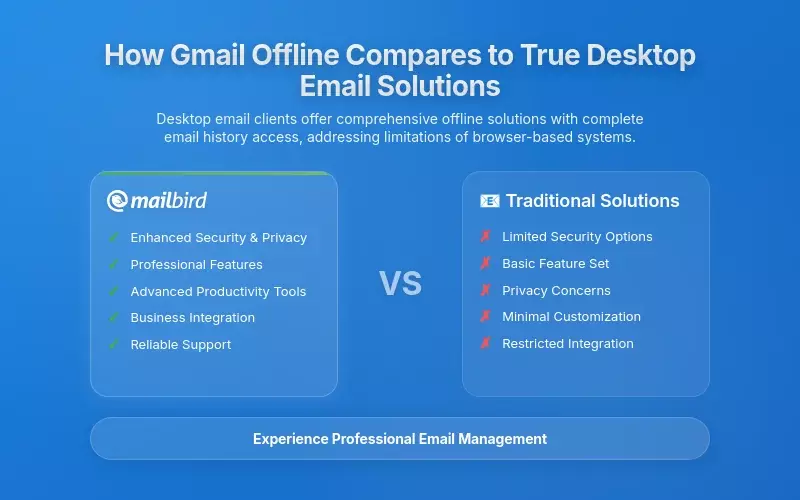
The fundamental architectural difference between browser-based offline access and dedicated desktop email clients creates substantial practical implications for daily workflows. While Gmail Offline provides basic temporary offline access, desktop email clients offer comprehensive solutions that address the limitations professionals actually face.
Complete Email History Access
Desktop email clients provide offline access to your entire email history, not just a limited time window. Whether you need to reference an email from three years ago or search through complete project correspondence, desktop solutions maintain full local archives without arbitrary date restrictions. This comprehensive access proves essential for professionals working on long-term projects, conducting legal discovery, or simply needing reliable access to their complete communication history.
True Multi-Account Management
According to comprehensive email client comparisons, leading desktop solutions support unlimited email accounts across multiple providers—Gmail, Outlook, Yahoo, IMAP-based services—all within a single unified interface. You can view messages from all accounts in one consolidated inbox, search across all accounts simultaneously, and manage different email identities without constantly switching browser profiles or maintaining separate application windows.
Reliable Local Storage
Desktop email clients store messages directly in your local file system rather than browser-dependent storage allocation. This architectural approach provides several critical advantages: predictable storage management that doesn't compete with browser cache limits, straightforward backup procedures using standard file backup tools, and the ability to archive years of email history without impacting browser performance or consuming limited browser storage quotas.
Advanced Offline Functionality
Beyond basic message access, desktop clients offer sophisticated offline capabilities including advanced search across complete email history, complex filtering and organization rules that work on locally stored messages, offline calendar access and scheduling, and seamless attachment management with local file system integration. These features transform offline email from a basic fallback option into a fully functional productivity environment.
Mailbird: A Desktop Solution Built for Modern Email Workflows

For professionals frustrated by Gmail Offline's limitations, Mailbird provides a comprehensive desktop email solution specifically designed to address the workflow disruptions that browser-based email creates. Rather than treating offline access as a limited fallback feature, Mailbird makes complete offline functionality the foundation of its architecture.
Comprehensive Offline Access Without Restrictions
Mailbird stores your complete email history locally on your computer, providing unrestricted offline access to all your messages regardless of age. There are no artificial 7-90 day windows, no browser storage quota limitations, and no sync failures when your disk has adequate space. Your emails remain accessible whether you're on a plane, working from a remote location, or experiencing internet connectivity problems.
Unified Multi-Account Management
According to detailed Mailbird reviews from email productivity experts, the platform supports unlimited email accounts from any provider within a single unified interface. You can manage Gmail, Outlook, Yahoo, and IMAP accounts simultaneously without creating separate browser profiles or switching between different applications. The unified inbox consolidates messages from all accounts, while smart filters and folders help you organize communications based on your actual workflow needs rather than technical constraints.
Desktop-Level Integration and Productivity
Mailbird provides seamless integration with your local file system, calendar applications, and productivity tools that browser-based solutions cannot match. The platform offers native calendar integration that works offline, email snooze functionality for better inbox management, advanced search capabilities across your complete email history, customizable keyboard shortcuts for efficient navigation, and integration with popular productivity apps including Slack, Asana, Todoist, and Google Workspace tools.
Reliable Performance and Data Control
As a desktop application, Mailbird delivers consistent performance independent of browser updates, extension conflicts, or web application changes. Your email data resides under your direct control in local storage you manage, making backup procedures straightforward and giving you complete ownership of your communication archives. This architectural approach eliminates the vulnerabilities inherent in browser-dependent storage where clearing cookies or browser cache can inadvertently delete your offline email access.
Other Desktop Email Clients Worth Considering
While Mailbird offers comprehensive functionality for most users, the desktop email client market includes several other established solutions that provide robust offline capabilities and address Gmail Offline's limitations in different ways.
Mozilla Thunderbird
According to authoritative email client reviews from TechRadar, Mozilla Thunderbird remains a powerful free alternative available across Windows, macOS, and Linux. The open-source platform offers comprehensive multi-account support, unified inbox functionality, advanced filtering capabilities, and complete offline access through local IMAP/POP3 implementation. Thunderbird particularly appeals to users who prioritize open-source software, extensive customization through add-ons, and avoiding subscription costs.
Microsoft Outlook
For organizations already invested in the Microsoft ecosystem, Outlook provides deep integration with Microsoft Office applications, sophisticated calendar and meeting management, native offline functionality for Exchange and Microsoft 365 accounts, and enterprise-grade security features. However, as noted in comprehensive Outlook vs Gmail comparisons, integration with non-Microsoft email services remains more limited than specialized email clients, and the platform's complexity can overwhelm users seeking straightforward email management.
Canary Mail
Canary Mail positions itself as a privacy-focused solution with end-to-end encryption and PGP support alongside modern AI features and seamless multi-account management. According to detailed multi-account email client analyses, Canary Mail particularly appeals to security-conscious users who need encrypted communications while maintaining the convenience of modern email features and reliable offline access.
Mailspring
Mailspring offers lightweight performance with minimal system resource consumption while supporting multiple email providers, advanced search capabilities, and comprehensive offline functionality. The platform appeals to users seeking fast, efficient email management without the feature complexity of enterprise-focused solutions.
Making the Transition from Gmail Offline to Desktop Email
If you've recognized that Gmail Offline's limitations are disrupting your productivity, transitioning to a desktop email client is more straightforward than many professionals expect. Modern email clients are specifically designed to make migration seamless while preserving your existing email organization and workflow.
Understanding the Migration Process
Desktop email clients like Mailbird connect to your existing Gmail account using IMAP protocol, which means your emails remain on Google's servers while being synchronized to your local computer. This approach provides several advantages: you don't need to export or import email archives manually, your existing folder structure and labels transfer automatically, and you can continue accessing your email through Gmail's web interface if needed while building confidence with your new desktop client.
Preserving Your Email Organization
Modern desktop clients respect Gmail's label system and folder organization during synchronization. Your existing organizational structure—labels, stars, important markers, and folder hierarchies—transfers to the desktop environment, typically appearing as folders in your new client. This preservation means you don't need to recreate years of email organization or develop entirely new workflows.
Managing Multiple Accounts During Transition
One significant advantage of transitioning to desktop email clients is the ability to consolidate multiple accounts during the migration process. Rather than maintaining separate browser profiles for different Gmail accounts, you can add all your email accounts to a single desktop client interface. This consolidation immediately improves productivity by eliminating constant profile switching and providing unified search across all your communications.
Testing Before Full Commitment
Most desktop email clients, including Mailbird, offer free trials or free tiers that allow you to test functionality before committing. This trial period lets you verify that offline access works as expected, confirm that your email organization transfers correctly, test performance with your typical email volume, and ensure compatibility with your existing productivity tools and workflows. You can maintain Gmail web access during this testing period, providing a safety net while you build confidence with your new solution.
Security and Privacy Considerations for Offline Email
When evaluating offline email solutions, understanding the security implications of different storage approaches helps you make informed decisions that protect sensitive business communications.
Browser-Based Storage Vulnerabilities
Gmail Offline stores email data within Chrome's browser storage, creating potential security concerns that desktop solutions address differently. Browser storage becomes vulnerable if malicious extensions gain access, browser cookies are compromised through cross-site scripting attacks, or system-level malware targets browser data directories. As documented in comprehensive webmail versus desktop client security analyses, browser-dependent storage also faces risks from accidental data deletion when users clear browsing data without realizing it will eliminate their offline email cache.
Desktop Client Encryption
Desktop email clients implement local storage encryption that protects offline data even if device access is partially compromised. Unlike browser storage accessible through browser extension vulnerabilities, encrypted local storage requires specific decryption keys tied to user credentials. This architectural approach provides enhanced protection for sensitive business communications, particularly important for organizations handling confidential information, healthcare data, or financially sensitive correspondence.
Enterprise Compliance Requirements
Organizations with strict data governance requirements often mandate desktop email clients to maintain compliance with data residency, encryption, and audit requirements that cloud-dependent solutions cannot fully address. Desktop clients enable IT administrators to implement comprehensive backup procedures, enforce encryption policies at the file system level, maintain detailed audit logs of email access and modifications, and ensure data residency compliance by controlling where email archives are stored.
The Real Productivity Impact: Workflow Integration Analysis
Beyond technical specifications and feature lists, the practical impact on daily productivity reveals the most significant differences between Gmail Offline and desktop email solutions.
Search and Retrieval Speed
Desktop email clients provide substantially faster search across large email archives because they query locally indexed databases rather than relying on server-side search through limited cached messages. When you need to find a specific email from years ago, desktop search delivers results in seconds rather than requiring internet connectivity and server queries. This speed advantage becomes particularly valuable during client meetings, presentations, or time-sensitive situations where quick information retrieval is critical.
Attachment Management
Local file system integration in desktop clients enables sophisticated attachment workflows that browser-based solutions cannot match. You can drag and drop files directly from email to local folders, automatically organize attachments using file system rules, preview attachments without downloading duplicates, and integrate attachments with local applications seamlessly. These capabilities transform email from a simple communication tool into an integrated document management system.
Advanced Filtering and Automation
Desktop clients support complex filtering rules that operate on locally stored messages, enabling sophisticated automation that works even without internet connectivity. According to comprehensive Windows email client evaluations from Zapier, advanced users create elaborate filtering systems that automatically categorize messages, trigger local notifications based on complex criteria, integrate with task management systems, and maintain organized archives without manual intervention. These automation capabilities prove particularly valuable for professionals managing high email volumes or complex organizational requirements.
Keyboard Shortcuts and Efficiency
Desktop applications provide extensive keyboard shortcut customization that browser-based solutions cannot match due to browser-level keyboard handling conflicts. Power users develop muscle memory for efficient email navigation, creating workflows that are substantially faster than mouse-based interaction or limited web interface shortcuts.
Cost Analysis: Browser-Based vs Desktop Email Solutions
While Gmail Offline itself is free for Gmail users, understanding the total cost of ownership for different email solutions helps professionals make informed decisions.
Gmail Offline Hidden Costs
Gmail Offline appears free but creates indirect costs through productivity losses from limited offline access windows, time spent troubleshooting sync failures and storage issues, workflow disruptions from single-account-per-profile limitations, and potential data loss risks from browser storage vulnerabilities. For professionals billing by the hour or managing time-sensitive communications, these productivity impacts translate into real financial costs that exceed the nominal price of desktop alternatives.
Desktop Client Pricing Models
Desktop email clients typically offer tiered pricing that provides clear value for different user needs. Mailbird, for example, provides a free tier supporting basic functionality for single accounts and premium subscriptions enabling unlimited accounts and advanced features. This transparent pricing structure contrasts with Gmail's dependency on cloud storage subscriptions and provides clear cost advantages for users requiring multi-account management without ongoing fees per account.
Enterprise Licensing Considerations
For organizations, desktop email client enterprise licensing often proves more cost-effective than the productivity losses from browser-based limitations. Enterprise licenses typically include centralized management tools, priority support, enhanced security features, and volume discounts that reduce per-user costs significantly. When calculating total cost of ownership, organizations should factor in IT support time savings, reduced productivity losses from email access issues, improved security and compliance capabilities, and simplified multi-account management.
Frequently Asked Questions
Can I access my entire Gmail history offline with Gmail Offline?
No, Gmail Offline only provides access to 7-90 days of messages depending on your storage settings. According to Google's official documentation, you cannot access your complete email history offline through Gmail Offline—only messages within your configured time window are available. Desktop email clients like Mailbird solve this limitation by storing your complete email history locally, providing unrestricted offline access to all messages regardless of age.
Why does Gmail Offline only work in Chrome and not other browsers?
Gmail Offline relies on Chrome-specific storage APIs and browser capabilities that aren't available in Firefox, Safari, Edge, or other browsers. The feature also doesn't work in Chrome's Incognito or Guest modes since these profiles don't persist local data between sessions. This browser dependency represents a fundamental architectural limitation—desktop email clients overcome this by installing directly on your operating system and working independently of any browser.
Can I use Gmail Offline with multiple Gmail accounts simultaneously?
Gmail Offline restricts you to one account per Chrome browser profile. If you need offline access to multiple Gmail accounts, you must create separate Chrome profiles for each account and constantly switch between them. This creates significant workflow friction for professionals managing multiple email accounts. Desktop solutions like Mailbird support unlimited accounts within a single unified interface, eliminating profile switching and providing consolidated inbox management across all your email accounts.
What happens to my Gmail Offline cache if I clear my browser cookies?
Clearing browser cookies or site data will completely delete your Gmail Offline cache, eliminating all locally stored messages and requiring a complete resync. Chrome settings that automatically clear cookies upon browser exit make Gmail Offline completely unusable unless you specifically whitelist mail.google.com as an exception. Desktop email clients store data in dedicated local storage separate from browser caches, protecting your email archive from accidental deletion through browser maintenance.
Is Mailbird more secure than Gmail Offline for storing sensitive emails?
Desktop email clients like Mailbird provide enhanced security through local storage encryption that protects offline data even if device access is partially compromised. Gmail Offline stores data in browser storage that's vulnerable to malicious extensions, browser-level compromises, and accidental deletion. For organizations handling confidential information, desktop clients enable IT administrators to implement comprehensive encryption policies, maintain detailed audit logs, and ensure data residency compliance—capabilities that browser-dependent storage cannot fully provide.
How difficult is it to transition from Gmail Offline to a desktop email client like Mailbird?
Transitioning to desktop email clients is straightforward because they connect to your existing Gmail account using IMAP protocol—your emails remain on Google's servers while synchronizing to your local computer. Your existing folder structure, labels, and organization transfer automatically without manual export/import. Most desktop clients offer free trials that let you test functionality while maintaining Gmail web access as a safety net. The migration typically completes within hours depending on your email volume, and you can continue using Gmail's web interface during the transition period.
Can I still use Gmail's web interface after switching to a desktop email client?
Yes, desktop email clients connect to Gmail using IMAP synchronization, which means your emails remain accessible through both the desktop client and Gmail's web interface. Changes made in either location synchronize automatically—emails you read, send, or organize in Mailbird appear in Gmail's web interface and vice versa. This dual-access approach provides flexibility to use whichever interface best suits your current situation while maintaining complete synchronization across all access methods.


