Email Management for Medical Practices: Organized, Privacy-Aware Inboxes
Healthcare email management has to cover patient, referral, billing, lab, and vendor messages, each with the right owner and clear privacy guardrails. Turn several clinic mailboxes into one organized, privacy-aware Mailbird workflow.



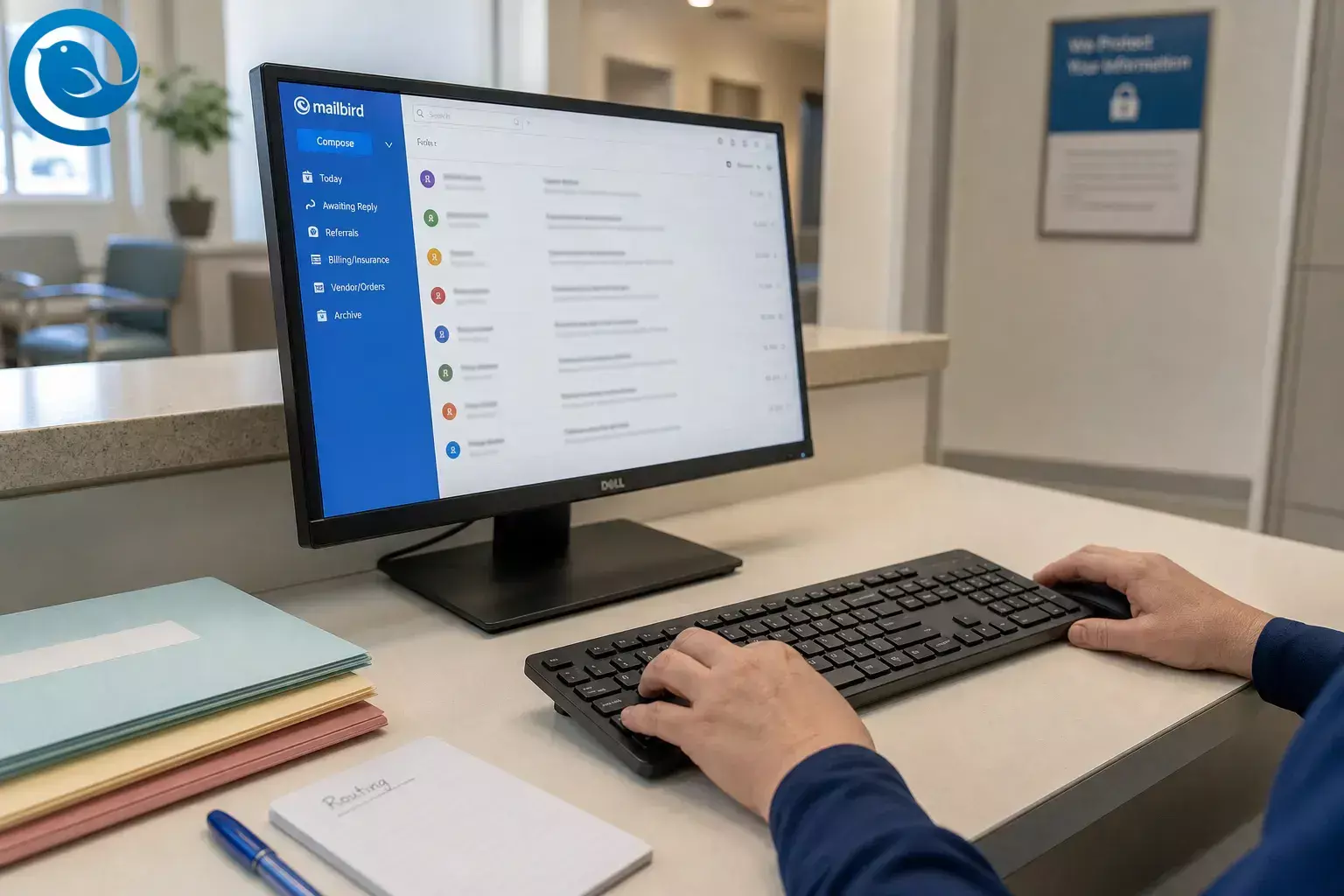
Healthcare email management in a medical practice is not just about keeping one front-desk inbox tidy. Good medical office inbox organization has to cover patient, referral, billing, lab, and vendor messages, and each one needs the right owner plus clear privacy and confidentiality guardrails.
Use the steps below to turn several clinic mailboxes into one organized, privacy-aware workflow in Mailbird with clear folders, role-based ownership, and reusable replies. Then run a short team test before staff use it live.
What’s new
HHS OCR announced a HIPAA settlement
On , HHS OCR announced a HIPAA settlement after a phishing attack let an unauthorized third party access ePHI through a workforce member’s email account, compromising 1,980 patients. 1 What it means for you: your inbox setup is part of patient privacy, not just office admin.
TL;DR
Quick answer
The simplest clinic email workflow in Mailbird is to connect only the mailboxes that need daily triage, turn on Unified Inbox, keep a short folder list, create a few per-account rules, and use staff-approved replies. Then decide which messages can stay in email and which must move to phone, portal, or your existing clinical task workflow. 9 11 12 13 2 7
Before you start
- Prerequisites: Sign-in access to each mailbox, permission to connect work accounts, and a clear list of who owns front desk, referrals, billing, and clinician review.
- Tools: Mailbird, your approved email provider, and a simple shared note for templates and rules.
- Time: Plan one setup session, plus extra time for templates and staff testing.
- Cost: You can start with Mailbird Free. If you need multiple accounts in one inbox or Premium-only features such as Email Templates, check the current plan details first. 14 13 24
- Safety notes: Healthcare providers can use email with safeguards, but the Security Rule still requires a documented approach to protecting ePHI in transit, controlling access, and training staff. If an outside company handles PHI for your practice, confirm the right business associate agreement or other required paperwork before rollout. 2 4 6
- To verify: Your response-time policy, your off-hours policy, and which messages must move to phone, portal, or your existing clinical task workflow instead of staying in email.
How to set up a medical practice email workflow
How to set up a medical practice email workflow
-
Map every mailbox before you touch the inbox
Open a note and create columns for address , purpose , PHI risk , and first reader . List every live mailbox your practice checks—front desk, referrals, billing, clinician, lab alerts, vendors, and newsletters—and mark each one Daily or Occasional so only the right accounts land in the daily workflow.
Check: You can point to each address and say who reads it first, who backs it up, and whether it belongs in the daily triage view.
-
Write a short routing page called “What goes where”
Keep it short. Route patient scheduling and forms to front desk, referrals to the referral queue, billing questions to billing, and anything that needs clinical judgment to the licensed workflow you already use. Add one plain-language line about response expectations and one line explaining when email is not the right channel for the patient’s clinical need. 2 7
Check: Any staff member can sort a recent batch of emails into the right bucket without asking for help.
-
Add the right accounts to Mailbird and turn on Unified Inbox
In Mailbird, go to Menu → Settings → Accounts → Add , connect each mailbox, then enable Unified Inbox and set it to open on startup. Unified Inbox appears after more than one account is connected, and Mailbird remembers which account received the message so replies go out from the correct address. 8 9
Check: You can see mail from the connected accounts in one view and send a test reply from each connected account without choosing the wrong sender.
-
Color-code accounts and keep the folder set small
Set a distinct color for each account, then create a short folder list in Settings → Folders . A simple starter set is Today , Awaiting Reply , Referrals , Billing/Insurance , Vendor/Orders , and Archive . For medical office inbox organization, a short folder list beats a deep tree almost every time. 10 11
Check: Each account has a color, the folders fit on one screen, and staff can tell at a glance which mailbox a message came from.
-
Assign by role, not by person
Use role labels in your folder names or routing note, such as FD , RN/MA , Clinician Review , Referrals , and Billing . This keeps work moving during vacations, lunch breaks, and staff turnover. If you need provider-specific review, add provider subfolders under the role.
Check: Every category has a first reader and a backup, and nobody says “that was in someone’s personal inbox” anymore.
-
Build only the rules that save obvious clicks
Open the Filters tab and create rules inside each account for referral partner domains, billing keywords, lab or vendor notices, and obvious low-value mail. Use Save and Run so you can test the rule on existing messages. Important: Mailbird filters are not synced with your mail server and only run while Mailbird is open. Also, if you want messages moved to folders, create those rules per account— Move to folder and Copy to folder are not supported when the filter is created under Unified Accounts . 12
Check: Your test run moves obvious mail correctly, and you know which rules must also exist at the provider level for nights or weekends.
-
Build approved replies, identities, and signatures
Go to Settings → Identities → Add , create the outbound identities your clinic actually needs, and save short replies for the messages you answer every week: appointment requests, referral receipt, records requests, billing handoff, and “please call the office” escalation. Mailbird supports separate identities, and Email Templates let you reuse common replies; if you are not using Premium, keep approved generic text in a locked shared document or saved drafts as the fallback. 8 13
Check: You can send a test message from each identity, and every template sounds like your practice—not like a generic script.
-
Set privacy guardrails before anyone uses the new workflow live
Use the minimum necessary information for the task, verify the recipient address before sending, decide which topics stay in email versus portal or phone, and keep personal accounts out of clinic work. HHS says healthcare providers may use email with safeguards, and patients can request reasonable alternative communication methods. If a vendor handles PHI on your practice’s behalf, confirm the correct business associate paperwork before you rely on that tool. 3 5 6
Check: Staff can explain the rule for patient email, referral email, vendor email, and what gets moved out of email entirely.
-
Confirm access, training, and offboarding
Ask your mail admin or IT lead to confirm current-user access only, shared-mailbox owner lists, email-provider authentication controls, and a simple access review whenever someone changes roles or leaves. Recent OCR guidance after phishing and ransomware cases points to risk analysis, audit controls, user authentication, encryption when appropriate, and workforce training as core safeguards. 1 2
Check: You know who removes access for departing staff and where that step is documented.
-
Run a live test with a small batch of recent emails
Process a small batch of real messages from the last few days using the new workflow. Fix any folder that catches the wrong mail, remove any unused rule, and rewrite any template that sounds stiff or confusing. Then save the final workflow in a short SOP so coverage is easy when someone is out.
Check: The triage inbox ends with only the messages that still need action today, and the team can explain the routine without guessing.
If you need the base setup first, start with Mailbird’s standard multi-account setup, then layer clinic-specific folders, rules, and reply text on top. 15 24
Why this clinic email workflow works
A clinic email workflow breaks down when every message forces three questions at once: which account is this from, who owns it, and is email even the right channel? A unified view answers the first question quickly, a small folder-and-rule system answers the second, and privacy guardrails answer the third. That is why good medical office inbox organization saves time without losing control. 9 12 5
Troubleshooting
- Symptom: You do not see Unified Inbox. Likely cause: Only one account is connected, or Unified Inbox is off. Fix: Add a second account, then enable Unified Inbox in Settings → Accounts . 9
- Symptom: The same message appears twice. Likely cause: It was sent to two connected accounts, so Unified Inbox shows one copy for each account. Fix: Check which addresses received it, or keep one of those accounts out of the daily unified view. 21
- Symptom: Rules worked during the day but missed overnight mail. Likely cause: Mailbird filters only run while Mailbird is open. Fix: Recreate must-run rules at the mail-provider level or keep the triage workstation open during the hours you expect rules to fire. 12
- Symptom: A message disappears from Inbox after you reply. Likely cause: Send + Archive is enabled. Fix: Turn that feature off or look in Archive for the message. 22
- Symptom: An account will not connect. Likely cause: Two-factor authentication is on and the provider expects an app-specific password, or IMAP is disabled. Fix: Create the app password your provider requires and make sure IMAP is enabled before reconnecting the account. 17 18
- Symptom: Mail will not send, or drafts stay stuck. Likely cause: Wrong SMTP settings, provider-side authentication trouble, or security software blocking Mailbird. Fix: Refresh Sent and Drafts, verify provider SMTP settings, and whitelist Mailbird in your antivirus or firewall if needed. 19 20
- Symptom: Blocked senders still reach the inbox. Likely cause: Mailbird’s Block Sender works only while the app is open. Fix: Keep Mailbird running or also block the sender at the mail-provider level. 16
- Symptom: The template button is missing. Likely cause: Email Templates are a Premium-only feature. Fix: Upgrade if you want in-app templates, or use approved drafts or snippets as your fallback. 13
Setup options by practice type
- Solo-provider practice: Keep it minimal with one clinical account and one admin account if possible, plus a very short folder list.
- Multi-provider clinic: Keep one account color per provider or role, then add provider-specific subfolders only under Clinician Review so the main view stays short. 10
- Referral-heavy specialty practice: Keep referral mail in the daily unified view, but move newsletters, marketing, and low-value vendor notices out of it so staff do not bury new consults under noise.
- No Premium or strict IT environment: Use Mailbird for identities, colors, folders, and unified viewing, but keep approved response text in a secure shared document or saved drafts instead of in-app templates. 8 13
Make-ahead, storage, and scaling
- Make-ahead: Write the routing page, folder list, and approved reply text before you connect everyone’s mailboxes.
- Storage: Keep the workflow page, approved replies, and access-owner list in the same secure shared SOP folder your office already uses.
- Scaling: When you add a new provider or location, duplicate the same role labels, folder set, and templates first—then review access rights and any PHI vendor paperwork before going live. 6
Frequently Asked Questions
Is regular email allowed for patient communication under HIPAA?
Will replies still send from the correct clinic address in Unified Inbox?
Yes. In Unified Inbox, Mailbird keeps track of which account received the message so replies go out from the right address.
Sources: 9
Do we have to put every account into Unified Inbox?
No. Include only the addresses that truly need daily triage. Quiet or occasional accounts can stay separate.
Sources: 9
Do Mailbird rules work when the app is closed?
No. Mailbird filters run only while the app is open. If a rule must run overnight or when the workstation is unattended, create it at the mail-provider level too.
Sources: 12
When do we need a business associate agreement?
If an outside company handles protected health information on your practice’s behalf, check whether it is acting as a business associate and make sure the required paperwork is in place before use.
Sources: 6
Can front-desk or billing staff answer some patient emails?
Often, yes—for scheduling, forms, billing, and routing when your written workflow allows it. Anything that needs clinical judgment should move to the licensed workflow.
Sources: 23
Can we use templates for patient email?
Yes. Templates can help with common replies. In Mailbird, template content can be reused, but recipient fields are not saved with the template.
Sources: 13
Quick rollout checklist
- ☐ Every mailbox has an owner and a backup
- ☐ Only the right accounts are in the daily unified view
- ☐ Each account has a clear color
- ☐ The folder list is short and visible
- ☐ Rules were tested on real mail
- ☐ Approved reply text is ready
- ☐ Outbound identities match the right signatures
- ☐ Privacy and escalation rules are written down
- ☐ Access review and offboarding owner are documented
- ☐ The team ran a live test before rollout
Disclosure
General operational guidance only—not legal advice. If your practice handles protected health information , have your privacy, security, or IT lead review the setup before staff use it live.
Sources
- HHS OCR: Top of the World Ranch Treatment Center settlement (Feb. 19, 2026)
- CMS Medicare Learning Network: HIPAA Basics for Providers: Privacy, Security, & Breach Notification Rules (May 2025)
- HHS FAQ: Providers using email to discuss health issues and treatment with patients
- HHS FAQ: Sending e-PHI by email or over the internet under the Security Rule
- HHS: Minimum Necessary Requirement
- HHS: Covered Entities and Business Associates
- AMA Code of Medical Ethics Opinion 2.3.1: Electronic Communication with Patients
- Mailbird Help Center: Connecting Accounts and Adding Identities in Mailbird
- Mailbird Help Center: Unified Inbox
- Mailbird Help Center: Unified Inbox Color Indicator
- Mailbird Help Center: How to organize folders from within Mailbird
- Mailbird Help Center: Setting up Filters and Rules
- Mailbird Help Center: Email Templates
- Mailbird Help Center: Is Mailbird free?
- Mailbird: How to Manage Multiple Email Accounts in One Inbox
- Mailbird Help Center: Block Sender
- Mailbird Help Center: Troubleshooting Authentication Issues in Mailbird
- Mailbird Help Center: How to enable IMAP for your email account in Mailbird
- Mailbird Help Center: I can’t receive or send emails anymore
- Mailbird Help Center: Emails fail to send / Sending error / Emails stay in drafts
- Mailbird Help Center: Why am I seeing duplicate emails in Mailbird?
- Mailbird Help Center: When I reply to an email, it disappears from my Inbox. Why?
- American Medical Association: Myth or fact? Only doctors can respond to patient portal messages
- Mailbird: How to Combine Multiple Email Accounts Into One Inbox


