Best Email Workflow for Remote Teams
Use this do-it-now guide to build a simple, repeatable email workflow for remote teams in Mailbird—so every thread has a clear owner, next step, and deadline. You’ll combine a shared playbook with Mailbird features like Unified Inbox, Mailbird Snooze, templates, and Custom Apps.


Use this do-it-now guide to build a simple, repeatable email workflow for remote teams in Mailbird—so every thread has a clear owner, next step, and deadline. You’ll combine a shared playbook with Mailbird features like Unified Inbox, Mailbird Snooze, templates, and Custom Apps.
Quick overview
- Agree on a channel map (email vs chat vs tasks vs docs)
- Standardize triage with Unified Inbox + a small shared folder/label set
- Use Snooze for follow-ups instead of leaving “not now” emails in the inbox
- Create three team templates to speed up replies and handoffs
- Add a verification step for sensitive requests (vendors, invoices, access changes)
Before you start
- Prerequisites: Access to your work email account(s), plus permission to create folders/labels and filters (or someone on your team who can).
- Tools: Mailbird, plus your remote team communication tools—team chat (Slack or Microsoft Teams) and a task tool (Asana, Trello, or similar). If you don’t have a task tool, use a shared spreadsheet as a fallback.
- Time: One focused setup session + a short end-of-week review.
- Cost: Free–paid, depending on the plans you already use (some Mailbird features may require a paid license).
- Safety notes: Don’t email passwords or one-time codes. Treat unexpected requests about payments, bank details, or access changes as “verify first” items, and follow your organization’s security and data-retention rules.
How to set up an email workflow for remote teams (step-by-step)
How to set up an email workflow for remote teams (step-by-step)
- Write a one-page “Email Playbook” and pin it where everyone works.
- Create a shared doc titled Remote Team Email Playbook.
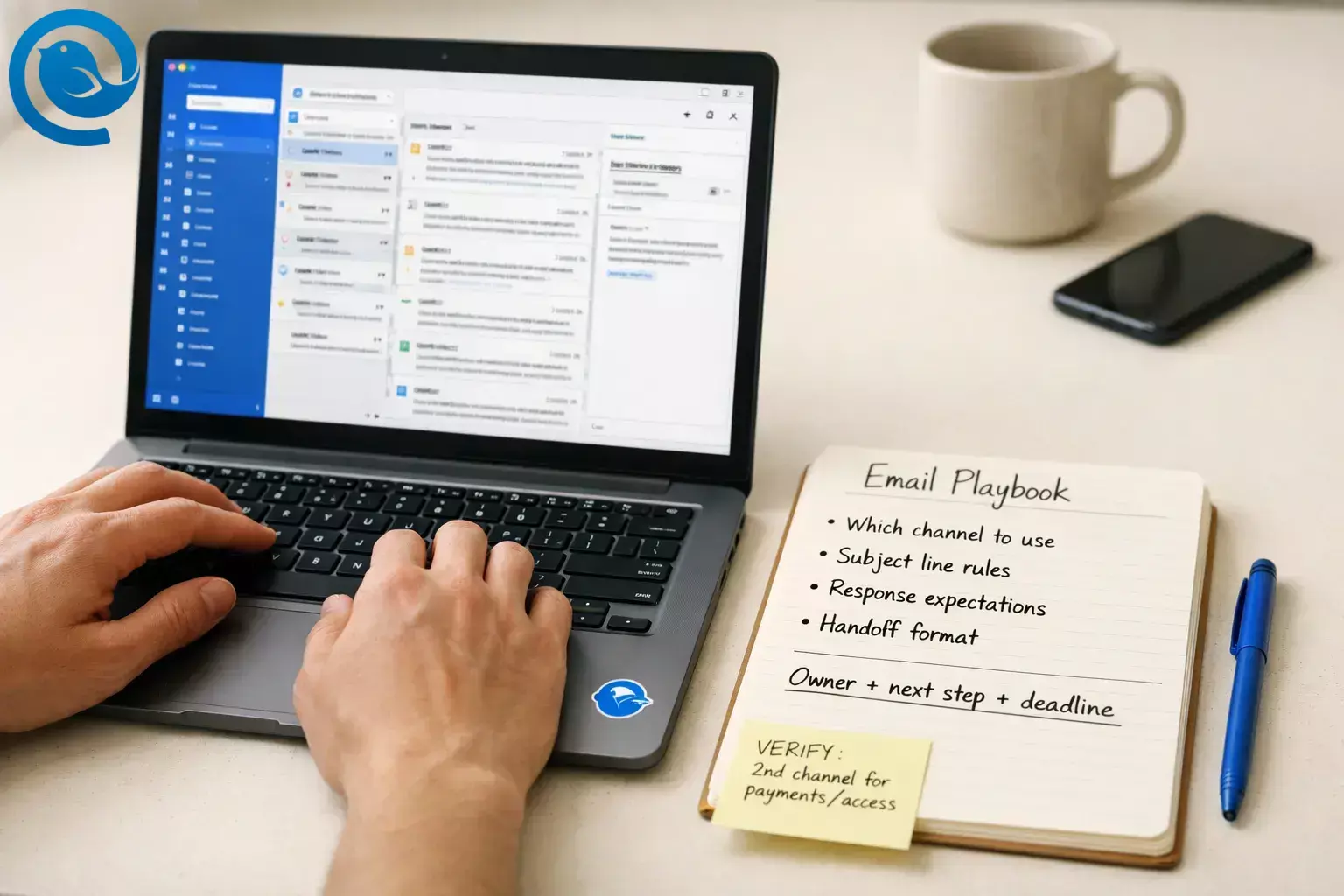
- Add four headings: Which channel to use, Subject line rules, Response expectations, Handoff format.
- Post the link in your chat tool and pin it so new hires can find it.
- Define your channel map (email vs chat vs tasks) in plain language. Done when: Your team agrees that email is for communication, and tasks are for work.
Use this When the message is… What you do next Email External, formal, needs an audit trail, or includes attachments/long context Summarize the ask, name an owner, and add a clear “needed by” line Chat (Slack/Teams) A quick clarification, unblocker, or “are you online?” check If a decision is made, paste a short recap into the email thread (or your task tool) Task tool (Asana/Trello) Work that takes more than a quick reply Create a task with an owner and due date; keep the email for context Docs (Notion/Google Docs) Reusable processes, meeting notes, decisions that will matter next month Link the doc in the email and task so the “why” doesn’t get lost - Connect your accounts to Mailbird and use Unified Inbox for triage.
- Add every work account you need (main address, aliases you monitor, and any role-based inbox you own).
- Open Unified Inbox (it appears after you’ve added more than one account).
- Start each email check-in in Unified Inbox so you triage the same way every time.
- Create a small, shared folder/label set (and keep it identical across the team).
- Create folders/labels such as: Action, Waiting, Reference, and Receipts/Admin.
- If you use a shared mailbox (like support@), add a folder/label like Handoff or Needs Owner.
- In your email provider, add basic filters (newsletters to Reference, receipts to Receipts/Admin, CC-only threads to Reference).
- Use Snooze to keep “not now” emails out of the way (without losing them).
- When you can’t act yet, Snooze the message instead of leaving it in the inbox.
- In Mailbird you can Snooze by right-clicking an email, using the Snooze icon, or pressing Z and choosing when it should reappear.
- Snooze “waiting on reply” threads to a time when you actually plan to follow up.
- Create three team templates: Acknowledge, Handoff, and Decision Request.
- Acknowledge (sets expectation): “Got it. Next step is ____. I’ll update you by ____.”
- Handoff (moves ownership): “Context: ____. Request: ____. Owner: ____. Needed by: ____.”
- Decision Request (reduces back-and-forth): “Choose A/B/C by ____. If I don’t hear back, I’ll proceed with ____.”
- In Mailbird, you can save a draft as a template from the Email Templates menu (available to Premium license owners).
- Fallback if you don’t have templates: keep these in your Playbook doc and copy/paste.
Copy/paste template text
Done when: Anyone can reply to common threads in under a minute, using the same wording and structure. [4]AcknowledgeGot it. Next step is ____.I’ll update you by ____ (include time zone).HandoffContext:Request:Owner:Needed by:Links/files:Decision RequestPlease choose A / B / C by ____ (include time zone).If I don’t hear back, I’ll proceed with ____. - Adopt a “one-screen email” format for anything that needs action.
- Subject starts with a clear tag: ACTION:, APPROVAL:, DECISION:, or FYI:
- First line includes: Owner + Needed by (use an absolute date and a time zone, not “EOD”).
- Use bullets for details. Put attachments/links at the end.
Example (copy and edit)
Done when: The recipient can understand the ask and deadline without scrolling.Subject: ACTION: ____ (Needed by: ___, ___ [TZ])Owner: ____ | Needed by: ___, ___ [TZ]- What I need from you:- Background (1–2 bullets):- Link/attachment: - Turn “work” emails into tasks immediately (and keep tasks close to your inbox).
- Pick one system of record for work (a task tool). Don’t “assign work” in email alone.
- If your team uses Asana: enable Asana from Mailbird’s Apps list, sign in, and keep it available while you triage email.
- If your tool isn’t in the list: add it as a Custom App by pasting its URL, so your remote team communication tools are one click away while you work through email.
- When you create the task, reply to the email thread with: “Created task: ____ (owner: ____, due: ____).” Then file or Snooze the email.
- Standardize handoffs (so threads don’t die in limbo).
- When you hand something off, don’t forward raw. Use your Handoff template with Context, Ask, Owner, and Needed by.
- Move the original email into Waiting (or Handoff for shared inboxes).
- On the day it’s due, either (a) follow up, or (b) Snooze it to your next follow-up time.
- Add a “verify before acting” rule for sensitive requests.
- In your Playbook, list triggers such as: payment requests, bank detail changes, “urgent” vendor invoices, access/permission changes, password resets, gift cards, or new vendor onboarding.
- Rule: verify via a second channel using a known-good contact method (call the number in your contacts, message the person in chat, or verify through your vendor portal).
- When verified, reply in the email thread with a short confirmation: “Verified via ____ on ____; proceeding.”
- Schedule a weekly tune-up and keep only what earns its place.
- Pick a recurring time each week.
- Ask each teammate to bring:
- 1 thread that should have been a task
- 1 thread that should have been chat
- 1 template you should add, fix, or remove
- Update the Playbook, announce changes once, and move on.
Why this email workflow works for remote teams
Remote teams don’t get hallway clarifications—so every action-oriented email needs to carry its own “owner + next step + deadline.” Unified triage keeps email from fragmenting across accounts, templates remove retyping, and pushing real work into a task tool prevents important items from being buried in threads.
Troubleshooting your remote team email workflow
| Symptom | Likely cause | Fix |
|---|---|---|
| Unified Inbox isn’t showing up in Mailbird | Only one account is connected, or the setting is turned off | Add a second account. If needed, enable Unified Inbox in Mailbird settings for accounts (Enable unified account). [3] |
| Replies go out from the wrong address | You’re switching accounts manually mid-thread | Reply from the account that received the message (Unified Inbox helps). Before sending, confirm the From address is correct. [3] |
| The Templates icon isn’t there | You don’t have access to Email Templates on your license | Confirm your license includes Email Templates, or store templates in your Playbook doc for copy/paste. [4] |
| Pressing “Z” doesn’t Snooze anything | Keyboard focus isn’t on the message list, or you’re using a method that doesn’t rely on shortcuts | Click the email in the list first, then press Z; or right-click an email and choose Snooze. [5] |
| Email threads keep exploding with Reply All | No single owner; people are using email like chat | In the first reply, add an “Owner:” line and a “Needed by:” line; move execution into a task tool and keep email for updates. |
| Tasks exist, but nobody checks them | The task tool isn’t part of daily workflow | Make tasks visible during triage (for example, open Asana from Mailbird Apps so it’s available next to your inbox). [6] |
| You still bounce between email, chat, and docs all day | Your tools live in separate tabs, so context gets lost | Add your core tools into Mailbird as apps; if needed, add them as Custom Apps by URL so they’re available while you work through email. [7] |
| Everyone feels “always on” | No agreement about response expectations by channel | Set expectations in the Playbook (what’s urgent and how it’s escalated), and use planned email check-in times instead of constant monitoring. |
Email workflow variations (by remote-team use-case)
- Client services / support: Use a shared inbox + templates for acknowledgments; convert each request into a task/ticket and reply with the current status + next update time.
- Project teams: Use email mostly for external stakeholders; route internal work into Asana/Trello; keep a “DECISION” subject tag for items you’ll need to reference later.
- Sales / partnerships: Use Snooze for follow-ups; keep a short “Next step” line in every thread; log real work in your task tool (not in the inbox).
- Leadership / ops: Add a “Delegate” lane: one person triages, assigns owners, and sends a daily summary; everyone else focuses on execution in tasks.
Make-ahead, maintenance, and scaling
Make-ahead (set once)
- Create the folder/label set and copy the names into your Playbook so everyone matches it.
- Build a starter template library (Acknowledge, Handoff, Decision Request) and add more only when you repeat the same email twice.
- Add your core remote team communication tools inside Mailbird (from the Apps list or as Custom Apps) so triage doesn’t require tab-hopping. [7]
Maintenance (keep it from drifting)
- Once a week, review your “Waiting” folder/label and either follow up, Snooze, or close the loop.
- Once a month, remove one subject tag that nobody uses and rewrite one template that causes confusion.
Scaling (when the team or inboxes grow)
- For shared inboxes, define an explicit rotation (who owns triage today) and require the “Owner:” line in the first internal reply.
- Create role-based templates (Finance verification, Vendor onboarding, Incident updates) so new teammates don’t invent wording under pressure.
Quick checklist (screenshot this)
- [ ] Email Playbook doc created and pinned in chat
- [ ] Channel map written (email vs chat vs tasks vs docs)
- [ ] Mailbird accounts connected; Unified Inbox enabled
- [ ] Shared folder/label set created across the team
- [ ] Snooze used for “not now” emails (instead of leaving them in inbox)
- [ ] Three templates created: Acknowledge, Handoff, Decision Request
- [ ] “One-screen email” format adopted (subject tag + owner + needed by)
- [ ] Task tool is the system of record for work; email is for context/updates
- [ ] “Verify before acting” rule written for sensitive requests
- [ ] Weekly tune-up scheduled and recurring
Frequently Asked Questions
Do remote teams still need email if they use Slack or Microsoft Teams?
Yes. Email is still useful for external communication, long-form context, approvals, and any message you want to be easy to find later. The key is giving email a clear job—and routing “work” into tasks.
What should go to email vs a task tool?
If someone needs to do work (and you care who owns it and when it’s due), create a task. Use email to capture context, communicate updates, and close the loop with stakeholders.
How do we stop Reply All storms?
Name one owner, put the next step in the first line, and move execution into your task tool. Keep everyone else as FYI unless they must act.
How do we handle time zones in email?
Use absolute dates and include a time zone (e.g., “Fri, May 8 (ET)”). Avoid “EOD” unless you say whose end of day you mean.
Can Mailbird manage multiple email accounts in one place?
Yes. You can connect multiple accounts and use Unified Inbox to view and search messages across them while still replying from the correct address. [3]
Does Mailbird include email templates?
Mailbird supports Email Templates so you can reuse common responses. If you don’t have access to that feature, keep your templates in a shared doc and copy/paste. [4]
How do I connect Mailbird to Asana?
Enable Asana from Mailbird’s Apps list, sign in, and keep it available while you triage email. [6]
What if our tool isn’t in Mailbird’s Apps list?
Add it as a Custom App by pasting the tool’s URL, choosing an icon, and keeping it available while you work through email. [7]
What’s the simplest way to reduce phishing risk in a remote team workflow?
Make verification a process, not a judgment call: define which requests must be confirmed in a second channel (payment, bank changes, access changes), and require a short “verified via ____” note before acting.
- Verizon (Apr 23, 2025): 2025 Data Breach Investigations Report release (About Verizon)
- Verizon: 2025 Data Breach Investigations Report — Executive Summary (PDF)
- Mailbird Support: Unified Inbox — https://support.getmailbird.com/hc/en-us/articles/220108147-Unified-Inbox
- Mailbird Support: Email Templates — https://support.getmailbird.com/hc/en-us/articles/18877966333591-Email-Templates
- Mailbird Support: Managing your inbox with Snooze — https://support.getmailbird.com/hc/en-us/articles/220108067-Managing-your-inbox-with-Snooze
- Asana App Directory: Mailbird + Asana integration
- Mailbird Support: Adding Custom Apps to Mailbird — https://support.getmailbird.com/hc/en-us/articles/19282390588823-Adding-Custom-Apps-to-Mailbird


