Where Are Settings in Outlook?
In new Outlook for Windows and Outlook on the web, look for the Settings gear at the top right. In classic Outlook for Windows, use File > Options for app preferences or File > Account Settings > Account Settings for email accounts. Mac and mobile have their own paths.



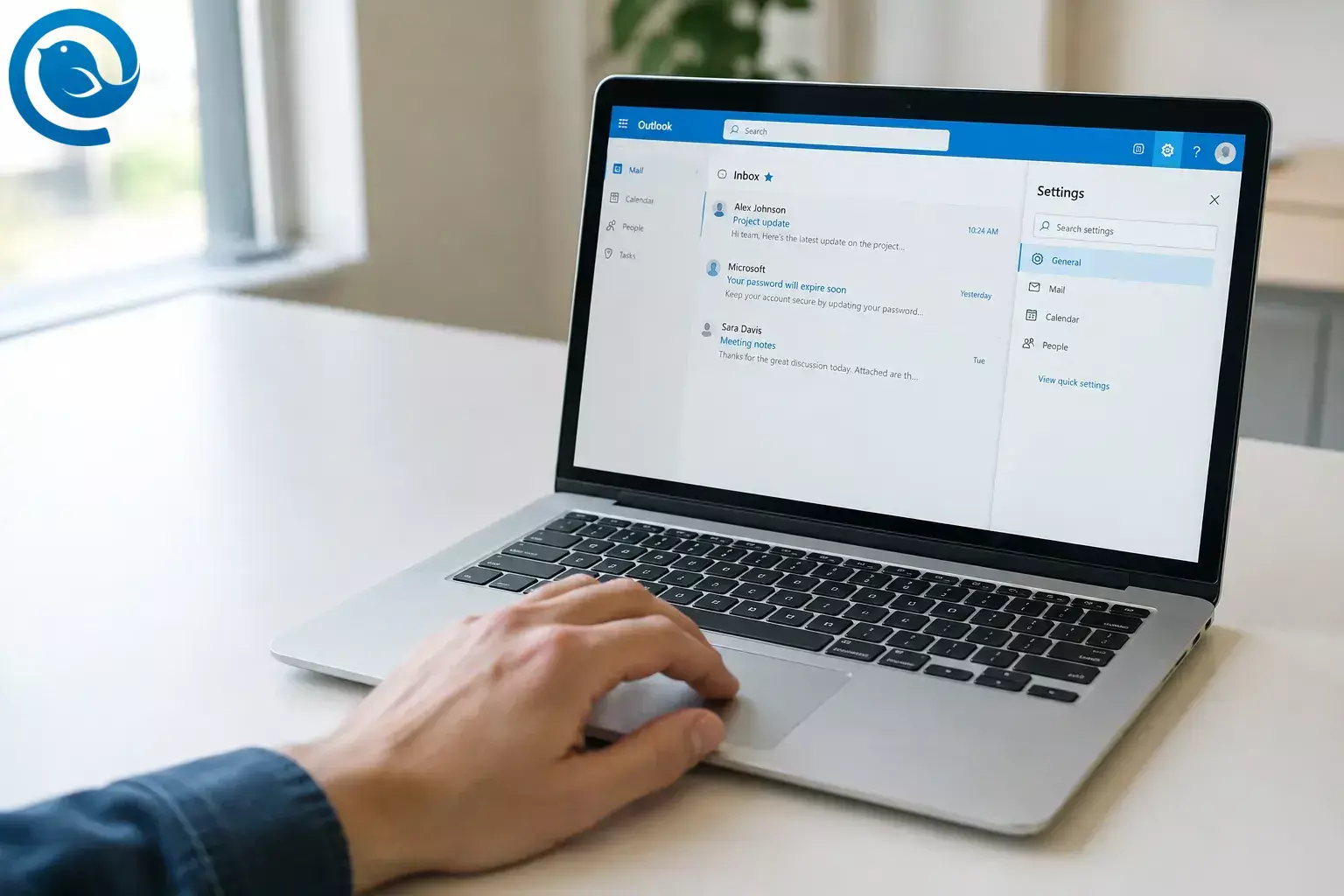
In new Outlook for Windows and Outlook on the web, look for the Settings gear at the top right. In classic Outlook for Windows, use File > Options for app preferences or File > Account Settings > Account Settings for email accounts. Mac and mobile have their own paths.
Quick answer
- New Outlook for Windows: Select the Settings gear at the top right.
- Classic Outlook for Windows: Use File > Options for app preferences, or File > Account Settings > Account Settings for connected accounts.
- Outlook on the web: Select the Settings gear at the top of the page.
- Outlook for Mac: In the Mac menu bar, select Outlook > Settings.
- Outlook for iPhone or Android: Open the account or profile menu at the upper left, then tap the Settings gear near the bottom left.
Outlook settings locations at a glance
| Version | Where to go—and what’s there |
|---|---|
| New Outlook for Windows | Select the Settings gear at the top right for app preferences. Open Accounts > Your accounts to manage connected email accounts. |
| Classic Outlook for Windows | Use File > Options for app preferences, or File > Account Settings > Account Settings for connected accounts. |
| Outlook on the web | Select the Settings gear at the top of the page. For example, Mail > Layout controls how messages appear. |
| Outlook for Mac | In the Mac menu bar, select Outlook > Settings. Choose Accounts to add an email account. |
| Outlook for iPhone or Android | Open the account or profile menu at the upper left, then tap the Settings gear near the bottom left. Options include notifications and swipe actions. |
New Outlook for Windows
Select the Settings gear at the top right for app preferences. Open Accounts > Your accounts to manage connected email accounts.
Classic Outlook for Windows
Use File > Options for app preferences, or File > Account Settings > Account Settings for connected accounts.
Outlook on the web
Select the Settings gear at the top of the page. For example, Mail > Layout controls how messages appear.
Outlook for Mac
In the Mac menu bar, select Outlook > Settings. Choose Accounts to add an email account.
Outlook for iPhone or Android
Open the account or profile menu at the upper left, then tap the Settings gear near the bottom left. Options include notifications and swipe actions.
Don’t see the Settings icon?
If you’re on Windows, check which Outlook app you’re using: classic Outlook keeps its main settings under File. A File tab alone doesn’t confirm you’re in classic Outlook; new Outlook can also show one. In new Outlook, View > View settings is another way to open settings.
Sources
- Settings gear — New Outlook for Windows
- Accounts > Your accounts
- File > Options
- File > Account Settings > Account Settings
- Mail > Layout
- Outlook > Settings
- Settings gear — Outlook for iPhone or Android
- notifications and swipe actions


