Outlook Safe Mode: How to Start It and Find Problem Add-Ins

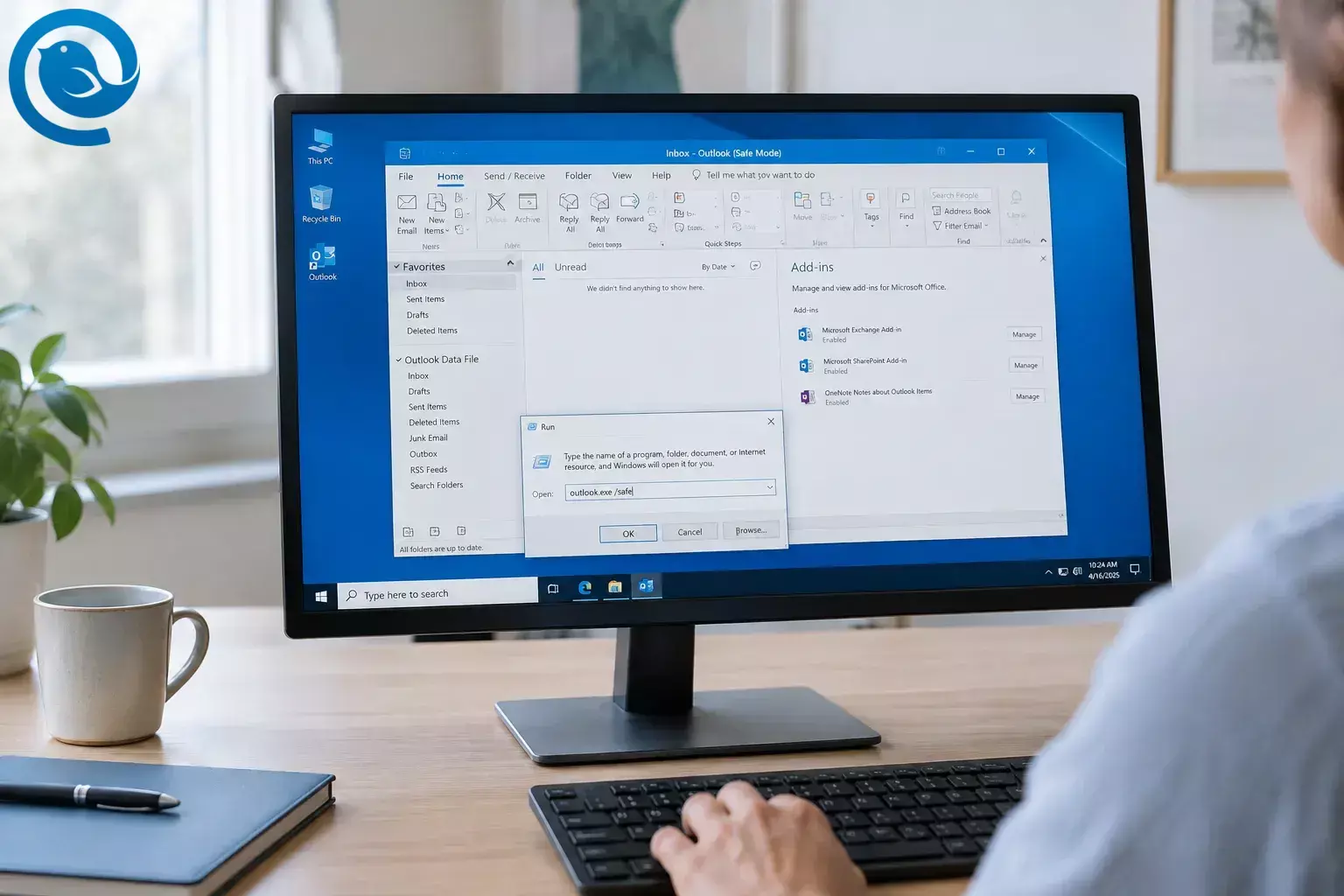
To open classic Outlook in Safe Mode on Windows, close Outlook, press Windows+R, type outlook.exe /safe, and select OK. Include the space before the slash. You can also hold Ctrl while opening classic Outlook and accept the Safe Mode prompt. These methods do not apply to new Outlook.

Published on•
Last updated on•
6 min read
Oliver Jackson

Head of Customer Happiness

Christin Baumgarten

Operations Manager

Abdessamad El Bahri

Full Stack Engineer

Authored By Oliver Jackson Head of Customer Happiness

Oliver is Mailbird's Head of Customer Happiness, bringing more than a decade of experience in email. His background in email marketing, where his strategic and creative approach to campaigns drove growth and engagement for businesses across diverse industries, shapes how he helps people get more out of their inbox. Oliver is known for his insightful webinars and guest posts, where he shares his expert knowledge.

Reviewed By Christin Baumgarten Operations Manager

Christin Baumgarten is the Operations Manager at Mailbird, where she drives product development and leads communications for this leading email client. With over a decade at Mailbird — from a marketing intern to Operations Manager — she offers deep expertise in email technology and productivity. Christin’s experience shaping product strategy and user engagement underscores her authority in the communication technology space.

Tested By Abdessamad El Bahri Full Stack Engineer

Abdessamad is a tech enthusiast and problem solver, passionate about driving impact through innovation. With strong foundations in software engineering and hands-on experience delivering results, He combines analytical thinking with creative design to tackle challenges head-on. When not immersed in code or strategy, he enjoys staying current with emerging technologies, collaborating with like-minded professionals, and mentoring those just starting their journey.

Outlook Safe Mode: How to Start It and Find Problem Add-Ins

To open classic Outlook in Safe Mode on Windows, close Outlook, press Windows + R, type outlook.exe /safe, and select OK. Include the space before the slash. You can also hold Ctrl while opening classic Outlook and accept the Safe Mode prompt. These methods do not apply to new Outlook.

Key takeaways

  • For classic Outlook on Windows, use outlook.exe /safe or hold Ctrl while opening it.
  • These methods do not apply to new Outlook.
  • Safe Mode starts classic Outlook without COM add-ins, the Reading Pane, and toolbar customizations.
  • To test COM add-ins, clear their checkboxes, reopen Outlook normally, then re-enable them one at a time.
  • Starting classic Outlook in Safe Mode does not delete messages or data files.
  • To exit Safe Mode, close Outlook and open it normally without holding Ctrl.

Before you start: check which Outlook you have

Classic Outlook has a File tab. New Outlook has a Settings gear at the top right. If you use new Outlook, go to the guidance below instead of running the classic Outlook command. Microsoft explains the differences in its Outlook version guide.

Keep your settings: When testing add-ins, clear their checkboxes rather than selecting Remove. Do not delete an Outlook profile or PST file as part of this test.

How to start classic Outlook in Safe Mode

How to start classic Outlook in Safe Mode

  1. Close Outlook. If it appears stuck, press Ctrl + Shift + Esc, select Microsoft Outlook in Task Manager, and choose End task.
  2. Open Run. Press Windows + R.
  3. Enter the Outlook Safe Mode command. Type outlook.exe /safe and select OK. Choose your usual profile if prompted.
  4. Check the result. Look for a Safe Mode label at the top of the Outlook window, then retry the action that caused the problem.

Prefer a shortcut? Close classic Outlook, hold Ctrl while opening it from its shortcut, and confirm the Safe Mode prompt. Microsoft lists /safe in its Office command-line switch reference.

What does Outlook Safe Mode turn off?

Classic Outlook’s /safe switch starts it without COM add-ins, the Reading Pane, and toolbar customizations. If Outlook works in Safe Mode but fails during a normal launch, an add-in is one possibility—not a confirmed cause. Safe Mode helps you investigate; it is not a permanent repair.

How to find a problem add-in

How to find a problem add-in

  1. File → Options → Add-ins.
  2. Manage to COM Add-ins and select Go. Write down or take a screenshot of the checked add-ins.
  3. OK. Do not select Remove.
  4. Close Outlook and reopen it normally, without holding Ctrl or using /safe. Retry the action that failed.
  5. File → Options → Add-ins → COM Add-ins → Go. Re-enable one previously checked add-in, close Outlook, and reopen it normally. Repeat one add-in at a time until the problem returns.
  6. Leave the add-in that brings back the problem unchecked. If Outlook will not stay open, start it in Safe Mode again to uncheck that add-in. Then reopen Outlook normally and look for an update from the add-in provider if you need it.

If Outlook still fails with every COM add-in unchecked, do not assume an add-in is responsible. Microsoft’s Outlook troubleshooting guide covers other possible causes.

How to exit Outlook Safe Mode

Close Outlook and open it from your usual Start menu shortcut without holding Ctrl. The Safe Mode label should be gone. If Outlook always starts in Safe Mode from one shortcut, check that shortcut’s Properties → Target for /safe and remove the switch if it is present.

Does new Outlook have Safe Mode?

New Outlook does not have classic Outlook’s Safe Mode or its COM add-in testing workflow. The Ctrl shortcut and outlook.exe /safe are not the methods to use for that app. Microsoft documents a separate, limited new Outlook mode using olk.exe --safe and recommends working with Microsoft Support if you need it. It is not equivalent to the classic workflow described here. See Microsoft’s new Outlook architecture guidance.

Instead, close a stuck new Outlook process in Task Manager and reopen the app. If trouble began after you added an app, open More apps → Add apps → Manage your apps to review it. Microsoft’s add-in guide explains how to remove an app; ask your IT team before changing an organization-provided app.

If Outlook still will not open

  • Windows cannot find outlook.exe: Check that classic Outlook is installed. If it is, try its full executable path, such as "C:\Program Files\Microsoft Officeoot\Office16\OUTLOOK.EXE" /safe. Use the actual path on your PC if it differs.
  • Outlook opens normally instead of in Safe Mode: Check for the space in outlook.exe /safe, end any Outlook process still running in Task Manager, and retry.
  • Outlook will not open even in Safe Mode: An add-in may not be the cause. Follow Microsoft’s classic Outlook startup guidance rather than deleting a data file to test it.
  • You see “The set of folders cannot be opened”: Follow Mailbird’s “Cannot start Microsoft Outlook” folder-error guide to check other possible causes before changing any files.

Frequently asked questions

What is the Outlook Safe Mode command?

For classic Outlook on Windows, press Windows + R and enter outlook.exe /safe, including the space before the slash.

Does starting Outlook in Safe Mode delete my email?

No. The command changes how classic Outlook starts; it does not delete messages or data files.

Can I use Safe Mode to confirm an add-in is faulty?

Safe Mode alone cannot confirm which feature caused the problem. Disable COM add-ins, test a normal launch, then re-enable them one at a time to see whether a particular add-in brings the problem back.

Want a different desktop email client? Download Mailbird and add your email account. Installing another client does not repair an Outlook profile or damaged local data file.

Sources

  1. Outlook version guide
  2. Office command-line switch reference
  3. Outlook troubleshooting guide
  4. new Outlook architecture guidance
  5. add-in guide
  6. classic Outlook startup guidance
  7. “Cannot start Microsoft Outlook” folder-error guide