Cannot Start Microsoft Outlook. The Set of Folders Cannot Be Opened: How to Fix It
If classic Outlook on Windows says “Cannot start Microsoft Outlook. Cannot open the Outlook window. The set of folders cannot be opened,” start by checking the full message and testing Outlook in safe mode. If that does not help, identify whether your mail uses a PST or OST before changing a data file.



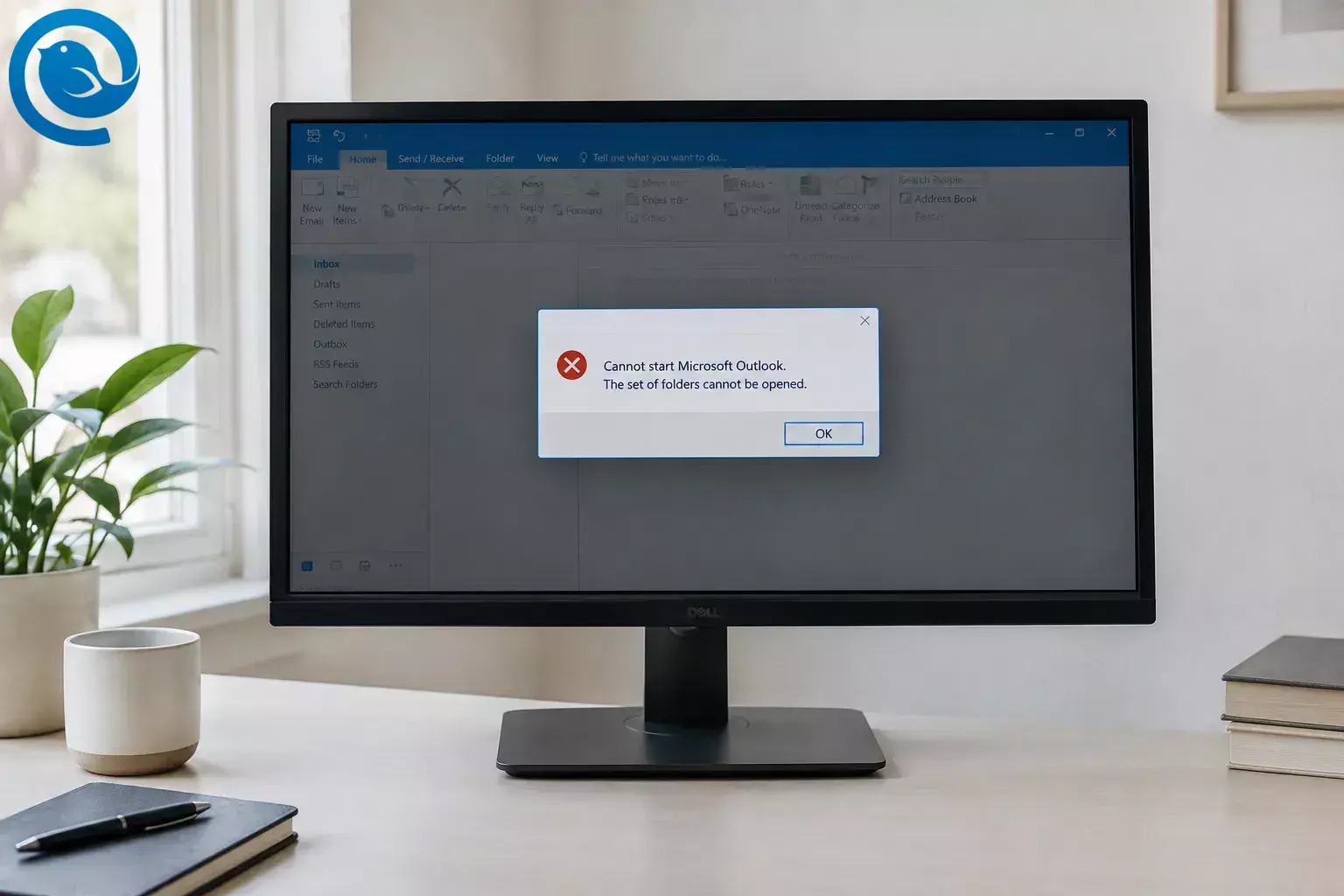
If classic Outlook on Windows says “Cannot start Microsoft Outlook. Cannot open the Outlook window. The set of folders cannot be opened,” start by checking the full message and testing Outlook in safe mode. If that does not help, identify whether your mail uses a PST or OST before changing a data file.
The message does not always mean a file is damaged. Microsoft has documented a version with an additional Exchange logon failure caused by a service issue. If you see that extra line, keep it for your IT administrator rather than assuming a local repair will fix it.
Quick checklist
- Save the full error message and check webmail.
- Close any lingering Outlook process and test a clean start.
-
Try
outlook.exe /safe; if it works, test add-ins. -
Try
outlook.exe /resetnavpane. - Identify the PST or OST and back up any affected PST.
- Repair a PST with ScanPST, or cautiously rebuild a verified Exchange OST.
- Test a new profile without removing the old one.
- If the error remains, give IT the full message and your test results.
Before you start
- Use this guide for classic Outlook on Windows. Its add-in, profile, and data-file steps do not necessarily apply to the new Outlook app .
-
Keep your files.
Do not delete a
.pst: it may contain the only copy of POP mail or a local archive. Do not rename an.ostuntil you have checked that the mail you need is on the server. - Have your sign-in details ready. A work account may also require help from IT.
Fix the folder-set error step by step
Fix the folder-set error step by step
-
Read the full error and check webmail
Save a screenshot that includes any line after “The set of folders cannot be opened.” For a server-based account, sign in through your organization’s webmail or your provider’s website. If the folders are there, continue with the PC checks. If webmail also fails, contact your provider or IT before changing local files. For a POP account, remember that webmail may not show messages stored only in a PST.
Check: You have the complete error text and know whether your server folders appear in a browser.
-
Close Outlook completely
Close Outlook, then press
Ctrl+Shift+Escto open Task Manager. If Microsoft Outlook orOUTLOOK.EXEremains, select it and choose End task . Open Outlook once more. If the process will not close, restart Windows and try again.If a POP or PST profile stopped reopening after a Windows update, install pending Windows updates before rebuilding it. Microsoft has documented a Windows-update issue affecting some of these profiles and says its fix is delivered through Windows Update.
Check: Outlook opens, or the same error appears after a clean start.
-
Start Outlook in safe mode
Press
Windows+R, typeoutlook.exe /safe, and press Enter . Choose your usual profile if prompted. Safe mode starts classic Outlook without its add-ins, so the result helps narrow down the cause.Check: Note whether your folders open. If they do not, skip the add-in step.
-
If safe mode works, disable add-ins
In safe mode, select File → Options → Add-ins . Set Manage to COM Add-ins and choose Go . Note which add-ins are checked, clear their checkboxes, and select OK . Close Outlook and open it normally. If it works, re-enable add-ins one at a time, restarting after each, until you identify the one that brings back the error. Leave that add-in unchecked; you do not need to remove it to test.
Check: Normal startup works with the problem add-in disabled.
-
Reset the folder navigation pane
Close Outlook. Press
Windows+R, typeoutlook.exe /resetnavpane, and press Enter . This resets navigation-pane customizations; it does not repair a damaged mailbox file. Microsoft includes this and the safe-mode test in its classic Outlook startup guidance .Check: Outlook opens and the folder list appears. If it does not, close Outlook before handling data files.
-
Identify the data file and back up any affected PST
Open Control Panel → Mail (Microsoft Outlook) → Data Files . Note the account, file name, and location. If Outlook opens in safe mode, you can also check File → Account Settings → Account Settings → Data Files . Close Outlook, then copy any affected
.pstto a separate local backup folder. If you cannot identify the file, ask IT rather than guessing.Check: You know whether the affected file is a PST or OST and have a backup copy of any affected PST.
-
For a PST, run the Inbox Repair Tool
Skip this step if the affected file is an OST. With Outlook closed, search your Microsoft Office installation folder for
SCANPST.EXE. Common locations includeC:\Program Files\Microsoft Office\root\Office16andC:\Program Files (x86)\Microsoft Office\root\Office16. Open the tool, select Browse to choose the affected PST, then select Start . If it finds errors, keep its backup option enabled and select Repair . Reopen Outlook and check your folders, including Lost and Found . Microsoft’s PST repair guide explains recovery options if items are missing.Check: Outlook opens the PST, or you have kept the backups for further help.
-
For an Exchange OST, test a fresh local cache
Skip this step for PST files. Only do this for an Exchange or Microsoft 365 account after confirming that the folders you need are on the server. Close Outlook, locate the identified
.ostin File Explorer, and rename it—for example, frommail.osttomail.ost.old. Turn on View → Show → File name extensions if needed. Open Outlook and let it create a new cache. Keep the renamed file until you have checked your mail. If you may have unsynced or local-only items, ask IT before renaming the OST: a new cache cannot retrieve items that never reached the server.Check: Outlook creates a new OST and the expected server folders appear.
-
Test a new profile without removing the old one
Close Outlook. Open Control Panel → Mail (Microsoft Outlook) → Show Profiles → Add , name the test profile, and add your account. Select Prompt for a profile to be used , then start Outlook and choose the new profile. If it opens, settings in the old profile were likely involved. Keep the old profile and PST backups: a new POP profile may not automatically show mail held only in the old PST. Microsoft has more detail on creating a classic Outlook profile .
Check: You know whether the new profile opens folders that the old one could not.
-
If it still fails, check warnings and share your results
If webmail shows a mailbox full warning, review storage there, but do not assume it explains this startup error. Give IT or your provider the full message, whether webmail works, and the results of the safe-mode, data-file, and new-profile tests. If the message also reports an Exchange logon failure, ask your Microsoft 365 administrator to investigate the account before you make more file changes.
Check: Your folders open, or support has the details needed to investigate.
If a step does not work
- Safe mode opens, but normal mode fails: Disable COM add-ins and restore them one at a time. See our guide to fix slow Outlook .
- Safe mode also fails: An add-in is less likely. Continue with the navigation-pane, file, and profile checks.
- ScanPST says the PST is in use: Check Task Manager for a lingering Outlook process. If the PST is in OneDrive, follow Microsoft’s instructions for moving a PST out of OneDrive rather than moving the live file while Outlook runs.
- Outlook opens after PST repair, but folders look empty: Check Lost and Found . Keep both your original copy and the repair tool’s backup.
- A new OST appears, but mail is missing: Check webmail and allow for syncing. Keep the renamed OST and ask IT before making further file changes.
- A new profile works, but old POP mail is missing: Keep the old PST. Those messages may be stored there rather than on the server.
Which advice applies to your account?
- Microsoft 365 or Exchange: Check webmail before touching an OST. An added Exchange logon failure may need administrator help.
- POP or a local archive: Back up the PST before repair. Do not delete it because webmail appears to work.
- Work or shared mailbox: If the failing folders belong to a shared mailbox, ask IT to check your access before removing accounts or shared folders.
- New Outlook for Windows: This guide is for classic Outlook. Microsoft’s feature comparison explains differences between the apps.
If Outlook will not open but you do not see the folder-set error, use Microsoft’s broader “Outlook won’t open” guide instead.
Frequently asked questions
Does “The set of folders cannot be opened” mean my email is gone?
No. Check webmail if your account stores mail on a server, and keep local data files and backups until you know where your messages are stored.
What if Outlook opens only in safe mode?
Disable COM add-ins, restart normally, then re-enable add-ins one at a time to find the one causing trouble.
Where is SCANPST.EXE?
Search your Microsoft Office installation folder for
SCANPST.EXE
. The Inbox Repair Tool comes with classic Outlook; these steps do not require a separate repair download.
Should I delete my PST or OST?
Do not delete a PST. Only consider rebuilding an Exchange OST after checking that the mail you need is on the server; renaming it keeps the old file available while you test.
Will a new Outlook profile erase the old one?
Adding a test profile does not require removing the old one. Keep the old profile and its data files until you have checked your mail.
What if the error also says an Exchange logon failed?
Check webmail and share the full message with your Microsoft 365 administrator. Replacing a local data file may not resolve an account-side failure.
Can another email app repair my Outlook PST?
No. Repair or recover the PST first. Another email app is not a substitute for PST repair.
Need a desktop email app while you sort this out?
Mailbird can connect to compatible email accounts, but it will not repair Outlook or recover mail held only in a damaged PST. Check your server folders or preserve and repair your local archive first.
If you decide to use another email app, keep your Outlook backups.


