Outlook Limitations for Multiple Accounts
Outlook limitations for multiple accounts tend to show up at the worst time: storage bloat, shared mailbox
oddities, and emails going out from the wrong address. If you're trying to manage multiple accounts (work, personal, and shared), this guide walks you through the fastest fixes for the most common Outlook multi account issues—without rebuilding everything.


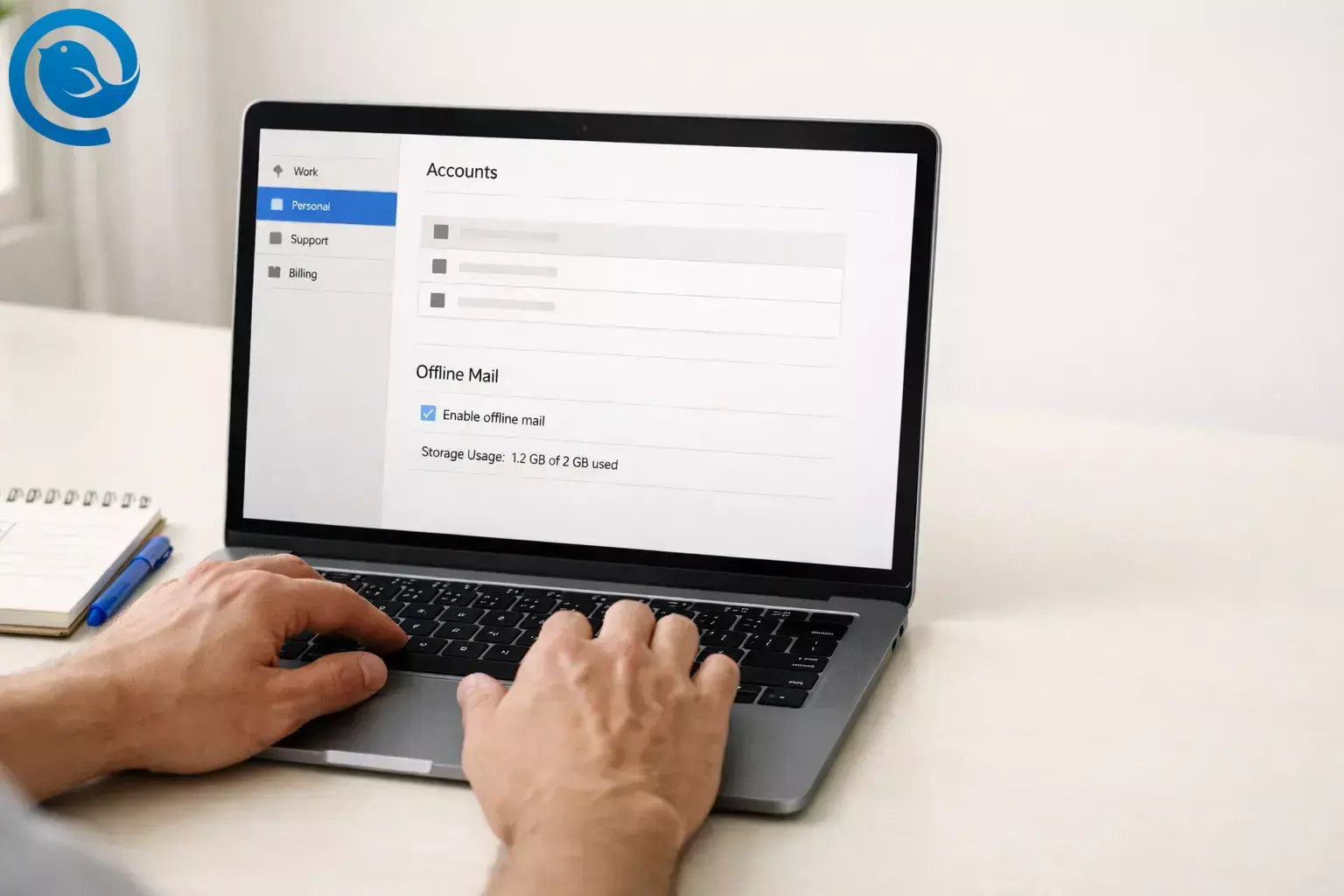
Outlook limitations for multiple accounts tend to show up at the worst time: storage bloat, shared mailbox oddities, and emails going out from the wrong address. If you’re trying to manage multiple accounts (work, personal, and shared), this guide walks you through the fastest fixes for the most common Outlook multi account issues —without rebuilding everything.
Plan on 20–40 minutes. Difficulty is easy to moderate: it’s mostly clicking the right settings and running a few test emails.
What’s new
In , Microsoft announced that the new Outlook for Windows now keeps 30 days of email available offline by default (up from 7 days). When you connect several mailboxes, that extra offline caching can add up quickly—so set per-account boundaries when you can. [ 1 , 2 ]
Key takeaways
- Create separate Outlook profiles for each bucket (classic Outlook on Windows) instead of one mega-profile. [4]
- New Outlook provides only limited public-folder support—so keep at least one classic Outlook profile available for that work. [6]
- In new Outlook, convert shared mailboxes so they show up as full accounts in the folder pane. [7]
- To control disk use in new Outlook, set “Days of email to save” per account (more for Daily accounts, fewer for Occasional accounts). [2]
- If classic Outlook hangs or won’t exit properly (especially with PSTs on OneDrive), move PST files out of OneDrive-synced folders. [8]
- To prevent wrong-From mistakes, confirm the “From” line; if it persists, remove and re-add the affected secondary account. [ 10 , 11 ]
- On iPhone/Android, the Outlook app limits non‑Microsoft Sync Technology accounts to 15. [3]
- Add accounts one at a time—and test after each add (send/receive) before adding the next one. [5]
Common Outlook limitations with multiple accounts (and the quickest fix)
- You can’t switch profiles without closing Outlook (classic): quit Outlook, then reopen it and choose the profile you want. [4]
- Public folders are limited in new Outlook: keep a classic Outlook profile for that workflow. [6]
- Shared mailbox doesn’t show as a full account (new Outlook): convert it from “Shared with me” so it appears at the account level. [7]
- Disk space drops fast after adding accounts (new Outlook): lower “Days of email to save” for Occasional accounts. [2]
- Classic Outlook hangs or won’t exit (especially with PSTs on OneDrive): move PST files out of OneDrive-synced folders. [8]
- Outlook sends from the wrong address: confirm the From line; if it keeps happening, remove and re-add the affected secondary account. [ 10 , 11 ]
- Outlook mobile won’t add another account: the app limits non‑Microsoft Sync Technology accounts to 15. [3]
Before you start
- Prerequisites: you can sign in to each mailbox (password + MFA when required); you have any “app password” or OAuth approval needed by your provider; for shared mailboxes, you have the right permissions from your admin.
- Tools: Outlook on Windows (new or classic). Optional: Mailbird (an email client) if you want a unified inbox for multiple accounts.
- Version check: if you’re not sure which Outlook you’re using, Microsoft’s switching and getting-started docs help you confirm what settings and features apply. [ 14 , 6 ]
- Time: 20–40 minutes, plus ~5 minutes for each additional account beyond your first 3.
- Cost: $0 to troubleshoot Outlook. If you choose a different email client, pricing depends on the plan you pick.
- Safety notes: don’t delete or move Outlook data files until you know what they are; never share passwords in screenshots; if this is a work account, follow company policy before connecting it to any non-Microsoft app.
Quick terms (so the rest is easier)
- Mailbox/account: an email address you sign in to.
- Outlook profile (Windows, classic Outlook): a separate Outlook setup that can contain its own accounts and settings. You choose a profile when Outlook starts. [4]
- Shared mailbox: a mailbox you can open through permissions; in new Outlook, you can convert it so it appears as its own account. [7]
Fix Outlook limitations for multiple accounts (do-it-now method)
Note: steps that mention Outlook profiles apply to classic Outlook on Windows. [4]
Fix Outlook limitations for multiple accounts (do-it-now method)
-
Write down every mailbox you need (and what it’s for). Make a quick list: email address → purpose (Work, Personal, Billing, Support, Old archive). Mark each as Daily (needs frequent replies) or Occasional (mostly for reference).
Check: you can point to any address and say what it’s used for.
-
Decide if you must use classic Outlook for any workflow. If you depend on public folders, note that new Outlook provides only limited public-folder support—so keep at least one classic Outlook profile available for that work. [6]
Check: you know whether public folders (or similar legacy features) are part of your day.
-
Split accounts into 1–3 “buckets” before you add anything. Common buckets: (1) Work Daily, (2) Personal Daily, (3) Everything Else / Archive. Your goal is fewer accounts per bucket so Outlook stays predictable.
Check: every mailbox is assigned to exactly one bucket.
-
Create separate Outlook profiles for each bucket (classic Outlook on Windows). Open Control Panel → Mail → Show Profiles → Add . Create profiles like “Work (Daily)” and “Personal (Daily).” Optional: set Outlook to prompt you for a profile at startup if you want an easy chooser screen every time you open Outlook. [4]
Check: you can see your new profile names in the profile list.
-
Close classic Outlook completely before switching profiles. Outlook can’t switch from one email profile to another while it’s running. Quit Outlook, then reopen it and select the profile you want. [4]
Check: you can open the correct profile on demand (without Outlook already running).
-
Add accounts one at a time—and test after each add. In classic Outlook: File → Add Account . In new Outlook: use Add account in Settings/Accounts. After each add, send yourself a one-line test email from that account (“Test from Billing”) and confirm it arrives. [ 5 , 6 ]
Check: every added account can both send and receive before you add the next one.
-
If a provider blocks sign-in, follow its required setup first. Some providers require additional steps on their website (for example: approving the app via a web login, completing security checks, or using a provider-specific sign-in flow) before Outlook can connect. [5]
Check: you can sign in to the mailbox in a browser, and Outlook’s sign-in prompt succeeds without looping.
-
In new Outlook, convert shared mailboxes into full accounts. Go to Settings → Accounts → Shared with me , expand the shared mailbox, then select Convert so it appears as its own account. [7]
Check: the shared mailbox shows at the account level (not only as a nested “Shared with me” folder).
-
Set offline days per account (new Outlook) to control disk use. Go to Settings → General → Offline → Days of email to save . Keep more days for “Daily” accounts; set fewer days (like 7) for “Occasional” accounts. [2]
Check: each account’s offline days match its bucket (Daily vs Occasional).
-
Keep PST files out of OneDrive-synced folders (classic Outlook). Microsoft documented hangs after Windows updates on January 13, 2026 when PSTs are stored on OneDrive. Store PSTs in a normal local folder instead. [8]
Check: your PST location is local (not inside OneDrive), and Outlook exits normally.
-
If you’re hitting PST/OST size limits, shrink what you cache before raising any limits. Reducing cached mail (or removing low-priority accounts from a “Daily” profile) usually fixes performance faster than changing limits. If you do adjust limits, follow Microsoft’s guidance and expect that higher limits can reduce performance. [9]
Check: Outlook becomes usable again after reducing cached mail (before any limit changes).
-
Prevent “wrong From address” mistakes with one rule: set the default, then verify the From line. Outlook chooses the default account for brand-new messages, and it typically replies/forwards using the same account that received the message. Confirm the From account before you click Send—especially in a profile with many accounts. [10]
Check: you can send a new email from the intended default account and reply from the account that received the message.
-
If a profile sends from the wrong account anyway, remove and re-add the secondary account. Microsoft documents cases where cached-mode folder mapping errors cause sends from the wrong account; removing and re-adding the affected secondary account can resolve it. [11]
Check: a test message sends from the intended account after the re-add.
-
On iPhone/Android, watch for the account ceiling. The Outlook app limits non‑Microsoft Sync Technology accounts to 15. If you hit that, keep only your Daily accounts on mobile and use webmail (or desktop) for the long tail. [3]
Check: mobile has only the accounts you truly need on the go.
-
If you want a unified inbox for Daily accounts, use Mailbird’s Unified Inbox . Add your Daily accounts in Mailbird, enable Unified Inbox, then exclude Occasional accounts so they don’t flood your main queue. [13]
Check: you can process Daily mail in one combined list, but replies still send from the correct address.
-
Run a 5-minute smoke test and stop when something breaks. For each account: send yourself a test, reply to it, search for a known message, and open one attachment. Fix failures before you add more accounts.
Check: every connected account passes send, reply, search, and attachment open.
Why this works
Most Outlook limitations for multiple accounts come from two things: too many mailboxes crammed into one place (which increases cache size and complexity) and unclear “identity rules” (which account sends, which account replies). Splitting profiles (classic Outlook), limiting offline caching by account (new Outlook), and converting shared mailboxes into real accounts reduces the moving parts—so Outlook behaves more consistently.
Troubleshooting
-
Symptom: You can’t add a specific account in new Outlook.
Likely cause: The account type or organization policy isn’t supported for your setup (or the connection method isn’t allowed).
Fix: Check Microsoft’s new-Outlook setup guidance and your organization’s policy. If you rely on a feature new Outlook limits (for example, public folders), keep that workflow in classic Outlook. [6] -
Symptom: A shared mailbox is stuck under “Shared with me” and doesn’t act like a full mailbox.
Likely cause: It hasn’t been converted/promoted to a full account.
Fix: In new Outlook, go to Settings → Accounts → Shared with me → expand the mailbox → select Convert. [7] -
Symptom: Classic Outlook hangs, shows “Not Responding,” or won’t exit properly.
Likely cause: A known issue after Windows updates on January 13, 2026 affecting profiles with POP accounts and/or PST files—especially when PSTs are stored on OneDrive.
Fix: Use webmail as a temporary workaround and move PST files out of OneDrive-synced folders. [8] -
Symptom: Your PC storage drops quickly after adding multiple accounts.
Likely cause: Offline mail caching stores email locally, and each account’s cache can add up.
Fix: In new Outlook, set fewer “Days of email to save” for Occasional accounts (Settings → General → Offline). [2] -
Symptom: “Older emails are missing” (but you know they exist).
Likely cause: Offline days are set low, so older mail isn’t stored locally.
Fix: Increase “Days of email to save” (7/30/90/180) for the account where you need more offline history—or search while online so Outlook can fetch older items. [2] -
Symptom: Outlook sends mail from the wrong account.
Likely cause: Default sending account confusion, or (in some cases) a cached-mode mapping issue in a profile with multiple accounts.
Fix: First, set the correct default sending account and always confirm the “From” line. If the problem persists in a multi-account profile, remove and re-add the affected secondary account, then send a test email. [ 10 , 11 ] -
Symptom: Outlook mobile won’t let you add another account.
Likely cause: You hit the Outlook app limit for non‑Microsoft Sync Technology accounts.
Fix: Remove low-priority accounts from mobile, keep only Daily accounts, and access the rest via webmail or desktop. [3] -
Symptom: Adding a third-party mailbox keeps looping back to sign-in or fails after entering the password.
Likely cause: The provider requires additional setup on its website (or a different sign-in method) before Outlook can connect.
Fix: Sign in to that mailbox in a browser first, then retry adding it in Outlook and follow any provider prompts (approval screens, security checks, or required settings changes). [5]
Setups that reduce Outlook multi-account issues
- Two-profile split (most common): One Outlook profile for Work Daily + shared mailboxes; one profile for Personal Daily.
- “Outlook + Mailbird” hybrid: Keep Outlook for the one account your organization requires, and use Mailbird Unified Inbox for your Daily personal/side-project accounts so you can triage in one place.
- Alias-first (fewer mailboxes): If you don’t truly need separate inboxes, use one mailbox and multiple aliases/identities for sending (for example, support@ vs billing@) and keep a strict subject/tagging habit.
- Device split: Desktop gets all accounts; mobile gets only 3–5 Daily accounts so you stay under limits and avoid constant sign-in prompts.
Make-ahead / storage / scaling
Make-ahead (set it once, benefit every day)
- Create a one-page “account map” (Daily vs Occasional) and keep it in your notes app.
- Standardize folders across accounts (for example: Action, Waiting, Receipts, Reference) so switching accounts doesn’t reset your brain.
- Run a monthly 5-minute audit: remove accounts you no longer use from mobile and Occasional profiles.
Storage (keep Outlook fast)
- Keep PST files local (not inside cloud-sync folders). [8]
- Set shorter offline days for Occasional accounts in new Outlook. [2]
- When you hit size/performance issues, reduce cached mail before changing any limits. [9]
Scaling (10+ accounts without chaos)
- Use at least two Outlook profiles in classic Outlook, even if you think you “should” fit everything into one. [4]
- Put only Daily accounts in your main view (or a unified inbox view in Mailbird) and schedule Occasional checks twice a week.
- Convert shared mailboxes into full accounts in new Outlook so they behave consistently with the rest of your account list. [7]
What can change (and how to verify fast)
Outlook account support, default settings, and rollout behaviors can change with Microsoft 365 and Windows updates. If something suddenly behaves differently (offline cache size, shared mailbox behavior, or the version you’re being nudged toward), verify using Microsoft’s “Switch to new Outlook” and “What’s new” pages, then re-run the smoke test for your key accounts. [ 14 , 12 ]
Frequently Asked Questions
Is there a limit to how many accounts I can add to Outlook?
Why does Outlook sometimes send from the wrong account?
Can I add a shared mailbox as its own account in the new Outlook?
Yes. In new Outlook, you can convert/promote shared mailboxes so they show up as full accounts in the folder pane. [7]
Why is Outlook using so much disk space after I add multiple accounts?
Offline caching stores mail locally. When you add several accounts, each account’s offline cache can add up. Lower the offline days for Occasional accounts (Settings → General → Offline). [2]
Can I switch Outlook profiles without closing Outlook?
No. Close Outlook fully, then reopen it and pick the profile you want (or set it to prompt you at startup). [4]
Does the new Outlook support PST files?
Support is still evolving. For example, Microsoft has added the ability to reply and forward messages in a PST, and has stated that future releases will expand PST support. [12]
My classic Outlook hangs after updates—what’s the quickest workaround?
If you’re affected by a known issue, use webmail temporarily and move PST files out of OneDrive-synced locations, then try Outlook again. [8]
If I just want one combined inbox, what’s the simplest approach?
Use a unified inbox view in a multi-account email client. In Mailbird, Unified Inbox lets you see Daily accounts together while keeping each message tied to its original account for replies. [13]
Quick checklist (screenshot this)
- I listed every mailbox and marked it Daily or Occasional.
- I split mailboxes into 1–3 buckets before adding them anywhere.
- I created separate Outlook profiles for buckets (classic Outlook on Windows) instead of one mega-profile.
- I closed classic Outlook before switching profiles.
- I added accounts one at a time and sent a test email after each add.
- I converted shared mailboxes into full accounts in new Outlook (when needed).
- I set offline days per account (more for Daily, less for Occasional).
- I moved PST files out of OneDrive-synced folders (classic Outlook).
- I tested “From” behavior (new message + reply) for every account.
- If I needed one combined queue, I enabled a unified inbox (for Daily accounts only).
Sources
- Thurrott — “Microsoft Announces June 2025 Update for the New Outlook”
- Microsoft Support — “Work offline in Outlook”
- Microsoft Support — “Is there a limit to how many accounts I can add to my Outlook app?”
- Microsoft Support — “Overview of Outlook email profiles”
- Microsoft Support — “Add an email account to Outlook for Windows”
- Microsoft Support — “Getting started with the new Outlook for Windows”
- Microsoft Support — “Manage shared mailbox settings in new Outlook”
- Microsoft Support — “Classic Outlook profiles with POP accounts and PSTs hang after Windows updates on January 13, 2026”
- Microsoft Learn — “Configure the size limit for both (.pst) and (.ost) files in Outlook”
- Microsoft Support — “Change the account used to send email messages”
- Microsoft Learn — “Email messages are sent to the wrong account when multiple accounts are associated with an Outlook profile”
- Microsoft Support — “What’s new in new Outlook for Windows”
- Mailbird — “Mailbird’s Unified Inbox: Manage All Email Accounts from One Place”
- Microsoft Support — “Switch to new Outlook for Windows”


