New Employee Onboarding Checklist for Email Accounts
Use this employee onboarding checklist to set up a new hire’s email account, aliases, shared mailbox access, calendars, and distribution lists on day one, then review access again in week one and month one. It also gives you the offboarding mirror you’ll need later.



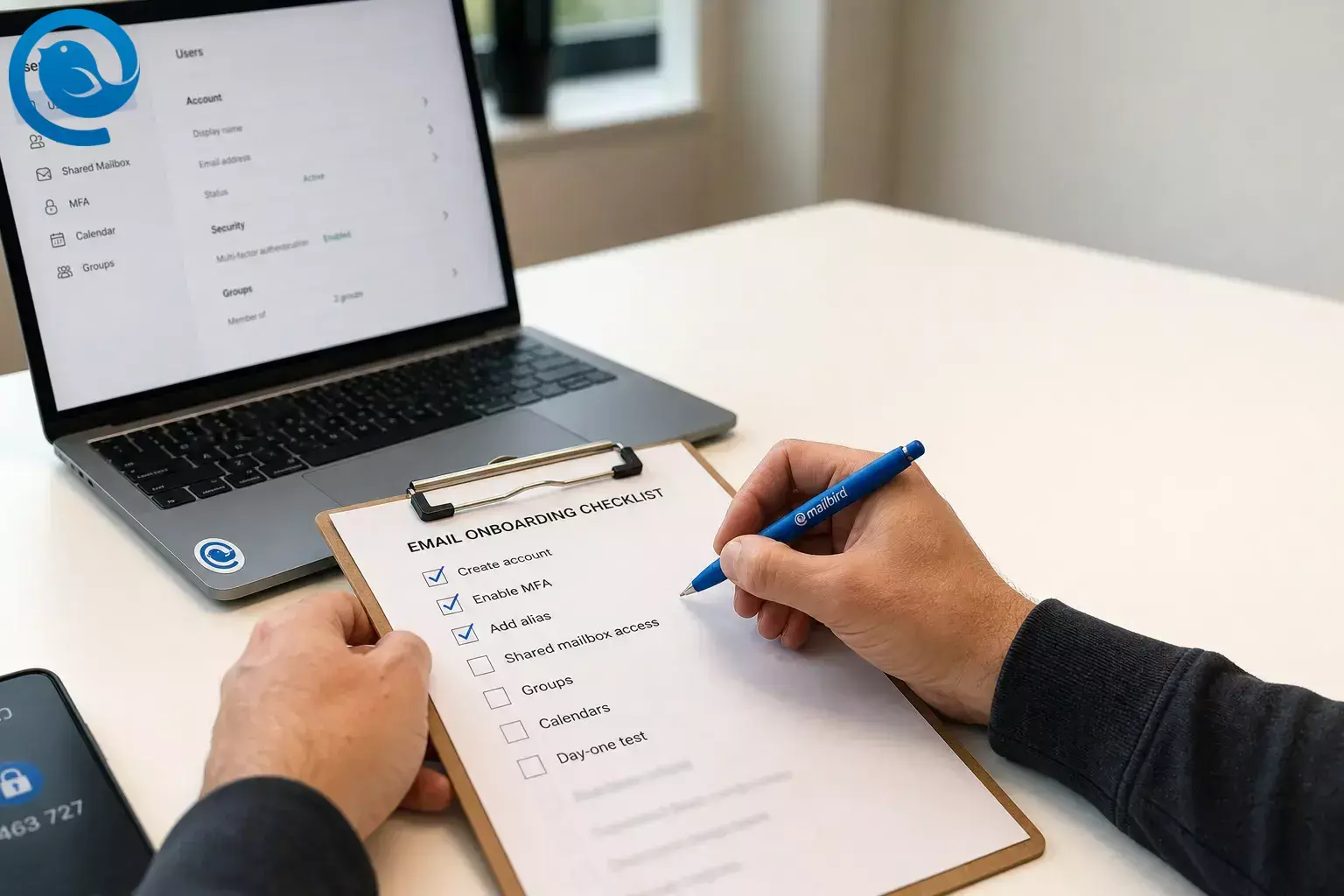
Use this employee onboarding checklist to set up a new hire’s email account, aliases, shared mailbox access, calendars, and distribution lists on day one, then review access again in week one and month one. It also gives you the offboarding mirror you’ll need later.
If you need an onboarding checklist template rather than a general HR list, this version is built around email access and includes a practical first day checklist you can print or save as a PDF.
What’s new
Google Workspace no longer supports less secure, password-only access for third-party email apps, and Mailbird’s Gmail setup uses OAuth 2.0 instead. That means your first day checklist should include a real sign-in and sync test, not just a mailbox name and password. [1] [2]
Watch for changes: Admin menu labels, sign-in screens, and provider rules change over time. Google also says Gmail’s “Send as” support for third-party email addresses ends in January 2027, though Google Workspace aliases are not affected, so re-check your alias plan before you lock it into a long-term team document. [5]
TL;DR
Employee onboarding checklist at a glance
If you only need the outline first, start here.
Before day one
Create the primary email account, assign the license, turn on secure sign-in, and add approved aliases.
First day checklist
Test sign-in, sync, shared mailbox or delegated mailbox access, groups, calendars, signature, and default sender.
Week one and month one
Remove unused access, fix oversharing, confirm real needs, and audit the final access set.
Offboarding mirror
Record every alias, group, shared mailbox, calendar permission, device, and license as you add it.
Before you start
- Prerequisites: approved start date, manager-approved role access list, device assignment, and permission to create or edit users in your email system.
- Tools: your email admin console, identity admin console, a checklist template or ticket, one internal test address, and either Mailbird or the provider’s webmail as a fallback.
- Time: one day-one setup session, then short review passes in week one and month one.
- Cost: usually your normal mailbox, identity, and archive plan cost; extra spend appears only when you add extra paid mailboxes, archive licenses, or advanced security features.
- Safety notes: never share passwords in plain text, require MFA, and give only the minimum access the role actually needs. [15] [16]
Choose the right email access type first
Many day-one email problems start with the wrong mailbox type. Pick the row that matches who owns the inbox and who needs to work inside it.
| Access type | Use it when | Best fit |
|---|---|---|
| Email alias | One person needs another address in the same inbox. | Good for role labels like billing@ or recruiting@ when one owner still handles the mail. In Google Workspace, the alias belongs to that user; it does not give another person mailbox access. [3] [5] |
| Delegation | A different person must read and send from the mailbox. | Good for executive-assistant, backup coverage, or manager support cases. In Google Workspace, mail delegation has to be enabled before users can delegate access. [4] [11] |
| Shared mailbox | Several people need one common team mailbox. | Best for Microsoft 365 team inboxes like support@ or info@ . If people must reply from that address, sending rights need to be set separately from read/manage access. [6] [7] |
| Distribution list | One message should reach many people. | Best for all-staff, department, location, or alert mail where no shared reply workflow is needed. [8] |
| Collaborative Inbox | The team needs assignment and status tracking inside Google Groups. | Best for Google Workspace queues that need “take,” “assign,” and “done” behavior. Turn on conversation history before enabling Collaborative Inbox features. [9] |
Email alias
Delegation
Shared mailbox
Distribution list
- Use it when
- One message should reach many people.
- Best fit
- Best for all-staff, department, location, or alert mail where no shared reply workflow is needed. [8]
Collaborative Inbox
- Use it when
- The team needs assignment and status tracking inside Google Groups.
- Best fit
- Best for Google Workspace queues that need “take,” “assign,” and “done” behavior. Turn on conversation history before enabling Collaborative Inbox features. [9]
Employee onboarding checklist: day one, week one, and month one
Employee onboarding checklist: day one, week one, and month one
-
1 Before day one
Fill out the role access card before you touch the admin console
Write down the employee’s full name, start date, manager, department, primary mailbox, approved aliases, shared mailbox needs, calendar permissions, distribution lists, device type, and end date if the role is temporary. Add one approval checkbox next to every exception so nobody copies access from the previous employee by habit.
Check: every requested email-related permission has a named owner and an approver.
-
2 Before day one
Create the primary email account and mailbox
Create the user, assign the correct license, set the display name and department, and record the exact primary email address in your checklist. If your naming pattern includes middle initials, legal names, or location codes, apply them now so you do not have to rename the address later.
Check: the address appears in the directory and can receive an internal test message.
-
3 Before day one
Turn on secure sign-in before first use
Use your normal secure first-login flow, require MFA, set recovery options, and if the employee will use a third-party email client with Google Workspace, plan an OAuth sign-in instead of password-only access. That one change prevents a lot of “it works in the browser but not in the app” confusion on day one. [1] [2] [15]
Check: the employee can complete the provider’s approved sign-in flow from an allowed device.
-
4 Before day one
Add aliases and set reply behavior
Add only approved aliases. Use an alias when the same person needs another address in the same inbox; use delegation when another person must read and send from that mailbox. In Gmail, add or verify the send-from address and set the default “From” or reply-to if the employee should use the alias by default. [3] [4] [5]
Check: an internal test message sends from the right address and replies land in the right inbox.
-
5 Day one
Grant shared mailbox or delegated mailbox access
For Microsoft 365, give Full Access if the user must open a mailbox, then add Send As or Send on Behalf if they also need to reply from it. For Google Workspace, turn on mail delegation for one-person-to-one-person access. If a Google team needs assignment and status tracking, use a Group set up as a Collaborative Inbox instead of mailbox delegation. [6] [7] [4] [9]
Check: the user can open the shared mailbox or delegated mailbox and send a test reply from the correct sender name.
-
6 Day one
Add distribution lists and group memberships
Add memberships from the approved list one by one: all-staff, department, location, alerts, project, and role-based groups. Use a distribution list when you want one email to reach many recipients without a shared reply workflow; use Google Groups with tighter posting rules when the team needs group-style email control. [8] [9]
Check: the new hire appears in each required group and receives a test group message.
-
7 Day one
Share calendars and meeting rights
Share only the calendars the role truly needs. Give view, edit, or delegate rights as approved, add recurring meetings, and add any room or resource calendars the role uses every week. In Microsoft 365, delegate access is for work or school accounts using Microsoft 365 or Exchange Online. In Google Workspace, a delegate can manage mail or calendar tasks but cannot change the account password or other account settings. [10] [11]
Check: the user can see the right calendars and, if approved, accept or respond on behalf of the owner.
-
8 Day one
Connect the mailbox in Mailbird or use webmail as the fallback
On the device the employee will actually use, complete the sign-in and wait for mail to sync. Mailbird can manage multiple email accounts from one place. For Gmail it uses OAuth 2.0, and if your Microsoft 365 tenant uses a custom identity provider and Mailbird does not detect OAuth automatically, you may need to edit the server settings. If IMAP is disabled for a work or school account, the administrator has to turn IMAP on first. [12] [2] [13] [14]
Check: inbox sync works, sent mail leaves the outbox, and the employee can fall back to provider webmail if the desktop app is not ready yet.
-
9 Day one
Run the first day checklist, not just the setup checklist
Send a welcome message. Then test internal send and receive, alias reply behavior, shared mailbox or delegation access, group delivery, calendar visibility, signature, default sender, and mobile access if the role allows mobile mail. Write pass or fail next to each item while the employee is still available to confirm what they see.
Check: every day-one test has a clear pass or fail result, not a “should be okay.”
-
10 Week one
Trim unused access in week one
Ask the manager which inboxes, lists, aliases, and calendars the employee actually used. Remove anything that was added “just in case,” fix the wrong default sender if replies came from the wrong address, and clean up overshared calendars before they become normal.
Check: all unused access is removed or re-approved in writing.
-
11 Day one
Build the offboarding mirror now
In the same employee onboarding checklist, record every alias, group, shared mailbox, delegated mailbox, calendar permission, forwarding rule, archive note, device, and license you added. That list becomes the offboarding mirror later. Microsoft’s former-employee guidance starts with blocking sign-in and securing data. Google says to transfer important data before deleting a user because deletion removes access and untransferred data is deleted. If the mailbox is under retention or litigation hold, stop and follow your compliance process before deleting or reassigning it. [17] [18] [19] [6]
Check: you can hand the completed access list to HR, security, or IT later without rebuilding it from memory.
-
12 Month one
Audit the account in month one and save the cleaned template
At month one, compare the live access list to the original role card, remove temporary access, confirm group owners, and save the cleaned version as your reusable onboarding checklist template for the next hire. The simplest rule is still the best one: keep only the access the employee still needs. [16]
Check: the manager signs off on the final access set and your template is ready to reuse.
Why this onboarding checklist works
This employee onboarding checklist splits the work into three jobs: create the account, grant the exact access, and prove it works with live tests. That keeps access closer to least privilege, catches first-day mistakes faster, and gives you the same record you’ll need for role changes or exits. [16]
Troubleshooting common email onboarding problems
| Symptom | Likely cause | Fix |
|---|---|---|
| The employee can sign in on the web, but the desktop email app will not connect. | The app is trying password-only access, or IMAP is disabled. | Reconnect with OAuth. If IMAP is required for the setup you use, have the admin enable it first or use webmail until it is enabled. [1] [2] [14] |
| The user can open a shared mailbox but cannot send from it. | They were given read/manage access but not sending rights. | Add Send As or Send on Behalf ; in Microsoft 365, Full Access alone is not enough. [7] |
| Replies sent from a shared mailbox are invisible to the rest of the team. | Shared mailbox sent-item saving was left at the default setting. | Turn on sent-item saving in the shared mailbox settings so team replies are stored where the team expects them. [6] |
| The alias appears in the account, but replies go to the wrong place or the send fails. | The alias was not added or verified correctly, or the default sender/reply-to was never changed. | Re-add or verify the alias, then set the right default “From” and reply-to behavior. [5] |
| Mailbox permissions still do not work right after you save them. | The change has not finished propagating yet. | Wait, then sign out and back in. Microsoft says permission changes can take up to 60 minutes to take effect. [7] |
| The Google group gets email, but nobody can assign conversations. | The group is not set up as a Collaborative Inbox, or conversation history is off. | Turn on conversation history, then enable Collaborative Inbox features for the group. [9] |
| An assistant can see a calendar but cannot properly respond on behalf of the owner. | The wrong permission level was used, or the account is not a supported work/school setup. | Use delegate permissions, then retest from a supported work or school account. [10] [11] |
| Offboarding later breaks continuity because mail or files disappeared. | The user was deleted before data was transferred, exported, or preserved. | Transfer or preserve the needed data before deletion, then remove access in the right order. [17] [18] [19] |
| Mailbird shows connection delays or “too many simultaneous connections.” | The same mailbox is open in too many apps or devices at once. | Close extra mail apps and browser sessions, then lower Mailbird’s connection count if the issue keeps repeating. [20] |
The employee can sign in on the web, but the desktop email app will not connect.
The user can open a shared mailbox but cannot send from it.
- Likely cause
- They were given read/manage access but not sending rights.
- Fix
- Add Send As or Send on Behalf ; in Microsoft 365, Full Access alone is not enough. [7]
Replies sent from a shared mailbox are invisible to the rest of the team.
- Likely cause
- Shared mailbox sent-item saving was left at the default setting.
- Fix
- Turn on sent-item saving in the shared mailbox settings so team replies are stored where the team expects them. [6]
The alias appears in the account, but replies go to the wrong place or the send fails.
- Likely cause
- The alias was not added or verified correctly, or the default sender/reply-to was never changed.
- Fix
- Re-add or verify the alias, then set the right default “From” and reply-to behavior. [5]
Mailbox permissions still do not work right after you save them.
- Likely cause
- The change has not finished propagating yet.
- Fix
- Wait, then sign out and back in. Microsoft says permission changes can take up to 60 minutes to take effect. [7]
The Google group gets email, but nobody can assign conversations.
- Likely cause
- The group is not set up as a Collaborative Inbox, or conversation history is off.
- Fix
- Turn on conversation history, then enable Collaborative Inbox features for the group. [9]
An assistant can see a calendar but cannot properly respond on behalf of the owner.
Offboarding later breaks continuity because mail or files disappeared.
Mailbird shows connection delays or “too many simultaneous connections.”
- Likely cause
- The same mailbox is open in too many apps or devices at once.
- Fix
- Close extra mail apps and browser sessions, then lower Mailbird’s connection count if the issue keeps repeating. [20]
Checklist variations by role or platform
Google Workspace queue
Use a Google Group as a Collaborative Inbox when the team needs to take, assign, and close conversations instead of just receiving them. [9]
Contractor or temporary worker
Add an end date in step 1, set a week-one review, and avoid broad all-staff lists unless they are required for the role.
How to turn this into a reusable onboarding checklist template
Make-ahead
Prebuild role bundles for common hires: standard office staff, support, sales, executive assistant, contractor. Save the usual groups, aliases, shared mailboxes, and calendar shares for each bundle so you are not deciding the same thing from scratch every time.
Scaling
When this works for a few hires in a row, batch the repeatable parts by role and keep exception requests separate. Automate only after the manual checklist is stable and easy to audit.
Setting up a new hire’s accounts is easier when you manage every inbox from one place.
Frequently Asked Questions
What should a new employee onboarding checklist cover for email accounts?
At minimum: the primary email account, secure sign-in, aliases, shared mailbox or delegation, distribution lists, calendar access, device setup, a first-day test, and the offboarding mirror.
What’s the difference between an alias and delegation?
When should I use a shared mailbox instead of a distribution list?
How long can mailbox permission changes take to show up?
Do not assume they are instant. Test the change, then sign out and back in if needed before you call the setup done.
Sources: [7]
What belongs on the first day checklist?
Live sign-in, send and receive, alias behavior, shared mailbox or delegation access, group delivery, calendar visibility, default sender, and signature.
What is the offboarding mirror?
Can Mailbird fit into this checklist?
First day checklist and follow-up checks to screenshot
Before day one
- ☐ Role access card approved
- ☐ Primary account created
- ☐ License assigned
- ☐ MFA and first login ready
- ☐ Aliases approved and added
Day one
- ☐ Shared mailbox or delegation tested
- ☐ Distribution lists and groups added
- ☐ Calendars shared correctly
- ☐ Desktop app connects or webmail is ready
- ☐ Alias reply behavior verified
- ☐ Welcome email sent and received
Week one
- ☐ Unused access removed
- ☐ Wrong default sender fixed
- ☐ Extra lists or calendars cleaned up
- ☐ Manager confirms actual needs
Month one
- ☐ Temporary access removed
- ☐ Final access list approved
- ☐ Template saved for the next hire
- ☐ Offboarding mirror attached
Download or print this onboarding checklist template
Need a reusable onboarding checklist template for HR or IT? Print this page or save it as a PDF. If the employee works across multiple inboxes, Mailbird can keep approved work accounts in one desktop app after the provider-side setup is finished. [12]
Sources
- Google Workspace Help: Control access to less secure apps
- Mailbird: Gmail OAuth 2.0 Changes 2026: App Password Phase-Out Guide
- Google Workspace Help: Overview: Add additional email addresses for users
- Google Workspace Help: Delegate a user’s email address
- Gmail Help: Send emails from a different address or alias
- Microsoft Learn: Configure shared mailbox settings
- Microsoft Learn: Give mailbox permissions to another user
- Microsoft Learn: Create distribution groups in the Microsoft 365 admin center
- Google Groups Help: Create a group & choose group settings
- Microsoft Support: Share and access a calendar with edit or delegate permissions in Outlook
- Google Workspace Learning Center: Delegate access to your mail or calendar
- Mailbird Support: Multiple Email Accounts in Mailbird
- Mailbird Support: Microsoft OAuth 2.0 (modern authentication) support
- Mailbird Support: How to enable IMAP for your email account in Mailbird
- CISA: Require Multifactor Authentication
- NIST CSRC Glossary: least privilege
- Microsoft 365 admin: Remove a former employee
- Google Workspace Help: Delete or remove a user from your organization
- Google Workspace Help: Options to preserve former employee data
- Mailbird Support: Too many simultaneous connections


