Mailbird vs Apple Mail (2026): which Mac email client fits your workflow?
Mailbird and Apple Mail approach email very differently. This comparison breaks down platforms, unified inbox workflows, integrations, AI features, and switching considerations to help you decide which email client fits your workflow best.



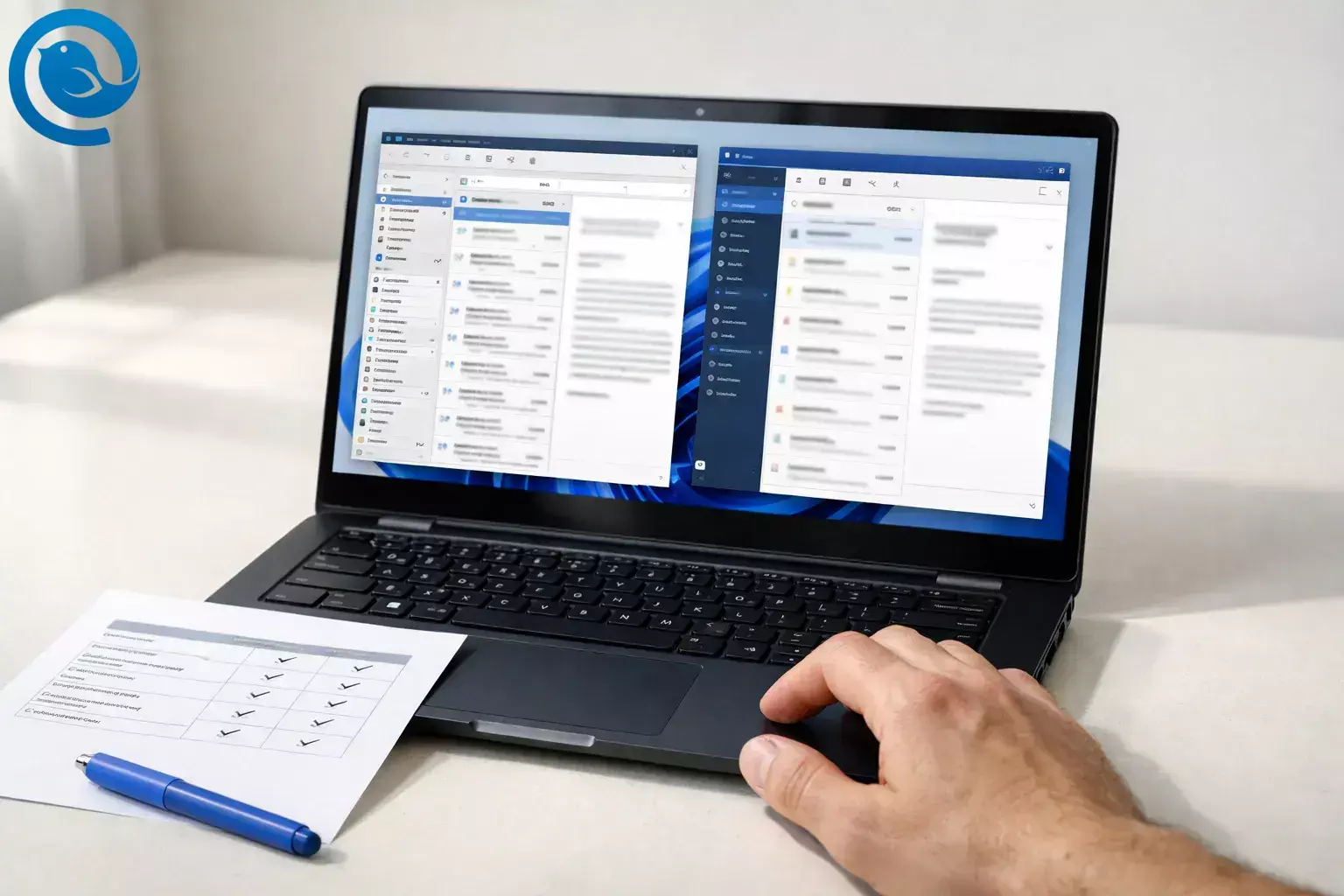
Mailbird and Apple Mail can both manage multiple accounts, but they’re built around different workflows. This guide compares platforms, inbox style (Unified Inbox vs Categories), integrations, AI features, iCloud/POP notes, pricing, and switching paths.
Mailbird is now available for Mac
Mailbird launched on the Mac App Store on , so Mac users can now choose between Apple Mail (the built-in Mail app on Apple devices) and Mailbird for desktop email. [1] [2]
Key takeaways
- Mailbird is a desktop client for Windows and macOS (including a Mac App Store listing), but it’s not currently available for iPhone/iPad. [2] [3]
- Apple Mail is the built-in Mail app on macOS and iPhone/iPad, with Apple’s account setup flow. [6] [14]
- If you handle many accounts daily, Mailbird’s Unified Inbox is designed for cross-account workflow (including cross-account search). [4]
- On iPhone, Apple Mail can sort messages into categories (and you can switch back to List View if you prefer one list). [7]
- AI approaches differ: Apple Intelligence includes Mail features (availability varies), while Mailbird offers ChatGPT as an integration (plan-dependent). [8] [5] [3]
- iCloud Mail in third-party clients uses IMAP/SMTP, doesn’t support POP, and may require an app-specific password. [9]
- POP3 on macOS can be a dealbreaker: Mailbird’s pricing FAQ says POP3 isn’t currently supported on Mailbird for Mac, while Apple’s deployment docs describe POP support on Apple devices. [3] [22]
Quick verdict
Choose Mailbird if…
- You want one desktop email client for Windows and macOS (Mailbird also lists Mac/Windows license validity and device limits by plan). [3]
- You manage multiple addresses and want a Unified Inbox designed for cross-account workflow. [4]
- You want in-app integrations (Mailbird lists nearly 40 third-party apps, including tools like Slack and WhatsApp). [5]
- You don’t need the same Mailbird app on iPhone/iPad (it’s not currently available there). [3]
Choose Apple Mail if…
- You want the built-in Mail app across Mac + iPhone/iPad with Apple’s account setup flow. [6] [14]
- You like Apple Mail’s automatic Categories (and the option to switch back to a single List View). [7]
- You want Apple Intelligence Mail features on supported devices (availability varies by device, language, region, and local laws/regulations). [8]
POP3 check (Mac): Mailbird’s pricing FAQ says POP3 isn’t currently supported on Mailbird for Mac, while Apple’s deployment docs describe POP support on Apple devices. [3] [22]
Mailbird vs Apple Mail: side-by-side differences that usually decide the winner
| What separates them | Mailbird | Apple Mail |
|---|---|---|
| Platforms | Desktop app for Windows and macOS (including a Mac App Store listing). Not currently available for iPhone/iPad. [2] [3] | Built-in Mail app on macOS and iPhone/iPad. [14] [6] |
| Inbox workflow | Unified Inbox designed for managing multiple accounts in one view (including cross-account search). [4] | Mailboxes + Categories: Mail on iPhone can sort into Primary/Transactions/Updates/Promotions, and you can switch to List View if you prefer one list. [7] |
| Built-in integrations (beyond email) | App-style integrations inside the client (Mailbird lists nearly 40 integrations). [5] | A more classic mail experience: you’ll typically keep chats/tasks in their own apps. |
| AI assistance | Offers ChatGPT as an integration inside Mailbird (availability can vary by plan). [5] [3] | On supported devices, Apple Intelligence includes Mail features like summaries, Smart Reply, and Priority Messages (availability varies). [8] |
| iCloud Mail setup | Works via IMAP/SMTP; iCloud Mail doesn’t support POP and may require an app-specific password in third-party clients. [9] | Typically the least-friction option for iCloud Mail because it’s part of Apple’s account setup flow. [14] |
| POP3 on Mac | POP3 isn’t currently supported on Mailbird for Mac (per Mailbird’s pricing FAQ). [3] | Apple’s deployment documentation describes POP and IMAP mail solutions on Apple devices. [22] |
| Pricing approach | A listed Free plan (limited) plus paid plans (Yearly or Pay Once). Prices and promos can change. [3] | No separate “Mail app” subscription; cost is mainly the Apple device/OS ecosystem you’re already in. |
Mailbird vs Apple Mail: what they are
Mailbird: A desktop email client that unifies multiple accounts and supports integrated apps in one workspace on Windows and macOS (with plan options from Free to Premium). [2] [3]
Apple Mail: Apple’s built-in Mail app for macOS and iOS/iPadOS that manages your email accounts inside the Apple ecosystem and supports features like automatic inbox Categories on iPhone. [14] [7]
Mailbird vs Apple Mail: where they’re meaningfully different
1) Device reality: cross-platform desktop vs Apple-first continuity
Choose Mailbird if you do serious email on a desktop and want the same client on Windows and Mac. If you're exploring desktop options for Apple devices, you can also review our guide to the best email clients for Mac (with licensing and device limits shown by plan). Choose Apple Mail if your email “home base” is Apple devices and you want the built-in Mail experience. Note: Mailbird isn’t currently available for iPhone/iPad, so Apple Mail (or another iOS mail app) will still handle that part of your day. [3]
2) Inbox workflow: Mailbird’s Unified Inbox vs Apple Mail’s Categories
Mailbird’s Unified Inbox is built around a single view that combines messages and folders across accounts, keeps replies tied to the right account, and lets you search across accounts at once. [4]
On iPhone, Apple Mail can automatically sort incoming email into categories (Primary, Transactions, Updates, Promotions). Categories can be turned off by switching to List View, and you can also recategorize a sender so future messages land where you expect. [7]
3) “Email client” vs “email workspace”: integrations are the big separator
If you want email next to your daily tools, this is where Mailbird tends to pull ahead: Mailbird lists nearly 40 third-party app integrations designed to live inside the same interface as your inbox. [5]
Apple Mail is intentionally narrower: it’s a strong “mail app,” but it doesn’t position itself as a multi-app dashboard in the same way. If you’re happiest with separate, focused apps—and just want email to stay out of the way—Apple Mail’s restraint can be a benefit.
4) AI help: Apple Intelligence features vs Mailbird’s ChatGPT integration
Apple is pushing Mail forward with Apple Intelligence features, including Mail summaries (Summarize), Smart Reply, and a Priority Messages section—while noting that availability depends on supported devices/languages and can vary by region due to local laws and regulations. [8]
Mailbird’s AI angle is different: it offers ChatGPT as an integration inside the app (plan-dependent), which is useful if you want a “bring-your-own-assistant” option inside your email workspace rather than OS-level AI features. [5] [3]
5) iCloud Mail: easiest in Apple Mail, still doable elsewhere (with extra steps)
If iCloud Mail is your primary address, Apple’s own client is typically the least-friction option. In third-party clients, Apple documents that iCloud Mail uses IMAP and SMTP and does not support POP; it can also require an app-specific password for setup in another email client. [9]
6) Legacy mail protocols (POP) and long-term archives
If you still have POP accounts (common for older ISP or self-hosted setups), protocol support matters. Apple’s deployment documentation describes POP and IMAP mail solutions on Apple devices, while iCloud Mail specifically doesn’t support POP. [22] [9]
For Mailbird, the key nuance is platform: Mailbird advertises IMAP/POP3 support generally, but its pricing FAQ says POP3 is not currently supported on Mailbird for Mac (Windows POP3 is supported). If POP on macOS is non-negotiable, Apple Mail is the safer pick today. [3]
Costs, effort, and “who owns the workflow”
Mailbird: more plan choices
- Free plan: listed as “Free,” with 1 account per device and Knowledge Base support. [3]
- Premium (Yearly): listed at $4.03/user/month paid yearly on the US pricing page at the time of writing (often shown with promotional pricing). [3]
- Premium (Pay Once): listed at $99.75/user on the US pricing page at the time of writing, plus optional add-ons like Lifetime Updates (+$69). [3]
- Devices per license: Premium is listed as 3 devices per license, and licenses are shown as valid for Windows and macOS. [3]
- Support/refunds: pricing page lists a 14-day money-back guarantee. [3]
Ownership trade-off: Mailbird’s support docs explain how the optional “Lifetime Updates” add-on affects whether a Pay Once license receives future major features, and note the add-on’s billing model can be one-time or annual depending on when purchased. [10]
Apple Mail: no separate app subscription
- App cost: Apple Mail doesn’t have a separate subscription for the client itself; it’s part of the Apple OS experience.
- Effort cost: setup is fast if you’re already using Apple’s account system and your provider is supported (Apple lists common account types on Mac). [14]
- Feature cost: the newest “smart” Mail features are increasingly tied to OS versions (e.g., Categories) and, for Apple Intelligence features, to supported devices/languages/regions. [8] [7]
Ownership trade-off: Apple Mail is at its best when you accept Apple’s defaults (and updates on Apple’s schedule). If your workflow is cross-platform, you’ll feel the walls sooner.
Risks and dealbreakers
Mailbird is a bad choice if…
- You need one client across Mac + iPhone/iPad (Mailbird isn’t currently available for iPhone/iPad). [3]
- You rely on POP3 on macOS (Mailbird’s pricing FAQ says POP3 isn’t currently supported on Mailbird for Mac). [3]
- Your work setup requires a very specific Exchange authentication path: Mailbird’s docs note OAuth 2.0 isn’t supported for on-premise Exchange server accounts, and that adding Exchange uses a Microsoft sign-in/permissions flow. [12] [11]
- You want a “set it and forget it” client with zero licensing decisions (Free vs Yearly vs Pay Once + add-ons). [10]
Apple Mail is a bad choice if…
- You need a first-class desktop client on Windows (Apple Mail is Apple-platform focused by design).
- You want your inbox to double as a work hub with built-in integrations inside the same UI rather than separate apps. [5]
- You strongly dislike automatic sorting: Categories can change how you scan mail, though Apple provides a List View option and sender recategorization to regain control. [7]
- You’re counting on Apple Intelligence Mail features but don’t have a supported device/language/region (or your organization restricts AI use). [8]
Switching path (minimal-loss)
Step 1: Identify your “source of truth” (this decides the difficulty)
- If your accounts are IMAP/Exchange (server-stored): switching is usually easy—add the same accounts to the new client and let it sync.
- If you have POP accounts or local-only folders: switching can be harder, because those messages may live only on your device.
Apple Mail → Mailbird (lowest-loss route)
- Start with IMAP/Exchange accounts first. Add the same accounts to Mailbird and let folders sync down. If Gmail is one of the accounts you're consolidating, you may also want to review how a desktop Gmail email client works when managing multiple inboxes in one place. (This avoids “file imports” entirely.)
- If you use iCloud Mail: plan for app-specific passwords. Apple documents that iCloud Mail uses IMAP/SMTP and doesn’t support POP, and that you may need to generate an app-specific password for third-party clients. [9]
- If you have local-only Apple Mail archives: either (a) move those messages into an IMAP folder so they upload to your server before switching, or (b) keep Apple Mail installed as an “archive viewer.” Apple Mail can export mailboxes in mbox format for backup, but Mailbird’s built-in import options don’t list Apple Mail as a direct import source (and it notes importing offline folders to IMAP isn’t supported). [15] [16]
Mailbird → Apple Mail (lowest-loss route)
- If your mail is on IMAP/Exchange: add the same accounts to Apple Mail on Mac (Apple lists common account types like iCloud, Gmail, and Exchange) and let it sync. [14]
- If you’re on iPhone/iPad with Exchange: Apple documents Exchange setup via Settings > Mail > Add Account > Microsoft Exchange. [13]
- If you need to move an archive between Macs: Apple Mail supports importing and exporting mailboxes in mbox format, which is useful for local archives and backups. [15]
Decision tree: pick one
- If you need Windows support (or want one desktop workflow across Windows + Mac) → Choose Mailbird. If you're evaluating options for Windows specifically, see our guide to the best email clients for Windows.
- If your daily devices are Mac + iPhone/iPad and you want the built-in experience → Choose Apple Mail.
- If you manage multiple accounts all day and want a Unified Inbox designed around that → Choose Mailbird.
- If you want automatic Categories and Apple Intelligence Mail features (and you have supported devices/languages) → Choose Apple Mail.
- If POP3 on macOS is required → Choose Apple Mail.
- If none of the above decided it: default to Mailbird if email is a core work tool; default to Apple Mail if email is mostly occasional and you want the simplest setup.
Try Mailbird for desktop email
If you're looking for a desktop email client designed to manage multiple accounts in one place, Mailbird provides a unified inbox, integrations with popular productivity tools, and cross-platform desktop support for Windows and macOS.
You can explore the current plans and features on the Mailbird pricing page or download the app to see how it fits your workflow.
Frequently Asked Questions
Is Mailbird available on Mac now, or is it still Windows-only? — Yes, on Mac
Can I use Mailbird on iPhone or iPad? — Not currently
Not currently. If you need the same client on mobile, plan to use Apple Mail (or another iOS mail app) on iPhone/iPad and Mailbird on desktop. [3]
Does Apple Mail really sort messages into categories now? — On iPhone
On iPhone, Apple Mail can automatically categorize messages (and you can switch back to a single list if you prefer). [7]
Will Mailbird work with iCloud Mail? — IMAP/SMTP setup
Yes, but treat it as a third-party setup: iCloud Mail uses IMAP/SMTP, doesn’t support POP, and you may need an app-specific password. [9]
Which one is better for multiple email accounts? — Unified Inbox
Is Mailbird actually free? — Free plan, limits
Mailbird lists a Free plan (with limits) and paid plans for advanced features. Check the pricing page for current plan details and pricing. [3]
What does “Pay Once” mean if I skip Lifetime Updates? — Depends on updates
Your license can remain functional, but future major features and updates may depend on whether you keep Lifetime Updates enabled (policy details can vary by purchase timing). [10]
Sources
- Mailbird Blog — “Why We’re on the Apple App Store — And What It Means for You” (published September 9, 2025). URL: https://www.getmailbird.com/mailbird-apple-app-store-launch-mac/
- Apple App Store — “Mailbird - The Email App” (Mac)
- Mailbird — Pricing and Plans. URL: https://www.getmailbird.com/pricing/
- Mailbird Support — Unified Inbox. URL: https://support.getmailbird.com/hc/en-us/articles/220108147-Unified-Inbox
- Mailbird Support — Mailbird Third Party Apps List. URL: https://support.getmailbird.com/hc/en-us/articles/360039832053-Mailbird-Third-Party-Apps-List
- Apple Support — Use mailboxes to organize email messages on your iPhone or iPad
- Apple Support (iPhone User Guide) — Automatically categorize incoming emails in Mail on iPhone
- Apple Newsroom — Apple Intelligence gets even more powerful with new capabilities across Apple devices (June 9, 2025)
- Apple Support — iCloud Mail server settings for other email client apps (published February 3, 2026)
- Mailbird Support — Why am I being charged for Lifetime Updates? URL: https://support.getmailbird.com/hc/en-us/articles/15354532511255-Why-am-I-being-charged-for-Lifetime-Updates
- Mailbird Support — Adding Exchange Account in Mailbird. URL: https://support.getmailbird.com/hc/en-us/articles/360000309767-Adding-Exchange-Account-in-Mailbird
- Mailbird Support — Microsoft OAuth 2.0 (modern authentication) support. URL: https://support.getmailbird.com/hc/en-us/articles/360052453913-Microsoft-OAuth-2-0-modern-authentication-support
- Apple Support — Set up Exchange ActiveSync on your iPhone, iPad, or Apple Vision Pro
- Apple Support (Mail User Guide) — Add email accounts in Mail on Mac
- Apple Support (Mail User Guide) — Import or export mailboxes in Mail on Mac
- Mailbird Support — How to Import Accounts and Emails to Mailbird. URL: https://support.getmailbird.com/hc/en-us/articles/220108247-How-to-Import-Accounts-and-Emails-to-Mailbird
- Apple Support (Apple Platform Deployment) — Mail declarative configuration (POP/IMAP support on Apple devices)


