iPhone Mail Not Updating? How to Fix Mail That Won’t Refresh
If a message appears on your email provider’s website but not in iPhone Mail, open the affected account’s Inbox and pull down to refresh. If that works but new mail still does not appear automatically, check the account’s Push or Fetch settings and test with Low Power Mode off.



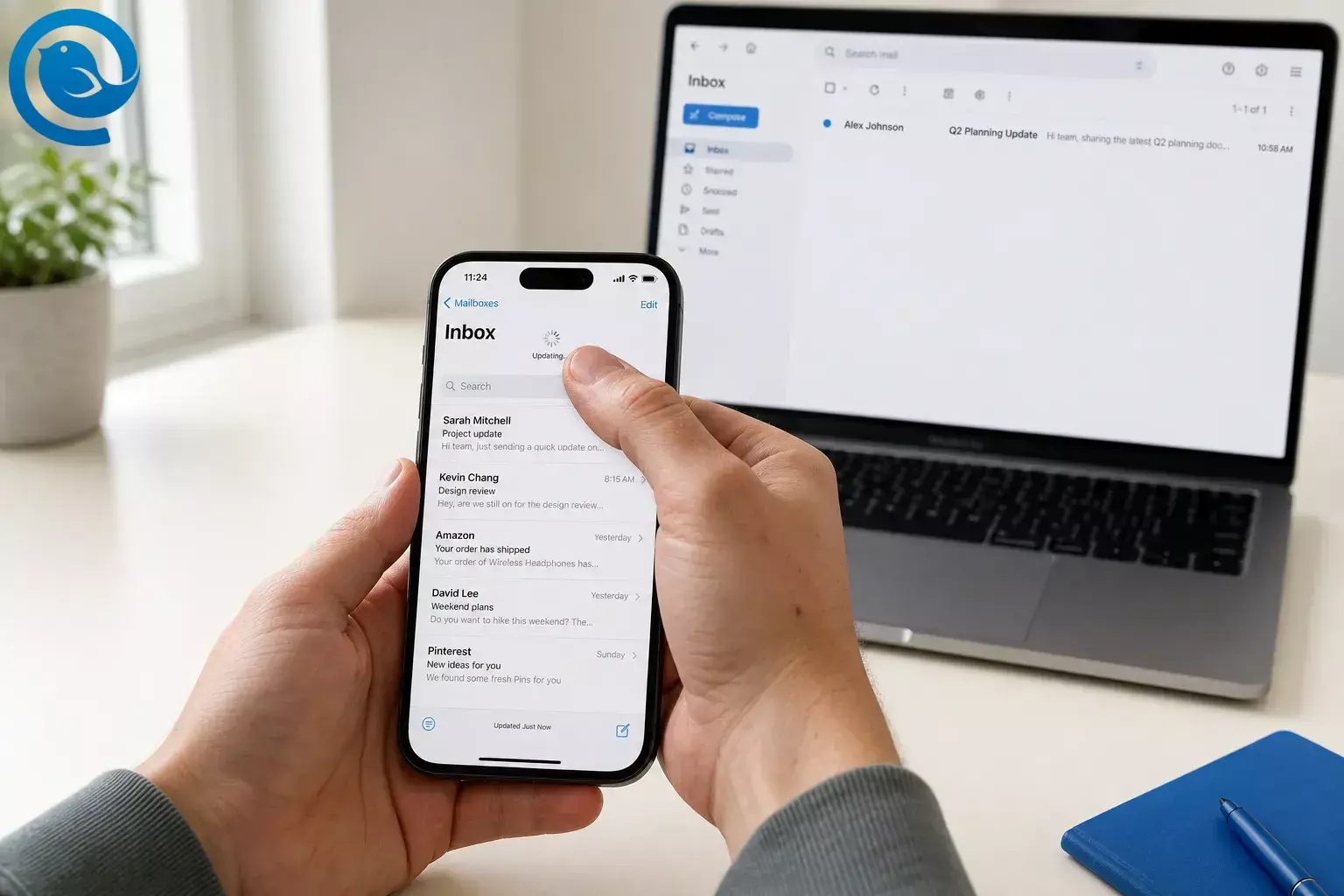
If a message appears on your email provider’s website but not in iPhone Mail, open the affected account’s Inbox and pull down to refresh. If that works but new mail still does not appear automatically, check the account’s Push or Fetch settings and test with Low Power Mode off. [1] [2]
Work through the checks below in order. Allow about 10 minutes for the basic steps, or longer if you need to sign in again. Test the affected inbox after each change.
Quick checklist
- ☐ Find the expected message on the provider’s website.
- ☐ Open the correct Inbox and pull down to refresh.
- ☐ Turn off inbox filters and check the message view.
- ☐ Test Wi-Fi and cellular data.
- ☐ Confirm Mail is on for the affected account.
- ☐ Check Push or choose a timed Fetch schedule.
- ☐ Test with Low Power Mode off.
- ☐ Resolve sign-in errors, restart, and check for an update.
- ☐ Re-add the account only after confirming your important mail is available elsewhere.
Before you start
Have ready: Your iPhone, an internet connection, and access to your email provider’s website. A second email address is useful for sending a test message.
Protect your mail: Do not remove an account until you have confirmed that important messages are available on the provider’s website or saved elsewhere. Removing an account can remove downloaded mail from the iPhone. [2]
How to fix iPhone Mail that isn’t updating
How to fix iPhone Mail that isn’t updating
-
Check whether the message reached your account
Open your email provider’s website in Safari and sign in to the affected address. Look for a message you expect, or send a test message from another address. If it is missing on the website too, check the provider’s service status or contact the provider before changing iPhone settings. [2]
-
Refresh the correct inbox by hand
Open Mail, tap Mailboxes until you can select the affected account’s Inbox, then pull down on the message list and release. If the message appears, focus on the automatic-delivery settings in steps 6 and 7.
-
Check for an inbox filter or category
Turn off the filter button if it is active. If you see category tabs, swipe left across them to All Mail, or use the more button to choose List View. If the message appears after changing the view, it was hidden from that view rather than held up by syncing. [3] [4]
-
Test Wi-Fi and cellular data
Open a webpage to check your connection. Refresh Mail on Wi-Fi, then try cellular data if your plan allows it. If Mail works only on Wi-Fi, go to Settings > Cellular, make sure Cellular Data is on, and check whether Mail is allowed to use it. [5]
-
Check the affected account’s Mail switch
Go to Settings > Apps > Mail > Mail Accounts and tap the affected account. Turn on Mail if it is off, then check whether its inbox appears in the Mail app. For iCloud Mail, also check the Use on this iPhone switch in iCloud Mail settings. [6]
-
Choose Push or a timed Fetch schedule
Go to Settings > Apps > Mail > Mail Accounts > Fetch New Data. Check the affected account: choose Push if it is offered, or Fetch if it is not. For a Fetch account, choose a timed schedule at the bottom of the screen if you need background checks away from Wi-Fi and a charger. Automatically fetches in the background only while the iPhone is charging and on Wi-Fi; Manual does not schedule automatic checks. Send a test message and allow time for the selected schedule to run. [2] [6]
-
Turn off Low Power Mode for a test
On iPhone 15 or later, go to Settings > Battery > Power Mode. On iPhone 14 or earlier, go to Settings > Battery. Turn Low Power Mode off and check whether Mail starts updating without a manual refresh. Apple says Low Power Mode turns off email fetch. [1]
-
Check Background App Refresh separately
Go to Settings > General > Background App Refresh. If Mail appears in the app list, allow refresh for it and select Wi-Fi or Wi-Fi & Cellular Data as appropriate. If Mail is not listed, move on: Fetch New Data is the direct account-delivery setting to check. Background App Refresh and Fetch are different settings, and Low Power Mode turns off Background App Refresh. [7] [1]
-
Resolve a sign-in error
Open the affected inbox and look for an account or password error. Confirm you can sign in on the provider’s website, then follow any sign-in prompt on the iPhone. If a work or school account requires approval or keeps rejecting your sign-in, contact your administrator. [2]
-
Restart and check for an iOS update
Restart the iPhone and test the inbox again. If it still stalls, go to Settings > General > Software Update. Back up your iPhone before installing an available update, then test Mail afterward. [8]
-
Remove and re-add the account only if it still fails
Use this last step when messages appear on the provider’s website but the account still will not update on your iPhone. First, confirm that important mail is on the website or saved elsewhere and that you can sign in again. Then go to Settings > Apps > Mail > Mail Accounts, tap the affected account, and choose Delete Account or Sign Out if offered. Return to Mail Accounts > Add Account, choose your provider, sign in, and check for a current message. Removing an account from the iPhone does not close it with your provider, but it can remove locally downloaded mail and other account data from the device. [2] [6]
Why these checks help
A message can be in your account but hidden by the inbox view, or Mail may not be checking the account for new data. Comparing the provider’s website with the correct inbox separates those problems. Push is available only for accounts that support it; otherwise, the Fetch schedule controls background checks. [2]
Troubleshooting by symptom
- Messages appear only after you pull down to refresh: Recheck the account’s Fetch setting and schedule, then test with Low Power Mode off. [2] [1]
- Mail updates on Wi-Fi but not cellular data: Check whether Mail can use cellular data under Settings > Cellular. [5]
- A message is on the provider’s website but not in the visible inbox: Select the correct account, turn off filtering, and check All Mail or List View. [3] [4]
- Only one account fails: Check that account’s Mail switch, Fetch setting, and any sign-in prompt before changing accounts that still work. [2] [6]
- No device shows the expected message: Check the provider’s website and service status. Changing Mail settings cannot retrieve a message the account has not received. [2]
If messages arrive but you are not alerted, see our separate iPhone email notifications guide. For power-use concerns, see our iPhone Mail battery guide.
Account-specific checks
- Gmail, Yahoo, or another personal account: Check the same address on the provider’s website first. If Push is not offered for that account, select Fetch and choose a schedule. [2]
- iCloud Mail: Check that Use on this iPhone is on. If messages are missing from iCloud’s website too, investigate the account or service before removing anything from the phone. [6]
- Work or school email: If sign-in requires approval or repeatedly fails, ask your administrator about account access before removing a managed account. [2]
Frequently asked questions
Why is my iPhone email not updating automatically?
Check whether the account uses Manual Fetch, whether Low Power Mode is on, and whether an inbox filter is hiding the message. Compare Mail with your provider’s website first.
How do I force iPhone Mail to refresh?
Open the affected account’s Inbox in Mail, pull down on the message list, and release.
What is the difference between Push, Fetch, and Manual?
Push is available for accounts that support it. Fetch checks for mail on a selected schedule. Manual does not schedule automatic checks; open or refresh Mail to check for new messages. [2]
Why does Mail update only when I open the app?
Check the account’s Fetch setting and schedule, then test with Low Power Mode off. If a manual refresh works, the account can still receive mail on the iPhone.
Will removing an email account delete my emails?
It can remove mail stored locally on the iPhone. Before removing the account, confirm that important messages are available on the provider’s website or saved elsewhere. [2]
Does Mailbird fix the Mail app on my iPhone?
No. Mailbird is a separate email app, so it does not change how Apple Mail works. Use the iPhone checks above to troubleshoot Apple Mail. [9]
Mailbird on desktop
Want to manage your email on a computer, too? Mailbird is an email client for Windows and Mac. Mailbird is on Android and iPhone too. Get it on Google Play and the App Store. [9] [10]
Sources
- Apple Support: Use Low Power Mode on iPhone or iPad
- Apple Support: If you can’t receive email on your iPhone or iPad
- Apple iPhone User Guide: Use categories in Mail
- Apple iPhone User Guide: Filter emails in Mail
- Apple iPhone User Guide: View or change cellular data settings
- Apple iPhone User Guide: Add and remove email accounts
- Apple Support: Switch apps and use Background App Refresh
- Apple iPhone User Guide: Update iOS on iPhone
- Mailbird Support: Mobile app availability, support.getmailbird.com/hc/en-us/articles/360014806554-Mailbird-for-Mobile-Android-iOS
- Mailbird: Desktop downloads for Windows and Mac, getmailbird.com/downloading/


