How to Add a Shared Mailbox in Outlook (New, Classic, and Web)
First, ask your Microsoft 365 admin to grant you access. Then open the shared mailbox in your version of Outlook: new Outlook for Windows, classic Outlook for Windows, or Outlook on the web. To send from the shared address, you also need Send As or Send on Behalf permission.



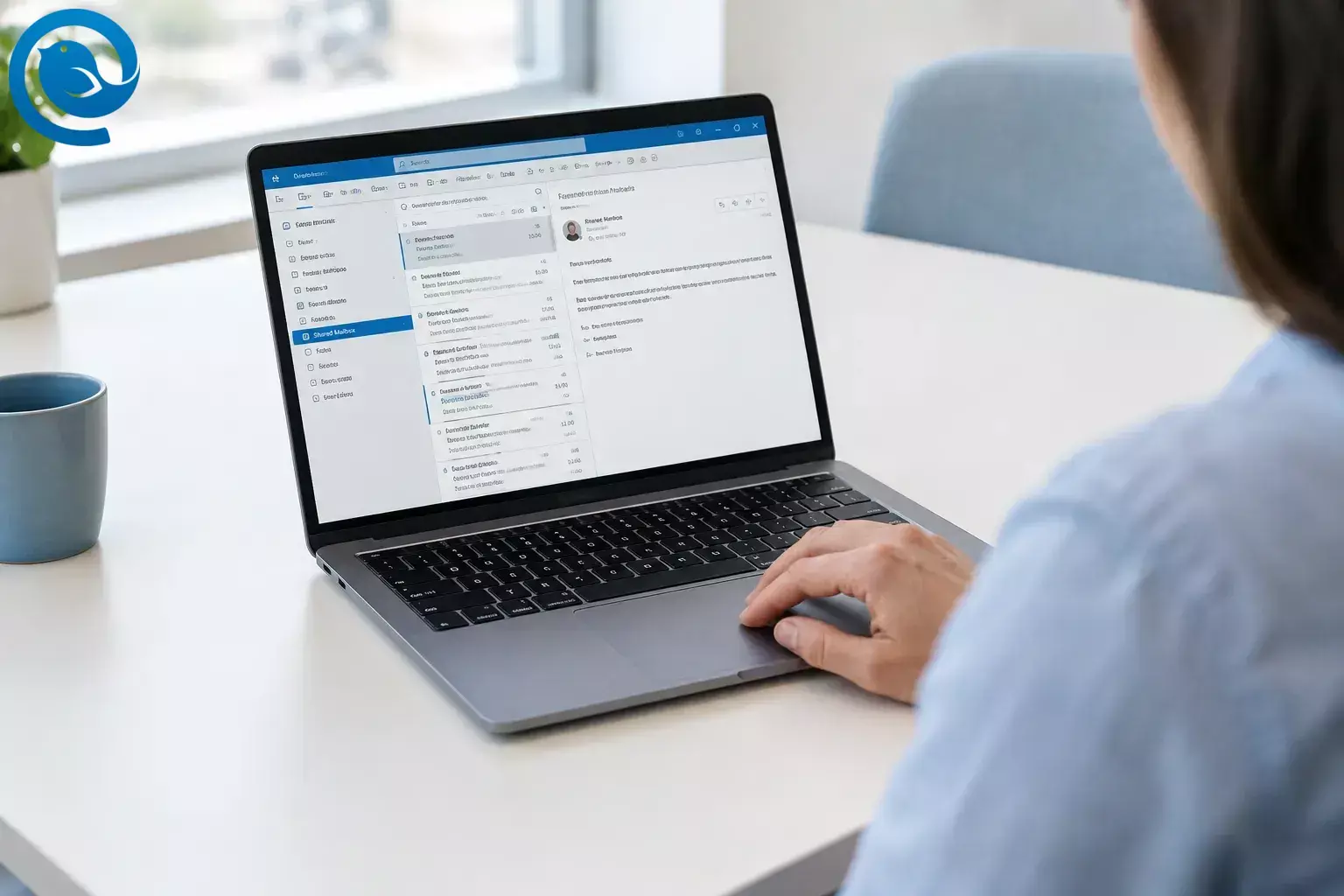
First, ask your Microsoft 365 admin to grant you access. Then open the shared mailbox in your version of Outlook: new Outlook for Windows, classic Outlook for Windows, or Outlook on the web. To send from the shared address, you also need Send As or Send on Behalf permission. [4]
Key takeaways
- Your admin must grant access before you can open a shared mailbox.
- Sign in with your own work or school account, not the shared mailbox.
- Check whether the mailbox already appears before adding it manually.
- The steps differ for new Outlook, classic Outlook, and Outlook on the web.
- Sending from the shared address requires Send As or Send on Behalf permission.
- If the mailbox will not appear or open, ask your admin to verify your access.
Before you start
- Get the shared mailbox’s full email address and confirm that your admin has granted you access.
- Sign in with your own work or school account , not a password for the shared mailbox. Shared mailboxes are not intended for direct sign-in. [5]
- If you need to reply from the shared address, ask your admin whether you have Send As or Send on Behalf permission. Permission to open the mailbox alone does not let you send from it. [4]
Using a Mac? Follow our separate Outlook for Mac shared-mailbox guide .
Add a shared mailbox in new Outlook for Windows
-
Check whether it is already there
Close and reopen new Outlook . In Mail, expand Shared with me in the left folder pane. If the shared mailbox is listed and its Inbox opens, you do not need to add it again. [1]
-
Add it if it is missing
Right-click your account name in the folder pane and select Add shared folder or mailbox . Enter the shared email address and select the mailbox. Look for it under Shared with me . If that menu is unavailable, try Settings → Accounts → Shared with me → Add ; controls can vary by version. [1]
Check: You can expand the mailbox and open its Inbox.
-
Optional: make it an account for mailbox-specific settings
If you need settings such as notifications, rules, categories, or automatic replies for the shared mailbox, go to Settings → Accounts → Shared with me . Expand an existing shared mailbox and select Convert , or select Add if it is not listed. Check Settings → Accounts → Your accounts afterward. This option requires admin-granted Full Access and may not appear in every version. If it is unavailable, keep using the mailbox under Shared with me. [2]
Add a shared mailbox in classic Outlook for Windows
First, restart Outlook and check the left folder pane. Admin-granted access may have added the mailbox automatically. If its Inbox opens, do not add a second copy. [1]
Which method should you use? Add it as an additional mailbox for ordinary access to the shared Inbox. Add it as an additional account only if you need that setup’s distinct behavior—for example, reminders that Microsoft says do not appear for an automapped or additional mailbox. [3]
Add it as an additional mailbox
- Go to File → Account Settings → Account Settings .
- On the Email tab, select your own account, then choose Change → More Settings → Advanced → Add .
- Enter the shared email address. Select OK → OK → Next → Finish → Close , then find the shared Inbox in the folder pane. [1]
Add it as an additional account only when needed
- Ask IT to disable automapping if it is active. If you previously added the mailbox through Advanced → Add , remove that copy first so it does not appear twice.
- Select File → Add Account , enter the shared mailbox address , and select Connect .
- At the sign-in prompt, use your own work account , not the shared address. Select Sign in with another account if needed. Authenticate and restart Outlook. [3]
Check: The shared Inbox opens, and the mailbox appears only once in your profile.
Add a shared mailbox in Outlook on the web
Add a shared mailbox in Outlook on the web
- Sign in to your organization’s Outlook on the web with your own account.
- Folders in the left pane and select Add shared folder or mailbox . Enter the shared address and select it. If your organization uses on-premises Exchange, right-click your primary mailbox name instead of Folders. [1]
- Expand the shared mailbox in the folder list and open its Inbox.
Want a separate window? Select your name or profile control, choose Open another mailbox , enter the shared address, and select Open . Microsoft recommends this method if you need new-message notifications for the shared Inbox in Outlook on the web. [1]
How to send from the shared mailbox
First, confirm that your admin has granted Send As or Send on Behalf permission. Send As shows the shared address as the sender; Send on Behalf identifies you as sending on its behalf. [4]
- Start a new message addressed to your own work email.
- Show the From field if it is hidden: use Options → Show From in new Outlook, Options → From in classic Outlook, or the message’s More options → Show From control on the web.
- Select the shared address in From . If it is not listed, choose Other email address and enter it.
- Send the test message and check how the sender appears when it arrives. If sending fails, ask your admin to verify your sending permission. [1] [4]
Shared mailbox not showing in Outlook? Try these fixes
- It does not appear in the folder pane: Restart Outlook, then follow the manual steps for your version above. If it still does not appear, ask your admin to confirm your access. [1]
- It appears, but the Inbox will not open: Ask your admin to check your mailbox access or Full Access permission. [2]
- New Outlook has no Convert option: Keep using the mailbox under Shared with me. If you need account-level settings, ask IT whether the option is available in your version and whether you have Full Access. [2]
- Classic Outlook shows two copies: The mailbox may be both automapped and manually added. Ask IT about automapping and remove the extra entry before setting it up as an additional account. [3]
- Outlook asks for the shared mailbox’s password: Select Sign in with another account and authenticate with your own work account instead. [3] [5]
- You can read messages but cannot send: Ask your admin to check your Send As or Send on Behalf permission. Full Access alone does not include either one. [4]
- A sent message is missing from the shared Sent Items folder: Check your own Sent Items. Your admin can configure copies to be saved in the shared mailbox if your team needs them there. [6]
Frequently asked questions
Can I add a shared mailbox without admin permission?
No. Your admin must grant you access before you can open it. [1]
Why did the shared mailbox appear automatically?
Your organization may have enabled automatic mapping when it granted access. If the Inbox opens, you do not need to add the mailbox again. [1]
Is Full Access enough to send from the shared address?
No. You also need Send As or Send on Behalf permission. [4]
Looking for a desktop email client?
Mailbird is available for Windows and Mac. Before switching from Outlook for work email, check your organization’s client policy and shared-mailbox requirements with IT.
Sources
- Microsoft Support: Open and use a shared mailbox in Outlook
- Microsoft Support: Manage shared mailbox settings in new Outlook
- Microsoft Learn: Add a shared mailbox as an additional account in Outlook Desktop
- Microsoft Learn: Create a shared mailbox and assign permissions
- Microsoft Learn: About shared mailboxes in Microsoft 365
- Microsoft Learn: Messages sent from a shared mailbox aren’t saved to its Sent Items folder


