Gmail vs Desktop Email Client: Which Is Better for Productivity?
A practical productivity comparison between Gmail in the browser and a desktop client (Mailbird), including 2026 POP/Gmailify changes, offline access, multi-account setup, pricing notes, and a short decision tree.


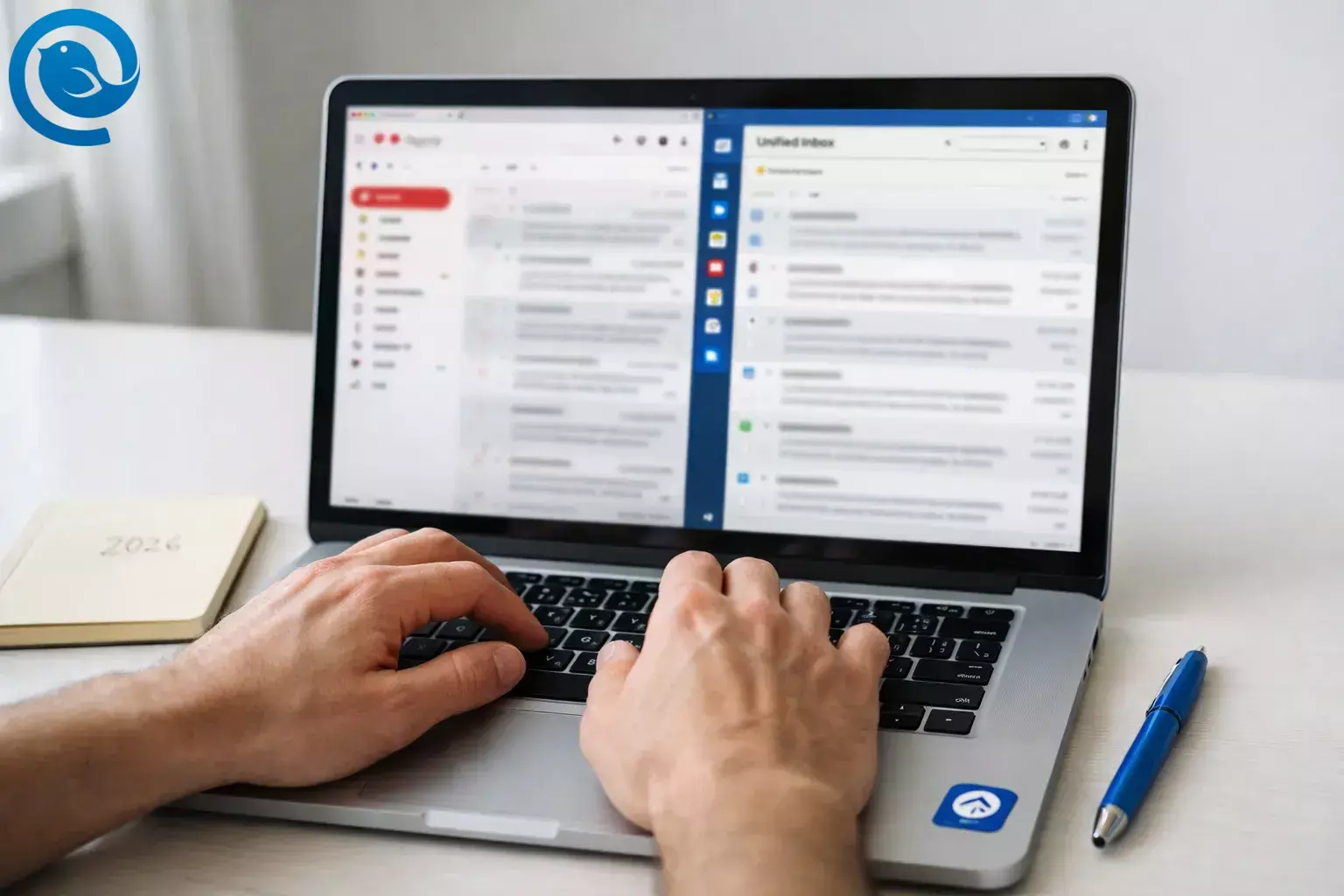
For desktop email vs Gmail productivity, the real question isn’t “Gmail address vs non-Gmail address.” You can keep your Gmail account either way—the choice is whether your daily workspace is Gmail’s web/mobile interface, or a dedicated desktop app like Mailbird that connects to Gmail (and other accounts) in one place.
What’s new
Google is ending Gmailify and Gmail’s POP-based “Check mail from other accounts” feature by January 2027. Also important: this change does not mean you can’t use Gmail in third-party apps—Google notes you can still connect to Gmail servers with POP or IMAP from other apps. [1]
Key takeaways
- Gmail is the simplest choice when you need a browser-first, Google Workspace-native inbox.
- A desktop email client like Mailbird often makes more sense when you manage multiple providers—especially as Google is ending Gmailify and Gmail’s POP-based “Check mail from other accounts” feature by January 2027. [1]
- Gmail can work offline on desktop—but only in a regular Chrome window, and you must enable it ahead of time (and set it up per account). [2]
- Mailbird can add multiple accounts directly in one app; Premium supports unlimited accounts. [6]
- Mailbird’s Help Center states third-party app integrations aren’t included in the Free license and are included in Premium. [7]
- Google Workspace plans list $7/user/month (annual commitment) or $8.40/user/month when billed monthly. [4]
- Mailbird positions itself as privacy-first: your emails don’t pass through Mailbird servers; the app connects locally to your email providers. [8]
Verdict snapshot: Gmail is the simplest choice when you need a browser-first, Google Workspace-native inbox. A desktop email client like Mailbird often makes more sense when you manage multiple providers—especially as Google is ending Gmailify and Gmail’s POP-based “Check mail from other accounts” feature by January 2027.[1]
- Choose Gmail if you need to sign in anywhere (shared or locked-down computers) and stay inside Google’s ecosystem.
- Choose Mailbird if you manage 2+ accounts across providers and want one desktop workspace for daily triage (Premium supports unlimited accounts).[6]
- Choose Mailbird if you relied on Gmail’s POP “Check mail from other accounts” import to consolidate third‑party inboxes (that workflow is being removed).
Table of contents
Gmail vs desktop email client (Mailbird): productivity comparison
| Productivity criterion | Gmail (web & mobile) | Mailbird (desktop email client) |
|---|---|---|
| Access everywhere (no installs) | Best: sign in from almost any computer (useful on shared devices and locked-down workplaces). | Requires installing the app on each computer you use. |
| Multiple accounts in one place | Switching between Google accounts is easy, but Gmail is ending POP-based “Check mail from other accounts” for third-party inboxes—so consolidation inside Gmail is harder long-term.[1] | Add multiple accounts directly in one app; Premium supports unlimited accounts.[6] |
| Offline work on desktop | Offline mode works only in Chrome (not Incognito) and must be enabled per account.[2] | Many people prefer a desktop client on “bad Wi‑Fi” days because your inbox lives in a dedicated app (exact offline behavior depends on settings and provider). |
| Google Workspace “native” flow | Best fit if your day revolves around Google Calendar, Meet, Drive, and Workspace collaboration. | Works with Google accounts, but it’s not the “official” Google interface. |
| Bring your tools into the inbox | Leans Google-first (Workspace add-ons aside). | Premium includes third-party app integrations inside Mailbird; Free doesn’t include these integrations.[7] |
| Cost to start (US) | $0 for a personal Google account; Google Workspace plans list $7/user/month (annual commitment) or $8.40/user/month when billed monthly.[4] | Free plan: $0 (1 account). Premium: $4.03/user/month billed yearly, or $99.75 one-time (per user).[6] |
| Data route / “who holds my mail?” | Your mailbox lives in your Google account (cloud-first). | Mailbird positions itself as privacy-first: your emails don’t pass through Mailbird servers; the app connects locally to your email providers.[8] |
What they are (one sentence each)
Gmail: Google’s email service you typically use in a web browser or the Gmail mobile app.
Mailbird: A desktop email client that connects to your email accounts (including Gmail) and helps you manage them from one desktop workspace.
Where they’re meaningfully different for productivity
1) Multi-account management (and Gmail’s 2026 POP/Gmailify change)
If your day involves more than one inbox (personal Gmail + a work domain + a side project), the interface that keeps you in one flow wins.
Gmail is removing the POP “Check mail from other accounts” feature (and Gmailify) with a phased timeline (no new users since Q1 2026; existing users until January 2027), so Gmail is becoming less reliable as a long-term “central mailbox” for non-Gmail inboxes. A desktop email client flips the model: instead of importing mail into Gmail, it connects directly to each inbox so you can triage without depending on Gmail’s import feature. Also important: this change does not mean you can’t use Gmail in third-party apps—Google notes you can still connect to Gmail servers with POP or IMAP from other apps.[1]
2) Offline work and travel days
Gmail can work offline on desktop—but only in a regular Chrome window, and you must enable it ahead of time (and set it up per account).[2] If your productivity includes searching old threads, drafting replies, or staying responsive during spotty internet, Gmail’s offline requirements are worth testing before you rely on them.
3) Focus: browser tabs vs a dedicated inbox
Gmail’s strength is that it’s “just another tab,” which is perfect when you bounce between devices or use shared computers. The productivity downside is the same: your inbox sits in the same distraction zone as everything else.
A desktop client is for people who want email to feel like a tool, not a destination—open it, clear what matters, then close it. If you prefer keyboard-driven triage and fewer browser context switches, you’ll usually feel faster in a dedicated app.
4) Organization model: search-first vs structure-first
Gmail is great for search-first people: label, archive, and find later. A desktop client often appeals to structure-first people: visible separation across accounts while still letting you view everything together when you want it.
5) Integrations: Google-native vs “one hub for many tools”
If your workflow is mostly Google (Calendar, Meet, Drive, Chat), Gmail is the cleanest, most predictable experience because it’s designed to be the front door to that ecosystem.
If your workflow spans multiple tools, Mailbird’s approach is to pull tools into the inbox via built-in integrations—note that Mailbird’s Help Center states third-party app integrations aren’t included in the Free license and are included in Premium.[7]
6) Control and portability (switching providers without switching your habits)
Gmail is both the service and the interface—so if Google changes a feature that your workflow relies on (like the 2026 POP/Gmailify deprecation), you may need to adapt your habits.[1]
With a desktop email client, your interface can stay more consistent even if your accounts change, because the app is designed to connect to multiple providers. Mailbird also positions itself as a local, privacy-first client where emails don’t pass through Mailbird servers.[8]
Costs, effort, and ownership trade-offs
Gmail costs (US): For personal use, Gmail can be $0. If you need business email on your own domain inside Gmail, Google Workspace lists pricing starting at $7/user/month with a 1-year commitment (or $8.40/user/month when billed monthly).[4]
Storage “cost”: Free Google accounts include up to 15 GB of storage, and that storage is shared across Google services (including Gmail).[5]
Mailbird costs (as listed on Mailbird’s pricing page): Mailbird shows a Free plan ($0) limited to 1 account, plus Premium plans that include unlimited accounts; the same page lists Premium at $4.03/user/month billed yearly and a $99.75 one-time option (per user).[6]
Effort and setup: Gmail is “open a browser and go.” A desktop email client needs installation and initial account setup. For Gmail accounts, Google advises connecting via “Sign in with Google” rather than sharing your Google username and password with third-party apps (and notes IMAP is always on for personal Google accounts, as of January 2025).[3]
Risks and dealbreakers (when each becomes a bad choice)
Gmail is a bad choice if…
- You need a long-term, desktop-first “single inbox” that continuously pulls in third-party accounts the way POP “Check mail from other accounts” used to.
- You work offline often, or you need offline access across multiple accounts at once without relying on a specific browser setup.
- Your productivity depends on a dedicated inbox environment (not a browser tab) with multi-account workflows front and center.
Mailbird is a bad choice if…
- You can’t install software (corporate restrictions, shared/public computers, or you work across many machines you don’t control).
- You only manage one Gmail inbox and your main pain point isn’t email—adding an app would just be another tool to maintain.
- Your organization requires you to use the official Gmail interface for compliance, training, or standardized support.
Switching path: if you chose wrong, how to change direction with minimal loss
If you started with Gmail and want to move to Mailbird
- Keep your Gmail account. You’re mostly switching the interface, not your email address.
- Add Gmail to Mailbird using “Sign in with Google.” This is the safer, recommended way to connect Gmail to email clients (instead of typing your Google password into a third-party app).[3]
- Reconnect your other inboxes directly. If you previously relied on Gmail’s POP “Check mail” workflow for third-party accounts, rebuild consolidation by either (a) setting up forwarding from the other provider, or (b) connecting those accounts directly in your desktop client.[1]
If you started with Mailbird and want to move back to Gmail
- Switch interfaces first. If your accounts are IMAP-based (including Gmail), your messages remain on the server—so switching usually doesn’t require moving data.
- Translate your structure. If you organized heavily in the desktop app, recreate the high-value parts in Gmail using labels, filters, and a simple triage routine (don’t try to replicate everything at once).
- Run both for a week. This makes it easier to catch differences in folders/labels, notifications, or workflow habits you didn’t realize you relied on.
Decision tree (pick one)
- If you need to access your inbox from any computer without installing anything, then choose Gmail.
- If you manage 2+ email accounts daily and want one desktop workspace, then choose Mailbird.
- If you relied on Gmail pulling third-party mail into your Gmail inbox via POP “Check mail from other accounts,” then choose Mailbird (or rebuild with forwarding and accept less “one place” simplicity).[1]
- If you’re often offline or on unstable internet and still need to triage and draft reliably, then choose Mailbird.
- If your productivity is primarily Google Calendar/Meet/Drive collaboration and you want the most native experience, then choose Gmail.
- If you want your inbox to also be a hub for multiple work tools, then choose Mailbird.[7]
Frequently Asked Questions
Can I use my Gmail account in a desktop email client?
Yes. A desktop email client can connect to Gmail so you keep your Gmail address while changing your day-to-day interface.[3]
Is Gmail ending POP or IMAP for email clients?
The 2026 change is about Gmail’s browser feature that fetches third-party mail into Gmail via POP (“Check mail from other accounts”). Connecting to Gmail itself from third-party apps can still work.[1]
Does Gmail work offline on desktop?
It can, but you must turn it on ahead of time and it runs in Chrome (not an Incognito window).[2]
What’s the biggest productivity advantage of a desktop email client?
Managing multiple inboxes from one place (without living in multiple browser tabs) and building a consistent, desktop-first triage workflow.
Will Gmail labels show up correctly in a desktop client?
Often, labels map into folders (or folder-like views) in desktop clients, but the exact behavior can differ—especially if you use lots of labels.
Do I need to share my Google password to connect Gmail to an email client?
Typically no—many modern email clients support “Sign in with Google,” which is the safer approach.[3]
Is Mailbird free?
Mailbird offers a Free plan, and it also has paid plans with more accounts and advanced features.[6]
If I switch, can I go back without losing emails?
In most setups, yes—your messages stay on the email provider’s server (like Gmail). Switching usually means changing the app you use, not moving your mailbox.
Sources
- Gmail Help — “Learn about upcoming changes to Gmailify & POP in Gmail”
- Gmail Help — “Set up & use Gmail offline”
- Gmail Help — “Add Gmail to another email client”
- Google Workspace — Pricing (US dollars shown on page)
- Google One — Plans & pricing (includes free storage statement)
- Mailbird — Pricing and Plans: https://www.getmailbird.com/pricing/
- Mailbird Help Center — “What apps are available in each Mailbird plan?”: https://support.getmailbird.com/hc/en-us/articles/360039349814-What-apps-are-available-in-each-Mailbird-plan
- Mailbird — “Mailbird Email Client Now Available on Apple App Store for Mac”: https://www.getmailbird.com/mailbird-apple-app-store-launch-mac/


