eM Client vs Outlook: Which Email Client Is Better in 2026?
A 2026 comparison of eM Client and Microsoft Outlook covering encryption, PST migration, pricing, platform support, and the tradeoffs that matter most before switching.


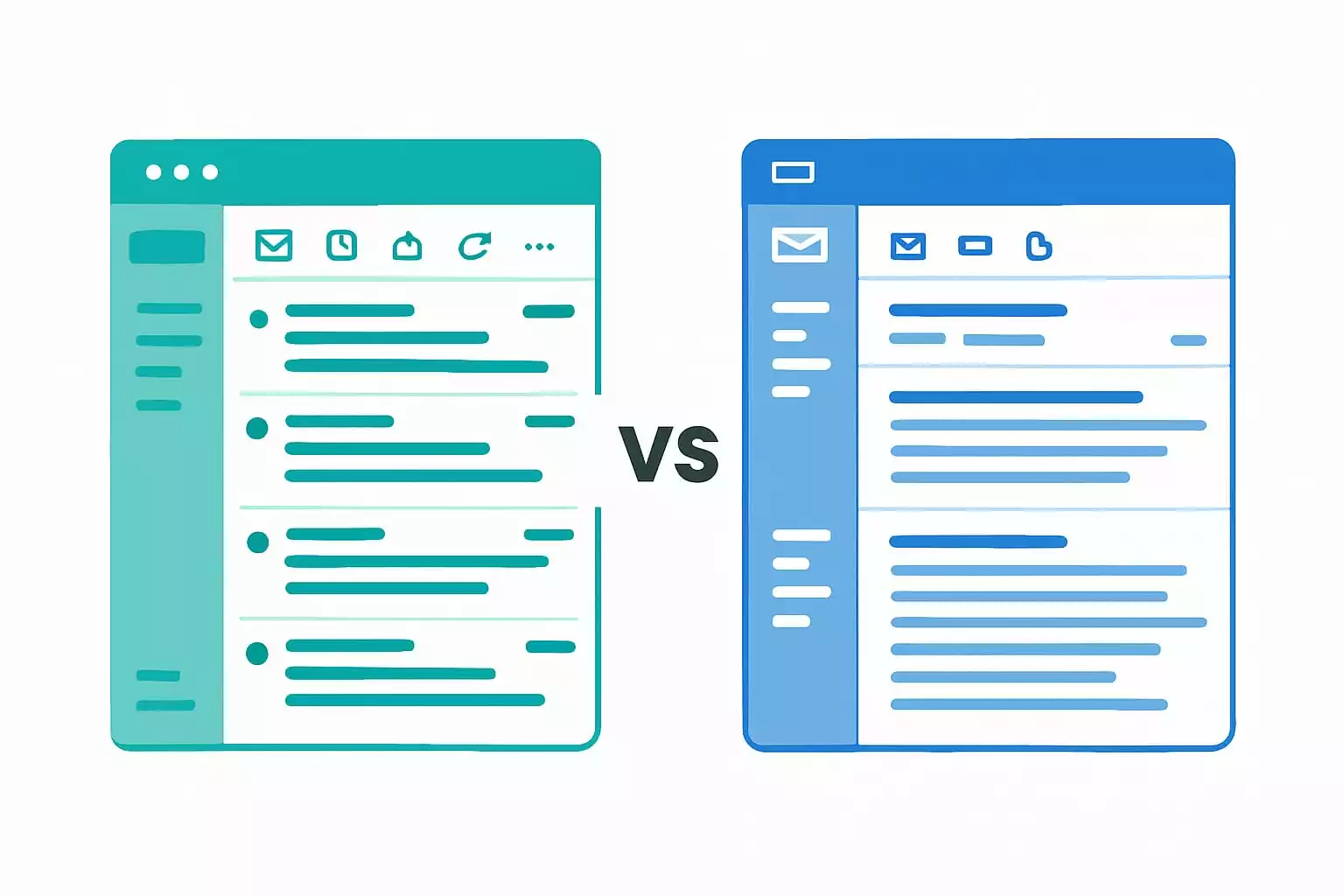
eM Client vs Outlook in 2026: compare native OpenPGP support, PST import, macOS availability, and pricing models—plus how each fits into a broader desktop email client workflow.
TL;DR
If your organization mandates Outlook or you depend on COM/VSTO add-ins, Outlook (classic) is the safer choice. If you're an individual or SMB user looking for native OpenPGP encryption, a one-time license, and cross-platform desktop email workflows, eM Client is worth evaluating—after confirming your Exchange/M365 setup works correctly.[1][5]
Key takeaways
- eM Client 10 supports Exchange/M365 via EWS and IMAP — but does not support COM/VSTO add-ins[5]
- eM Client has native OpenPGP (no add-in needed) — a key differentiator vs Outlook which relies on third-party tools[3][7]
- eM Client imports Outlook PST files natively — reducing migration friction[6]
- eM Client runs on Windows and macOS, while Outlook experiences differ across platforms[1]
- eM Client offers a one-time license option, while Outlook is typically bundled with Microsoft 365 subscriptions[4]
- If you manage multiple accounts across providers, consider how each tool supports unified workflows—some desktop clients offer a unified inbox to reduce switching.
Table of contents
Quick comparison
| Criteria | eM Client | Microsoft Outlook |
|---|---|---|
| Best fit | Individual/SMB users wanting one-time license and native OpenPGP; verify M365/Exchange setup first | IT-managed M365/Exchange environments; COM/VSTO add-in users |
| Windows direction 2026 | Not affected by Microsoft's Outlook migration stages | Two experiences (classic + new); Enterprise opt-out moved to March 2027[1][2] |
| Add-ins & automation | No COM/VSTO support; built-in rules and filters | Classic supports COM/VSTO; new Outlook for Windows doesn't[5] |
| Secure email (S/MIME / OpenPGP) | S/MIME + OpenPGP native (key differentiator — no add-in needed)[7] | S/MIME native; OpenPGP via third-party add-in (e.g. GpgOL)[3][7] |
| Archives & PST | Native PST import[6] | PST is native; new Outlook adding PST management[3][6] |
| Pricing | Free (1 account) or ~$59.95 one-time Pro[1] | M365 Personal $99.99/year (includes other apps)[4] |
What are eM Client and Outlook?
eM Client is a desktop email client for Windows and macOS developed by eM Client Inc. (Czech Republic). It supports email, calendar, contacts, and tasks — with first-class support for Gmail, iCloud, Exchange/M365, and generic IMAP/SMTP. Its standout feature is built-in OpenPGP encryption, available without any add-in.[1][7]
Microsoft Outlook is Microsoft's email and personal information manager, bundled with Microsoft 365 (formerly Office 365). In 2026, Windows users may encounter two versions: classic Outlook (the traditional COM-based app, still dominant in enterprise) and the new Outlook for Windows (a rebuilt, web-based experience that Microsoft is progressively rolling out). The transition continues — Enterprise organizations can still opt out until March 2027.[2]
Both are capable, mature email clients. The choice often comes down to your ecosystem, encryption needs, add-in dependencies, and budget.
4 key differences in 2026
1. OpenPGP is built in — no add-in required
eM Client includes OpenPGP natively. You can generate keys, import existing keyrings, and send/receive encrypted messages directly within the app — no third-party tooling required.[7]
In Outlook, OpenPGP is not natively supported. You typically need a third-party add-in like GpgOL to handle OpenPGP workflows. Both clients support S/MIME, but OpenPGP — the more flexible, decentralized standard — is where eM Client stands out.[3][7]
2. eM Client imports PST files directly
eM Client can import Outlook .pst files natively, which simplifies migration for users with years of archived mail, contacts, and calendar data.[6]
This reduces the need for converters or manual workarounds when moving away from Outlook.
3. COM/VSTO add-ins: the hard constraint for Outlook users
If your workflow depends on COM/VSTO add-ins (CRM integrations, legal tools, custom plugins), eM Client cannot replace classic Outlook. These add-ins simply don’t run outside Outlook’s ecosystem.[5]
Even Microsoft’s new Outlook for Windows is moving away from COM/VSTO support, which affects long-term planning for add-in-heavy workflows.
4. Cross-platform workflows vs fragmented Outlook experience
eM Client runs on both Windows and macOS with a consistent experience, which can simplify setups for users managing multiple email accounts across devices.
Outlook’s experience varies between Windows (classic vs new Outlook) and Mac, with differences in features and capabilities.[1]
Costs & pricing tradeoffs
eM Client pricing
eM Client offers a Free tier (limited to 1 email account) and a Pro license available as either a one-time purchase (~$59.95) or an annual subscription (~$29.95/year). Always verify current pricing at emclient.com.[1]
Microsoft 365 pricing
Outlook is bundled with Microsoft 365 subscriptions. Current US store pricing:[4]
- M365 Personal: $99.99/year (1 user — includes Word, Excel, PowerPoint, OneDrive 1 TB)
- M365 Family: $129.99/year (up to 6 users)
5-year TCO perspective
Over five years, eM Client Pro one-time (~$59.95) vs M365 Personal five years (~$499.95) represents a substantial difference in raw software cost. However, M365 includes Word, Excel, PowerPoint, and 1 TB of OneDrive storage — so it's not a like-for-like comparison. If you already subscribe to M365 for other apps, Outlook is essentially "included" and the TCO argument for eM Client is less relevant.
Bottom line: If you don't need the broader M365 suite, eM Client Pro's one-time license is significantly cheaper over any multi-year horizon. If you're already paying for M365, Outlook costs nothing extra.
Risks & dealbreakers
When eM Client is the wrong choice
- Your organization mandates Outlook (IT policy, compliance)
- You depend on COM/VSTO add-ins (CRM, legal tools, specialized plugins)[5]
- Complex Exchange delegation or shared mailbox setups not yet verified in your environment
- You need deep Teams/Calendar integration without friction
When Outlook is the wrong choice
How to switch: Outlook → eM Client
A low-loss approach that minimizes the risk of losing mail, contacts, or calendar data:
Outlook → eM Client (low-loss approach)
- Re-sync server-hosted accounts first. Add your Exchange/M365 or IMAP accounts in eM Client and let them fully sync. This is cleaner than file migration since your data already lives on the server.
- Import PST archives. Use eM Client’s built-in PST import (File > Import > Outlook .pst file) to bring over local archives, including email, contacts, and calendar items.[6]
- Recreate rules and signatures. Client-side Outlook rules and signatures won’t transfer automatically. Rebuild them in eM Client. Server-side rules may reapply after sync.
- Run both apps in parallel briefly. Keep Outlook active for a few days while validating folders, sent mail, and workflows before fully switching.
If you manage multiple email accounts, this parallel approach helps confirm everything syncs correctly across providers before shutting down your old setup.
Decision tree
Work through these in order:
- If your org requires Outlook or you use COM/VSTO add-ins → choose Outlook (classic)[5]
- If you need OpenPGP natively without a third-party add-in → eM Client is worth evaluating[7]
- If PST archives are central to your workflow → eM Client's native import handles this cleanly[6]
- If you need the same app on Mac and Windows → eM Client covers both; classic Outlook doesn't[1]
- If you're already paying for M365 and don't need OpenPGP → stick with Outlook — it's already included
Frequently asked questions
Does eM Client support Microsoft 365 and Exchange accounts? — Yes, via EWS and IMAP
Yes. eM Client supports Exchange/M365 via EWS and IMAP. However, some organization-level configurations may require additional setup or IT coordination.
Can eM Client import Outlook PST files? — Yes, natively
Yes. eM Client includes native PST import, which reduces migration friction compared with clients that require third-party converters.[6]
Does eM Client support OpenPGP encryption natively? — Yes, no add-in needed
Yes. OpenPGP is built in, with no add-in required. Outlook, by contrast, relies on third-party tools for OpenPGP workflows.[7]
Is eM Client free? — Free for 1 account; Pro paid
eM Client has a free tier limited to 1 email account. Pro is available as a one-time purchase or annual subscription. Confirm current pricing on the official site before deciding.[1]
Does eM Client work on Mac? — Yes, Windows and macOS
Yes. eM Client runs on both Windows and macOS, which makes it easier to keep a consistent desktop workflow across platforms.[1]
What is the difference between eM Client Free and Pro? — 1 account vs more features
The Free tier supports 1 email account. Pro removes that limit and adds more advanced features. Check the official comparison for the latest feature list.
Will my Outlook rules and signatures transfer to eM Client? — Usually not automatically
Usually not automatically. Plan to recreate rules and signatures after migration. Server-side rules may reapply on sync, but client-side Outlook rules typically will not transfer.
Sources
Show sources (7)
- eM Client official site — emclient.com (pricing, features, platform support)
- Microsoft Learn: Stages of migration to new Outlook for Windows (last updated Feb 23, 2026)
- Microsoft Support: What's new in new Outlook for Windows (S/MIME, PST, features)
- Microsoft Store: Compare Microsoft 365 plans & pricing (US)
- Microsoft Learn: COM and VSTO add-ins aren't supported in the new Outlook on Windows
- Microsoft Support: Export or back up email, contacts, and calendar to an Outlook .pst file
- eM Client: S/MIME and OpenPGP encryption documentation — emclient.com/kb/email-encryption


