Digital Employee Onboarding: Running the First Week Remotely
Digital employee onboarding is how you get a new hire into email, tools, documents, and first tasks without an in-person desk visit. Use this first-week plan for remote employee onboarding, virtual onboarding, or any online onboarding flow.



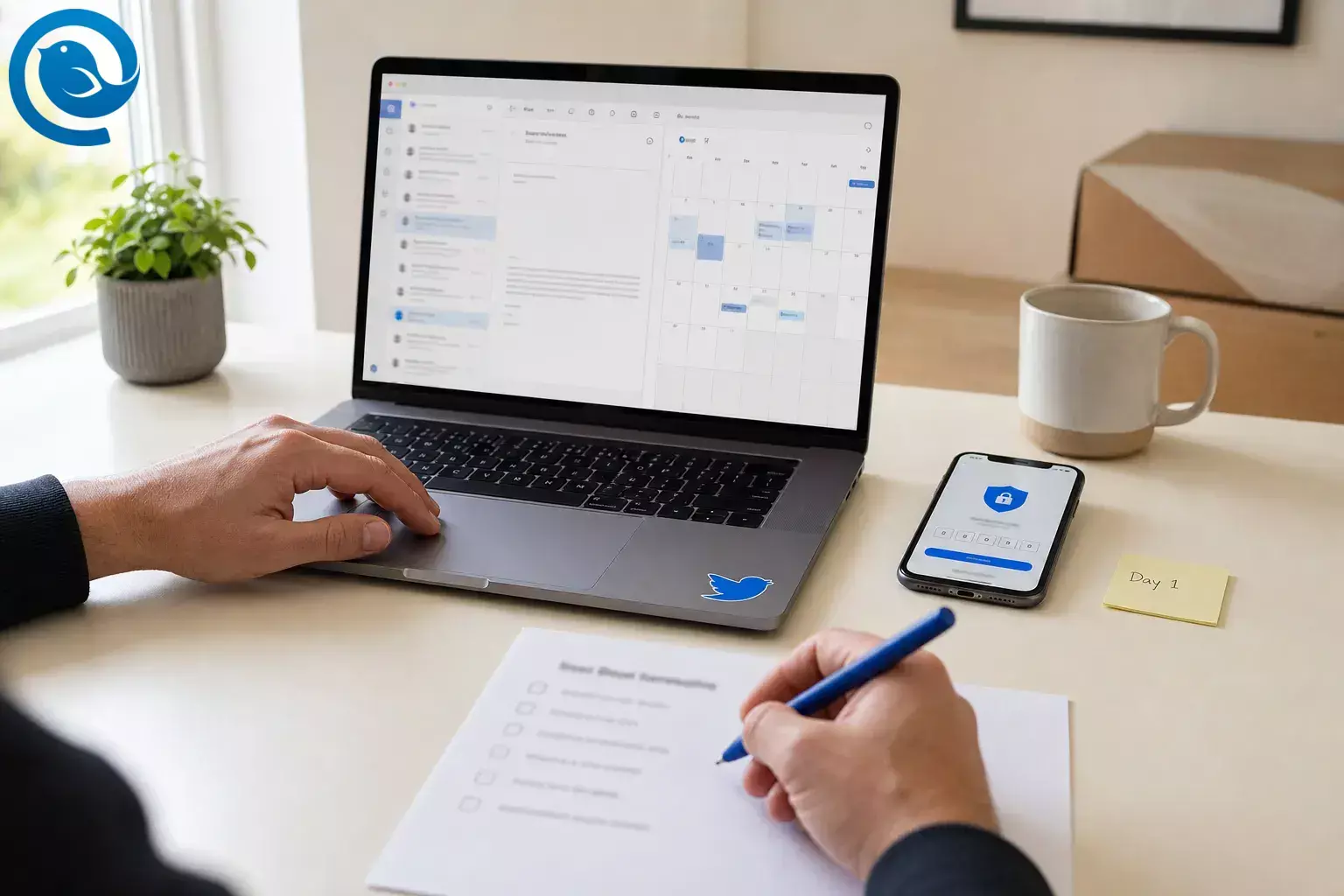
Digital employee onboarding is how you get a new hire into email, tools, documents, and first tasks without an in-person desk visit. Use this first-week plan for remote employee onboarding, virtual onboarding, or any online onboarding flow.
You’ll finish with a repeatable first-week plan for email setup, tool access, async-first docs, and a calm week-one cadence instead of cramming everything into one long orientation block.
What’s new
Microsoft Entra security defaults can block device-code sign-in in new tenants, and Microsoft’s baseline protections can also block legacy authentication while requiring MFA setup in many environments. 1 In practice, first-week remote onboarding often fails fastest at sign-in, so email, MFA, and backup access need to work before the first live meeting.
Without a desk visit, the tiny rescue moments disappear: the quick login fix, the casual tool tour, the tap on the shoulder to ask where a file lives. A strong remote onboarding plan replaces those moments with a tested access path, short written defaults, and a calm daily rhythm.
TL;DR
- Set up first: work email, calendar, chat, MFA, and the recovery path.
- Send one message: put the start time, time zone, day-one meeting link, shipping status, IT contact, manager contact, and first-week agenda in that email.
- Write down: one start page with norms, file locations, and owners.
- Keep week one light: Day 1 access and welcome, Day 2 role basics, Day 3 first useful output, Day 4 cross-functional context, and Day 5 review and next week.
- Add the right channels: required calendar invites, team chat spaces, email groups, and shared drives on day one.
- Finish week one with: one real task and a short audit.
What you need before digital employee onboarding starts
- Prerequisites: accepted offer, confirmed start date, named manager, IT owner, role-based access list, and a shipping address if the role needs company hardware.
- Tools: work email, calendar, chat, video, shared docs or a wiki, secure credential handoff, and a place to track completion. If you want the hire to work from one screen, Mailbird can manage multiple email accounts in one app, and its Unified Inbox appears once more than one account is connected. 4 5
- Time: do the setup before day one, then run the plan through the employee’s first workweek.
- Cost: usually no new platform is required if your team already uses email, chat, video, docs, and an identity system.
- Safety notes: use your approved method for credentials and account recovery, and if you hire in the U.S., confirm your Form I-9 process with HR before the start date. 7
Fallbacks: no wiki yet? Start with one shared document. No desktop email client yet? Use your provider’s webmail. No onboarding platform? Use a spreadsheet with owners, due dates, and a simple done column.
What breaks in remote employee onboarding without a desk visit
- Identity: nobody sees the exact sign-in error until the meeting has already started.
- Routing: links end up split between email, chat, calendar, and shared folders.
- Context: unwritten habits—who approves what, where final files live, how fast people reply—stay unwritten.
- Ownership: HR, IT, and the manager each assume someone else handled the missing step.
The fix is not more meetings. It is one owner per tool, one place for answers, and one week-one rhythm that is light enough to follow.
Digital employee onboarding: step-by-step for the first remote week
Use the same order each time. It keeps remote employee onboarding predictable and makes it easier to spot missing access before the first blocked task.
Digital employee onboarding: step-by-step for the first remote week
-
Build a one-page access map before day one
Create a simple table with five columns: tool, owner, login method, day needed, and backup contact. Include email, calendar, chat, video, file storage, HR system, SSO, MFA, VPN, and any role-specific tools. This step is done when every tool has one named owner and one clear “ready by” status.
-
Send one welcome email with everything the new hire needs to start
Use one message, not five. Put the start time, time zone, day-one meeting link, shipping status, IT contact, manager contact, and first-week agenda in that email. Ask the new hire to reply with a simple “Received” so you know the message landed and the address works. 3
-
Ship hardware early and test the login path yourself
If the role needs a company device, send it before the start date with charging instructions, Wi-Fi steps, and a printed fallback contact. Then test the exact path a new hire will use: SSO page, MFA prompt, email login, calendar access, and chat access. Mark the step complete only when a non-admin can follow the path without special help. 3 9
Fallback: if the laptop will not arrive in time, start with browser access to email, docs, chat, and orientation materials (see our device-agnostic email setup guide ), then schedule a shorter IT session for the day the device arrives.
-
Set up work email first, then every other tool
Email is the recovery path for almost everything else: invites, password resets, approvals, and introductions. Connect the work mailbox , confirm the new hire can send and receive messages, accept one calendar invite, and open one shared document before moving to role-specific apps.
If your stack supports it, enroll MFA during setup. Prefer phishing-resistant methods such as WebAuthn or FIDO2 over typed one-time codes; NIST says manually entered OTP methods are not phishing-resistant. 2 For Microsoft accounts in Mailbird, use OAuth 2.0 when available. 6
Fallback: if the desktop client hits an authentication snag, start in webmail so the rest of day one can continue, then fix the client after the new hire can already read invites and team messages.
-
Replace “ask around” with async-first onboarding docs
Create one start page that answers the questions people usually solve with a desk visit: where files live, how access requests work, who approves purchases, how meetings are run, what response-time norms look like, and who to ask when stuck. Keep each answer short, link to the deeper document, and put a visible last-updated date at the top. This step is done when a new hire can find the top ten answers without asking in chat.
-
Put the first week on a light, predictable cadence
Do not fill every hour with calls. Spread the onboarding across the week, leave room for breaks, and alternate live sessions with reading, setup, or practice blocks.
Suggested first-week cadence Day Main focus Check by end of day Day 1 Access and welcome Email works, MFA is enrolled, the calendar is visible, and the hire knows the manager and buddy. Day 2 Role basics HR questions are answered, core docs are read, and the tool tour is complete. Day 3 First useful output One small task is assigned, started, and easy to review. Day 4 Cross-functional context The hire knows the partner teams, handoffs, and where their work goes next. Day 5 Review and next week Access gaps are closed and the next priority is written down. Day 1
- Main focus
- Access and welcome
- Check by end of day
- Email works, MFA is enrolled, the calendar is visible, and the hire knows the manager and buddy.
Day 2
- Main focus
- Role basics
- Check by end of day
- HR questions are answered, core docs are read, and the tool tour is complete.
Day 3
- Main focus
- First useful output
- Check by end of day
- One small task is assigned, started, and easy to review.
Day 4
- Main focus
- Cross-functional context
- Check by end of day
- The hire knows the partner teams, handoffs, and where their work goes next.
Day 5
- Main focus
- Review and next week
- Check by end of day
- Access gaps are closed and the next priority is written down.
Use this as a default rhythm, then trim or add sessions by role; the goal is a plan people can follow, not a wall of calls. 3 9
-
Add the new hire to the right channels, not every channel
Subscribe the person to required calendar invites, team chat spaces, email groups, and shared drives on day one. Skip the noisy extras until the core workflow is stable. This step is done when the new hire can see the meetings they need, read the updates that matter, and reach the right people without hunting for invite links. 3
-
Assign one buddy and one escalation path
Give the new hire a buddy for everyday questions and a separate escalation contact for blocked access or policy issues. Tell the employee exactly what each person is for. Check completion by asking, “Who do you message for a small question, and who do you message if you cannot log in?” 9
-
Give one real task in the first week
Do not wait for the second week to see whether the setup works. Assign one bounded task that proves access is real: draft a reply, update a document, tag a ticket, join a shared mailbox, or book a meeting from the company calendar. The task should be small enough to finish, review, and discuss before week one ends. 3
-
Run an end-of-week audit before you call onboarding done
Use a short checklist: can the new hire sign in alone, find the key docs, reply to email, join meetings, reach the team, complete one task, and name the next priority? Fix gaps immediately. If your team uses Microsoft 365, remember that security defaults can block legacy auth and affect SMTP AUTH paths in some setups, so “works on my machine” is not enough—test the real user account. 1 8
Why this remote onboarding plan works
Remote onboarding breaks when invisible work stays invisible. In an office, people catch small blockers naturally. Online, you have to write the steps down, assign owners, and test the path on purpose. That lowers confusion without turning the week into a script.
Remote onboarding troubleshooting
When something breaks in online onboarding, check identity first, then email, then role-specific tools.
| Symptom | Likely cause | Fix |
|---|---|---|
| Welcome email gets no reply | Wrong address, spam filtering, or the message came from an unmonitored mailbox | Resend from the hiring manager, verify the address, and use a phone or text backup so the new hire knows where to look. |
| The new hire can sign in to chat but not email | Mailbox exists, but the license, permissions, or app setup is incomplete | Open the provider’s webmail first, confirm the mailbox works there, then add the account to the desktop client. |
| The user is stuck in an MFA loop | Registration is incomplete, the session is stale, or the wrong auth method is being used | Clear the session, start from the identity provider again, and enroll the approved MFA method. If your stack supports it, use a phishing-resistant method instead of typed OTP codes. 2 |
| Mail can be received but not sent | SMTP AUTH or sending permissions are blocked | In Microsoft 365, check whether Authenticated SMTP is enabled for that mailbox and whether security defaults or tenant policies are blocking the path. 1 8 |
| Mailbird keeps falling back to password sign-in for a Microsoft 365 account | A custom identity provider or manual server setting is interrupting OAuth detection | Edit the server settings and choose Microsoft OAuth 2.0 manually, or use webmail until IT confirms the sign-in path. 6 |
| The first week feels like a wall of video calls | The in-office schedule was copied online without trimming it | Cut nonessential meetings, move reference material into docs, and leave setup or reading blocks between live sessions. 3 |
| The new hire keeps asking where things live | There is no single start page, or the docs are outdated | Build one start page, add screenshots, and put a visible last-updated date at the top. |
| The hire is quiet and disconnected by Friday | No buddy, too little informal contact, or no clear first task | Schedule a buddy check-in, one short social introduction, and one concrete task that gets reviewed the same week. 9 |
Welcome email gets no reply
- Likely cause
- Wrong address, spam filtering, or the message came from an unmonitored mailbox
- Fix
- Resend from the hiring manager, verify the address, and use a phone or text backup so the new hire knows where to look.
The new hire can sign in to chat but not email
- Likely cause
- Mailbox exists, but the license, permissions, or app setup is incomplete
- Fix
- Open the provider’s webmail first, confirm the mailbox works there, then add the account to the desktop client.
The user is stuck in an MFA loop
- Likely cause
- Registration is incomplete, the session is stale, or the wrong auth method is being used
- Fix
- Clear the session, start from the identity provider again, and enroll the approved MFA method. If your stack supports it, use a phishing-resistant method instead of typed OTP codes. 2
Mail can be received but not sent
Mailbird keeps falling back to password sign-in for a Microsoft 365 account
- Likely cause
- A custom identity provider or manual server setting is interrupting OAuth detection
- Fix
- Edit the server settings and choose Microsoft OAuth 2.0 manually, or use webmail until IT confirms the sign-in path. 6
The first week feels like a wall of video calls
- Likely cause
- The in-office schedule was copied online without trimming it
- Fix
- Cut nonessential meetings, move reference material into docs, and leave setup or reading blocks between live sessions. 3
The new hire keeps asking where things live
- Likely cause
- There is no single start page, or the docs are outdated
- Fix
- Build one start page, add screenshots, and put a visible last-updated date at the top.
The hire is quiet and disconnected by Friday
- Likely cause
- No buddy, too little informal contact, or no clear first task
- Fix
- Schedule a buddy check-in, one short social introduction, and one concrete task that gets reviewed the same week. 9
Variations for small teams, contractors, and hybrid onboarding
- Small team: use one shared document as the start page and one spreadsheet as the tracker. The manager can own both until hiring volume rises.
- Security-heavy company: split access into “needed now” and “can wait,” pre-stage devices, pre-approve group memberships, and keep help desk coverage open during the first morning.
- Contractor or agency hire: give only role-specific access, add expiration dates to temporary permissions, and skip company-wide sessions that do not affect the work.
- Hybrid first week: use in-person time for hardware handoff and relationship building, but keep the same docs, access map, and end-of-week audit.
Make-ahead, storage, and scaling
Make-ahead
- Save templates for the welcome email , access map, first-week agenda, and Friday audit.
- Keep one version per role so you do not rewrite the basics every time.
- Write the standard answers once, then update the document instead of repeating them in chat.
Storage
- Keep reusable onboarding docs in one shared folder or wiki with one clear owner.
- Keep completion status in the tool your team actually checks: spreadsheet, ticket board, or HR system.
- Keep confidential material where your company policy already says it belongs, not scattered across inboxes and chat threads.
Scaling
- Break the process into three layers: company core, team core, and role add-on.
- For multiple hires, run one company intro, then smaller team or role sessions.
- Turn repeated permission steps into groups, templates, and default invites instead of manual one-offs.
Running a first week across several inboxes is easier when they all live in one place.
Digital employee onboarding FAQ
What is digital employee onboarding?
It is the fully online version of welcoming, equipping, and guiding a new hire through access, paperwork, training, and first tasks.
Is remote employee onboarding the same as virtual onboarding?
Mostly, yes. “Remote” describes where the person works, while “virtual” describes how the onboarding is delivered. In practice, teams often use the terms the same way.
What must happen before day one?
Finish the access map, send the welcome email, confirm hardware or browser fallback, publish the first-week agenda, and name the IT owner for login issues.
Do I need special onboarding software?
No. You can start with email, calendar, chat, video, shared docs, and a simple tracker. Software helps later, but clear ownership matters first.
What should a remote employee onboarding checklist include?
At minimum: owners, email and MFA access, calendar and chat access, a welcome email, hardware or browser fallback, one start page, a buddy, one real task, and a Friday audit.
Should email be set up before role-specific tools?
Yes. Email and calendar unlock invites, resets, approvals, and most of the rest of the stack.
Should the first week be packed with live meetings?
No. Keep the live sessions that need people, then move reference material and repeat instructions into docs the hire can revisit.
What if the laptop is late?
Start with browser access to core tools, shorten the live schedule, and move device-specific training to the day the hardware arrives.
When is the first week of online onboarding actually done?
When the new hire can sign in alone, find the key docs, reach the right people, and finish one real task without rescue.
Remote employee onboarding checklist
Use this as the handoff sheet between HR, IT, and the manager (see email management for HR teams ), or as the Friday audit before you call onboarding done.
- Start date, time zone, and manager are confirmed.
- The access map is complete for email, calendar, chat, docs, HR tools, and role tools.
- The welcome email is sent and the new hire has replied.
- Hardware is shipped, or browser fallback access is ready.
- The work email login is tested.
- MFA is enrolled and the recovery path is clear.
- Calendar invites show up correctly.
- Chat and file access work without help.
- The start page with key answers is published.
- A buddy and an escalation contact are both named.
- One real task is selected for the first week.
- The end-of-week audit is scheduled and someone owns the fixes.
Download the remote employee onboarding checklist
Need a reusable copy of this guide and checklist? Use Print or Save as PDF in your browser and keep it next to your onboarding inbox. It works well as a handoff sheet for managers, HR, and IT.
What can change
What can change: identity and email rules move faster than onboarding docs. Microsoft 365 settings such as security defaults, legacy auth behavior, and SMTP AUTH can differ by tenant and policy, and Mailbird’s Microsoft sign-in flow can vary when a custom identity provider sits in front of Microsoft 365. 1 6 8
Sources
Sources
- Microsoft Learn — Security defaults in Microsoft Entra ID
- NIST — SP 800-63B Digital Identity Guidelines
- Indeed Employer Guide — Onboarding Remote Employees (With Checklist & Downloadable Schedule)
- Mailbird — Features, tools & superpowers
- Mailbird Support — Unified Inbox
- Mailbird Support — Microsoft OAuth 2.0 (modern authentication) support
- USCIS — Form I-9 Instructions
- Microsoft Learn — Enable or disable authenticated client SMTP submission (SMTP AUTH) in Exchange Online
- SHRM — Take Care When Onboarding Remote Employees


