Why Too Many Inboxes Kill Productivity
Too many inboxes create multiple inbox confusion: you waste time switching tabs, miss messages, and second‑guess which address you're replying from.


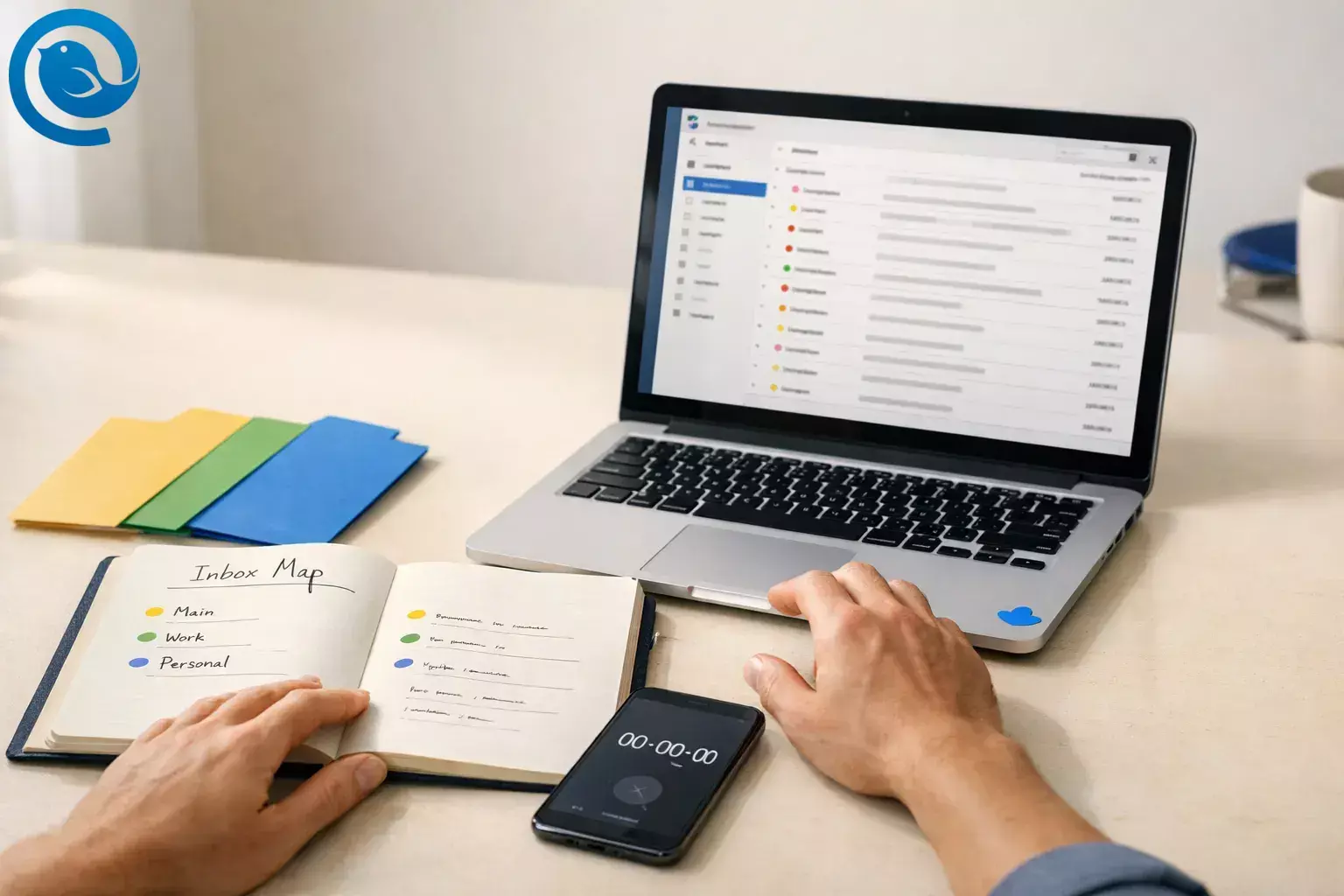
Too many inboxes create multiple inbox confusion : you waste time switching tabs, miss messages, and second‑guess which address you’re replying from.
In the next 45–60 minutes, you’ll consolidate work, personal, and side‑project email into one clear queue you can process without missing messages. Difficulty: easy if you have your logins handy; moderate if you need IT approval.
What’s new
Mailbird launched on the Apple App Store for Mac in September 2025, which can simplify installation and updates when you’re standardizing on one email routine. 1
By the end of this setup, you’ll have:
- One daily triage queue ( Unified Inbox )
- Clear account cues (colors, identities, signatures)
- A simple system to file and auto-sort new mail
Key takeaways
- Start by listing every address and labeling it Daily / Weekly / Rare.
- Pick one place to process email (a single “command center”).
- Add every account and confirm send/receive with a test email.
- Enable Unified Inbox and set it as your startup view. 2
- Use colors, identities, and signatures to avoid replying from the wrong address. 3
- Use a simple filing habit: Action / Waiting / Read Later + one shortcut. 7
- Add a few starter filters, but remember filters apply only while Mailbird is running, and “Unified Accounts” filters don’t support move/copy-to-folder actions. 6
- Reduce interruptions: keep unread at the top and limit notifications to one priority inbox. 8
Before you start: what you need to consolidate your inboxes
- Prerequisites: login access for each email account (password/SSO), and your 2FA device if you use it.
- Tools: Mailbird (recommended), a notes app, and a timer (phone is fine).
- Time: 45–60 minutes for setup, then 10 minutes/day for upkeep.
- Cost: depends on your plan and the features you use.
- Safety & privacy: Don’t add accounts you’re not authorized to access. If you handle sensitive work email, follow your organization’s IT policy. Mailbird states that your email stays with your email providers and that Mailbird does not store, read, or access your email content on its own servers. 1
Step-by-step: Fix multiple inbox confusion (too many inboxes)
Fix multiple inbox confusion (too many inboxes)
-
Make an “inbox map” (5 minutes).
Open a notes app and list every address you monitor. For each, write (1) what it’s for and (2) how often you truly need to read it: Daily / Weekly / Rare.
Done when: every address has a purpose and a frequency label.
-
Pick one place to process email (your “command center”).
If you’re allowed to install a desktop client, commit to processing email in Mailbird on your main computer. If you can’t install apps (company policy), do the same in webmail: open one browser window, sign in to each account, and bookmark it as “Email command center.”
This one decision removes most of the back-and-forth that causes multiple inbox confusion: you triage in one place, on a schedule.
Done when: you can name the one place you’ll open during scheduled email checks.
-
Add all accounts to Mailbird and confirm send/receive.
In Mailbird: open the Menu (☰) → Settings → Accounts → Add , then enter credentials for each account. After each account is added, send a test email to yourself and reply to it so you verify both sending and receiving. 4
Done when: every account can send and receive a test message.
-
Turn on Unified Inbox and make it your startup view.
In Mailbird: Menu (☰) → Settings → Accounts , check Enable unified account . Then check Select on startup so Mailbird opens straight into Unified Inbox. 2
Done when: Unified Inbox appears and shows messages from more than one account.
-
Add color cues to stop “which inbox is this?” mistakes.
In Settings → Accounts , click the color indicator next to each account and assign a different color to each one. 3
Done when: you can identify the account for any Unified Inbox email at a glance.
-
Set up identities and signatures so your replies come from the right address.
If you send from aliases or role addresses (for example, billing@), go to Settings → Identities and click Add . Use Test Connection to confirm it’s configured correctly. 4
Then, double-click each identity and add a signature that makes the sender obvious (for example: “— Alex (Work)” vs “— Alex (Personal)”). 5
Done when: you can choose the correct “From” identity and see the matching signature before you hit Send.
-
Create a 3-folder system and learn one filing shortcut.
Create three folders (or labels) in each account: Action , Waiting , and Read Later . Then practice filing 5 emails using one method you’ll actually use: drag-and-drop, right-click → “Move to…”, or the V key shortcut to pick a folder. 7
Done when: you can file 5 emails out of the Inbox in under 60 seconds.
-
Add 3 starter rules so the noise routes itself.
In Settings → Filters , build these three starter filters (per account):
- Newsletters: route newsletters into Read Later .
- Receipts: route receipts/invoices into a Receipts or Finance folder.
- System notifications: mark automated “no‑reply” messages as read (or route them into a low-priority folder).
Click Save and Run to apply a filter to emails already in your Inbox. If you choose Unified Accounts , note that move/copy-to-folder actions aren’t supported, and filters apply only while Mailbird is running. 6
Done when: the next 10 “automated” emails (newsletters/receipts/notifications) require little or no manual sorting.
-
Keep unread at the top so nothing gets buried.
Go to Menu (☰) → Settings → Appearance and check Group unread conversations at the top . 8
Done when: unread conversations stay pinned at the top of your message list.
-
Limit notifications to one “priority” inbox.
Pick the one account that truly needs instant attention (for most people, that’s the main work inbox). Turn off notifications for everything else, and schedule two daily email blocks (for example: late morning and late afternoon).
Done when: you get fewer pop-ups, but you still catch time-sensitive mail.
-
Run a 10-minute test drive and adjust one thing.
Set a 10-minute timer, open Unified Inbox, and process the next batch using this rule: reply if it takes under 2 minutes; otherwise file it into Action/Waiting/Read Later. When the timer ends, write down one tweak you’ll make (a new filter, a clearer folder name, or a different color).
Done when: your Inbox is shorter and you have one specific improvement written down.
Why this works
Every extra inbox is another place to look, another set of notifications, and another interruption—the cycle behind multiple inbox confusion. In research on interrupted work, people often compensate by working faster—but report higher stress, frustration, time pressure, and effort when interruptions are added. 10
A single triage queue plus a handful of rules means you process email once, on purpose, instead of reacting all day. Color cues, identities, and signatures keep the convenience of a unified view without losing track of which address you’re using.
Troubleshooting
| Symptom | Likely cause | Fix (do this now) |
|---|---|---|
| Unified Inbox isn’t visible. | You only added one account, or Unified Inbox is turned off. | Add a second account, then turn on Unified Inbox in Settings → Accounts. |
| Unified Inbox is visible, but you can’t tell which account an email belongs to. | No visual cues are set. | Assign distinct account colors and keep them consistent (work = one color family, personal = another). |
| You replied from the wrong address. | The “From” identity wasn’t set (or wasn’t checked) before sending. | Create identities for every sender address you use, add clear signatures, and glance at the “From” field before hitting Send. |
| Filters don’t fire reliably. | The app isn’t running, or the filter uses an unsupported action under “Unified Accounts.” | Keep Mailbird open during work hours; create folder-moving rules per account; use server-side rules for 24/7 routing. |
| You still feel buried after consolidation. | You don’t have a filing habit, only a unified view. | Use the 3-folder system (Action/Waiting/Read Later) and do two scheduled processing blocks daily. |
| Too many pop-ups and pings. | Notifications are enabled for every account. | Turn off notifications for all non-priority accounts and rely on scheduled checks. |
| Duplicate messages show up. | The same account was added twice, or POP and IMAP are both in play. | Remove the duplicate account entry; use one connection method per account; re-check that only one “copy” of the account is connected. |
| New mail appears slowly (or not at all). | Sync hasn’t caught up, or the network/provider is blocking sign-in. | Try a manual sync, then re-authenticate the account. If it’s a work account, ask IT whether your client is allowed. |
Mailbird’s Unified Inbox appears only after you add more than one account, and you can enable it in Settings → Accounts (“Enable unified account”). 2
Color indicators are set per account in Settings → Accounts, and Mailbird marks each Unified Inbox email with the assigned color. 3
Mailbird filters apply only while the app is running, and “Unified Accounts” filters don’t support move/copy-to-folder actions. 6
Variations
- Two-unified setup: keep work accounts in one unified view and keep personal accounts separate, so you get clearer boundaries.
- Read unified, reply focused: triage in Unified Inbox, then switch to the specific account before writing longer replies.
- Browser-only mode: if you can’t install a desktop app, use one browser profile per account and open them in the same order during your email blocks.
- Team addresses: if multiple people need to work the same address (support@, info@), use a shared mailbox or team inbox tool; a personal unified inbox is best for one person managing multiple accounts.
Set it once: templates, storage, and scaling
Make-ahead (set this up once)
- Save 3 reusable replies: meeting follow-up, invoice request, and status update. If you have Premium, Mailbird’s Email Templates let you reuse common drafts quickly. 9
- Fallback if you don’t have templates: keep a draft email named “Templates (copy/paste)” inside each account and paste from it as needed.
Storage (keep email findable without living in the Inbox)
Keep your Inbox as a short “new mail” queue, not your filing cabinet. If you’re nervous about mass archiving, create a folder called Old Inbox — 2026-04 and move anything older than two weeks into it (you can still search it later).
Privacy reminder: Mailbird states that your email stays with your email providers and that Mailbird does not store, read, or access your email content on its own servers. 1
Scaling (when you add another account next month)
- Add the account.
- Assign a color indicator.
- Create identities/signatures (if you send from more than one address).
- Copy your starter filters and test send/receive.
What can change
Email providers update sign-in and security rules over time. If an account suddenly stops syncing, start by re-authenticating the account and checking whether your provider now requires a different sign-in method (for example, a fresh OAuth sign-in or an app password).
Quick checklist (screenshot this)
- List every inbox + mark it Daily / Weekly / Rare
- Choose one “command center” (Mailbird or a single webmail window)
- Add all accounts; send and reply to a test email from each
- Enable Unified Inbox + “Select on startup”
- Assign a distinct color to every account
- Create identities (if needed) + add clear signatures
- Create Action / Waiting / Read Later folders
- Learn one filing move (drag, right-click, or V key)
- Create 3 starter filters + run them once on today’s Inbox
- Turn on “Group unread conversations at the top”
- Disable notifications for non-priority accounts
- Schedule two daily email blocks + do a 10-minute test run
Frequently Asked Questions
Is a unified inbox the same as forwarding all email into one account?
No. Forwarding changes where email lands. A unified inbox is a combined view that lets you read multiple accounts together while keeping accounts separate. 2
Will a unified inbox cause me to reply from the wrong address?
It can if you don’t check the “From” field. Use clear account colors and signatures, and create identities for every sender address you use.
Can I choose which accounts appear in Mailbird’s Unified Inbox?
Unified Inbox shows messages from the accounts you’ve connected. If your daily view feels too busy, the simplest fix is to reduce how many inboxes you treat as “daily,” and schedule a weekly sweep for everything else. 2
Do Mailbird filters and rules work when Mailbird is closed?
Mailbird filters run from the app. If you need rules that run 24/7, create server-side filters with your provider (Gmail/Outlook/etc.) and use Mailbird for reading and replying. 6
What’s the fastest way to file emails in Mailbird?
Pick one method and stick to it. Many people use drag-and-drop, right-click “Move to…”, or the V key shortcut to move messages to a folder quickly. 7
How many inboxes should I check every day?
As few as your responsibilities allow. A good starting point is 1–2 daily inboxes plus a weekly sweep for everything else.
What if I have to keep work and personal mail separate?
Keep separate accounts, but separate your schedule. For example: work email blocks during work hours, personal email once in the evening.
Is it safe to add my work account to a third-party email client?
Follow your organization’s policy. If your workplace requires an approved client, use that. If third-party clients are allowed, set strong 2FA and avoid sharing passwords.
Sources
- Mailbird Blog — “Why We’re on the Apple App Store — And What It Means for You” (Published September 9, 2025)
- Mailbird Help Center — “Unified Inbox”
- Mailbird Help Center — “Unified Inbox Color Indicator”
- Mailbird Help Center — “Connecting Accounts and Adding Identities in Mailbird”
- Mailbird Help Center — “Create a Signature”
- Mailbird Help Center — “Setting up Filters and Rules”
- Mailbird Help Center — “Moving Emails To Folders”
- Mailbird Help Center — “Group Unread Conversations at the top”
- Mailbird Help Center — “Email Templates”
- Mark, Gudith & Klocke (CHI 2008) — “The Cost of Interrupted Work: More Speed and Stress” (PDF)


