Outlook Spell Check Not Working? How to Fix It
If Outlook is not checking spelling, start with a new draft. In classic Outlook, turn on Check spelling as you type. In new Outlook, check spelling suggestions in Editor Settings. On a Mac, check the spelling controls in Outlook > Settings. If only certain text is skipped, its proofing language or a “do not check” setting may be the cause.



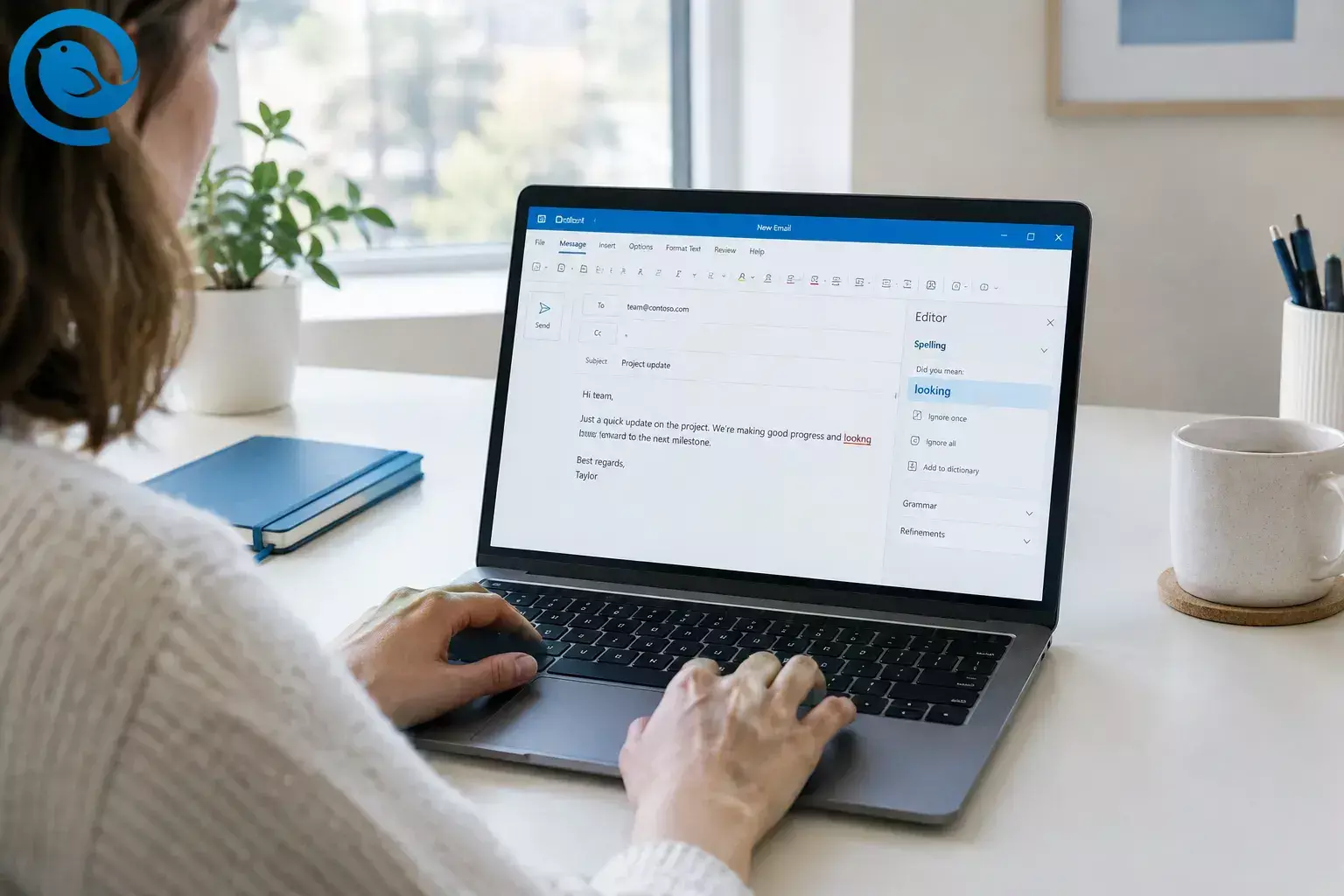
If Outlook is not checking spelling, start with a new draft. In classic Outlook, turn on Check spelling as you type . In new Outlook , check spelling suggestions in Editor Settings . On a Mac, check the spelling controls in Outlook > Settings . If only certain text is skipped, its proofing language or a “do not check” setting may be the cause. [1] [2] [3]
Work through the settings checks below before trying an app repair. You can test each change without sending an email.
Quick checklist
- Test mispelld in a new draft with no recipients.
- In classic Outlook, turn on send-time checking and Check spelling as you type .
- Check the affected text’s language and clear Do not check spelling or grammar .
- Compare a plain-text reply with a fresh HTML draft.
- In new Outlook, check spelling suggestions in Editor Settings .
- On a Mac, check spelling settings from the Outlook menu.
- Test add-ins, then repair the app only if simpler checks fail.
Before you start
You need: Access to Outlook and a new, unsent email draft. No extra tools or purchase are required. Set aside a short session for the settings checks; a repair may take longer.
Keep it safe: Test in a draft without recipients. Save important open drafts before closing Outlook, disabling an add-in, or repairing the app. If a work or school device blocks a setting, ask your IT team for help.
Fix Outlook spell check step by step
Fix Outlook spell check step by step
-
Find out which Outlook you have
Open a new message. If the app has File > Options , follow the classic Outlook instructions below. If spelling controls appear under Editor in the message ribbon, follow the new Outlook instructions. On a Mac, use the Outlook menu at the top of the screen. Type mispelld in the message body and leave the draft open for each test. [1]
-
Check classic Outlook’s send-time proofing setting
In classic Outlook for Windows, open File > Options > Mail . Under Compose messages , select Always check spelling before sending , then select OK . This checks spelling when you send; the next step controls spelling marks while you type. You do not need to send your test draft. [1]
-
Turn on “Check spelling as you type”
Still in classic Outlook, go to File > Options > Mail > Spelling and AutoCorrect > Proofing . Select Check spelling as you type and save the change. Return to your draft: mispelld should be marked. If it is not, continue to the language check. [2]
-
Correct the proofing language and “do not check” flag
In a classic Outlook draft, select the text that is being skipped. Choose Review > Language > Set Proofing Language , select the language you are writing in, and clear Do not check spelling or grammar . Apply the change and type the test word again. If only pasted text or text with a particular style is skipped, select that affected text before clearing the flag. [3]
-
Compare plain text with HTML
If the problem occurs only in a reply, pop it out into its own window and check its format. In classic Outlook, select Format Text > HTML . In new Outlook, open Settings > Mail > Compose and reply and check whether the message format is HTML or Plain text . Try a fresh HTML draft and compare the results. Plain text does not, by itself, mean spelling is turned off; this test helps isolate a draft-format issue. [4]
-
Check Microsoft Editor in new Outlook
In a new Outlook for Windows draft, choose Editor > Editor Settings . If Editor is not visible, open the message ribbon’s … menu first. Turn on spelling suggestions, select OK , then open Editor > Open Editor to inspect the draft. If it checks against the wrong language, return to Editor Settings > Manage spellcheck languages and add the language you need. Test again in the same draft; a language choice made there applies to that draft. [1]
-
Check spelling settings on a Mac
Open an email draft, then choose Outlook > Settings > Spelling and Grammar and turn on Check spelling as you type . If your version instead shows Spelling & Typing , look there for the available spelling controls. Correct Spelling Automatically changes text as you type; it is not the same test as checking whether a misspelling is marked. Return to the draft and type the test word again. [2] [5]
-
Rule out an add-in conflict in classic Outlook
For classic Outlook on Windows only , close Outlook, press Windows + R , enter outlook /safe , and open a test draft. If spelling works in Safe Mode, return to normal Outlook and go to File > Options > Add-ins > Manage: COM Add-ins > Go . Clear one add-in at a time, restart, and retest to find the cause. Do not use this Safe Mode command for new Outlook. [6]
-
Check add-ins in new Outlook separately
If the issue began after you added a writing or composing tool, open More apps > Add apps > Manage your apps in new Outlook. Remove the suspected add-in if you are allowed to, restart Outlook, and test a fresh draft. If the add-in is managed by your organization, ask IT to help test it. [7]
-
Repair the app only if the earlier checks failed
For classic Outlook on Windows , save your work, open Settings > Apps > Installed apps , find Microsoft 365 or Office , and choose Modify . Try Quick Repair ; if it does not help, follow Microsoft’s Online Repair instructions. For new Outlook , find its entry under Installed apps and use Advanced options > Repair if available. Avoid Reset unless you understand that it may remove app data. [8] [9]
-
Run one final test
Restart Outlook, open a new draft with no recipients, and type mispelld in the body. Confirm that it is marked or appears in Editor, then correct it. If the new draft works but an older reply does not, repeat the language and format checks on that reply. Delete your test draft when finished.
Why these fixes work
Outlook uses the spelling controls available in your version and the proofing language assigned to the draft or selected text. A working checker can appear broken when the typing check is off, text is marked not to be checked, or you are looking for a classic Outlook setting in new Outlook. [1] [3]
If Outlook still is not checking spelling
- No red spelling marks in any classic Outlook draft: Select Check spelling as you type in Proofing.
- Only part of a draft is skipped: Select that text and check its language and Do not check spelling or grammar setting.
- Correct words are flagged: Check whether the proofing language matches the language used in that passage.
- “Always check spelling before sending” is missing: If you use new Outlook, open Editor in the draft instead.
- Editor is missing from the ribbon: Open the … menu while composing and look for Editor .
- A reply behaves differently from a new draft: Pop it out, check its format, and select the affected text to check its language.
- Spelling works in classic Outlook Safe Mode: Disable COM add-ins one at a time and retest.
- No suggestions even after a repair: Compare with Outlook on the web. If you use a work or school account, share the results with your IT team.
Other ways to check spelling
- Outlook on the web: Open a draft and use Editor > Editor Settings . Check spelling suggestions and the proofing language; a language selected while composing applies to that draft. [1]
- Mixed-language email: In classic Outlook, select the passage in the other language and set its proofing language rather than changing the entire message. [3]
- Manual check before sending: In classic Outlook, use Review > Spelling & Grammar if available. On a Mac, use Edit > Spelling and Grammar > Spelling and Grammar . In new Outlook, open the Editor pane and review its suggestions. [1] [2]
Frequently asked questions
How do I turn on spell check in classic Outlook?
Go to File > Options > Mail > Spelling and AutoCorrect > Proofing and select Check spelling as you type . For a separate check when you send, select Always check spelling before sending under File > Options > Mail .
Where is spell check in new Outlook?
Open a draft and look for Editor on the message ribbon or under its … menu. Open Editor Settings to check spelling suggestions.
Why does Outlook check some words but not others?
Select the skipped text and check its proofing language. In classic Outlook, also clear Do not check spelling or grammar if it is selected.
Does plain text turn off spell check?
Not necessarily. Compare a new HTML draft with the affected plain-text draft before changing other settings.
Why is “Always check spelling before sending” missing?
That setting is in classic Outlook. If you use new Outlook, open Editor to review the draft and check spelling suggestions.
How do I check spelling in Outlook for Mac?
Open a draft, then check Outlook > Settings > Spelling and Grammar . Your version may show spelling controls under Spelling & Typing instead.
Sources
- Microsoft Support: How to spell check before sending emails in Outlook
- Microsoft Support: Check spelling and grammar in Office
- Microsoft Support: Set up or change proofing languages
- Microsoft Support: Change the message format in Outlook
- Microsoft Support: Turn AutoCorrect on or off in Outlook for Mac
- Microsoft Support: How to troubleshoot performance issues in Outlook
- Microsoft Support: Use and manage add-ins in Outlook
- Microsoft Support: Repair an Office application
- Microsoft Support: Repair apps and programs in Windows
- Mailbird: Mailbird Next for Windows and Mac


