Microsoft Security Alert Email: Real or Fake?
If you just received one, ignore the email itself and verify the event from inside your Microsoft account. This guide shows the sender addresses Microsoft uses, what a real alert does and does not ask for, and what to do if the message is fake.



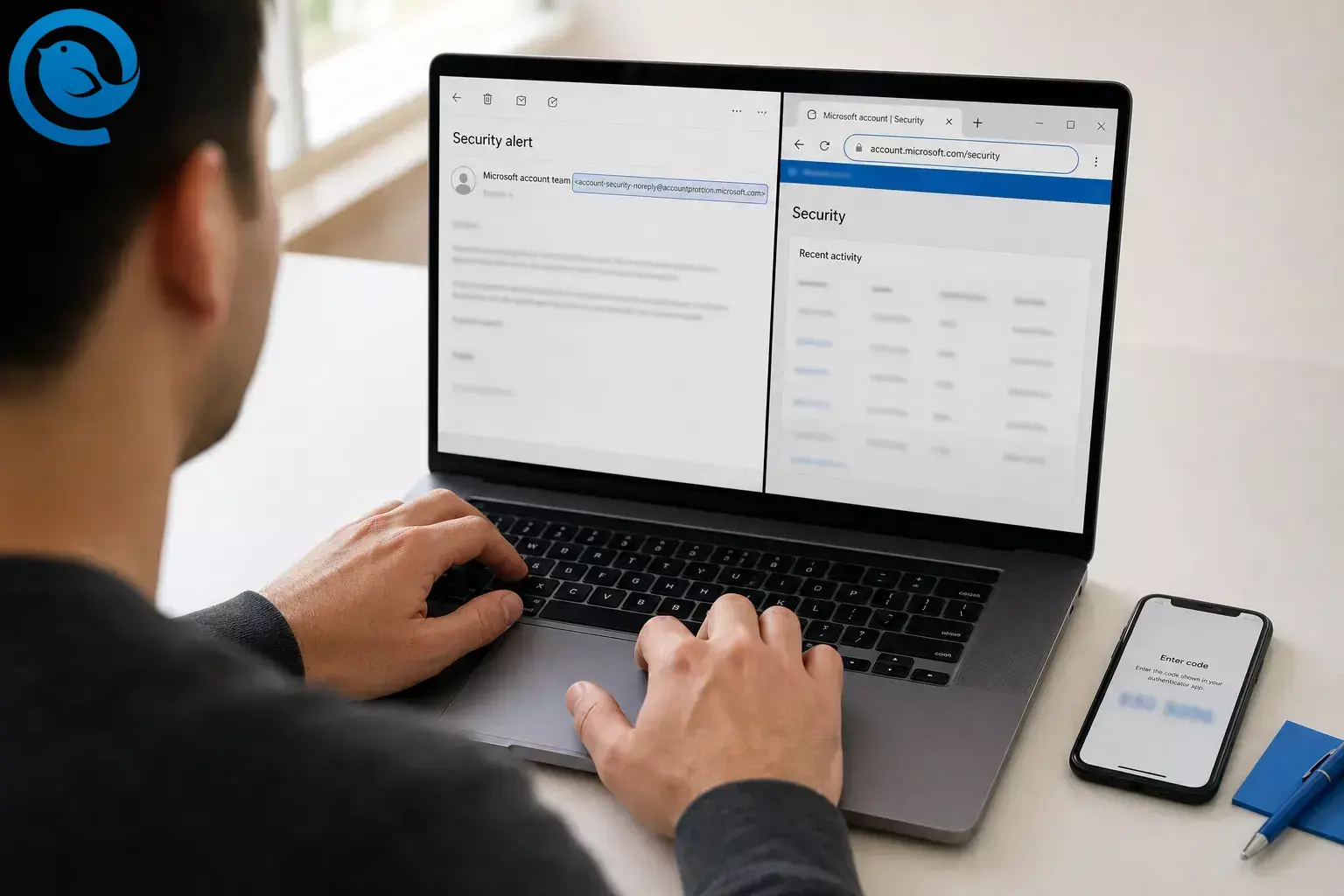
If you just received one, ignore the email itself and verify the event from inside your Microsoft account. This guide shows the sender addresses Microsoft uses, what a real alert does and does not ask for, and what to do if the message is fake.
TL;DR
Short answer:
account-security-noreply@accountprotection.microsoft.com
is a real Microsoft account-team sender address. But a real-looking sender is not final proof. The safest check is to sign in to Microsoft yourself and review
Recent activity
or
My Sign-ins
, not the link in the email.
2, 6, 9
- Use the sender address as a clue, not proof.
- Match the alert to a real event inside Microsoft.
- Treat password requests, code replies, urgent calls, and attachments as phishing signs.
- Enter codes only on Microsoft pages you opened yourself.
- Report fake messages, then delete them.
- If anything looks compromised, change your password and update your sign-in or security info.
What’s new
Microsoft has reported large-scale phishing campaigns targeting its customers, so treat any Microsoft-looking alert as a warning only until you confirm it on Microsoft’s own pages. 1, 6
As of , Microsoft says it is phasing out SMS for personal account authentication and recovery. That means the screen you see may use a passkey, verified email, Microsoft Authenticator, or another approved method instead of a text message. 8
Is
account-security-noreply@accountprotection.microsoft.com
real?
Yes. Microsoft lists
account-security-noreply@accountprotection.microsoft.com
as a legitimate Microsoft account-team sender address for unusual sign-in and security notices. It also says the
@accountprotection.microsoft.com
domain is used for account emails such as two-step verification codes and password-change alerts.
2
-
account-security-noreply@accountprotection.microsoft.com— Microsoft account security notices, including unusual sign-in alerts. 2 -
@accountprotection.microsoft.com— account emails such as two-step verification codes and password-change alerts. 2 -
Other genuine Microsoft support mail, not necessarily account security alerts, can also come from
microsoft.com,microsoftsupport.com,mail.support.microsoft.com,office365support.com, andtechsupport.microsoft.com. 10
Use those details as clues, not proof. Microsoft’s phishing guidance is to open the company’s site yourself instead of trusting the email on its own. 6
What a real Microsoft security alert email does and does not ask for
A real alert may: 2, 3, 7
- warn about an unusual sign-in or a sign-in from a new location or device
- match a real event in Recent activity or My Sign-ins
- line up with a code or challenge on Microsoft’s own sign-in screen
Treat it as phishing if it: 2, 5, 6
- asks for your password by email
- asks you to reply with a code or personal information
- pressures you to click, call, or open an attachment immediately
Before you do anything
- Do not click the link, open attachments, or approve sign-in prompts from the message yet.
- Open Microsoft in a fresh browser tab or from a saved bookmark instead.
- Know whether the alert is for a personal account or a work or school account, because the verification pages differ.
These steps let you verify the alert without relying on the message itself. 6, 9
Do this now: verify the alert from inside Microsoft
Do this now: verify the alert from inside Microsoft
-
Leave the email alone for the moment
Do not use the button inside the message. Open a new browser tab instead, or go straight to Microsoft from a saved bookmark. Microsoft’s phishing guidance says to go to the organization’s site directly rather than through a suspicious email. 6
-
Expand the sender details and read the full address
Read the full email address, not just the display name. If you want extra proof, Outlook lets you inspect internet message headers . That can help, but the activity page in your Microsoft account matters more than the email itself. 2, 11, 4
-
Ask whether you triggered it
Real alerts often appear after a sign-in from a new location or device, or after travel. An unexpected code can also happen because someone is trying to access your account, someone entered the wrong email or phone number, or a delayed code finally arrived. 3, 7
-
Sign in to Microsoft yourself
If this is a personal account, go to account.microsoft.com , open Security , and select Review activity or Recent activity . If this is a work or school account, use My Account or My Sign-ins instead. 3, 9
-
Match the email to a real event in your account
The personal-account Recent activity page shows events from the last 30 days. Expand an entry to compare the time, approximate location, IP address, device or operating system, and browser or app. If you see an Unusual activity item, use This was me or This wasn’t me . If you see suspicious activity in Recent activity , choose Secure your account . If you only see Recent activity and no Unusual activity section, Microsoft says you do not need to confirm anything there. 4, 3
-
Enter codes only on Microsoft pages you opened yourself
A real alert may line up with a sign-in challenge on Microsoft’s own sign-in screen. Enter a code only there. Never reply to the email with a code, your password, or personal information. 3, 5
-
If it is fake, report it and remove it
In Outlook or Outlook.com, select Report > Report phishing . If you use another email client, Microsoft says to send the original phishing message as an attachment to
phish@office365.microsoft.com, not as a normal forward, so the headers stay intact. Then delete the message. 6 -
If anything looks compromised, secure the account immediately
Go back to Microsoft’s security page, change your password, and update your sign-in or security info. If you cannot sign in anymore, use the official recovery flow from the sign-in page. If a work or school account is involved, change the password and notify your IT team right away. 3, 6, 9
-
Make the next alert easier to handle
Add another sign-in method, and consider a passkey or Microsoft Authenticator. Because Microsoft says it is phasing out SMS for personal accounts, future verification screens may use a different approved method. 8, 5
Why this works
A real Microsoft security alert has a matching event on Microsoft’s side—on Recent activity, My Account, My Sign-ins, or the sign-in flow itself. A phishing email only works if you trust the message before you verify anything. Moving the check to Microsoft’s own pages takes that advantage away from the attacker. 4, 6, 9
Troubleshooting
-
Symptom:
The sender is
account-security-noreply@accountprotection.microsoft.com, but the email still feels wrong. Likely cause: The address is legitimate, but sender details alone are not the final verdict. What to do: Ignore the email for now, sign in directly to the correct Microsoft account, and look for a matching event before you do anything else. 2, 4, 6 - Symptom: The location in Recent activity looks wrong. Likely cause: Mobile carriers and IP routing can show a nearby or distant location. What to do: Compare the time, browser, device, and app as well as the location before you decide it was an attack. 4, 9
- Symptom: You got a Microsoft verification code you did not request. Likely cause: Someone may be trying to sign in, someone may have typed the wrong contact info, or the code may have arrived late. What to do: Do not share the code. Review Recent activity, then change your password if anything looks wrong. 7, 3
- Symptom: You cannot receive a text message code anymore. Likely cause: Your security info may be out of date, or you may be seeing Microsoft’s shift away from SMS for personal accounts. What to do: Try another approved method, such as a verified email, Authenticator, or a passkey, and update your security info after you regain access. 8, 7
- Symptom: You checked the Microsoft account page and saw nothing. Likely cause: You may be signed in to the wrong Microsoft account, or the email may be fake. What to do: Sign out, sign back in with the address named in the alert, and recheck before you trust the message. 2, 3
- Symptom: This is a work or school account, and the personal-account steps do not match your screen. Likely cause: Microsoft uses different portals for work or school sign-ins. What to do: Use My Account or My Sign-ins , then review the event there. 9
- Symptom: You clicked the email link before reading this. Likely cause: Panic clicks happen. What to do: Stop using the email, go directly to Microsoft’s security page, change your password, review activity, and update your security info. If it is a work or school account, notify your IT team too. 3, 6, 9
If your situation is different
- Personal account check: Use the Microsoft account Security page and Recent activity to match the email to a real event. 3, 4
- Work or school account check: Use My Account or My Sign-ins instead of the personal-account dashboard. 9
- Extra-cautious check: If the email still feels off after you verify the account, inspect the message headers in Outlook as a second check. 2, 11
- Mailbird or another email client: Keep the same rule—do not use the email’s button. Verify the account in your browser, then use your mail service’s reporting tool or send the original as an attachment to Microsoft if it is fake. 6
Set it up once, keep it current, and handle multiple accounts
Keep your security contact info current, add another sign-in method, and save the official Microsoft account pages in your browser or password manager. If you manage multiple Microsoft accounts for yourself or your family, label them clearly in your email client so you can match a warning to the right account faster. 3, 5, 6
Quick checklist
- ☐ I did not click the link or attachment in the email.
- ☐ I expanded the full sender address.
- ☐ I checked whether I actually triggered the alert.
- ☐ I signed in to Microsoft directly from the official page.
- ☐ I reviewed Recent activity or My Sign-ins.
- ☐ I compared time, device, browser, and location.
- ☐ I entered no code anywhere except Microsoft’s own sign-in page.
- ☐ I changed my password if anything looked wrong.
- ☐ I reported and deleted the message if it was fake.
- ☐ I checked or added a backup sign-in method.
Want a calmer inbox ?
If you prefer handling day-to-day mail in a dedicated desktop app instead of a crowded browser tab, Mailbird can help keep routine email organized.
Frequently Asked Questions
How do I tell if a Microsoft security alert email is real or fake?
Do not use the email link. Expand the full sender address, then sign in to Microsoft directly and look for a matching event in Recent activity or My Sign-ins. If nothing matches, or the email asks for your password or personal information, treat it as suspicious.
Sources: 2, 3, 4, 5, 6, 9
Is
account-security-noreply@accountprotection.microsoft.com
a real Microsoft address?
Yes. Microsoft lists it as a legitimate Microsoft account-team sender address for security notices. Still, verify the alert inside your account rather than through the email.
Sources: 2, 6
Can a phishing email still look like it came from Microsoft?
Yes. Phishing emails can look convincing and try to impersonate trusted senders. That is why the safest move is to open Microsoft separately and check your account activity there.
Sources: 6
What should I do if I got a Microsoft code I did not ask for?
Do not share the code. Check your recent account activity. It may mean someone is trying to sign in, someone used the wrong contact info, or the code arrived late.
Sources: 7, 3
Should I use the button inside the email?
No. Open Microsoft yourself in a new tab and review the event from the official account page instead.
Sources: 6, 4
Where do I verify a personal Microsoft account alert safely?
Sign in to the Microsoft account Security page and open Review activity or Recent activity. That is the safest place to match the email to a real sign-in event.
Sources: 3, 4
What if the alert is for a work or school account?
Use My Account or My Sign-ins instead of the personal-account dashboard, then review the recent sign-in history there.
Sources: 9
Does Microsoft ever ask for my password by email?
No. Microsoft says it will not ask for your password by email.
Sources: 5
I already clicked the email link. Am I automatically hacked?
Not automatically. But stop interacting with the message. If you entered your password or approved anything, go straight to Microsoft’s security page, change your password, and review recent activity right away.
Sources: 3, 6
Sources
- Microsoft On the Issues: Microsoft disrupts global cybercrime subscription service responsible for millions in fraud losses (January 14, 2026)
- Microsoft Support: Can I trust email from the Microsoft account team?
- Microsoft Support: What happens if there’s an unusual sign-in to your account
- Microsoft Support: What is the Recent activity page?
- Microsoft Support: How to help keep your Microsoft account secure
- Microsoft Support: Protect yourself from phishing
- Microsoft Support: Troubleshoot Microsoft verification code issues
- Microsoft Support: Microsoft to stop sending SMS codes for personal accounts
- Microsoft Support: View your work or school account sign-in activity from My Sign-ins
- Microsoft Learn: How to determine if an email from Microsoft support is genuine
- Microsoft Support: View internet message headers in Outlook


