How to Send Secure Documents and Encrypted Attachments by Email
To send a secure document by email, protect the file before attaching it, use an encrypted-email option available on your account, or send a cloud link restricted to the recipient. The right choice depends on whether the file must remain protected after download, whether both people can use encrypted email, and whether you need to end access later.



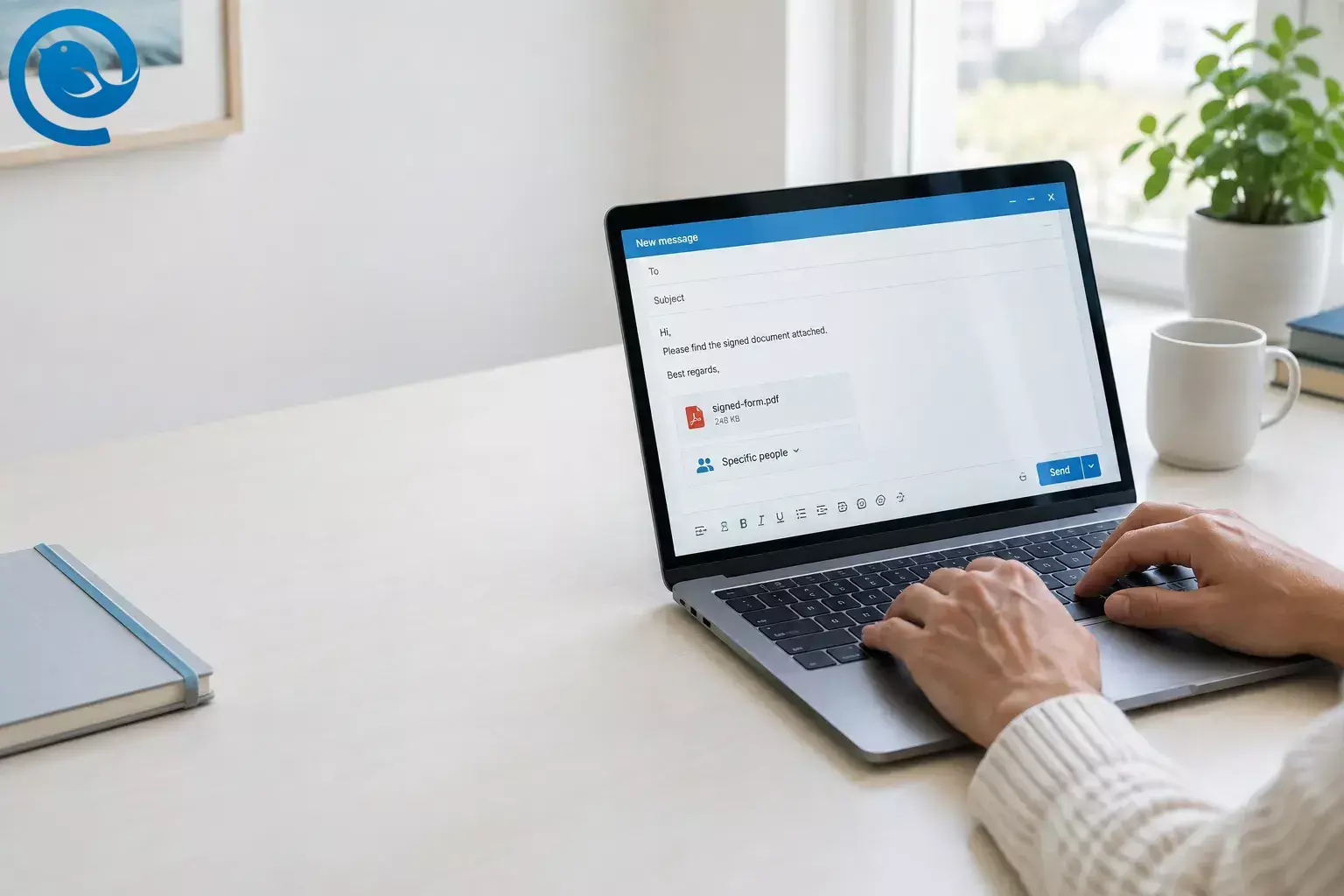
To send a secure document by email, protect the file before attaching it, use an encrypted-email option available on your account, or send a cloud link restricted to the recipient. The right choice depends on whether the file must remain protected after download, whether both people can use encrypted email, and whether you need to end access later.
Quick answer
- Protect the file before attaching it if the downloaded file itself must require a password.
- Use an encrypted-email option when your account supports it and the recipient can open the message.
- Send a restricted cloud link when you want to limit access or remove access later; it cannot erase a copy already saved.
Choose how to protect the document
- Password-protected PDF or AES-256 ZIP: Best when the recipient needs a downloadable file that still requires a password after delivery. You must share the password through a different channel.
- Encrypted email: Useful when your email service offers it and the recipient can open the message. Do not assume a downloaded attachment remains protected.
- Restricted cloud link : Useful when you want to limit access to a person or remove access later. It cannot erase a copy the recipient has already saved.
Use an approved portal instead if the recipient or your organization requires one for medical, financial, employment, or other sensitive records. Do not substitute an email method for a required upload process.
Before you send
Before you send
- Confirm the recipient and channel. Check the address against a trusted exchange. If a request for sensitive documents is unexpected, contact the organization using a number you already trust.
-
Prepare the final file.
Remove details or pages the recipient does not need. Use a neutral filename, such as
signed-form.pdf, rather than an account number or other sensitive detail. - Check what the recipient can open. Ask about archive software, encrypted-email access, or the account they will use for a restricted link before choosing a method.
Option 1: Email a password-protected PDF or ZIP
This protects the file itself, rather than relying on the email app to protect an ordinary attachment.
For one PDF
In Adobe Acrobat, choose All tools → Protect a PDF → Encrypt with Password , select Require a password to open the document , and save a protected copy. On a Mac, Preview offers File → Export → Permissions → Require Password To Open Document . An editing-only restriction is not an open password. See the instructions from Adobe or Apple .
For several files
In 7-Zip, select the files and choose Add to archive . Choose ZIP or 7z , enter a unique password, and explicitly select AES-256 as the encryption method—not ZipCrypto. Confirm that the recipient can open the chosen format. The U.S. District Court’s 7-Zip instructions show the encryption settings.
Test the copy you will send
Close the saved PDF or archive and reopen it. Confirm that it asks for the password before showing its contents, then check that the correct pages or files are inside. Attach only that tested copy, not the unprotected original.
Give the confirmed recipient the password by phone or through a previously established messaging channel. Do not put it in the same email, a reply, or a second message to the same inbox.
Option 2: Use encrypted email when your account supports it
Compose in the service that provides the encryption control. In an eligible Outlook account, choose Options → Encrypt and select the appropriate setting. S/MIME is another option, but it requires compatible certificate setup. Follow Microsoft’s Outlook instructions or ask your IT team which option your organization supports.
For an eligible Google Workspace account, Gmail offers Message security → Additional encryption . Google says this client-side encryption covers the message body and attachments, but not header information such as the subject and recipient addresses. If the control is missing, check with your administrator or choose another route. See Gmail’s client-side encryption guidance .
Check before sending: The service shows encryption enabled for this message, and the recipient knows how to open it. Do not assume the same controls are available in every email client or that a downloaded PDF will still require a password. If it must, protect the PDF itself first; Microsoft explains how downloaded attachments can be handled in its encrypted-message service.
Option 3: Send a restricted cloud link
In OneDrive, select the file and open Share → Link settings . Choose Specific people instead of Anyone when available, enter the confirmed address, and set Can view . If your account and link type offer them, turn on Block download and set an expiration date. These controls vary by account and subscription; see Microsoft’s OneDrive sharing instructions .
Before emailing the link, open Manage access and remove any broader link or permission you do not intend to keep. If expiry is unavailable, retain the recipient restriction and plan to remove access manually. When the work is finished, remove access. Expiry and revocation stop later access through the link; they do not retrieve copies already downloaded.
Final check before sending
- Confirm the recipient’s address and the approved delivery channel once more.
- Use a plain subject, such as “Document for review.” Check that the subject, filename, and message body reveal no unnecessary sensitive details.
- Attach only the tested protected file, enable the eligible email-encryption setting, or paste the checked restricted link.
- After sending, ask the recipient to confirm that the correct document opens without repeating its contents in a reply.
Mailbird can send a file you have already protected or a restricted link; attaching a file in Mailbird is not itself a file-encryption step. For basic attachment controls, see Mailbird’s separate guide at how to send attachments in Mailbird .
If something goes wrong
- The PDF opens without a password: Check that you set a password to open it, saved a new copy, and selected that copy for sending.
- The recipient cannot open the ZIP: Ask which archive format and encryption method their software supports. Use a password-protected PDF or an approved restricted link if needed.
- There is no Encrypt button: Your account, app, or administrator settings may not offer it. Check the provider’s compose screen or use another approved method.
- The cloud link says “Access denied”: Confirm the recipient’s sign-in address, expiry, and permissions in Manage access . Create a new restricted link if necessary.
- The attachment is blocked or too large: Do not disguise a blocked file type. Ask for an approved upload portal or use a restricted cloud link if permitted.
Frequently asked questions
How do I send a secure document via email quickly?
Set an open password on the PDF, test the saved copy, email only that copy, and give the confirmed recipient the password through a different channel.
Is a password-protected ZIP automatically safe to send?
No. Check that the archive uses AES-256 rather than ZipCrypto, test it, and confirm the recipient can open the format.
Does encrypted email keep an attachment encrypted after download?
Not always. If the downloaded file itself must require a password, protect the file before sending it.
Can I take back a document sent by email?
Do not count on retrieving an attachment or a downloaded copy. A restricted cloud link lets you end future access through that link.
When is email the wrong channel?
Use the recipient’s designated portal or your organization’s approved transfer process whenever one is required.


