How to Report a Phishing Email in Outlook
To report a phishing email in Outlook, select the message and choose Report → Report phishing. In the Outlook mobile app, open the three-dot menu and choose Report Junk → Phishing. You do not need to click a link or open an attachment in the suspicious email.



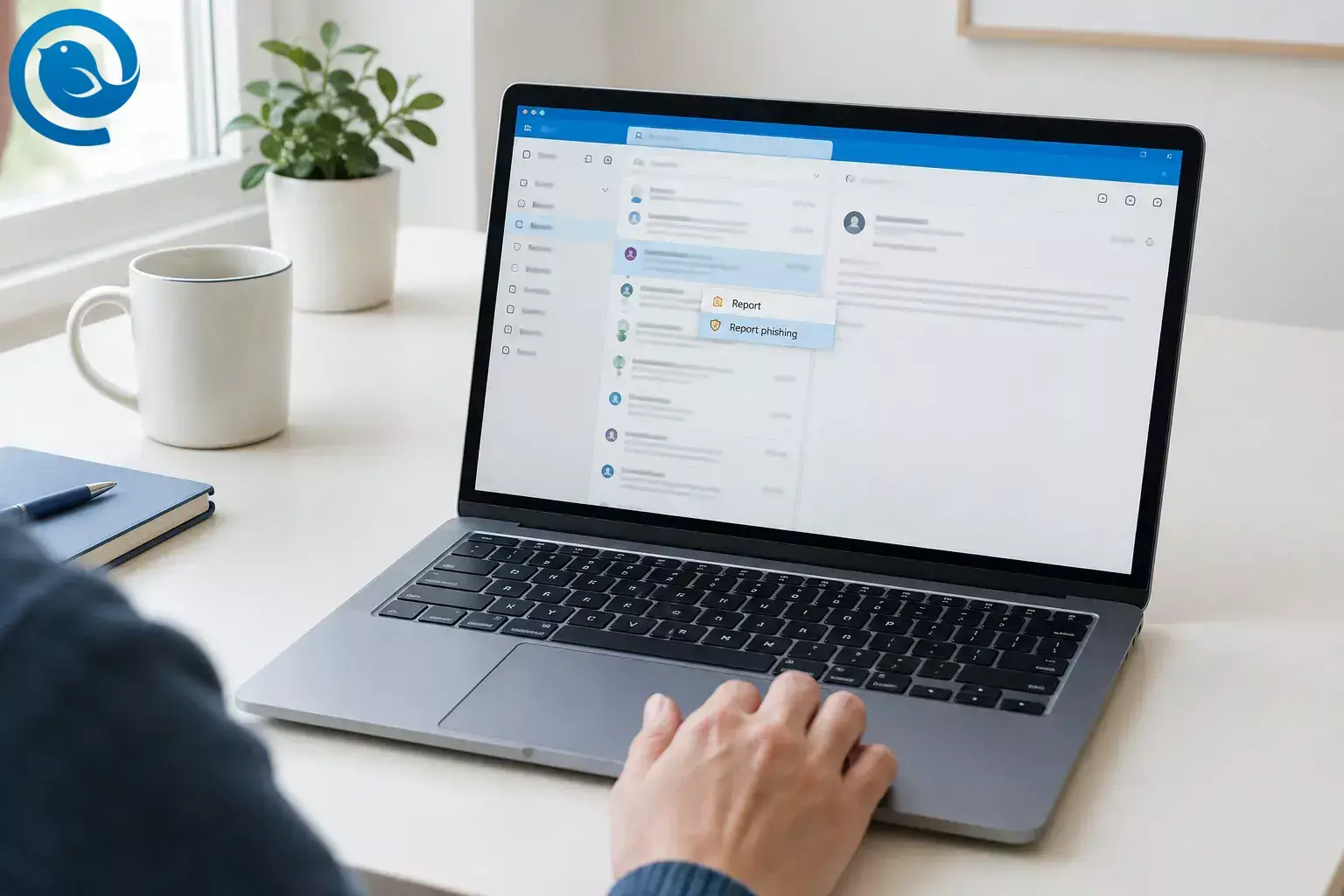
To report a phishing email in Outlook, select the message and choose Report → Report phishing. In the Outlook mobile app, open the three-dot menu and choose Report Junk → Phishing. You do not need to click a link or open an attachment in the suspicious email.
Quick checklist
- Select the suspicious email without using its links or attachments.
- On desktop or web, choose Report → Report phishing.
- On mobile, choose ⋯ → Report Junk → Phishing.
- Confirm if prompted, and follow any separate work-account instructions.
- If you entered a password or payment details, take action on the affected account.
Before you start
- Find the message in the account that received it. You can select it from the message list.
- Do not click its links, open attachments, scan a QR code, reply, or use its unsubscribe link. To check a claim, go to the organization’s website or app independently. [5]
- If your workplace has its own reporting instructions, follow those instructions. Its reporting button may differ from the one shown below. [2]
Report phishing or Report junk?
Choose Report phishing when a message appears to impersonate someone or tries to get you to reveal information, send money, or open a harmful link or file. Choose Report junk for unwanted email that does not appear to be a scam. If you are unsure whether a request is genuine, contact the sender through a method you already trust—not one supplied in the email. [5]
How to report phishing in your version of Outlook
Use the steps for the app or website where you read the message. Microsoft recommends Outlook’s built-in Report button in place of its older Report Message and Report Phishing add-ins. [1]
New Outlook for Windows
- Select the suspicious message in the message list.
- On the toolbar, choose Report → Report phishing. If you do not see Report, check the three-dot More actions menu.
- Confirm the report if Outlook asks. [2]
Classic Outlook for Windows
- Select the suspicious message.
- On the Home ribbon, choose Report → Report phishing.
- Confirm if prompted. If your workplace provides a different security or reporting button, follow its instructions instead. [2]
Outlook on the web or Outlook.com
- Select the suspicious message.
- In the toolbar above the message, choose Report → Report phishing.
- Confirm if prompted. [3]
Outlook mobile app for iPhone or Android
- Open the suspicious message and tap the three-dot menu.
- Tap Report Junk, then choose Phishing —not Junk or Block Sender.
- Confirm if prompted. [4]
What happens after you report it?
The message is removed from its original location. For Microsoft 365 work or school accounts using the built-in button, Outlook deletes a message reported as phishing. Reporting it as junk instead moves it to Junk Email and adds the sender to the blocked-senders list. Where a work-account report is sent depends on the organization’s settings: it may go to an internal mailbox, Microsoft, or both. [2]
Reporting phishing does not necessarily block the sender. Microsoft says that reporting a message as phishing in Outlook.com does not itself prevent that address from emailing you again. Blocking is a separate action. [3]
If you entered a password, change it through the real website or app. If you shared payment information, contact your bank or card issuer. For a work account or device, tell IT promptly; reporting the email does not undo an earlier interaction with it. [5]
If you cannot report the message
| What you see | What to do |
|---|---|
| No Report button | Check the three-dot menu. If you use a work account, ask IT which reporting option your organization uses. [2] |
| Report Junk on mobile, but no Report phishing | Tap Report Junk, then choose Phishing from its options. [4] |
| Both Report and an older reporting add-in | Follow your IT team’s instructions. If none are available, ask which button sends reports to the right place. [1] |
| A legitimate message disappeared after you reported it | Check Deleted Items for the email. Recovering the message does not retract a report already submitted. [6] |
Other situations
The message is already in Junk Email
Select it there and choose Report → Report phishing if it appears to be a scam. The built-in button supports reporting phishing from any email folder. [2]
You have several messages to report
In a supported desktop or web version, select the suspicious messages together, check that you have not included legitimate mail, then choose Report → Report phishing. Outlook submits each selected message as an individual report. [1]
You read the account in Mailbird
Open the same mailbox in Outlook on the web or your email provider’s webmail to report the original message. Do not use a link inside the suspicious email to get there. [7]
Frequently asked questions
How do I mark an email as phishing in Outlook?
Select the message and choose Report → Report phishing. In the mobile app, open the three-dot menu and choose Report Junk → Phishing.
Does reporting a phishing email block the sender?
Not necessarily. In Outlook.com, reporting phishing does not itself block the sender. Use the separate block-sender option if you need it. [3]
Can I undo a phishing report?
You cannot retract a submitted report. If you reported a legitimate message, check Deleted Items to see whether you can recover the email. [6]
Will my company’s IT team see my report?
That depends on your organization’s settings. Ask IT which button or procedure to use rather than assuming the built-in button sends the message directly to them. [2]
Prefer a desktop inbox?
Mailbird is an email client for Windows and Mac that lets you read your accounts in one place. When a message needs reporting, use Outlook or the account’s email provider.
Download Mailbird for desktop from the Mailbird download page.
Sources
- Microsoft Learn: Transition from Report Message or Report Phishing add-ins
- Microsoft Learn: Report phishing and suspicious emails in Outlook
- Microsoft Support: Phishing and suspicious behavior in Outlook
- Microsoft Support: Report phishing or junk email on Outlook mobile
- Microsoft Learn: How to protect against phishing attacks
- Microsoft Learn: User-reported messages and recovering a reported email
- Mailbird Support: Spam and Mailbird Next


